Forum Discussion

Matching help
 Jan 03, 2024
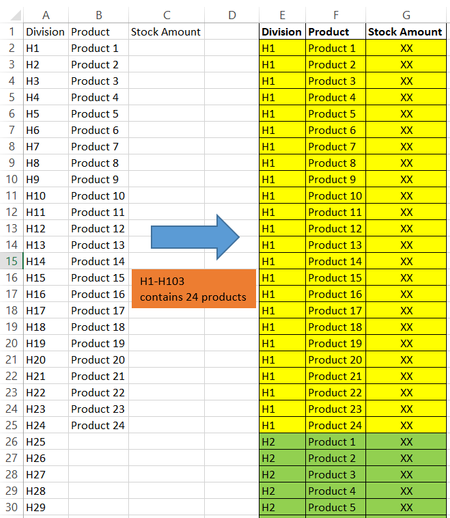
Sub division() Dim i, j, l As Long Range("E2:G1048576").Clear l = 2 For i = 2 To 104 For j = 2 To 25 Cells(l, 5).Value = Cells(i, 1).Value Cells(l, 6).Value = Cells(j, 2).Value l = l + 1 Next j Next i End SubIn the attached file you can run this macro by clicking on the button in cell I2.

Hello. Thank you once again for your help! OliverScheurich djclements
Regarding this question, could you help me with one more matter?
I have a horizontal table that stores product quantity data. The format of the table cannot be changed and the data is updated all the time. That I need another table with a vertical format. (You guys have already helped create this table.) This vertical table must pull product quantity information from the horizontal table. What formula should be used?
Note: The list of Divisions and Products may be changed, increased, or decreased.
- djclementsJan 08, 2024Silver Contributor
phimmychan35 This looks like a job for Power Query:
- Start by selecting any cell within your data table, then go to Data > From Table/Range to launch the Power Query Editor.
- Delete the auto-generated "Changed Type" step, if applicable.
- With the "Division" column selected, go to Transform > Unpivot Columns > Unpivot Other Columns.
- Select both the "Division" and "Attribute" columns, then go to Transform > Merge Columns, select the "--Custom--" separator, input " - " and rename the new column "Division/Product".
- Go to Home > Close & Load.
You could also copy/paste the following M-Code into the Advanced Editor:
let
    Source = Excel.CurrentWorkbook(){[Name="Table1"]}[Content],
    #"Unpivoted Other Columns" = Table.UnpivotOtherColumns(Source, {"Division"}, "Attribute", "Value"),
    #"Merged Columns" = Table.CombineColumns(#"Unpivoted Other Columns",{"Division", "Attribute"},Combiner.CombineTextByDelimiter(" - ", QuoteStyle.None),"Division/Product")
in
    #"Merged Columns"
Note: change "Table1" to match the name of your data table.
Also, if you want to stick with the dynamic array formulas mentioned in my previous reply, they can be modified as follows:
=LET(
   pro, DROP(Table1[#Headers],, 1),
   div, Table1[Division],
   HSTACK(
      TOCOL(IF(SEQUENCE(, COLUMNS(pro)), div))&" - "&
      TOCOL(IF(SEQUENCE(ROWS(div)), pro)),
      TOCOL(DROP(Table1,, 1))
   )
)
Please see the attached workbook, which contains both methods...
- OliverScheurichJan 08, 2024Gold Contributor=LET(values,DROP(Tabelle10,,1),divisions,Tabelle10[Division],products,DROP(Tabelle10[#Headers],,1),
HSTACK(TOCOL(IF(SEQUENCE(,COLUMNS(products)),divisions))&" - "&
TOCOL(IFNA(EXPAND(products,ROWS(divisions)),products)),TOCOL(values)))I've just realised that your desired output is different than what i've suggested in my last reply. The above formula should produce the intended output. - OliverScheurichJan 08, 2024Gold Contributor
=LET(values,DROP(Tabelle10,,1),divisions,Tabelle10[Division],products,DROP(Tabelle10[#Headers],,1),HSTACK(TOCOL(IF(SEQUENCE(,COLUMNS(products)),divisions)),TOCOL(IFNA(EXPAND(products,ROWS(divisions)),products)),TOCOL(values)))
You are welcome. Do you work with Office 365 or Excel for the web? If so you can work with a dynamic table and apply the above formula. In my example the name of the dynamic table is Tabelle10. You have to replace Tabelle10 with the name of your dynamic table.
