Forum Discussion

IFERROR formula still returning #N/A
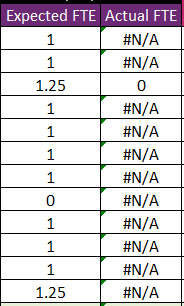

Try this modification of your formula, maybe it will help you further with your plans.
=IF(AND(ISNUMBER(MATCH(1, (Table1[Name adjusted]=A6)*(Table1[Leave Date]=$C$4), 0)), INDEX(Table1[Activity duration - For part-day availability], MATCH(A6&$C$4, Table1[Name adjusted]&Table1[Leave Date], 0))=1), 0, IF(ISERROR(C6*INDEX(Table1[Activity duration - For part-day availability], MATCH(A6&$C$4, Table1[Name adjusted]&Table1[Leave Date], 0)))), "", C6*INDEX(Table1[Activity duration - For part-day availability], MATCH(A6&$C$4, Table1[Name adjusted]&Table1[Leave Date], 0)))
This modification checks if the result of the expression C6*INDEX(...) produces an error using ISERROR, and if it does, it returns "" (an empty string). Otherwise, it returns the result of the expression. This should prevent #N/A from being displayed when an error occurs.
My answers are voluntary and without guarantee!
Hope this will help you.
Was the answer useful? Mark as best response and like it!
This will help all forum participants.

=IF(AND(ISNUMBER(MATCH(1, (Table1[Name adjusted]=A6)*(Table1[Leave Date]=$C$4), 0)), INDEX(Table1[Activity duration - For part-day availability], MATCH(A6&$C$4, Table1[Name adjusted]&Table1[Leave Date], 0))=1), 0, IF(ISERROR(C6*INDEX(Table1[Activity duration - For part-day availability], MATCH(A6&$C$4, Table1[Name adjusted]&Table1[Leave Date], 0))), "", C6*INDEX(Table1[Activity duration - For part-day availability], MATCH(A6&$C$4, Table1[Name adjusted]&Table1[Leave Date], 0))))
Any guidance would be appreciated. Thank you!
- NikolinoDEMar 17, 2024Platinum Contributor
It seems like there was a small typo in the formula you provided. The extra parenthesis at the end of the formula is causing the syntax error. Here's the corrected version of the formula:
=IF(AND(ISNUMBER(MATCH(1, (Table1[Name adjusted]=A6)*(Table1[Leave Date]=$C$4), 0)), INDEX(Table1[Activity duration - For part-day availability], MATCH(A6&$C$4, Table1[Name adjusted]&Table1[Leave Date], 0))=1), 0, IF(ISERROR(C6*INDEX(Table1[Activity duration - For part-day availability], MATCH(A6&$C$4, Table1[Name adjusted]&Table1[Leave Date], 0))), "", C6*INDEX(Table1[Activity duration - For part-day availability], MATCH(A6&$C$4, Table1[Name adjusted]&Table1[Leave Date], 0))))
In this corrected formula, I removed the extra parenthesis at the end so that the syntax is correct. Please try using this formula and see if it resolves the issue with the #N/A error.
- MAVOTRPMar 18, 2024Copper ContributorThank you Nikolino. I have used your formula however it is still returning #N/A. I have followed the advice from SandeepMarwal below and it is returning #N/A so it seems that the problem is with the logical test. Would you be able to provide guidance on how to adjust?
AND(ISNUMBER(MATCH(1, (Table1[Name adjusted]=A10)*(Table1[Leave Date]=$C$4), 0)), INDEX(Table1[Activity duration - For part-day availability], MATCH(A10&$C$4, Table1[Name adjusted]&Table1[Leave Date], 0))=1)
I have extracted the part that Sandeep is referring to. I am tying to achieve the following:
Sheet 1
Column A Name
Column C Numerical value (generally 1 or 0)
Sheet 2
Table 1
Column A Name adjusted
Column B Leave Date
Column C Activity duration - For part-day availability
The formula is checking all three columns in Table 1 on Sheet 2 for a match. If there is a match for all three, and the value in Column C is 100%, return 0. If it is NOT a match for all three, or Column C is not 100%, e.g., 25%, then return value in C6 (Sheet 1) * the corresponding value in Table 1 Column C (25% / 50% / 75%).
The formula works fine when there is a match for all three, and the value in Column C is 100%, the formula returns 0. However, when it is NOT a match for all three or it is not 100%, it returns #N/A instead of returning the value in C6 (Sheet 1) * the corresponding value in Table 1 Column C (25% / 50% / 75%).- NikolinoDEMar 18, 2024Platinum Contributor
It seems like you're encountering issues with the logical test part of your formula, specifically the AND function, which checks multiple conditions simultaneously. Let's break down your formula and address the problem:
The logical test in your formula is designed to check if there is a match for all three criteria in Table 1 on Sheet 2, and if the value in Column C is 100%. If these conditions are met, the formula returns 0; otherwise, it should return the value in C6 (Sheet 1) multiplied by the corresponding value in Table 1 Column C.
Here's your logical test part:
AND(
ISNUMBER(MATCH(1, (Table1[Name adjusted]=A10)*(Table1[Leave Date]=$C$4), 0)),
INDEX(Table1[Activity duration - For part-day availability], MATCH(A10&$C$4, Table1[Name adjusted]&Table1[Leave Date], 0))=1
)
Final Formula:
=IF(
AND(
ISNUMBER(MATCH(1, (Table1[Name adjusted]=A10)*(Table1[Leave Date]=$C$4), 0)),
INDEX(Table1[Activity duration - For part-day availability], MATCH(A10&$C$4, Table1[Name adjusted]&Table1[Leave Date], 0))=1
),
0,
IF(
ISERROR(
C6*INDEX(
Table1[Activity duration - For part-day availability],
MATCH(A10&$C$4, Table1[Name adjusted]&Table1[Leave Date], 0)
)
),
"",
C6*INDEX(
Table1[Activity duration - For part-day availability],
MATCH(A10&$C$4, Table1[Name adjusted]&Table1[Leave Date], 0)
)
)
)To troubleshoot the issue, you can check the following:
- Verify the Data: Ensure that the data in Table 1 is structured correctly, and there are no formatting or data entry errors that might cause the formula to fail.
- Test Each Condition Separately: To isolate the problem, you can test each condition separately to see if it works as expected. For example, you can check if the MATCH function returns the correct row, if the conditions for Name adjusted, Leave Date, and Activity duration are met individually.
- Check for Data Mismatch: Ensure that there are no discrepancies between the data in Sheet 1 and Sheet 2. Even a small difference in formatting or data type can cause the formula to fail.
- Error Handling: Add error handling mechanisms such as IFERROR around specific parts of your formula to catch any potential errors and handle them appropriately. This can help in troubleshooting and identifying the root cause of the problem.
- Debugging: Use the built-in debugging tools in Excel, such as evaluating each part of the formula step by step or using the "Evaluate Formula" feature to identify where the problem lies.
By systematically checking each component of your formula and verifying the data, you should be able to identify and resolve the issue with your logical test.