Forum Discussion

IF Statement Pain Scores
- Aug 12, 2021
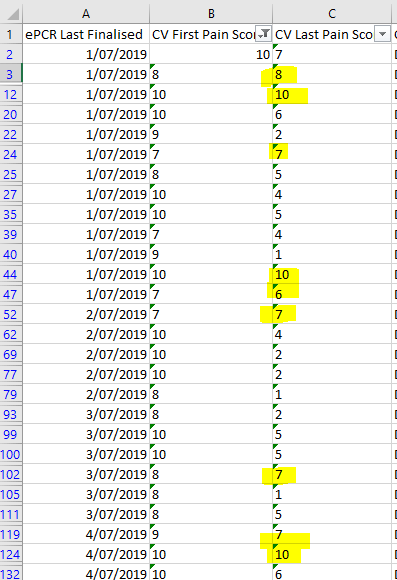
Mel_from_the_Territory First of all, your "numbers" are in fact texts (except for cell B2, that seems to contain the real number 10) and it's difficult to calculate with texts.
Start by selecting column B. On the Data ribbon, select Text-to-columns and press Finish. Repeat for column C. That should have transformed the texts to numbers and the small green triangles should be gone now.
With regard to the formula needed for the highlights in the screenshot you could use conditional formatting with a rule (based on a formula) like: =C2>=B2-2, applied to the range starting in C2 all the way down.
Or, if you prefer a formula in a separate column you could enter =IF(C2>= B2-2, "x","") in an empty column on row 2 and copy it all the way down. An x would mark the rows that meet the criteria.

Mel_from_the_Territory First of all, your "numbers" are in fact texts (except for cell B2, that seems to contain the real number 10) and it's difficult to calculate with texts.
Start by selecting column B. On the Data ribbon, select Text-to-columns and press Finish. Repeat for column C. That should have transformed the texts to numbers and the small green triangles should be gone now.
With regard to the formula needed for the highlights in the screenshot you could use conditional formatting with a rule (based on a formula) like: =C2>=B2-2, applied to the range starting in C2 all the way down.
Or, if you prefer a formula in a separate column you could enter =IF(C2>= B2-2, "x","") in an empty column on row 2 and copy it all the way down. An x would mark the rows that meet the criteria.
 Mel_from_the_TerritoryAug 13, 2021Copper ContributorOh thank you! Such an obvious error on my part to start with that I couldn't see for looking!
Your answer Riny has worked perfectly, thank you so very much! Stay COVID Safe 🙂