Forum Discussion

If And Formula
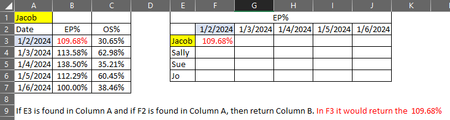

Certainly! To create a formula that returns a value based on two conditions – finding a specific name and date – you can use the IF AND function in Excel. Here's how:
Formula structure:
Explanation:
- criteria1 and criteria2: These represent the individual conditions you want to check. These can be cell references, comparisons, or other logical expressions.
- value_if_true: This is the value returned if both criteria1 and criteria2 are true.
- value_if_false: This is the value returned if either criteria1 or criteria2 is false.
Example:
Suppose you have a table with names in column A and dates in column B. You want a formula in cell C2 to return "Found" if the name in cell A2 exists and the date in cell B2 is after March 1, 2024. Here's the formula:
This formula checks if:
- The name in A2 matches "John Doe" (replace with your actual name)
- The date in B2 is greater than March 1, 2024
If both conditions are true, it returns "Found"; otherwise, it returns an empty string ("").
Tips:
- You can use cell references or direct values for your criteria.
- You can nest multiple IF AND functions for more complex conditions.
- Consider using error handling functions like ISNA or IFERROR to handle potential errors like missing data.
Remember:
- Adapt the formula to your specific table layout and conditions.
- Adjust the value_if_true and value_if_false based on your desired outputs.
I hope this helps
 CatherineMaddenFeb 01, 2024Brass Contributor
Attached is a small example of the data. They are in the same Rows/Columns so when I transfer the formula, I shouldn't have to make any changes.
I need this formula to auto fill down and to the right.
- flexyourdataFeb 01, 2024Iron Contributor
There are some good formula responses here, so let me add a Power Query response.
First, select the data range then use Data > Get & Transform Data > From Table/Range, ensuring that 'My table has headers' is not checked, like this:
After you click OK, the Power Query editor will open:
Use Add Column > Add Custom Column and configure it like this:
if List.Contains({null,0},[Column2]) then [Column1] else nullWhich gives you this:
Now select the 'Custom' column and right-click and select Fill > Down to get this:
Now change the data type of Column1 to Date. Click the ABC123 icon in the column header:
This gives you:
Now with Column1 still selected, use Home > Remove Rows > Remove Errors:
Now double-click each column and rename them appropriately:
Now use Home > Close & Load , then create a pivot table:
Now you can restructure the pivot table however you want, or create another summary. Additionally, this query can be re-run whenever there are changes to the source data.
- m_tarlerFeb 01, 2024Silver Contributorsee updates made to my comment above

