Forum Discussion

How to hide rows if a cell value is above a specified value from a different cell?
- Nov 21, 2018
Like this, but in formula it shall be relative reference for the row, not absolute. Other words $A14, not $A$14. And it shall be first (most top left) cell of your range
Please see attached, "not visible" region is in grey.

Good, you are welcome

Hi again SergeiBaklan.
How can I make it so that the formulas in my sheet only apply to the visible data and ignores what is now hidden?
Is that possible?
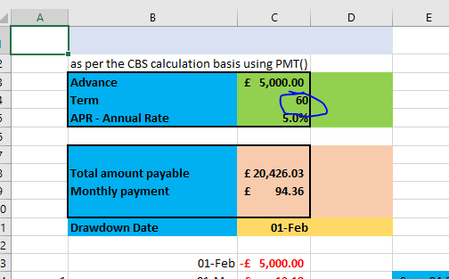
Also, I want to calculate the total amount payable based on the following:
IF repayment number (between 1 and 84) (cells A14 to A97) is less than number of months (cell C4) THEN sum column E (cells E14 to E97), otherwise blank.
My formula looks like this, but it results in an error (#VALUE!), can you help please?
=IF(A14:A97<$C$4,SUM(E14:E97),"")
Thanks!
 erol sinan zorluNov 22, 2018Iron Contributor
you can not use if to control value of multiple cells. You need to create an array formula. How ever if you want to sum the value of cells depending on a value on another range than you can use SUMIF
=SUMIF($A$14:$A$97,"<"&$C$4, $E$14:$E$97)
basically this formula will check all the cells in A14-A97 range with the value of C4 cell and if the value of the cell is smaller than the value in C4 the value in the correspnding cell in E column will be added to the sum.