Forum Discussion

How to divide text using text-to-column in this situation
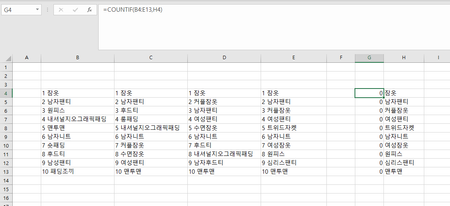
- Feb 27, 2023
If you want to keep the numbers, you could use
=COUNTIF(B4:E14, "*"&H4)
To get rid of the numbers, you could do the following:
In B16, enter the formula
=MID(B4, FIND(" ", B4)+1, 100)
Fill to the right to E16, then down to row 26.
Select B16:E26.
Copy this range, then paste as Values to B4.
You can then clear B16:E26, it is not needed anymore.

If you want to keep the numbers, you could use
=COUNTIF(B4:E14, "*"&H4)
To get rid of the numbers, you could do the following:
In B16, enter the formula
=MID(B4, FIND(" ", B4)+1, 100)
Fill to the right to E16, then down to row 26.
Select B16:E26.
Copy this range, then paste as Values to B4.
You can then clear B16:E26, it is not needed anymore.
 woogiibooFeb 27, 2023Copper ContributorWow, you are so clever! Thanks for your help! The first solution using the Counif function works perfectly. But, the other solution using the mid function returns an error value with "#VALUE!".
- HansVogelaarFeb 27, 2023MVP
Perhaps the character between the number and the text is not a space.
Does this work?
=MID(B4, FIND(CHAR(160), B4)+1, 100)