Forum Discussion

How to alternate table row colour based on the contents of a cell within the row
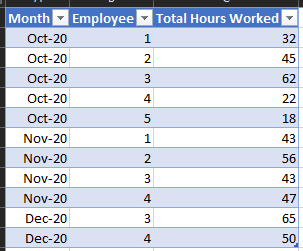
- Jan 01, 2021
Use the following formula in the conditional formatting rule:
=MOD(ROUND(SUM(1/COUNTIF($A$2:$A2,$A$2:$A2)),0),2)

Let's say the Months are in A2 and down.
Select the entire data body of the table (i.e. the table without the header row.
I will assume that the active cell is in row 2.
On the Home tab of the ribbon, select Conditional Formatting > New Rule...
Select 'Use a formula to determine which cell to format'.
Enter the formula
=MOD(SUM(IF(FREQUENCY($A$2:$A2,$A$2:$A2),1)),2)
Click Format...
Activate the Fill tab.
Select a highlight color.
Click OK, then click OK again.
As you add rows to the table, Excel will automatically apply the rule to the new rows too.
 CALOM1Jan 01, 2021Copper Contributor
Thanks for your reply! This works great for dates but if I wanted the active bit to be data other than a date, such as text that changes...
So how would I get the row colour to change when the first cell of the row changes from London to Paris etc.?
Thanks!
- HansVogelaarJan 01, 2021MVP
Use the following formula in the conditional formatting rule:
=MOD(ROUND(SUM(1/COUNTIF($A$2:$A2,$A$2:$A2)),0),2)
- CALOM1Jan 01, 2021Copper Contributor