Forum Discussion

Help with Excel Sorting
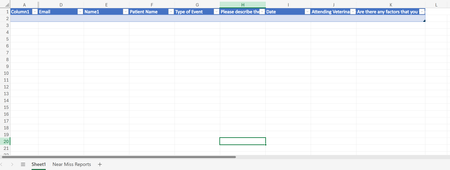

Hello ahawaii87,
You can streamline this in Office 365 without manually sorting rows. Two common approaches:
Formula-Based (Dynamic Filtering) If your form responses land in Sheet1 and Column G contains the event type:
On the Near Miss sheet (cell A1): =FILTER(Sheet1!A:H, Sheet1!G:G="Near Miss")
On the Adverse Event sheet: =FILTER(Sheet1!A:H, Sheet1!G:G="Adverse Event")
On the Sentinel Event sheet: =FILTER(Sheet1!A:H, Sheet1!G:G="Sentinel Event")
This automatically pulls rows from Sheet1 into the correct sheet whenever new form responses arrive. Make sure your headers are in row 1 and data starts in row 2.
VBA Automation (Optional) If you prefer automation, you can use a macro that copies rows into the right sheet based on Column G. Example:
Sub SortEventsToSheets()
    Dim wsSource As Worksheet, wsTarget As Worksheet
    Dim lastRow As Long, i As Long, eventType As String, targetRow As Long

    Set wsSource = ThisWorkbook.Sheets("Sheet1")
    lastRow = wsSource.Cells(wsSource.Rows.Count, "G").End(xlUp).Row

    For i = 2 To lastRow
        eventType = wsSource.Cells(i, "G").Value
        If eventType <> "" Then
            On Error Resume Next
            Set wsTarget = ThisWorkbook.Sheets(eventType)
            If wsTarget Is Nothing Then
                Set wsTarget = ThisWorkbook.Sheets.Add
                wsTarget.Name = eventType
                wsSource.Rows(1).Copy Destination:=wsTarget.Rows(1)
            End If
            On Error GoTo 0
            targetRow = wsTarget.Cells(wsTarget.Rows.Count, "A").End(xlUp).Row + 1
            wsSource.Rows(i).Copy Destination:=wsTarget.Rows(targetRow)
        End If
    Next i
End Sub
Run this manually or attach it to a button. It will create sheets if they don’t exist and copy rows accordingly.
If you want a live view that updates automatically, go with the FILTER formulas. If you want physical copies of the data split into sheets, use the VBA macro.
Both methods will save you from manually sorting every time new form responses come in.