Forum Discussion

toriana
Sep 10, 2019Copper Contributor
Help w/ "Remove Duplicates" function on the "Data" tab
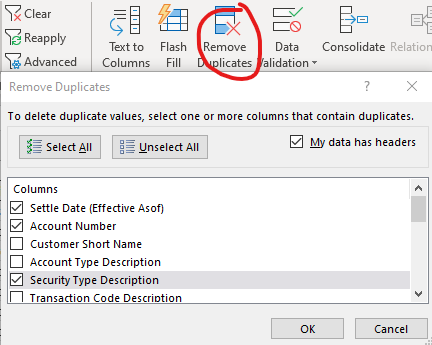
I am working with a large data set (12 columns with 45,000 rows of entries) which is updated each day which in turn auto-updates a dashboard (within the document on another sheet) I have created to a...

JKPieterse
Sep 11, 2019Silver Contributor
You could use the Data, From Table button to remove the duplicates. Just control+click the three columns , click the Remove Rows drop-down and then select "Remove Duplicates". AFter that click the "Close & Load..." drop-down and choose "Close & Load to..." and set it to return a table on a new worksheet. Now make sure your dashboard formulas use this new table instead of the original.

toriana
Sep 11, 2019Copper Contributor
Hello JKPieterse! I do have a follow up question: is there a reason that I cannot/should not close and load to the default sheet? Will that impact any additional data entered? I will definitely play around with things though... I can't believe I have never seen this function through all of the excel classes I took in college! I'm very excited to learn more and am so grateful you pointed me in this direction!
- JKPieterseSep 11, 2019Silver ContributorYou can place the table anywhere as long as you don't try to place it on the source table. Also there must be sufficient room for the resulting table of course.
Tip: if you can't figure out how to do something in that new interface, remember to include "Power Query" in your Google search.