Forum Discussion

Help Creating Conditional Formula

It totally makes sense. I've attached a spreadsheet that does what you've asked.
This all uses the conditional formatting ability of Excel. Here's a reference that describes that if you want to refine things further. And here's a picture of the Conditional Formatting dialog box as it currently exists in the attached spreadsheet.
I've also made the range that includes the data into an Excel table. Done this way, the rules will apply to each new row added (Add any new row immediately below the current last row; no blank rows)
 JessietmMar 06, 2024Copper Contributor
Thank you so much!
The only other question I had was that some of the D cells aren't looking like I need them to. I have the rules ordered and input as shown, so I'm confused, haha.
- mathetesMar 06, 2024Gold Contributor
I'm not sure exactly what you're seeing that's not as you want (I'm not patient enough to go through each line on my own, when you could just tell me and others going through this thread).
I will say that I've always found Conditional Formatting to be very much a matter of trial and error, especially in the early learning stages. I can see that you've made some changes to the rules (which is fien).
What I notice, and perhaps this is the source of the "not working": your formula as it applies to the "Cat" species is specifying the wrong columns (I've copied YOUR image below)
You've written : =AND(C7="Cat",F7>=35) but those cell references should be the same as the ones for "Dog" other than specifying the different species and different number.
So it should read =AND(A2="Cat",D2>=35)
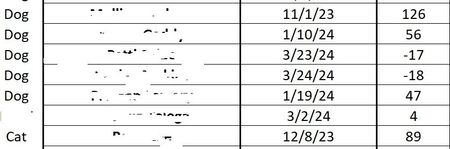
- JessietmMar 06, 2024Copper ContributorAh! I fixed the typo, but the first entry and the third from the bottom in the second image are still not conforming to those rules. Both are dogs with values over 21.
I ended up just using the one you sent and manually re-entered everything. My sheet was in the form of a table and I wonder if that was part of the issue.