Forum Discussion

Get unique employee from 2 columns in 2 different worksheets
- Apr 06, 2022
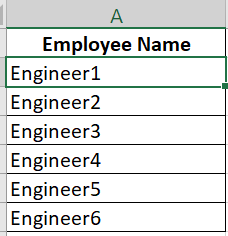
Try the following formula:
=SUM(--ISNUMBER(FIND(Employee!$A$2:$A$7,$G2)))-(LEN($G2)-LEN(SUBSTITUTE($G2,",","")))-1

What should happen if you have Engineer2, Engineer7 in a cell?

HansVogelaar Thanks for reply, Engineer 7 is not in Employees worksheet, so the cell should be highlighted.
- HansVogelaarApr 06, 2022MVP
Try the following formula:
=SUM(--ISNUMBER(FIND(Employee!$A$2:$A$7,$G2)))-(LEN($G2)-LEN(SUBSTITUTE($G2,",","")))-1
- RohitChauhanApr 06, 2022Copper Contributor
Hi HansVogelaar,
Apologies for not stating the problem in dummy data correctly, when I applied the same formula in my project data, it is highlighting all the cells in G column, as A column of Employee sheet actually has duplicate employees for different dates.I am not able to figure it out how to modify the formula to work in my condition!
Can you please help again?Regards
Rohit
- HansVogelaarApr 07, 2022MVP
You can use the UNIQUE function to create a list of unique engineer names, and use that list in the formula instead of the range in column A.
- RohitChauhanApr 06, 2022Copper Contributor
HansVogelaar Just wow, It is working like a charm.
Thanks a ton, you have saved me I don't know how many hours.
Grateful!