Forum Discussion

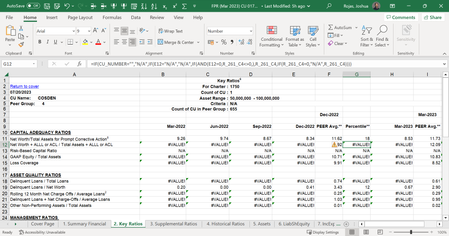
Excel Macros #Value! Error *Help Needed*
- Aug 04, 2023
It seems like there might be a compatibility issue or some settings that need to be adjusted on your new laptop for the Excel macros to work correctly. Here are some steps you can try to troubleshoot and fix the #VALUE! errors in your Excel macros:
- Check Macro Security Settings:
- Open Excel, go to the "File" tab, and select "Options."
- In the Excel Options dialog, go to "Trust Center" and click on "Trust Center Settings."
- Go to the "Macro Settings" tab and ensure that "Enable all macros" or "Enable all macros (not recommended; potentially dangerous code can run)" is selected. If not, choose one of these options and click "OK" to save the settings.
- Restart Excel and try running the macros again.
- Check Calculation Options:
- Sometimes, Excel may not recalculate formulas automatically, leading to #VALUE! errors. Go to the "Formulas" tab and click on "Calculation Options." Make sure "Automatic" is selected.
- Alternatively, you can press "F9" to force a manual recalculation of all formulas.
- Check Data Connections and References:
- If your macros rely on external data connections or references to other workbooks, make sure these connections are set up correctly on your new laptop.
- Verify that the data sources and references are accessible and have not changed.
- Check Excel Add-Ins:
- Go to the "File" tab and select "Options."
- In the Excel Options dialog, go to "Add-Ins" and check if any add-ins are disabled. If there are any disabled add-ins related to your macros, try enabling them and see if it resolves the issue.
- Verify File Locations:
- Ensure that the file paths used in your macros are correct and accessible on your new laptop. If the file paths have changed due to transferring files, update the macros with the correct file paths.
- Test Macros on Another Computer:
- To rule out any issues with your specific laptop, try running the macros on another computer within your organization where they are known to work correctly. This will help determine if the issue is related to your laptop or the Excel settings.
- Check Regional Settings:
- In some cases, the #VALUE! error may occur due to differences in regional settings between computers. Make sure the regional settings (date, time, decimal separator, etc.) on your new laptop match the original computer.
If none of the above steps resolve the #VALUE! errors, it might be helpful to insert a file (without sensitive data), more info’s about the Excel version, Operational system, storage medium. The text and the steps was created with the help of AI.
My answers are voluntary and without guarantee!
Hope this will help you.

It seems like there might be a compatibility issue or some settings that need to be adjusted on your new laptop for the Excel macros to work correctly. Here are some steps you can try to troubleshoot and fix the #VALUE! errors in your Excel macros:
- Check Macro Security Settings:
- Open Excel, go to the "File" tab, and select "Options."
- In the Excel Options dialog, go to "Trust Center" and click on "Trust Center Settings."
- Go to the "Macro Settings" tab and ensure that "Enable all macros" or "Enable all macros (not recommended; potentially dangerous code can run)" is selected. If not, choose one of these options and click "OK" to save the settings.
- Restart Excel and try running the macros again.
- Check Calculation Options:
- Sometimes, Excel may not recalculate formulas automatically, leading to #VALUE! errors. Go to the "Formulas" tab and click on "Calculation Options." Make sure "Automatic" is selected.
- Alternatively, you can press "F9" to force a manual recalculation of all formulas.
- Check Data Connections and References:
- If your macros rely on external data connections or references to other workbooks, make sure these connections are set up correctly on your new laptop.
- Verify that the data sources and references are accessible and have not changed.
- Check Excel Add-Ins:
- Go to the "File" tab and select "Options."
- In the Excel Options dialog, go to "Add-Ins" and check if any add-ins are disabled. If there are any disabled add-ins related to your macros, try enabling them and see if it resolves the issue.
- Verify File Locations:
- Ensure that the file paths used in your macros are correct and accessible on your new laptop. If the file paths have changed due to transferring files, update the macros with the correct file paths.
- Test Macros on Another Computer:
- To rule out any issues with your specific laptop, try running the macros on another computer within your organization where they are known to work correctly. This will help determine if the issue is related to your laptop or the Excel settings.
- Check Regional Settings:
- In some cases, the #VALUE! error may occur due to differences in regional settings between computers. Make sure the regional settings (date, time, decimal separator, etc.) on your new laptop match the original computer.
If none of the above steps resolve the #VALUE! errors, it might be helpful to insert a file (without sensitive data), more info’s about the Excel version, Operational system, storage medium. The text and the steps was created with the help of AI.
My answers are voluntary and without guarantee!
Hope this will help you.