Forum Discussion

Excel formula needed. Help!
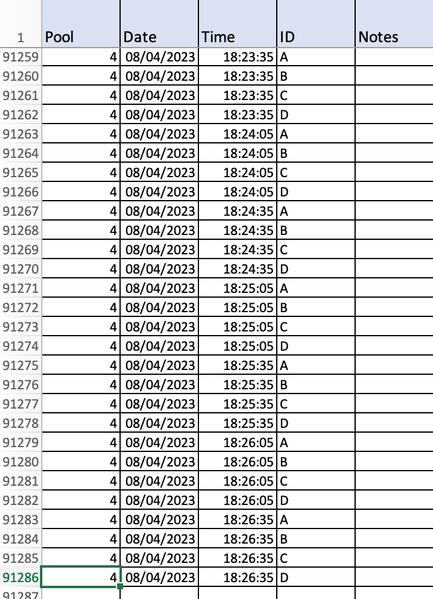

You ask for a formula, but formulas don't make changes the way the Find and Replace dialog does. And a formula that does a lookup using a separate worksheet that translates could be done, but that's extra work.
Assumption: You are using a desktop version of Excel.
I think you instead need an Excel macro to assist you. Consider the following VBA code:
    Dim objSheet    As Worksheet
    Dim in2PoolID   As Integer
    Dim strSealID   As String
    '
    Dim strMessage  As String
    Dim in4NewSealID    As Long
    '
    Dim in4LastRow  As Long
    Dim in4Row      As Long
    Dim strRow      As String
    Dim in4RowsChanged  As Long

    '----
    Set objSheet = ActiveSheet

    '----   Capture data from the row of the active cell.
    With objSheet
        in2PoolID = .Range("A" & CStr(ActiveCell.Row)).Value
        strSealID = .Range("D" & CStr(ActiveCell.Row)).Value
    End With

    '----   Prompt the user for the new value, showing info for
    '       confirmation.
    strMessage = "In workbook " & objSheet.Name _
            & vbCrLf & "change " & strSealID _
            & vbCrLf & "in Pool " & in2PoolID _
            & vbCrLf & "to:"
    in4NewSealID = Val(InputBox(strMessage, "Change Seal ID"))
    If in4NewSealID <= 0 Then Exit Sub

    '----   Change the value in column D for all matching rows.
    '  --   Determine the last row of data in column A.
    With objSheet
        in4LastRow = .Range("A" & CStr(.UsedRange.Rows.Count + 1)) _
                .End(xlUp).Row
    End With
    '  --   Loop through rows starting from row 2.
    With objSheet
        For in4Row = 2 To in4LastRow
            strRow = CStr(in4Row)
            If .Range("A" & strRow).Value = in2PoolID _
            And .Range("D" & strRow).Value = strSealID Then
                '   Make the change.
                .Range("D" & strRow).Value = in4NewSealID
                in4RowsChanged = in4RowsChanged + 1
            End If
        Next in4Row
    End With

    '----   Display a summary.
    strMessage = Format$(in4RowsChanged, "###,##0") & " IDs were changed."
    Call MsgBox(strMessage, vbInformation Or vbOKOnly, "Change Seal ID")
Note: You do not need to permanently store this code in the workbook. (Macro-enabled workbooks are a security concern.)
You could either store it as a macro in your PERSONAL.XLSB file (with any other macros there) or just temporarily add a macro to the data workbook each time you start work. For the latter:
- Open your data workbook (or a copy of it, to practice).
- Press Alt+F8 to get the Macro dialog.
- Type the Macro name you want to use (such as ChangeSealID), and click the Create button. The VBA Editor (VBE) window opens, primarily showing you a child window for entering code.
- Paste the code above between the Sub and End Sub statements.
- Close the VBA Editor window.
- Press Alt+F8 again to reopen the Macro dialog.
- Select the macro you just created, and press the Options button.
- Specify a shortcut key letter; note that this dialog may change your shortcut between "Ctrl + <your_letter>" and "Ctrl + Shift + <your_letter>" if a conflict would occur. Enter a Description if desired, and press OK.
- Press Cancel to close the Macro dialog.
To use this macro, select some cell on the row where you want to change the seal's ID. Press your shortcut keys. You will see a dialog like this:
Review the data to be changed, and enter your integer (or click Cancel). The changes will be made throughout the worksheet, and a summary message will appear.
The first time you first try to save the workbook, it will warn you about the VBA code; respond that you want to continue saving as a macro-free workbook. It will not ask you again during that session.
I have assumed that all Pool identifiers and corrected seal IDs are integers. And essentially no validation is performed to ensure that you entered an integer for the corrected ID; that validation could be added. This is all somewhat dangerous because, e.g., what if you enter 10 when you meant to enter 105; how can you "undo" only the improper 10s, leaving the valid ones unchanged? Obviously, a good set of backups is essential. But it would also be possible to store audit trail information separately within this workbook. Or just include an additional column for either the corrected or original seal ID.