Forum Discussion

Excel formula Help
- Mar 27, 2024
To achieve the desired functionality, you can use a combination of the INDEX and MATCH functions along with the dropdown menus. Here's a step-by-step guide on how to set it up:
- Create Dropdown Menus:
- Create dropdown menus for selecting the "Unit" and "Day" values. You can use Data Validation to create these dropdowns.
- Create a Reference Table:
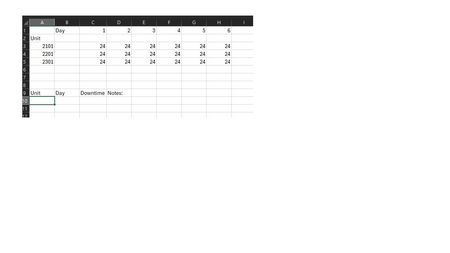
- Create a reference table where you list all the units in one column and all the days in the header row. The intersection of each unit and day will represent the corresponding cell in your worksheet.
- Use INDEX and MATCH:
- In a separate cell, use the INDEX and MATCH functions to retrieve the value from the selected unit and day. Here's the formula:
=INDEX(TableRange, MATCH(UnitSelection, UnitColumn, 0), MATCH(DaySelection, DayRow, 0))
- TableRange: This is the range of cells where your data is located.
- UnitSelection: This is the dropdown cell containing the selected unit.
- UnitColumn: This is the column in your reference table where the units are listed.
- DaySelection: This is the dropdown cell containing the selected day.
- DayRow: This is the row in your reference table where the days are listed.
- Subtract Downtime:
- Once you have the cell reference, you can subtract the downtime value from it. Let's say the downtime value is entered in another cell, you can subtract it using a simple subtraction formula.
Here's an example of how your reference table might look:
| Day 1 | Day 2 | Day 3 | Day 4 | ...
-------------------------------------------
Unit 1 | 10 | 15 | 20 | 25 | ...
Unit 2 | 12 | 18 | 22 | 27 | ...
Unit 3 | 11 | 16 | 21 | 26 | ...
... ... ... ... ...
And here's how the formula might look in Excel:
=INDEX($C$2:$F$10, MATCH(B2, $B$2:$B$10, 0), MATCH(A2, $C$1:$F$1, 0))
In this formula:
- $C$2:$F$10 is the range of cells containing your data.
- B2 is the cell containing the selected unit.
- $B$2:$B$10 is the range of cells containing the units.
- A2 is the cell containing the selected day.
- $C$1:$F$1 is the range of cells containing the days.
This formula will return the value from the corresponding cell based on the selected unit and day. You can then subtract the downtime value from this cell. The text was created with the help of AI.
My answers are voluntary and without guarantee!
Hope this will help you.
Was the answer useful? Mark as best response and like it!
This will help all forum participants.

To achieve the desired functionality, you can use a combination of the INDEX and MATCH functions along with the dropdown menus. Here's a step-by-step guide on how to set it up:
- Create Dropdown Menus:
- Create dropdown menus for selecting the "Unit" and "Day" values. You can use Data Validation to create these dropdowns.
- Create a Reference Table:
- Create a reference table where you list all the units in one column and all the days in the header row. The intersection of each unit and day will represent the corresponding cell in your worksheet.
- Use INDEX and MATCH:
- In a separate cell, use the INDEX and MATCH functions to retrieve the value from the selected unit and day. Here's the formula:
=INDEX(TableRange, MATCH(UnitSelection, UnitColumn, 0), MATCH(DaySelection, DayRow, 0))
- TableRange: This is the range of cells where your data is located.
- UnitSelection: This is the dropdown cell containing the selected unit.
- UnitColumn: This is the column in your reference table where the units are listed.
- DaySelection: This is the dropdown cell containing the selected day.
- DayRow: This is the row in your reference table where the days are listed.
- Subtract Downtime:
- Once you have the cell reference, you can subtract the downtime value from it. Let's say the downtime value is entered in another cell, you can subtract it using a simple subtraction formula.
Here's an example of how your reference table might look:
| Day 1 | Day 2 | Day 3 | Day 4 | ...
-------------------------------------------
Unit 1 | 10 | 15 | 20 | 25 | ...
Unit 2 | 12 | 18 | 22 | 27 | ...
Unit 3 | 11 | 16 | 21 | 26 | ...
... ... ... ... ...
And here's how the formula might look in Excel:
=INDEX($C$2:$F$10, MATCH(B2, $B$2:$B$10, 0), MATCH(A2, $C$1:$F$1, 0))
In this formula:
- $C$2:$F$10 is the range of cells containing your data.
- B2 is the cell containing the selected unit.
- $B$2:$B$10 is the range of cells containing the units.
- A2 is the cell containing the selected day.
- $C$1:$F$1 is the range of cells containing the days.
This formula will return the value from the corresponding cell based on the selected unit and day. You can then subtract the downtime value from this cell. The text was created with the help of AI.
My answers are voluntary and without guarantee!
Hope this will help you.
Was the answer useful? Mark as best response and like it!
This will help all forum participants.
