Forum Discussion

Excel Formula based on dates
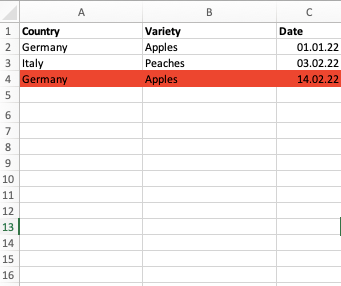
- Apr 20, 2022
Select A2:C4 (or however far down the data extend).
The active cell in the selection should be in row 2.
On the Home tab of the ribbon, select Conditional Formatting > New Rule...
Select 'Use a formula to determine which cells to format'.
Enter the formula
=COUNTIFS($A$2:$A$1000,$A2,$B$2:$B$1000,$B2,$C$2:$C$1000,">="&EDATE($C2,-2),$C$2:$C$1000,"<="&EDATE($C2,2))>1Adjust the ranges if needed; it doesn't matter if they extend further down than the data.
Click Format...
Activate the Fill tab.
Select red.
Click OK, then click OK again.

The formula in German is
=ZÄHLENWENNS($A$2:$A$1000;$A2;$B$2:$B$1000;$B2;$C$2:$C$1000;">="&EDATUM($C2;-2);$C$2:$C$1000;"<="&EDATUM($C2;2))>1

HansVogelaar thank you so so much for the help and the formula in german! I've got one problem though, the rows are not changing color. Do you know where the problem is?
- HansVogelaarApr 20, 2022MVP
I have attached the workbook I used to test the rule. Perhaps that will help.
If not: could you attach a sample workbook demonstrating the problem, or if that is not possible, make it available through OneDrive, Google Drive, Dropbox or similar?
- Bolbie1Apr 20, 2022Copper ContributorPerfect, that file works on my laptop! Thank you so much Hans! Have a great day!