Forum Discussion

Excel Formula based on dates
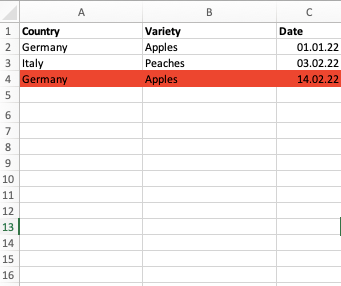
- Apr 20, 2022
Select A2:C4 (or however far down the data extend).
The active cell in the selection should be in row 2.
On the Home tab of the ribbon, select Conditional Formatting > New Rule...
Select 'Use a formula to determine which cells to format'.
Enter the formula
=COUNTIFS($A$2:$A$1000,$A2,$B$2:$B$1000,$B2,$C$2:$C$1000,">="&EDATE($C2,-2),$C$2:$C$1000,"<="&EDATE($C2,2))>1Adjust the ranges if needed; it doesn't matter if they extend further down than the data.
Click Format...
Activate the Fill tab.
Select red.
Click OK, then click OK again.

Select A2:C4 (or however far down the data extend).
The active cell in the selection should be in row 2.
On the Home tab of the ribbon, select Conditional Formatting > New Rule...
Select 'Use a formula to determine which cells to format'.
Enter the formula
=COUNTIFS($A$2:$A$1000,$A2,$B$2:$B$1000,$B2,$C$2:$C$1000,">="&EDATE($C2,-2),$C$2:$C$1000,"<="&EDATE($C2,2))>1Adjust the ranges if needed; it doesn't matter if they extend further down than the data.
Click Format...
Activate the Fill tab.
Select red.
Click OK, then click OK again.