Forum Discussion

Duplicates in one column with different values in another column
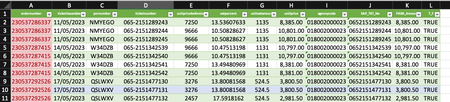
- Nov 17, 2023
OK, so a single Cond. Format. rule is enough:
- Deleted all existing Conditional Formatting rules on your Table
- Select all Columns + Rows of your Table
- Go to Home (tab) > Conditional Formatting > New Rule... > Use a formula to determine which cells to format
- Under Format values where this formula is true enter (adjust $A$2874 as necessary):
=AND(COUNTIF($A$2:$A$2874, $A2) > 1, NOT($L2))- Click on Format... at the bottom right > Choose how you want to format...


To highlight entire rows where the value in the "T_F" column contains only TRUE and FALSE, you can use conditional formatting with a formula. Follow these steps:
- Select the entire range of your data.
- Go to the "Home" tab in the Excel ribbon.
- Click on "Conditional Formatting" in the toolbar.
- Choose "New Rule" from the dropdown menu.
- In the "New Formatting Rule" dialog, select "Use a formula to determine which cells to format."
- Enter the following formula, assuming your data starts from the first row (adjust the range as needed):
=AND(COUNTIF($A:$A,$A1)>1, COUNTIF($B:$B,"TRUE")>0, COUNTIF($B:$B,"FALSE")>0)
This formula checks if there are duplicates in column A ($A:$A) and if there is at least one "TRUE" and one "FALSE" in column B ($B:$B).
- Click the "Format" button to set the formatting options for the highlighted rows.
- Choose the formatting style you prefer (e.g., a fill color) and click "OK."
- Click "OK" again in the "New Formatting Rule" dialog.
This should highlight entire rows where the "T_F" column contains both TRUE and FALSE values.
Keep in mind that this formula assumes your data starts from the first row, and you may need to adjust the column letters and row numbers based on the actual location of your data.
The text was created with the help of AI.
My answers are voluntary and without guarantee!
Hope this will help you.
Was the answer useful? Mark as best response and like it!
This will help all forum participants.