Forum Discussion

Data Validation list value update after data list edit.
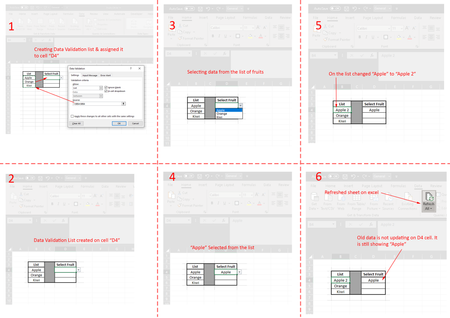
- Feb 18, 2023
This requires VBA code, with some side effects:
- Users will have to allow macros.
- It won't work in Excel Online, nor on iOS or Android.
- If you change a cell in the list, Undo will be disabled.
- After changing a cell in the list, Excel will jump back to that cell.
In the attached demo workbook, I have named the source range List, and I have selected all cells that have data validation based on this range, and assigned that range the name DVCells.
I right-clicked the sheet tab and selected 'View Code'.
I copied the following code into the worksheet module:
Private Sub Worksheet_Change(ByVal Target As Range)
    Dim Src As Range
    Dim OldVal, NewVal
    If Intersect(Range("List"), Target) Is Nothing Then Exit Sub
    Application.ScreenUpdating = False
    Application.EnableEvents = False
    If Intersect(Range("List"), Target).Count > 1 Then
        MsgBox "Do not change multiple cells in the list at once!", vbCritical
        Application.Undo
        GoTo ExitHere
    End If
    Set src=Intersect(Range("List"), Target)
    NewVal = Src.Value
    Application.Undo
    OldVal = Src.Value
    Src.Value = NewVal
    If OldVal <> "" Then
        Range("DVCells").Replace What:=OldVal, Replacement:=NewVal, LookAt:=xlWhole
    End If
ExitHere:
    Application.EnableEvents = True
    Application.ScreenUpdating = True
End Sub
I switched back to Excel and saved the workbook as a macro-enabled workbook (*.xlsm).

I applied the source code to the attached excel file, but it does not seem to work.
You will find the "List" on a sheet named "Settings" and the "DVCells" on the sheet named "Empty".
HansVogelaar kindly see where I went wrong. I suspect it has to do with the range being located on a different sheet. Thank you.

Why are there empty cells in the Group and Type columns on the Setting sheet?
- HanyBaghdadyFeb 20, 2023Copper Contributor
Just for me to visually group things together. Makes it easier for me to find what I'm looking for in the drop-down. Can be easily deleted, it won't affect the purpose of the excel sheet.
- HansVogelaarFeb 20, 2023MVP
1) The code should only be in the worksheet module of the Setting sheet, NOT in the worksheet module of the EMPTY sheet.
2) Change the code in the worksheet module of the Setting sheet to
Private Sub Worksheet_Change(ByVal Target As Range) Dim Src As Range Dim OldVal, NewVal If Intersect(Range("List"), Target) Is Nothing Then Exit Sub Application.ScreenUpdating = False Application.EnableEvents = False If Intersect(Range("List"), Target).Count > 1 Then MsgBox "Do not change multiple cells in the list at once!", vbCritical Application.Undo GoTo ExitHere End If Set src=Intersect(Range("List"), Target) NewVal = Src.Value Application.Undo OldVal = Src.Value Src.Value = NewVal If OldVal <> "" Then Worksheets("EMPTY").Range("DVCells").Replace What:=OldVal, Replacement:=NewVal, LookAt:=xlWhole End If ExitHere: Application.EnableEvents = True Application.ScreenUpdating = True End Sub- HanyBaghdadyFeb 20, 2023Copper Contributor
The sheet seems to be working, but I keep getting a runtime error every time I select a value from the dropdown.