Forum Discussion

Guan_Kwok
Mar 28, 2023Copper Contributor
Data Validation - Omit Specific Value
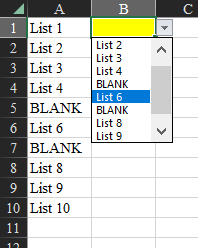
Hello, Is there a way to omit or ignore specific values using the data validation drop down feature? Or not show duplicates? For example, here's a simplified version of what I'm trying to accom...

NikolinoDE
Mar 28, 2023Platinum Contributor
Yes, you can ignore blank cells using the data validation drop-down feature in Excel. You can do this by selecting the cell you want to apply data validation to and then going to Data > Validation > Settings tab and ticking the “Ignore blank” checkbox.
To not show duplicates, you can use a formula-based approach.
Here’s how you can do it:
- Select the cells you want to apply data validation to.
- Go to the Data tab on the ribbon and click on Data Validation.
- In the Data Validation dialog box, select List from the Allow drop-down list.
- In the Source box, enter this formula: =IFERROR(INDEX($A$1:$A$10,MATCH(0,COUNTIF($B$1:B1,$A$1:$A$10),0)),””)
- Click OK.
This formula will create a list of unique values from column A that you can use for data validation.
I hope this helps!

Guan_Kwok
Mar 28, 2023Copper Contributor
Thanks!