Forum Discussion

Copying data that changes location on a worksheet
- Apr 28, 2022
Here's a formula for you to try.
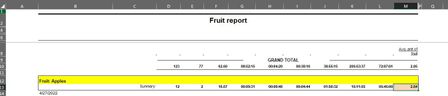
=INDEX([Source.xlsx]Sheet1!$M$1:$M$100,XMATCH("Fruit: Apples",[Source.xlsx]Sheet1!$B$1:$B$100,0)+1)I've made it work in the attached very rough example files.
Basic ideas:
- the XMATCH portion determines the row in column B in which the text "Fruit: Apples" appears
- the INDEX function takes that row, adds 1, and finds the value in the resulting row in column M
You'd have to do some things to adapt it to your situation.
- change the references, both to the actual source files real name, and to the range of rows possible (I use 100 as the max)
- once the value has been retrieved, change it from a formula to a value; this might involve writing a VBA routine, but whether that's needed could depend on the volume of transactions

Well, some questions to define this situation a bit more fully. Personally, I'm hoping that VBA is not what you need. I'm generally of the opinion that the more elegant solutions always take advantage of the amazing pre-defined functions/formulas that Excel offers. But there are times when the brute force methods have to be used, so I won't be absolutist about it.
- Is the label in your source document always one row above the summary row?
- Does the word (to stay with your example) "Apples" only appear once, also in that row above the summary row?
- (Parenthetically, let me ask, would it be possible to have the source data changed so that "Apples" also appeared in column B of the summary row?)
 jjelliottApr 27, 2022Copper Contributor
I am all for the elegant approach. To be more clear, the worksheet that is generated but the 3rd party application is not adjustable at all. It is a report that is run daily and the generated worksheet is then discarded. The one that the data is being copied to (you probably figured this out) remains and is appended daily.
- Is the label in your source document always one row above the summary row? Yes
- Does the word (to stay with your example) "Apples" only appear once, also in that row above the summary row? Yes
- (Parenthetically, let me ask, would it be possible to have the source data changed so that "Apples" also appeared in column B of the summary row?) Sadly, no
Thanks million for the help, manually copy/pasting this daily with a large collection of "fruit" is making me crazy.
- mathetesApr 28, 2022Gold Contributor
Here's a formula for you to try.
=INDEX([Source.xlsx]Sheet1!$M$1:$M$100,XMATCH("Fruit: Apples",[Source.xlsx]Sheet1!$B$1:$B$100,0)+1)I've made it work in the attached very rough example files.
Basic ideas:
- the XMATCH portion determines the row in column B in which the text "Fruit: Apples" appears
- the INDEX function takes that row, adds 1, and finds the value in the resulting row in column M
You'd have to do some things to adapt it to your situation.
- change the references, both to the actual source files real name, and to the range of rows possible (I use 100 as the max)
- once the value has been retrieved, change it from a formula to a value; this might involve writing a VBA routine, but whether that's needed could depend on the volume of transactions
- jjelliottApr 28, 2022Copper Contributormathetes
You would not believe the mess of VBA I had trying to do this.
Your solution worked flawlessly except for the briefly confounding issue of needing to use MATCH rather then XMATCH in Excel 2019.
=INDEX([Report.xlsx]Sheet1!$M$1:$M$1000,MATCH("Skillset: ABCS_FX",[Report.xlsx]Sheet1!$B$1:$B$1000,0)+1)
I cannot thank you enough!
JJ