Forum Discussion

Conditional Formatting multiple conditions
- Jan 05, 2026
This is possible, and you’re thinking about it exactly the right way.
The key idea is:Only apply the date-based conditional formatting to the most recent entry per Contact
That means we must:
- Identify whether the row is the latest date for that contact
- Only then apply your 14 / 21 day rules
Core concept (important)
Conditional Formatting formulas run per row.
So the formula must answer TRUE only for the latest row of each contact.We do that by comparing:
- The date in the current row
- Against the MAX date for that contact
Assumptions (adjust if needed)
Based on your screenshot and description:
Column
Meaning
E
Interaction Date
F1
Today’s date (or TODAY())
G
Contact name
Rows
Start at row 7
Step 1: Formula to detect “latest contact interaction”
This formula returns TRUE only if this row has the most recent date for that contact:
=E7 = MAXIFS($E:$E, $G:$G, $G7)
This filters dates by contact
Works in Excel 365
No helper column neededStep 2: Combine with your 14-day rule
Yellow (older than 14 days, but not 21)
=AND(E7 = MAXIFS($E:$E, $G:$G, $G7),
DATEDIF(E7, $F$1, "D") > 14,
DATEDIF(E7, $F$1, "D") <= 21)
Step 3: Red (older than 21 days)
=AND(E7 = MAXIFS($E:$E, $G:$G, $G7),
DATEDIF(E7, $F$1, "D") > 21)
MAXIFS() finds the newest interaction per contact
Conditional Formatting ignores rows that aren’t the newest
No volatile formulas, no VBA, no helper columns
Works cleanly inside a table
My answers are voluntary and without guarantee!
Hope this will help you.
Was the answer useful? Mark as best response and like it!
This will help all forum participants.

This is possible, and you’re thinking about it exactly the right way.
The key idea is:
Only apply the date-based conditional formatting to the most recent entry per Contact
That means we must:
- Identify whether the row is the latest date for that contact
- Only then apply your 14 / 21 day rules
Core concept (important)
Conditional Formatting formulas run per row.
So the formula must answer TRUE only for the latest row of each contact.
We do that by comparing:
- The date in the current row
- Against the MAX date for that contact
Assumptions (adjust if needed)
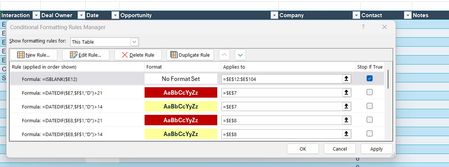
Based on your screenshot and description:
Column | Meaning |
E | Interaction Date |
F1 | Today’s date (or TODAY()) |
G | Contact name |
Rows | Start at row 7 |
Step 1: Formula to detect “latest contact interaction”
This formula returns TRUE only if this row has the most recent date for that contact:
=E7 = MAXIFS($E:$E, $G:$G, $G7)
This filters dates by contact
Works in Excel 365
No helper column needed
Step 2: Combine with your 14-day rule
Yellow (older than 14 days, but not 21)
=AND(E7 = MAXIFS($E:$E, $G:$G, $G7),
DATEDIF(E7, $F$1, "D") > 14,
DATEDIF(E7, $F$1, "D") <= 21)
Step 3: Red (older than 21 days)
=AND(E7 = MAXIFS($E:$E, $G:$G, $G7),
DATEDIF(E7, $F$1, "D") > 21)
MAXIFS() finds the newest interaction per contact
Conditional Formatting ignores rows that aren’t the newest
No volatile formulas, no VBA, no helper columns
Works cleanly inside a table
My answers are voluntary and without guarantee!
Hope this will help you.
Was the answer useful? Mark as best response and like it!
This will help all forum participants.