Forum Discussion

Condition Format Row
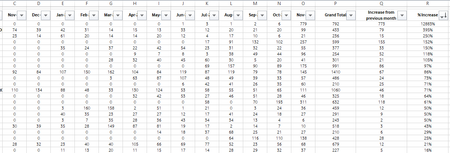

Select the data rows. The active cell in the selection should be in the first data row. In the following I'll assume that it is in row 3.
On the Home tab of the ribbon, click Conditional Formatting > New Rule...
Select 'Use a formula to determine which cells to format'.
Enter the formula
=$R3>=20%
Click Format...
Activate the Fill tab.
Select red as highlight color.
Click OK, then click OK again.
Repeat these steps, but with the formula
=$R3<=-20%
and green as color.
 Shaun1391Dec 20, 2023Copper ContributorHansVogelaar Thanks for this. It worked perfectly!
I just added =$R3:R63 on both to include the entire data range to save having to repeat this for every row that exceeded or decreased.
I guess the next question is how do I restrict the colour just to the Columns that have data in. So Colum B-T only, as currently the colour now covers the entire row including cells after Column T- HansVogelaarDec 20, 2023MVP
The formula =$R3>=20% should be sufficient. Since there is no $ before the row number, Excel will adjust the row number dynamically when it applies the rule.
Click Conditional Formatting > Manage Rules... on the Home tab of the ribbon.
Select a rule.
The 'Applies to' box will contain something like
=$3:$100
Change that to specify the columns:
=$B$3:$T$100
Click OK.
Do he same for the other rule.