Forum Discussion

Combined list value and custom enter value in same cell and display both values
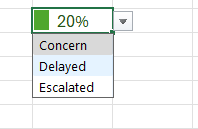

To achieve the desired functionality in Excel, you can use a combination of data validation, conditional formatting, and cell formulas. Here's how you can set it up:
- Data Validation:
- Set up a data validation dropdown list in the cell where the user can select from the list values (S1, S2, S3).
- You can do this by selecting the cell, then going to the "Data" tab, clicking on "Data Validation," and setting the validation criteria to "List" and specifying the source range containing your list values.
- Conditional Formatting:
- Apply conditional formatting to the cell to turn the text red if a list value is selected.
- Select the cell, go to the "Home" tab, click on "Conditional Formatting," and choose "New Rule."
- Create a rule using a formula like =ISNUMBER(SEARCH("S",A1)) where A1 is the cell reference containing the dropdown list. Apply the formatting (e.g., red text) when this formula evaluates to true.
- Cell Formula:
- In another cell (let's say B1), use a formula to concatenate the custom value (e.g., "50%") with the list value (e.g., "Concern") if both are present.
- You can use a formula like:
=IF(ISNUMBER(SEARCH("S",A1)), A1 & " (Concern)", "")
Here, A1 is the cell containing the dropdown list.
This setup will display the combined custom value and list value in cell B1, applying conditional formatting to turn the text red if a list value is selected. If no list value is selected, only the custom value will be displayed. Adjust the cell references and formatting rules as needed based on your specific Excel setup.Formularbeginn The text and steps were edited with the help of AI.
My answers are voluntary and without guarantee!
Hope this will help you.
Was the answer useful? Mark as best response and Like it!
This will help all forum participants.

- NikolinoDEMar 29, 2024Platinum Contributor
I understand your requirement now. You want the combined custom value and list value to appear in the same cell where the user selects the list value. Unfortunately, Excel doesn't support displaying both a dropdown list selection and custom input simultaneously in the same cell without using VBA, which is not supported in Excel for the web.
However, I can suggest an alternative approach that may achieve a similar result:
- Use Concatenation:
- Instead of using a dropdown list, you can have the user input their selection directly into the cell along with the custom value.
- Conditional Formatting for Visual Clarity:
- Apply conditional formatting to the cell to visually distinguish between the custom value and the list value.
Here's how you can set it up:
- In cell A1, have the user input their selection directly, such as "50% (Concern)".
- Apply conditional formatting to cell A1 to turn the text red if a list value is entered. You can use a formula-based conditional formatting rule similar to the one mentioned earlier:
- Select cell A1, go to the "Home" tab, click on "Conditional Formatting," and choose "New Rule."
- Create a rule using a formula like =ISNUMBER(SEARCH("S",A1)). Apply the formatting (e.g., red text) when this formula evaluates to true.
This approach allows users to input both the custom value and the list value directly into the same cell (A1), with conditional formatting applied to visually distinguish when a list value is entered. While it doesn't exactly replicate the behavior you described, it provides a practical workaround within the limitations of Excel for the web.