Forum Discussion

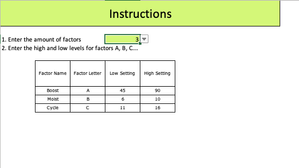
Changing no. of rows in table based on value in drop down menu
 Jun 03, 2019
Hi,
You need to VBA code to do that!
I suggest using this one:
Private Sub Worksheet_Change(ByVal Target As Range)
 If Target.Address(False, False) = "B1" Then
   Dim no As Integer, counter As Integer
   no = Range("B1").Value

   If no = 0 Then Exit Sub

   Cells.Find(What:="factor name", After:=ActiveCell, LookIn:=xlFormulas, _
   LookAt:=xlPart, SearchOrder:=xlByRows, SearchDirection:=xlNext, _
   MatchCase:=False, SearchFormat:=False).Activate

   ActiveCell.End(xlDown).Range("A1:D1").Select
   Selection.Copy
   ActiveCell.Offset(1, 0).Range("A1:D" & no).Select
   Selection.PasteSpecial Paste:=xlPasteFormats, Operation:=xlNone, _
   SkipBlanks:=False, Transpose:=False
   Application.CutCopyMode = False
   ActiveCell.Select
 End If
End Sub
Please find it in the attached file.
The code is stored in the worksheet module, to see it:
Hover the mouse over the worksheet tab, right-click, and select View Code.
Hope that helps

Is it correct to assume that neither the ActiveCell.Offset or the range determine the placement of the rows in the table?
I thank you very much for your time and patience to explain this to me, and for your help. I really appreciate it
If you looking at the code you will see these lines:
Cells.Find(What:="factor name", After:=Cells(1, 1), LookIn:=xlFormulas, _
LookAt:=xlPart, SearchOrder:=xlByRows, SearchDirection:=xlNext, _
MatchCase:=False, SearchFormat:=False).Activate
These lines will move the cursor to the starting cell and activated it which is the cell that holds the name of (Factor Name).
After we define the starting cell, we can use the other properties such as Offset to move in any direction and execute the operations that we want.
Hope that helps