Forum Discussion

Changing Date Format
- Apr 02, 2024
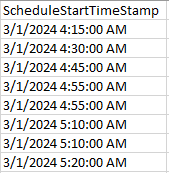
Rather than reading the file into Excel directly, read it into PowerQuery using a US locale
let
    Source = Csv.Document(File.Contents("C:\Users\Peter\OneDrive\test.csv"),[Delimiter=",", Columns=1, Encoding=65001, QuoteStyle=QuoteStyle.None]),
    #"Promoted Headers" = Table.PromoteHeaders(Source, [PromoteAllScalars=true]),
    #"Changed Type with Locale" = Table.TransformColumnTypes(#"Promoted Headers", {{"ScheduleStartTimeStamp", type datetime}}, "en-US")
in
    #"Changed Type with Locale"
[here the data is loaded as text then converted to datetime using the US locale]
Once the correct dates are loaded to Excel number formatting can be used to display them using the international format you require.
4 Ways to Fix Date Errors in Power Query + Locale & Regional Settings - Excel Campus

Rather than reading the file into Excel directly, read it into PowerQuery using a US locale
let
    Source = Csv.Document(File.Contents("C:\Users\Peter\OneDrive\test.csv"),[Delimiter=",", Columns=1, Encoding=65001, QuoteStyle=QuoteStyle.None]),
    #"Promoted Headers" = Table.PromoteHeaders(Source, [PromoteAllScalars=true]),
    #"Changed Type with Locale" = Table.TransformColumnTypes(#"Promoted Headers", {{"ScheduleStartTimeStamp", type datetime}}, "en-US")
in
    #"Changed Type with Locale"
[here the data is loaded as text then converted to datetime using the US locale]
Once the correct dates are loaded to Excel number formatting can be used to display them using the international format you require.
4 Ways to Fix Date Errors in Power Query + Locale & Regional Settings - Excel Campus