Forum Discussion

Change cell between 2 colours based on upcoming date 2+ years in advance
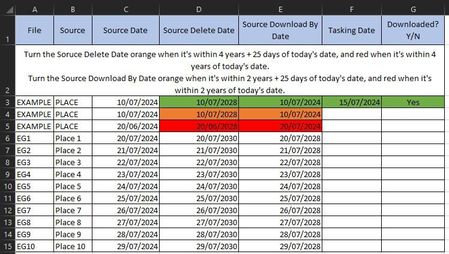

Select D3:D100 or as far down as you need.
On the Home tab of the ribbon, click Conditional Formatting > New Rule...
Select 'Format only cells that contain'.
Leave the first drop down set to 'Cell Value'.
Select 'less than or equal to' from the second drop down.
In the box next to it, enter the formula
=EDATE(TODAY(), 48)+25
Click Format...
Activate the Fill tab.
Select orange as fill color.
Click OK, then click OK again.
Repeat these steps, but with the formula
=EDATE(TODAY(), 48)
and red as fill color.
With the range still selected, select Conditional Formatting > Manage Rules...
Move the rule for column G = "Yes" to the top by selecting it and clicking the ^ button.
It should look like this:
Do the same for E3:E100, but with EDATE(TODAY(), 24) instead of EDATE(TODAY(), 48).
 RyanJ1760Jul 22, 2024Copper Contributor
Thanks for the response!
I've tried that method now, and it just made all my dates within the range, red.I followed it step-by-step, and have no clue why it's happened!Would the number in =EDATE(TODAY(),X) need to be in days rather than months maybe?Never-mind. My Monday morning brain got me really good and I forgot that I'm not meant to test with the end date being today, but should be 2 years from now


It actually does work perfectly, thank you so much! Really appreciate you!