Forum Discussion

Calculated Table causes performance issue and dataset refresh fails
- Feb 20, 2024
First few general notes. You didn't disable Time Intelligence for the model
as result you have a lot of generated hidden date tables
which could significantly decrease of overall performance. Better to mark Calendar table as date one and use only it disabling Time Intelligence. However, on this step that could crash the model, if to do that when step by step.
Next, if you don't really need datetime use date Date data type instead. For your initial calculated table that decreases the refresh time on about 30%. Also, depends on how critical the precision is, better to use Fixed decimal number instead of Decimal number data type.
Back to calculated table I don't think we may avoid it. But the may decrease it a bit. First, creating explicit measures
which are obvious, like
0 number of Credits = CALCULATE(
    COUNTROWS(Data),
    Data[Source] = "Invoice",
    Data[Invoice / Credit] < 0
)
With that calculated table could be
CALCULATETABLE(
    DISTINCT(
        SELECTCOLUMNS( Data, Data[DBName-Point_Id], Data[Date] )
    ),
    Data[Source] = "Invoice"
)
with adding to it calculating column as in your variant
IF(
    [0 Number of Invoices] > 1
        && [0 Number of Invoices]
        > [0 Number of Credits],
    "Multiple Invoices",
    IF(
        [0 Number of Credits]
            > [0 Number of Invoices]
            && [0 Net Cost] <> 0,
        "Multiple Credits",
        IF(
            ISEVEN( [0 Invoice Issue] )
                && [0 Net Cost] <> 0,
            "Invoice-Credit Value Mismatch",
            IF(
                [0 Number of Credits]
                    = [0 Number of Invoices]
                    && [0 Net Cost] = 0,
                "Credit Cancels Invoice",
                BLANK( )
            )
        )
    )
)
Alternatively we may create the table with Status column from scratch
VAR selectData =
    DISTINCT(
        SELECTCOLUMNS( Data, Data[DBName-Point_Id], Data[Date] )
    )
RETURN
    CALCULATETABLE(
        ADDCOLUMNS(
            selectData,
            "Status",
                SWITCH(
                    TRUE( ),
                    [0 Number of Invoices] > 1
                        && [0 Number of Invoices] > [0 Number of Credits], "Multiple Invoices",
                    [0 Number of Credits] > [0 Number of Invoices]
                        && [0 Net Cost] <> 0, "Multiple Credits",
                    ISEVEN( [0 Invoice Issue] ) && [0 Net Cost] <> 0, "Invoice-Credit Value Mismatch",
                    [0 Number of Credits] = [0 Number of Invoices]
                        && [0 Net Cost] = 0, "Credit Cancels Invoice",
                    BLANK( )
                )
        ),
        Data[Source] = "Invoice"
    )
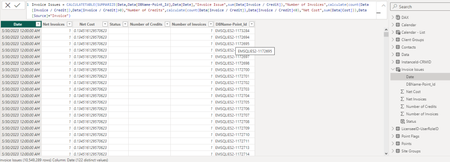
Both are in the model, I added only this visuals for them
DAX Studio shows bit better performance, but not critically. On the other hand on my PC all 3 variants work.
File is here TechComm - OneDrive (live.com)


I've carefully analyzed the information you've provided, including the image, the feedback from the ratings, and the insights from experts. Here's a comprehensive response that addresses the performance and refresh issues caused by the calculated table in your Power BI report:
Understanding the Issue:
- The calculated table Invoice Issues with its nested IF statements likely leads to complex calculations, impacting performance during data refresh and visual interactions.
- Converting the entire logic to a single measure might not be feasible or efficient, especially for filtering or conditional formatting based on multiple criteria.
Potential Solutions:
Simplify Calculated Table Logic:
- Break down the Status column calculation into smaller, simpler steps using helper columns or measures. This can significantly reduce complexity and improve performance.
- Consider using SWITCH or VAR functions for more concise and efficient logic, if applicable.
Create Separate Measures for Filtering and Conditional Formatting:
- If the Status column is primarily used for these purposes, create separate measures:
- Filtering: Use CALCULATE or HASONEVALUE to filter based on specific conditions.
- Conditional Formatting: Use measures with IF statements to dynamically format visuals based on calculated criteria.
- If the Status column is primarily used for these purposes, create separate measures:
Example (Assuming Filtering by Invoice Issue):
Optimize Data Model:
- Ensure proper relationships between tables to avoid unnecessary calculations and improve query efficiency.
- Consider materialized views (available in Power BI Premium) to pre-calculate complex expressions and enhance query performance.
Investigate Hardware and Resource Constraints:
- If your workspace or dataset experiences resource limitations, consider:
- Upgrading to a higher service tier (Power BI Premium or Pro) for increased processing power.
- Optimizing report visuals and filters to reduce complexity.
- If your workspace or dataset experiences resource limitations, consider:
Additional Tips:
- Thoroughly test any changes in a development environment before deploying to production.
- Monitor performance after implementing solutions to identify improvements and potential areas for further optimization.
- Seek assistance from experienced Power BI developers or the Microsoft community for more complex scenarios.
Key Considerations:
- The provided code snippet suggests using SELECTEDVALUE within the calculated table's Status column, which can negatively impact performance during visual interactions. Consider refactoring the logic using measures or helper columns to avoid this issue.
- The specific approach will depend on the exact requirements of your report and the complexity of the Status column logic. Carefully evaluate your needs and choose the solution that best balances performance, functionality, and maintainability.
By following these guidelines and carefully considering the feedback from the ratings, you should be able to effectively address the performance and refresh issues while maintaining the desired functionality in your Power BI report