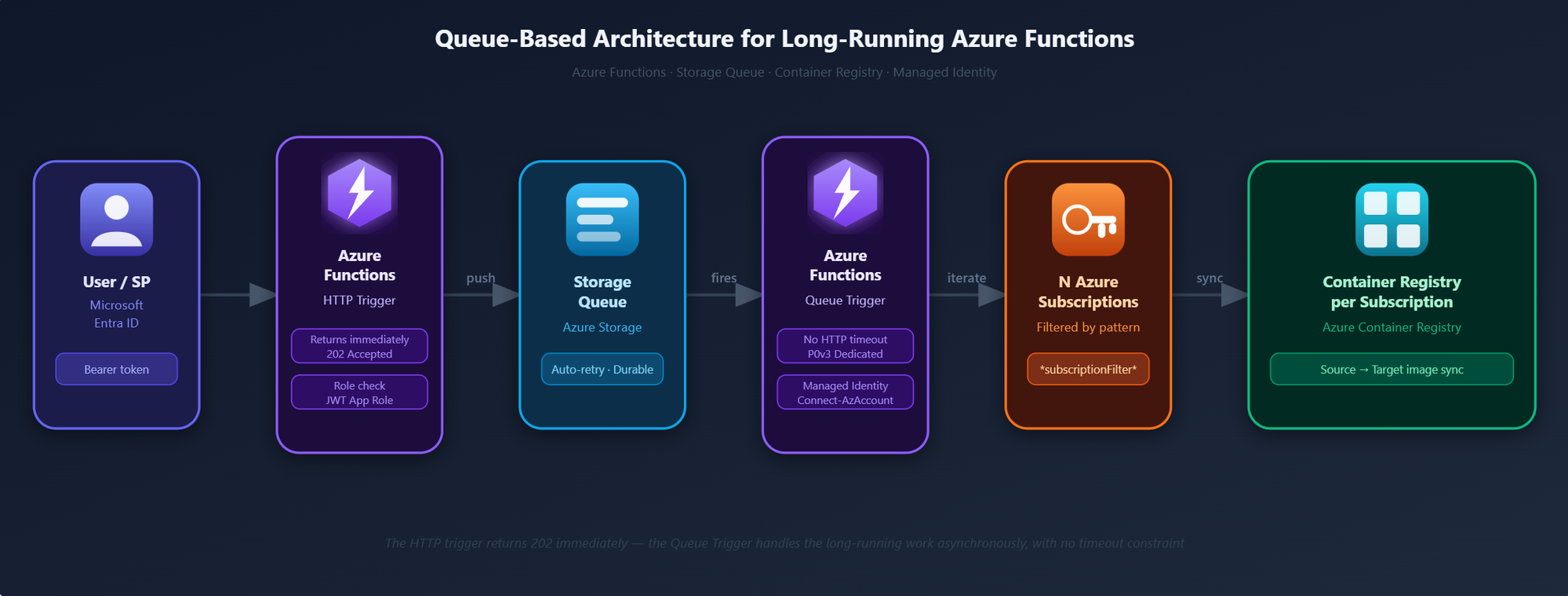
When your Azure Function needs to do something that takes minutes, you can't do it directly from an HTTP trigger. This article walks through the queue-based pattern used to run long jobs reliably, with no timeout worries.
The Problem: HTTP Triggers and Long-Running Jobs Don't Mix
Here's a situation you've probably run into: you have a job that needs to loop over dozens of Azure resources, call APIs, and do real work. You wrap it in an HTTP-triggered Azure Function so it can be called on demand. It works great and after a few minutes, the caller gets a 504 Gateway Timeout.
⭐ This isn't a bug. Azure (like most cloud platforms) enforces a hard 230-second HTTP response timeout at the load balancer level — no matter what you configure in your function. If your job takes longer than that, the connection is cut.
The 230-second limit is enforced by Azure Front Door / the platform load balancer. It cannot be overridden by app settings or host configuration. Any HTTP trigger that runs longer than ~3.5 minutes will timeout for the caller.
In our case, the job iterates over 30+ Azure subscriptions — for each one it switches context, lists resources, and triggers image imports. Total runtime: anywhere from 2 to 10 minutes depending on how many ACRs need updating. Way over the limit.
The Solution: Decouple Request from Execution via a Queue
The fix is clean once you see it: the HTTP trigger shouldn't do the work — it should just accept the work and hand it off. That's what a queue is for.
The flow splits into two independent phases:
- Request phase — The HTTP trigger validates the caller (JWT + app role check), packages the job parameters into a queue message, and returns 202 Accepted. This takes under 3 seconds.
- Execution phase — A Queue Trigger picks up the message and runs the actual sync. No HTTP connection involved, so there's no timeout. On a Dedicated (P-series) plan, execution time is unlimited.
| Approach | What the caller gets | Result |
|---|---|---|
| HTTP trigger → run sync inline | Waits for the full job to complete | 504 TIMEOUT after 230 seconds |
| HTTP trigger → Queue → Queue Trigger | 202 Accepted immediately | NO TIMEOUT job runs as long as needed |
🤸♀️There's an added bonus - Reliability in Azure Queue Storage: Azure Storage Queues give you automatic retry out of the box. If the job crashes halfway through, the message becomes visible again after a visibility timeout and the Queue Trigger picks it up for a retry — up to 5 attempts before the message is moved to the poison queue. No retry logic to write 🤸♀️.
Locking Down the Endpoint
Since the HTTP trigger is the public entry point, it needs solid auth. We layer two things:
|
⭐Use EasyAuth for the "is this a real Entra ID token?" check, and a custom App Role for the "is this person allowed to trigger syncs?" check. These are independent concerns and should stay that way. |
| Layer | What it does | How |
|---|---|---|
| EasyAuth (Entra ID) | Rejects requests without a valid Entra ID Bearer token — before your code even runs | Configured at the Function App level via the Authentication blade |
| App Role check | Validates that the token contains the SyncJob.Execute role — only assigned users/SPs can trigger the job | Decoded in the function code from the JWT roles claim |
| Managed Identity | Authenticates the Function App to Azure APIs (no credentials in code) | Connect-AzAccount -Identity — identity assigned via RBAC |
One gotcha worth knowing: when using v2 tokens (which is the default with modern App Registrations), the aud claim in the token is the raw App ID GUID — not the api:// prefixed URI. You need to explicitly add both forms to your allowedAudiences in EasyAuth, otherwise valid tokens get rejected.
APP_ID="<your-app-id>"
TENANT_ID="<your-tenant-id>"
FUNCTION_APP_URL="https://<your-function-app>.azurewebsites.net"

# Interactive login (device code flow — works from any terminal)
az login --tenant "${TENANT_ID}" \
  --scope "api://${APP_ID}/.default" \
  --use-device-code

TOKEN=$(az account get-access-token \
  --scope "api://${APP_ID}/.default" \
  --query accessToken -o tsv)

# Trigger the sync — returns 202 immediately
curl -s -X POST "${FUNCTION_APP_URL}/api/SyncContainerRegistryHttpTrigger" \
  -H "Authorization: Bearer ${TOKEN}" \
  -H "Content-Type: application/json"
Passing Parameters Through the Queue
One nice property of this pattern: the queue message is just JSON, so you can pass whatever parameters the job needs. In our case, we pass a subscriptionFilter wildcard so callers can target a subset of subscriptions without touching any code.
The parameter travels the full chain: HTTP body → queue message → Queue Trigger → PowerShell script parameter. Here's how each step handles it.
Step 1 — HTTP Trigger reads the body and enqueues the message using the Push-OutputBinding output binding. Azure Functions wires the binding to the queue automatically — no SDK call needed:
param($Request, $TriggerMetadata)

 # ... decode the JWT, check role assignment

$queuePayload = @{
    triggeredBy        = $decoded.Payload.upn ?? $decoded.Payload.oid
    triggeredAt        = (Get-Date -Format 'o')
    subscriptionFilter = if ($body.subscriptionFilter) { $body.subscriptionFilter } else { "*" }
} | ConvertTo-Json -Compress

Push-OutputBinding -Name QueueMessage -Value $queuePayload

Push-OutputBinding -Name Response -Value ([HttpResponseContext]@{
    StatusCode = [System.Net.HttpStatusCode]::Accepted
    Body       = @{ message = "Sync job queued. Check Azure Monitor logs for execution status." }
})|
⭐Push-OutputBinding is how Azure Functions PowerShell workers write to output bindings (queues, blobs, HTTP responses…). The binding name QueueMessage maps to the queue defined in function.json — the runtime handles serialisation and delivery. |
Step 2 — Queue Trigger passes the filter to the script as a named parameter:
param($QueueItem, $TriggerMetadata)

Write-Host "Triggered SyncContainerRegistry via Storage Queue. Payload: $QueueItem"

$subscriptionFilter = if ($QueueItem.subscriptionFilter) { $QueueItem.subscriptionFilter } else { "*" }

$SubscriptionFilter = $subscriptionFilter

. "$PSScriptRoot/../SyncContainerRegistry/run.ps1"
Step 3 — Long running job with the filter as parameter:
param($Timer)

if (-not $SubscriptionFilter) { $SubscriptionFilter = "*" }

$subscriptions = Get-AzSubscription | Where-Object { $_.Name -like $SubscriptionFilter }

foreach ($subscription in $subscriptions) {
    Set-AzContext -SubscriptionId $subscription.Id | Out-Null
    # ... do the work
}
Targeting a subset of subscriptions
# Sync all subscriptions (default — omit the body)
curl -s -X POST "${FUNCTION_APP_URL}/api/SyncContainerRegistryHttpTrigger" \
  -H "Authorization: Bearer ${TOKEN}" \
  -H "Content-Type: application/json"

# Sync only subscriptions matching a pattern
curl -s -X POST "${FUNCTION_APP_URL}/api/SyncContainerRegistryHttpTrigger" \
  -H "Authorization: Bearer ${TOKEN}" \
  -H "Content-Type: application/json" \
  -d '{"subscriptionFilter": "*project-alpha*"}'
|
⭐PowerShell's -like operator uses * as a wildcard anywhere in the string. The pattern *project-alpha* matches sub-mycompany-project-alpha-prd, sub-mycompany-project-alpha-dev, etc. A pattern without a leading * only matches from the start of the string — keep this in mind when naming subscriptions. |
Pushing a Message Directly via PowerShell
You can also push a message straight to the queue without going through the HTTP trigger — useful for testing, scripting, or bypassing the auth layer in a controlled environment.
Connect-AzAccount  # or -Identity for a Managed Identity context

$storageAccount = "<your-storage-account>"
$queueName      = "sync-job-queue"

# Build the payload — same shape the HTTP trigger produces
$payload = @{
    triggeredBy        = $env:USERNAME
    triggeredAt        = (Get-Date -Format 'o')
    subscriptionFilter = "*project-alpha*"   # or "*" for all
} | ConvertTo-Json -Compress

# Get a queue client via the connected account (no key needed)
$ctx = New-AzStorageContext -StorageAccountName $storageAccount -UseConnectedAccount
$queue = Get-AzStorageQueue -Name $queueName -Context $ctx
$queue.QueueClient.SendMessage($payload)
|
⭐ -UseConnectedAccount authenticates via the current Connect-AzAccount session — no storage key required, as long as your identity has the Storage Queue Data Message Sender role on the storage account. |
The Queue Message
The HTTP trigger packages the caller identity and filter into a simple JSON payload before enqueuing. The Queue Trigger reads it back as a deserialised PowerShell object — no manual JSON parsing needed.
{
  "triggeredBy": "user@company.com",
  "triggeredAt": "2026-06-01T11:03:55.570+02:00",
  "subscriptionFilter": "*project-alpha*"
}
Design Decisions at a Glance
| Decision | Choice | Why |
|---|---|---|
| Async execution | Azure Storage Queue | HTTP trigger has a hard 230s timeout. The sync job takes 2–10 minutes. The queue decouples acceptance from execution — and gives us retry for free. |
| Authentication | EasyAuth + App Role | No credentials in code. Access is controlled via Entra ID app roles — revocable per user without touching infrastructure. |
| Azure identity | Managed Identity | No secrets to rotate or store. The Function App authenticates to Azure APIs using its platform-assigned identity. |
| Job parameter | Wildcard filter via queue payload | Lets callers target any subscription subset without code changes. The filter travels through the queue — the Queue Trigger just passes it along. |
| Hosting plan | Dedicated (P-series) | Consumption plan caps function execution at 10 minutes. A Dedicated plan has no execution time limit — essential when the job can run longer. |
See you in the Cloud
Jamesdld

