voice
334 TopicsBuilding a hands-free voice concierge with Microsoft Foundry Voice Live and a Hosted Agent
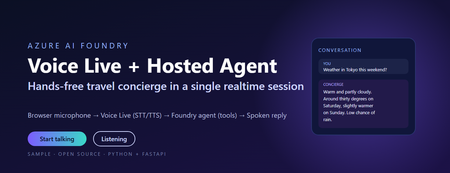
This post walks through a small, working sample that wires the browser microphone to Azure AI Speech Voice Live, binds the realtime session to a Foundry hosted agent, and lets the agent answer travel questions using tool calls. The full source, infrastructure, and labs live in the repository linked at the end. Why this combination matters Voice user interfaces have historically been hard to build well. Streaming audio, partial transcripts, barge-in, voice activity detection, tool dispatch, and audio playback have traditionally meant stitching together five or six services. The combination of Voice Live and a Foundry hosted agent collapses that into one realtime WebSocket session with a single binding field. Voice Live owns the audio loop: speech to text, neural text to speech, semantic turn detection, noise suppression, and echo cancellation. The Foundry hosted agent owns the brain: instructions, memory, model selection, evaluators, and tool calling. The link between them is one query parameter on the WebSocket URL. What this means in practice: the browser never sees a model API key, never instantiates a tool, and never owns the agent prompt. The browser does microphone capture and audio playback. Everything else lives server-side. The scenario The sample is called Contoso Travel Concierge. The user is mid-journey, hands and eyes busy, and wants to ask things like: What is the weather in Tokyo this weekend? Is BA005 from Heathrow on time? What time is check-in at the Marriott Marquis? Each question triggers a tool call on the hosted agent. The reply is short, speakable, and synthesised back to the user in under a second on a warm connection. Architecture There are four moving parts. Three of them are managed Azure services. Only the broker is your code. Browser client – captures PCM16 audio at 24 kHz and streams it over a WebSocket to the broker. Plays back audio chunks the broker forwards from Voice Live. Session broker (FastAPI) – authenticates to Azure with DefaultAzureCredential , builds the Voice Live WebSocket URL with a short-lived bearer token, and relays frames in both directions. Voice Live – the Azure AI Speech realtime endpoint. Transcribes the user, hands the text to the bound agent, and synthesises the agent’s reply. Foundry hosted agent – a prompt-kind agent in Azure AI Foundry with instructions, tool definitions, and the microsoft.voice-live.enabled metadata flag set to true . Two design choices are worth calling out. The broker is small on purpose. It does authentication, URL construction, and WebSocket relay. It does not transcode audio, run business logic, or hold conversation state. Voice Live and the agent already do those things well. The agent binding is a URL query parameter, not an SDK call. There is no per-turn HTTP request to the agent runtime. Voice Live opens a session against the agent once and streams turns through it for the lifetime of the WebSocket. That is what keeps latency low. The Voice Live URL contract This is the single most important thing to get right. The public Microsoft sample that ships under liupeirong/ai-foundry-voice-agent targets a different URL shape ( services.ai.azure.com host, agent-id + agent-access-token parameters, an Authorization header). That shape is rejected by Foundry resources that expose voice-live-enabled agents. The shape below is the one the portal itself uses, and the one this sample dials. Three details cause most failures: The host must be <resource>.cognitiveservices.azure.com , not services.ai.azure.com . The broker rewrites this automatically from VOICE_LIVE_ENDPOINT . The bearer token travels in the authorization query parameter, URL-encoded, with a literal Bearer prefix and a + (or %20 ) before the token. No Authorization header is sent. agent-name and model are both the agent’s display name. agent-version is empty when you want the latest published version. Walkthrough: from clone to spoken reply Prerequisites Python 3.11 or later (the sample is developed on 3.13). The Azure CLI, signed in with az login --tenant <your-tenant-id> . An Azure AI Foundry project in a Voice Live region ( eastus2 , swedencentral , or westus2 ). A deployed prompt-kind agent in that project with Enable Voice Live turned on. The Cognitive Services User role on the Foundry resource for the identity the broker will use. Configure the broker Copy .env.sample to .env and fill in four values: AZURE_AI_PROJECT_ENDPOINT=https://<your-resource>.services.ai.azure.com AZURE_AI_PROJECT_NAME=<your-foundry-project-name> VOICE_LIVE_ENDPOINT=wss://<your-resource>.services.ai.azure.com/voice-live/realtime VOICE_LIVE_API_VERSION=2025-10-01 FOUNDRY_AGENT_ID=<your-agent-name> The agent name is what the Foundry portal shows on the agent card. The broker uses it for both the agent-name and model query parameters. Install and run python -m venv .venv .\.venv\Scripts\Activate.ps1 pip install -r requirements.txt .\scripts\start-local.ps1 The broker exposes three endpoints: GET /healthz – liveness probe. GET /config – returns the session.update the browser sends as its first frame. WS /ws – the bi-directional relay to Voice Live. Smoke test .\scripts\test-session.ps1 A successful run prints: [OK] /ws upgraded -> sent session.update <- {"type":"session.created",…} <- {"type":"session.updated",…} [OK] session.updated received -- E2E works This confirms the entire chain: local broker, DefaultAzureCredential token, Foundry Portal URL shape, Voice Live handshake, and the bound agent acknowledging the session. Open the browser UI Browse to http://localhost:8000/ , click Start talking, and ask one of the sample questions. Transcripts appear in real time and the spoken reply plays back through the audio context. Inside the broker The relay logic is tiny – the heavy lifting is the URL construction. The function below is the canonical reference; copy it if you are porting the pattern to another language. def build_voice_live_ws_url(agent_access_token: str) -> str: """ Build the Foundry Portal style Voice Live WebSocket URL. Auth lives in the query string only. No Authorization header is sent. """ host = _ws_host_from_endpoint(VOICE_LIVE_ENDPOINT) qs = urlencode( { "trafficType": "FoundryPortal", "agent-name": FOUNDRY_AGENT_ID, "agent-version": "", "agent-project-name": AZURE_AI_PROJECT_NAME, "api-version": VOICE_LIVE_API_VERSION, "model": FOUNDRY_AGENT_ID, "client-request-id": str(uuid.uuid4()), "authorization": f"Bearer {agent_access_token}", }, quote_via=quote, ) return f"wss://{host}/voice-live/realtime?{qs}" The relay itself is a pair of asyncio tasks: one forwarding browser frames upstream, one forwarding Voice Live frames back. Audio bytes are passed straight through – the broker never decodes them. Deploying the hosted agent The most reliable way to create a voice-live-enabled agent is the Foundry portal. Agents created via the Assistants v2 SDK do not carry the required metadata by default and will be rejected by the Voice Live URL shape above. The portal steps are: Open the Foundry project, go to Agents, and click New agent. Choose Prompt agent as the kind, name it (for example travel-concierge ), and pick a model deployment. Paste the contents of agent/src/prompts/system.txt into the instructions box. On the Voice tab, switch Enable Voice Live on. This is what sets the microsoft.voice-live.enabled = true metadata. Add the three tools ( get_weather , get_flight_status , get_hotel_info ) from agent/agent.yaml on the Tools tab. Publish the version and write the agent name back to .env as FOUNDRY_AGENT_ID . The full deployment guide, including how to host the broker on Azure Container Apps with a managed identity, is in docs/deployment.md in the repository. Three lessons from getting this to production 1. Voice output must be written for speech, not for screens Foundry agents tend to format answers in markdown with citations like ([data.jma.go.jp](https://…)) . When Voice Live synthesises that text, the user hears the URL read aloud, character by character. The fix is to write the agent instructions so the spoken text never contains URLs, markdown, or symbols. A short block at the end of the agent instructions does the job: Voice output rules - This output is read aloud by TTS. Never include URLs, domain names, or citation markers like "(source.com)" in your reply. Cite by speakable source name only. - Never use markdown for formatting. No asterisks, brackets, backticks, bullets, or hashes. Write in plain spoken sentences. - Keep numbers speakable: say "thirty degrees Celsius", not "30C / 86F". - Keep replies under about 40 words unless the user asks for detail. The browser transcript can still render markdown for the eyes. The sample does so with a small, escaping markdown renderer that whitelists bold, italic, code, and http(s) links only, so the same agent reply looks polished on screen even though the spoken version contains none of it. 2. Identity is simpler than it looks The broker uses DefaultAzureCredential and requests the https://ai.azure.com/.default scope. Locally that resolves to your az login credentials. In Azure Container Apps it resolves to the user-assigned managed identity. In both cases the only role assignment you need on the Foundry account is Cognitive Services User. There is no API key path on the working URL shape – it is bearer tokens all the way down. 3. The wrong sample wastes a day If you start from the public liupeirong/ai-foundry-voice-agent repository against a portal-provisioned voice-live agent, the WebSocket either returns HTTP 400 or closes silently with code 1006. The cause is the URL shape, not your code. The reference probe in scripts/probe_portal_shape.py is the single source of truth for the working contract – keep it as a regression test. Responsible AI and security notes Credentials never reach the browser. Tokens are minted server-side and travel only on the upstream Voice Live URL. No secrets in source. The .env file is gitignored. The .env.sample contains only placeholders. Markdown rendering is escape-first. The browser HTML-escapes the agent reply before applying its small markdown whitelist, and links are restricted to http(s) URLs so the rule cannot emit javascript: hrefs. Tool calls are auditable. Every turn shows up as a run in the Foundry portal under the agent, with the prompt, model output, and tool inputs and outputs visible for review. Voice biometric considerations. If you plan to handle account verification by voice, plug in dedicated speaker recognition rather than relying on the conversational model. Key takeaways Voice Live plus a Foundry hosted agent is a session-level integration, not an API integration. One URL, one binding field, one WebSocket. The browser is a thin client. Authentication, URL construction, and relay all live in a small FastAPI broker. Get the URL shape right ( cognitiveservices.azure.com , token in the query string, agent-name equals model equals the agent display name) and the rest is plumbing. Use the Foundry portal to create the agent so the voice-live metadata is set correctly. Write agent instructions for the ear, not the eye, then layer screen formatting on top in the browser. Get the code and try it Repository: github.com/microsoft/foundry-agent-voice-mode-sample Deployment guide: docs/deployment.md in the repository. Labs: three progressive workshops under labs/ – basic voice, adding tools, and binding a hosted agent. Reference docs: Voice Live in Azure AI Speech and Agents in Microsoft Foundry. If you build something on top of this pattern, open an issue or pull request on the repository. The sample is intentionally small so it stays easy to fork.500Views0likes0CommentsModel Mondays S2E11: Exploring Speech AI in Azure AI Foundry
1. Weekly Highlights This week’s top news in the Azure AI ecosystem included: Lakuna — Copilot Studio Agent for Product Teams: A hackathon project built with Copilot Studio and Azure AI Foundry, Lakuna analyzes your requirements and docs to surface hidden assumptions, helping teams reflect, test, and reduce bias in product planning. Azure ND H200 v5 VMs for AI: Azure Machine Learning introduced ND H200 v5 VMs, featuring NVIDIA H200 GPUs (over 1TB GPU memory per VM!) for massive models, bigger context windows, and ultra-fast throughput. Agent Factory Blog Series: The next wave of agentic AI is about extensibility: plug your agents into hundreds of APIs and services using Model Connector Protocol (MCP) for portable, reusable tool integrations. GPT-5 Tool Calling on Azure AI Foundry: GPT-5 models now support free-form tool calling—no more rigid JSON! Output SQL, Python, configs, and more in your preferred format for natural, flexible workflows. Microsoft a Leader in 2025 Gartner Magic Quadrant: Azure was again named a leader for Cloud Native Application Platforms—validating its end-to-end runway for AI, microservices, DevOps, and more. 2. Spotlight On: Azure AI Foundry Speech Playground The main segment featured a live demo of the new Azure AI Speech Playground (now part of Foundry), showing how developers can experiment with and deploy cutting-edge voice, transcription, and avatar capabilities. Key Features & Demos: Speech Recognition (Speech-to-Text): Try real-time transcription directly in the playground—recognizing natural speech, pauses, accents, and domain terms. Batch and Fast transcription options for large files and blob storage. Custom Speech: Fine-tune models for your industry, vocabulary, and noise conditions. Text to Speech (TTS): Instantly convert text into natural, expressive audio in 150+ languages with 600+ neural voices. Demo: Listen to pre-built voices, explore whispering, cheerful, angry, and more styles. Custom Neural Voice: Clone and train your own professional or personal voice (with strict Responsible AI controls). Avatars & Video Translation: Bring your apps to life with prebuilt avatars and video translation, which syncs voice-overs to speakers in multilingual videos. Voice Live API: Voice Live API (Preview) integrates all premium speech capabilities with large language models, enabling real-time, proactive voice agents and chatbots. Demo: Language learning agent with voice, avatars, and proactive engagement. One-click code export for deployment in your IDE. 3. Customer Story: Hilo Health This week’s customer spotlight featured Helo Health—a healthcare technology company using Azure AI to boost efficiency for doctors, staff, and patients. How Hilo Uses Azure AI: Document Management: Automates fax/document filing, splits multi-page faxes by patient, reduces staff effort and errors using Azure Computer Vision and Document Intelligence. Ambient Listening: Ambient clinical note transcription captures doctor-patient conversations and summarizes them for easy EHR documentation. Genie AI Contact Center: Agentic voice assistants handle patient calls, book appointments, answer billing/refill questions, escalate to humans, and assist human agents—using Azure Communication Services, Azure Functions, FastAPI (community), and Azure OpenAI. Conversational Campaigns: Outbound reminders, procedure preps, and follow-ups all handled by voice AI—freeing up human staff. Impact: Hilo reaches 16,000+ physician practices and 180,000 providers, automates millions of communications, and processes $2B+ in payments annually—demonstrating how multimodal AI transforms patient journeys from first call to post-visit care. 4. Key Takeaways Here’s what you need to know from S2E11: Speech AI is Accessible: The Azure AI Foundry Speech Playground makes experimenting with voice recognition, TTS, and avatars easy for everyone. From Playground to Production: Fine-tune, export code, and deploy speech models in your own apps with Azure Speech Service. Responsible AI Built-In: Custom Neural Voice and avatars require application and approval, ensuring ethical, secure use. Agentic AI Everywhere: Voice Live API brings real-time, multimodal voice agents to any workflow. Healthcare Example: Hilo’s use of Azure AI shows the real-world impact of speech and agentic AI, from patient intake to after-visit care. Join the Community: Keep learning and building—join the Discord and Forum. Sharda's Tips: How I Wrote This Blog I organize key moments from each episode, highlight product demos and customer stories, and use GitHub Copilot for structure. For this recap, I tested the Speech Playground myself, explored the docs, and summarized answers to common developer questions on security, dialects, and deployment. Here’s my favorite Copilot prompt this week: "Generate a technical blog post for Model Mondays S2E11 based on the transcript and episode details. Focus on Azure Speech Playground, TTS, avatars, Voice Live API, and healthcare use cases. Add practical links for developers and students!" Coming Up Next Week Next week: Observability! Learn how to monitor, evaluate, and debug your AI models and workflows using Azure and OpenAI tools. Register For The Livestream – Sep 1, 2025 Register For The AMA – Sep 5, 2025 Ask Questions & View Recaps – Discussion Forum About Model Mondays Model Mondays is your weekly Azure AI learning series: 5-Minute Highlights: Latest AI news and product updates 15-Minute Spotlight: Demos and deep dives with product teams 30-Minute AMA Fridays: Ask anything in Discord or the forum Start building: Register For Livestreams Watch Past Replays Register For AMA Recap Past AMAs Join The Community Don’t build alone! The Azure AI Developer Community is here for real-time chats, events, and support: Join the Discord Explore the Forum About Me I'm Sharda, a Gold Microsoft Learn Student Ambassador focused on cloud and AI. Find me on GitHub, Dev.to, Tech Community, and LinkedIn. In this blog series, I share takeaways from each week’s Model Mondays livestream.504Views0likes0Comments
Teams having very loud white noise when no one is speaking
Using Microsoft Teams in work meetings I have noticed a very loud white noise that only appears when no one is talking. I know it is not about microphones, because I have been in meetings where everyone were muted and were waiting for the meeting to start and the white noise just kept on buzzing. The white noise starts as gentle but gets louder and louder if no one is talking until it reaches its peak as a very loud buzzing. I have tried to search for answers but only one I found was about "Teams certified microphone" which I do not possess, but Teams is the only voice communication service to cause this noise so I'm not convinced it's a microphone issue. Help & solution greatly appreciated. - Jonas65KViews3likes16Comments
(Voice) How long for SMS 10DLC? (30 days!?)
Hello, I submitted my 10DLC request in the first week of April, and it has gone unattended for almost 30 days now. There is no way to submit a service request for a status update. I tried creating a ticket using the PNSC but they will not help me no matter which case type I choose:412Views1like3Comments
skype phone number transfer to teams
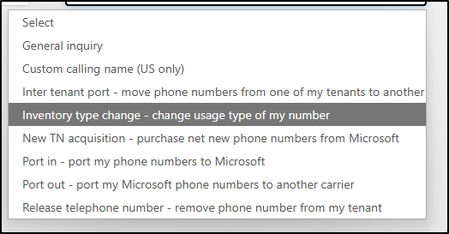
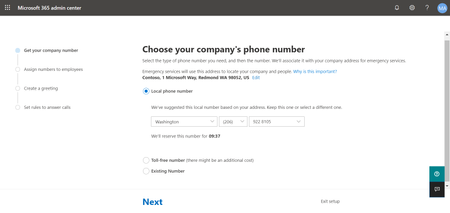
Hi Microsoft community. I hope you will be able to help me with this question. In company I work for, we have a skype number set up. We use this skype number for our customer service. Now, since skype is about to reach EOL, and we would like to have better control over this account we want to transfer this number to Teams. This number ,account was created years ago and it was requested as a new number. Therefore, the provider for this number is SKYPE/MICROSOFT. I have read bunch of articles and tutorials on how to port a number to teams, however this (wheatear done by automated wizard in office of send manually to PSTN service desk) requires a lot of information that I don't have. I have credentials to this skype account, phone number that is associated with it, but I can not figure out how to transfer it to teams. Can you please advise ? It really sucks that MS Skype is about to reach EOL and there is no clear information about how to transfer from number from skype to teams. Community Skype for Business Adoption10KViews1like4Comments
How to set voicemails to go to a Call Queue Team Channel
I'm setting up a new call queue and AA for our front desk and I see in the Channel I have setup for calls to get routed to a voicemail tab but there appears to be no way to actually send calls here either in the AA or call queue in the Teams admin page. And as usual there is 0 how to from MS on this just heres all the settings just figure it out, without going into all the gotcha's built into the system. Yes I know I can send this to a personal or group email box that is not what I'm trying to do.312Views0likes0Comments
Skype phone numbers we are using for US, AU are not working at all, we need help please
We have already paid for yearly renting of the Skype phone numbers we are using for US, AU and these are not working because are not getting redirected after the right settings in place, also the voicemails are not working at all, no settings working at all and after paying there is no one to talk to and report the issue, no email of support, no department of support to send ticket, no phone number, absolutely nothing to provide you support as client for something that you paid and is not working!!! I have tried to adjust the settings based on the forms from the Skype app for windows also from the Skype app for web and I tried both the redirect also the voicemail and none of them working to be setup. So disappointed and we already paid for 1 year in advance for both of them. We need help!480Views0likes0CommentsCloud PBX experience
Hey folks, I thought I'd share a blog post of my recent experience implementing and migrating myself and a number of users from Skype for Business Server over to Cloud PBX: http://thecloudmouth.com/2017/01/10/experiences-with-cloud-pbx-skype-for-business-online/1.3KViews1like1Comment