update
212 Topics
Frustrations with the New Planner Update
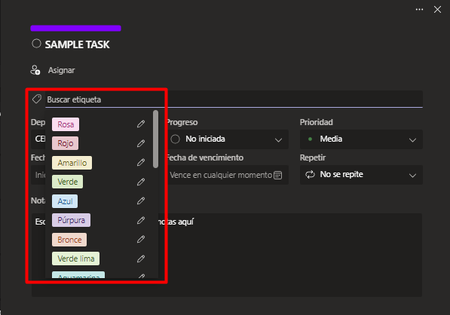
I was looking forward to the new Planner update, but instead of improvements, I’m seeing several changes that have negatively impacted my team’s workflow. Here are the main issues: "Assigned to Me" View: Previously, this view acted as a personal Planner automatically grouped by buckets, which was really helpful. Now, it’s been replaced with a simple list view, and the "Schedule" view for personal tasks has also been removed. Copying Plans: In the previous version, we could copy a plan and retain all the tags we'd created. Now, when copying a plan, the tasks no longer retain these tags, and when attempting to reassign them, the tags aren’t available in the copied plan. These changes have made it more challenging for us to manage tasks effectively. Is there any way to revert to the previous version of Planner or enable these features again?5KViews26likes28Comments
Revert to old Planner?
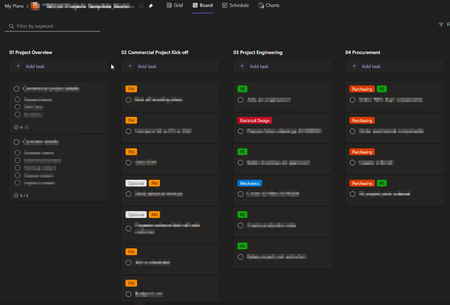
As of today, the new Planner version has been rolled out for our organisation. MS Planner is pretty much the most important tool for our project management. With the update, we can no longer copy plans without deleting all tags. In our organisation, the tags assign the responsible department to the respective tasks. This makes them extremely important. "Template Plan": Plan after we did a copy&paste: Even the Tags have to be renamed: Is there a way to revert to the old Planner? Is Microsoft aware of this problem? Kind Regards Jonathan4.2KViews19likes27CommentsEvolving Stretch Clustering for Azure Local
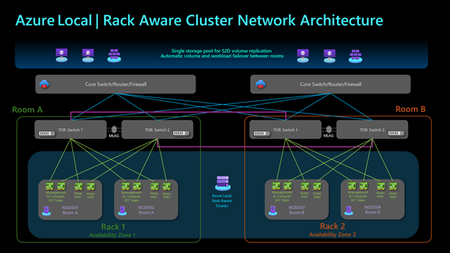
Stretched clusters in Azure Local, version 22H2 (formerly Azure Stack HCI, version 22H2) entail a specific technical implementation of storage replication that spans a cluster across two sites. Azure Local, version 23H2 has evolved from a cloud-connected operating system to an Arc-enabled solution with Arc Resource Bridge, Arc VM, and AKS enabled by Azure Arc. Azure Local, version 23H2 expands the requirements for multi-site scenarios beyond the OS layer, while Stretched clusters do not encompass the entire solution stack. Based on customer feedback, the new Azure Local release will replace the Stretched clusters defined in version 22H2 with new high availability and disaster recovery options. For Short Distance Rack Aware Cluster is a new cluster option which spans two separate racks or rooms within the same Layer-2 network at a single location, such as a manufacturing plant or a campus. Each rack functions as a local availability zone across layers from OS to Arc management including Arc VMs and AKS enabled by Azure Arc, providing fault isolation and workload placement within the cluster. The solution is configured with one storage pool to reduce additional storage replication and enhance storage efficiency. This solution delivers the same Azure deployment and management experience as a standard cluster. This setup is suitable for edge locations and can scale up to 8 nodes, with 4 nodes in each rack. Rack Aware Cluster is currently in private preview and is slated to public preview and general release in 2025. For Long Distance Azure Site Recovery can be used to replicate on-premises Azure Local virtual machines into Azure and protect business-critical workloads. This allows Azure cloud to serve as a disaster recovery site, enabling critical VMs to be failed over to Azure in case of a local cluster disaster, and then failed back to the on-premises cluster when it becomes operational again. If you cannot fail over certain workloads to cloud and require long distance of disaster recovery, like in two different cities, you can leverage Hyper-V Replica to replicate Arc VMs to the secondary site. Those VMs will become Hyper-V VMs on the secondary site, they will become Arc VMs once they fail back to the original cluster on the first site. Additional Options beyond Azure Local If the above solutions in Azure Local do not cover your needs, you can fully customize your solution with Windows Server 2025 which introduces several advanced hybrid cloud capabilities designed to enhance operational flexibility and connectivity across various environments. Additionally, it offers various replication technologies like Hyper-V Replica, Storage Replica and external SAN replication that enable the development of tailored datacenter disaster recovery solutions. Learn more from the Windows Server 2025 now generally available, with advanced security, improved performance, and cloud agility - Microsoft Windows Server Blog What to do with existing Stretched clusters on version 22H2 Stretched clusters and Storage Replica are not supported in Azure Local, version 23H2 and beyond. However, version 22H2 stretched clusters can stay in supported state in version 23H2 by performing the first step of operating system upgrade as shown in the following diagram to 23H2 OS. The second step of the solution upgrade to Azure Local is not applicable to stretched clusters. This provides extra time to assess the most suitable future solution for your needs. Please refer to the About Azure Local upgrade to version 23H2 - Azure Local | Microsoft Learn for more information on the 23H2 upgrade. Refer the blog on Upgrade from Azure Stack HCI, version 22H2 to Azure Local | Microsoft Community Hub. Conclusion We are excited to be bringing Rack Aware Clusters and Azure Site Recovery to Azure Local. These high availability and disaster recovery options allow customers to address various scenarios with a modern cloud experience and simplified management.16KViews16likes0CommentsNew Feature: Built in Picture in Picture mode (PIP) is added to Microsoft Edge Global Media Controls
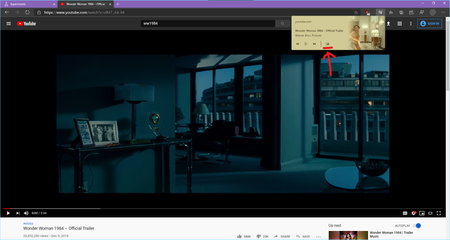
Microsoft Edge Canary Version 82.0.442.0 (Official build) canary (64-bit) The flags you need to enable: edge://flags/ 1. Global Media Controls Picture-in-Picture Enables Picture-in-Picture controls in the Global Media Controls UI. Requires #global-media-controls to also be enabled. – Mac, Windows #global-media-controls-picture-in-picture 2. Global Media Controls Enables the Global Media Controls UI in the toolbar. – Mac, Windows #global-media-controls Microsoft Edge browser now has support for Picture in Picture mode built in. it works in all websites playing video. this is another example for Twitch the PIP pop up video can be dragged to anywhere on the screen and it will stay on top of other applications125KViews11likes17CommentsSimplified access to Hotpatching enabled by Azure Arc for Windows Server 2025
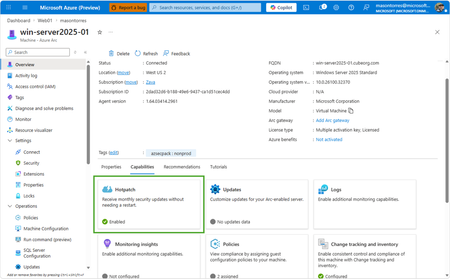
With Windows Server 2025, we introduced hotpatch enabled by Azure Arc, delivering security updates to Windows Server across hybrid and multicloud environments – minimizing downtime (no reboot), accelerating protection, and unifying patch management. We know that keeping your servers updated with the latest patches is one of the critical tasks that IT teams perform day-to-day. We want to make it simpler to install the latest operating system (OS) updates without rebooting machines after every installation. The resounding feedback we have received from you underscored the criticality of this feature in the lifecycle management and security of your infrastructure. We are now taking it one step further to reduce the friction to deploying these critical updates: hotpatch enabled by Azure Arc is now available at no additional cost for Windows Server 2025. Which machines are eligible for this offer? To use hotpatch for Windows Servers running on-premises or in multicloud environments, you must be using Windows Server 2025 Standard or Datacenter, and your server must be connected to Azure Arc. With this announcement, enabling and usage of the hotpatching service is available at no additional charge. Please take note that there are no charges for customers running on Azure IaaS, or Azure Local, wherein hotpatching is available as part of the functionality of Windows Server Datacenter: Azure Edition. This feature is already included both with Windows Server 2022 Datacenter: Azure Edition and Windows Server 2025 Datacenter: Azure Edition. How do I manage hotpatches enabled by Azure Arc for Windows Server 2025? If your Windows Server 2025 machines aren't already connected to Azure Arc, install the Azure Connected Machine agent — it takes just a few minutes per server and supports at-scale rollout via Group Policy, service principal, or Terraform. Once connected, enable Hotpatch from the Azure portal, Azure PowerShell, Azure CLI, or the REST API — just confirm Virtualization-based security (VBS is enabled) first. From there, use Azure Update Manager to schedule and monitor rollouts at scale. For instructions on how to enable hotpatch for Azure Arc-enabled machines using group policy or scripts, learn more here: https://aka.ms/ws-hotpatch For patch orchestration at scale, you can use Azure Update Manager to deliver hotpatches enabled by Azure Arc for Windows server 2025 machines. This enables greater uptime with fewer reboots and faster deployment of updates with easy patch orchestration. Alternatively, you can use APIs or other management tools to manage hotpatches. Centralized management of hotpatch updates across hybrid and multicloud environments enabled by Azure Arc Once your machines are connected to Azure Arc, you can also use the cloud-native services from Azure to manage your windows machines running on-prem. Azure Arc enables you to standardize security and governance across a wide range of resources so you can easily organize, govern and secure Windows, Linux, SQL servers, and Kubernetes clusters running across data centers, edge, and multi-cloud environments – using Azure services such as Azure Policy, Azure Monitor, Microsoft Defender and more. At no additional cost for machines attached to Azure Arc Basic inventory across on-prem and multi-cloud Tag your resources, organize them into resource groups, subscriptions, and management groups, and query at scale with Azure Resource Graph to unify your environments. Infra as Code (Bicep, Terraform) Infra as code for provisioning and management of resources. VM Self Service Perform lifecycle management such as (create, resize, update and delete) and power cycle operations such as (start, stop, and restart on VMware vCenter and System Center Virtual Machine Manager Virtual Machines. Hotpatch for Windows Server 2025 NEW Windows Server hot patching enables you to apply security updates without rebooting, keeping systems secure while maintaining continuous uptime. VM Management Administrate your servers anywhere using SSH for Azure Arc, Run Command, and Custom Script Extension. Mgmt. Services included for no additional costs with Windows Server Software Assurance or Extended Security Updates Azure Update Manager Provides a unified, centralized service to monitor, orchestrate, and automate patching across Azure, on‑prem, and multi‑cloud environments ensuring security, compliance, and minimal downtime at scale. Azure Machine Configuration (Policy) Policy‑driven auditing and enforcement of OS and application settings as code across Azure and hybrid machines—ensuring consistent, compliant state at scale. Including compliance policies like CIS Benchmark and WinRE Change Tracking & Inventory Real‑time visibility into configuration changes and system state across your fleet enabling faster troubleshooting, improved security, and continuous compliance at scale. VM insights from Azure Monitor Delivers a unified, pre‑built observability experience that provides real‑time performance, health, and dependency visibility across VMs—enabling faster troubleshooting, optimization, and capacity planning at scale. Windows Admin Center Unified, browser‑based management plane to securely manage Windows servers, VMs, and hybrid infrastructure from anywhere—simplifying operations and improving efficiency at scale. Best Practices Assessment Continuously evaluation your server configurations against Microsoft-recommended standards to proactively identify risks and provide actionable remediation guidance—improving security, performance, and operational health at scale. Frequently Asked Questions What are hotpatch updates? Hotpatch updates are monthly security updates that take effect without requiring you to restart the device. They contain a full set of security updates equivalent to the standard updates released the same day. What is the hotpatch update cycle? All eligible Windows Server 2025 machines enrolled in hotpatch are offered up to 8 monthly hotpatch updates in a calendar year in a quarterly cycle: Baseline month: In January, April, July, and October, devices install the monthly cumulative security update and must restart for the update to take effect. This update includes the latest security fixes, cumulative new features, and enhancements since the last baseline. Subsequent two months: Devices receive hotpatch updates, which only include security updates and don't require a restart for the update to take effect. These devices will catch up on features and enhancements with the next cumulative baseline month (quarterly). Will billing be stopped for existing enrolled machines? Yes, as of 15 th May 2026 all billing for hotpatch has been stopped for all existing machines enrolled in hotpatch. What action do we need to take if we have machines enrolled in hotpatch already? There is no additional action needed for machines that are currently enrolled in hotpatch. These machines will remain enrolled in hotpatch and receive hotpatch updates when available. I want all my Windows Server 2025 machines to get hotpatches. How do I do it? If you have Windows Server 2025 machines on-premises or on cloud (other than Azure) then you can enable hotpatch on them. To do so, ensure these machines have Virtualization Based Security enabled and are connected to Azure Arc and then you can use Azure Arc portal, Azure Update manager or APIs to enable hotpatch. Learn more: https://aka.ms/ws-hotpatch Is anything changing for Hotpatching on Azure? Hotpatch continues to be available on Azure for your Windows Server 2022 and Windows Server 2025 VMs when using Azure Edition. There is no fee associated with Hotpatching on Azure. Learn more here. Is there a community forum for Arc? Yes, you can join the Azure Arc Monthly Forum here: aka.ms/ArcServerForumSignup6.7KViews10likes5CommentsAnnouncing General Availability: Windows Server Management enabled by Azure Arc
Windows Server Management enabled by Azure Arc offers customers with Windows Server licenses that have active Software Assurances or Windows Server licenses that are active subscription licenses the following key benefits: Azure Update Manager Azure Change Tracking and Inventory Azure Machine Configuration Windows Admin Center in Azure for Arc Remote Support Network HUD Best Practices Assessment Azure Site Recovery (Configuration Only) Upon attestation, customers receive access to the following at no additional cost beyond associated networking, compute, storage, and log ingestion charges. These same capabilities are also available for customers enrolled in Windows Server 2025 Pay as you Go licensing enabled by Azure Arc. Learn more at Windows Server Management enabled by Azure Arc - Azure Arc | Microsoft Learn or watch Video: Free Azure Services for Non-Azure Windows Servers Covered by SA Powered by Azure Arc! To get started, connect your servers to Azure Arc, attest for these benefits, and deploy management services as you modernize to Azure's AI-enabled set of server management capabilities across your hybrid, multi-cloud, and edge infrastructure!20KViews10likes10Comments[Feature Suggestion] Show update history in Edge
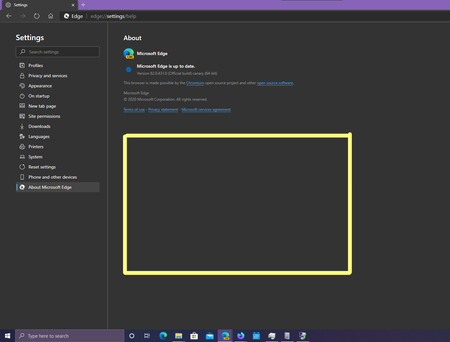
Please show the update history in edge://settings/help lots of spaces left there, it helps to keep track of installed updates on the local machine. only show update history after Edge is installed on the system, not from the beginning of the time. Firefox has this and it's very helpful, specially for insider channel. I only want to see the time and the version number of previously installed updates on my system. you can add a scroll bar to the right side to scroll down/up when the history rows are too many to fit that area. Like this:11KViews9likes8CommentsAzure Best Practices delivered to machines anywhere with new Azure Arc and Automanage integration.
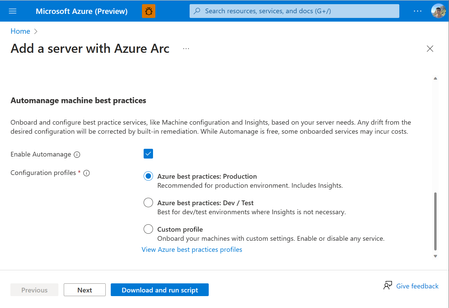
Tired of manually onboarding and configuring Azure services for your Arc-enabled servers? With Azure Automanage Machine Best Practices, you can point, click, set, and forget to extend Azure security, monitoring, and governance services to servers anywhere.6.1KViews6likes2CommentsAzure Arc enabled Kubernetes is now Generally Available!
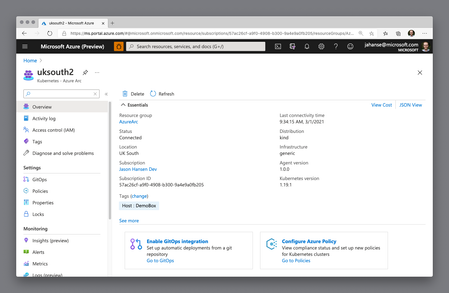
We are excited to bring Azure Arc enabled Kubernetes to general availability at our Spring Ignite event. Azure Arc enabled Kubernetes enables you to attach any CNCF-conformant Kubernetes cluster to Azure for management. Your clusters can run anywhere, and if they have connectivity to Azure, onboarding is as easy as deploying the Azure Arc cluster agents using the Azure CLI extension.17KViews6likes0Comments