ubuntu
42 TopicsRun OpenClaw Agents on Azure Linux VMs (with Secure Defaults)
Many teams want an enterprise-ready personal AI assistant, but they need it on infrastructure they control, with security boundaries they can explain to IT. That is exactly where OpenClaw fits on Azure. OpenClaw is a self-hosted, always-on personal agent runtime you run in your enterprise environment and Azure infrastructure. Instead of relying only on a hosted chat app from a third-party provider, you can deploy, operate, and experiment with an agent on an Azure Linux VM you control — using your existing GitHub Copilot licenses, Azure OpenAI deployments, or API plans from OpenAI, Anthropic Claude, Google Gemini, and other model providers you already subscribe to. Once deployed on Azure, you can interact with an OpenClaw agent through familiar channels like Microsoft Teams, Slack, Telegram, WhatsApp, and many more! For Azure users, this gives you a practical middle ground: modern personal-agent workflows on familiar Azure infrastructure. What is OpenClaw, and how is it different from ChatGPT/Claude/chat apps? OpenClaw is a self-hosted personal agent runtime that can be hosted on Azure compute infrastructure. How it differs: ChatGPT/Claude apps are primarily hosted chat experiences tied to one provider's models OpenClaw is an always-on runtime you operate yourself, backed by your choice of model provider — GitHub Copilot, Azure OpenAI, OpenAI, Anthropic Claude, Google Gemini, and others OpenClaw lets you keep the runtime boundary in your own Azure VM environment within your Azure enterprise subscription In practice, OpenClaw is useful when you want a persistent assistant for operational and workflow tasks, with your own infrastructure as the control point. You bring whatever model provider and API plan you already have — OpenClaw connects to it. Why Azure Linux VMs? Azure Linux VMs are a strong fit because they provide: A suitable host machine for the OpenClaw agent to run on Enterprise-friendly infrastructure and identity workflows Repeatable provisioning via the Azure CLI Network hardening with NSG rules Managed SSH access through Azure Bastion instead of public SSH exposure How to Set Up OpenClaw on an Azure Linux VM This guide sets up an Azure Linux VM, applies NSG (Network Security Group) hardening, configures Azure Bastion for managed SSH access, and installs an always-on OpenClaw agent within the VM that you can interact with through various messaging channels. What you'll do Create Azure networking (VNet, subnets, NSG) and compute resources with the Azure CLI Apply Network Security Group rules so VM SSH is allowed only from Azure Bastion Use Azure Bastion for SSH access (no public IP on the VM) Install OpenClaw on the Azure VM Verify OpenClaw installation and configuration on the VM What you need An Azure subscription with permission to create compute and network resources Azure CLI installed (install steps) An SSH key pair (the guide covers generating one if needed) ~20–30 minutes Configure deployment Step 1: Sign in to Azure CLI az login # Select a suitable Azure subscription during Azure login az extension add -n ssh # SSH extension is required for Azure Bastion SSH The ssh extension is required for Azure Bastion native SSH tunneling. Step 2: Register required resource providers (one-time) Register required Azure Resource Providers (one time registration): az provider register --namespace Microsoft.Compute az provider register --namespace Microsoft.Network Verify registration. Wait until both show Registered. az provider show --namespace Microsoft.Compute --query registrationState -o tsv az provider show --namespace Microsoft.Network --query registrationState -o tsv Step 3: Set deployment variables Set the deployment environment variables that will be needed throughout this guide. RG="rg-openclaw" LOCATION="westus2" VNET_NAME="vnet-openclaw" VNET_PREFIX="10.40.0.0/16" VM_SUBNET_NAME="snet-openclaw-vm" VM_SUBNET_PREFIX="10.40.2.0/24" BASTION_SUBNET_PREFIX="10.40.1.0/26" NSG_NAME="nsg-openclaw-vm" VM_NAME="vm-openclaw" ADMIN_USERNAME="openclaw" BASTION_NAME="bas-openclaw" BASTION_PIP_NAME="pip-openclaw-bastion" Adjust names and CIDR ranges to fit your environment. The Bastion subnet must be at least /26. Step 4: Select SSH key Use your existing public key if you have one: SSH_PUB_KEY="$(cat ~/.ssh/id_ed25519.pub)" If you don't have an SSH key yet, generate one: ssh-keygen -t ed25519 -a 100 -f ~/.ssh/id_ed25519 -C "you@example.com" SSH_PUB_KEY="$(cat ~/.ssh/id_ed25519.pub)" Step 5: Select VM size and OS disk size VM_SIZE="Standard_B2as_v2" OS_DISK_SIZE_GB=64 Choose a VM size and OS disk size available in your subscription and region: Start smaller for light usage and scale up later Use more vCPU/RAM/disk for heavier automation, more channels, or larger model/tool workloads If a VM size is unavailable in your region or subscription quota, pick the closest available SKU List VM sizes available in your target region: az vm list-skus --location "${LOCATION}" --resource-type virtualMachines -o table Check your current vCPU and disk usage/quota: az vm list-usage --location "${LOCATION}" -o table Deploy Azure resources Step 1: Create the resource group The Azure resource group will contain all of the Azure resources that the OpenClaw agent needs. az group create -n "${RG}" -l "${LOCATION}" Step 2: Create the network security group Create the NSG and add rules so only the Bastion subnet can SSH into the VM. az network nsg create \ -g "${RG}" -n "${NSG_NAME}" -l "${LOCATION}" # Allow SSH from the Bastion subnet only az network nsg rule create \ -g "${RG}" --nsg-name "${NSG_NAME}" \ -n AllowSshFromBastionSubnet --priority 100 \ --access Allow --direction Inbound --protocol Tcp \ --source-address-prefixes "${BASTION_SUBNET_PREFIX}" \ --destination-port-ranges 22 # Deny SSH from the public internet az network nsg rule create \ -g "${RG}" --nsg-name "${NSG_NAME}" \ -n DenyInternetSsh --priority 110 \ --access Deny --direction Inbound --protocol Tcp \ --source-address-prefixes Internet \ --destination-port-ranges 22 # Deny SSH from other VNet sources az network nsg rule create \ -g "${RG}" --nsg-name "${NSG_NAME}" \ -n DenyVnetSsh --priority 120 \ --access Deny --direction Inbound --protocol Tcp \ --source-address-prefixes VirtualNetwork \ --destination-port-ranges 22 The rules are evaluated by priority (lowest number first): Bastion traffic is allowed at 100, then all other SSH is blocked at 110 and 120. Step 3: Create the virtual network and subnets Create the VNet with the VM subnet (NSG attached), then add the Bastion subnet. az network vnet create \ -g "${RG}" -n "${VNET_NAME}" -l "${LOCATION}" \ --address-prefixes "${VNET_PREFIX}" \ --subnet-name "${VM_SUBNET_NAME}" \ --subnet-prefixes "${VM_SUBNET_PREFIX}" # Attach the NSG to the VM subnet az network vnet subnet update \ -g "${RG}" --vnet-name "${VNET_NAME}" \ -n "${VM_SUBNET_NAME}" --nsg "${NSG_NAME}" # AzureBastionSubnet — name is required by Azure az network vnet subnet create \ -g "${RG}" --vnet-name "${VNET_NAME}" \ -n AzureBastionSubnet \ --address-prefixes "${BASTION_SUBNET_PREFIX}" Step 4: Create the Virtual Machine Create the VM with no public IP. SSH access for OpenClaw configuration will be exclusively through Azure Bastion. az vm create \ -g "${RG}" -n "${VM_NAME}" -l "${LOCATION}" \ --image "Canonical:ubuntu-24_04-lts:server:latest" \ --size "${VM_SIZE}" \ --os-disk-size-gb "${OS_DISK_SIZE_GB}" \ --storage-sku StandardSSD_LRS \ --admin-username "${ADMIN_USERNAME}" \ --ssh-key-values "${SSH_PUB_KEY}" \ --vnet-name "${VNET_NAME}" \ --subnet "${VM_SUBNET_NAME}" \ --public-ip-address "" \ --nsg "" --public-ip-address "" prevents a public IP from being assigned. --nsg "" skips creating a per-NIC NSG (the subnet-level NSG created earlier handles security). Reproducibility: The command above uses latest for the Ubuntu image. To pin a specific version, list available versions and replace latest: az vm image list \ --publisher Canonical --offer ubuntu-24_04-lts \ --sku server --all -o table Step 5: Create Azure Bastion Azure Bastion provides secure-managed SSH access to the VM without exposing a public IP. Bastion Standard SKU with tunneling is required for CLI-based "az network bastion ssh" command. az network public-ip create \ -g "${RG}" -n "${BASTION_PIP_NAME}" -l "${LOCATION}" \ --sku Standard --allocation-method Static az network bastion create \ -g "${RG}" -n "${BASTION_NAME}" -l "${LOCATION}" \ --vnet-name "${VNET_NAME}" \ --public-ip-address "${BASTION_PIP_NAME}" \ --sku Standard --enable-tunneling true Bastion provisioning typically takes 5–10 minutes but can take up to 15–30 minutes in some regions. Step 6: Verify Deployments After all resources are deployed, your resource group should look like the following: Install OpenClaw Step 1: SSH into the VM through Azure Bastion VM_ID="$(az vm show -g "${RG}" -n "${VM_NAME}" --query id -o tsv)" az network bastion ssh \ --name "${BASTION_NAME}" \ --resource-group "${RG}" \ --target-resource-id "${VM_ID}" \ --auth-type ssh-key \ --username "${ADMIN_USERNAME}" \ --ssh-key ~/.ssh/id_ed25519 Step 2: Install OpenClaw (in the Bastion SSH shell) curl -fsSL https://openclaw.ai/install.sh | bash The installer installs Node LTS and dependencies if not already present, installs OpenClaw, and launches the OpenClaw onboarding wizard. For more information, see the open source OpenClaw install docs. OpenClaw Onboarding: Choosing an AI Model Provider During OpenClaw onboarding, you'll choose the AI model provider for the OpenClaw agent. This can be GitHub Copilot, Azure OpenAI, OpenAI, Anthropic Claude, Google Gemini, or another supported provider. See the open source OpenClaw install docs for details on choosing an AI model provider when going through the onboarding wizard. Most enterprise Azure teams already have GitHub Copilot licenses. If that is your case, we recommend choosing the GitHub Copilot provider in the OpenClaw onboarding wizard. See the open source OpenClaw docs on configuring GitHub Copilot as the AI model provider. OpenClaw Onboarding: Setting up Messaging Channels During OpenClaw onboarding, there will be an optional step where you can set up various messaging channels to interact with your OpenClaw agent. For first time users, we recommend setting up Telegram due to ease of setup. Other messaging channels such as Microsoft Teams, Slack, WhatsApp, and others can also be set up. To configure OpenClaw for messaging through chat channels, see the open source OpenClaw chat channels docs. Step 3: Verify OpenClaw Configuration To validate that everything was set up correctly, run the following commands within the same Bastion SSH session: openclaw status openclaw gateway status If there are any issues reported, you can run the onboarding wizard again with the steps above. Alternatively, you can run the following command: openclaw doctor Message OpenClaw Once you have configured the OpenClaw agent to be reachable via various messaging channels, you can verify that it is responsive by messaging it. Enhancing OpenClaw for Use Cases There you go! You now have a 24/7, always-on personal AI agent, living on its own Azure VM environment. For awesome OpenClaw use cases, check out the awesome-openclaw-usecases repository. To enhance your OpenClaw agent with additional AI skills so that it can autonomously perform multi-step operations on any domain, check out the awesome-openclaw-skills repository. You can also check out ClawHub and ClawSkills, two popular open source skills directories that can enhance your OpenClaw agent. Cleanup To delete all resources created by this guide: az group delete -n "${RG}" --yes --no-wait This removes the resource group and everything inside it (VM, VNet, NSG, Bastion, public IP). This also deletes the OpenClaw agent running within the VM. If you'd like to dive deeper about deploying OpenClaw on Azure, please check out the open source OpenClaw on Azure docs.7.3KViews5likes2Comments
Solution for PWAs not appearing as separate apps on Linux taskbars
Hi everyone, I recently Installed Microsoft Edge stable on Kubuntu Linux, and I ran into some problems using Progressive Web Applications (PWAs). Launch one Edge PWA (say, Microsoft Teams). It appears normally. Launch a second PWA (say, Microsoft Outlook). Both windows — and every PWA you launch afterward — collapse into a single taskbar group under the first PWA’s icon, identified as msedge. Pinned PWA launchers never show as running. Pinning a running PWA window produces a generic page icon that launches the bare Edge browser when clicked. Launching a PWA from the application menu briefly shows the launcher’s startup placeholder in the taskbar, which then disappears and is replaced by a separate, unassociated entry. This isn’t KDE-specific. GNOME users have also reported issues. After some troubleshooting with Claude, the issues were traced to a mismatch between how the PWAs are identified in the .desktop PWA launchers created by Edge and the app ids reported to Wayland, starting in September 2025, when Wayland was used by default. Identifier Value Example (Microsoft Outlook) Window app_id (native Wayland) msedge-_<appid>-Default msedge-_lkkahpbimdkjdjjiijflmhaeameegbcm-Default Desktop entry filename msedge-<appid>-Default msedge-lkkahpbimdkjdjjiijflmhaeameegbcm-Default StartupWMClass= in that file crx__<appid> crx__lkkahpbimdkjdjjiijflmhaeameegbcm So the solution is StartupWMClass in the .desktop launcher for the PWA to the Wayland app_id. I have a simple Bash script that will do this for all currently installed PWAs as a workaround, but the automod removed that post the last time I tried to post it. The suggested fix for Microsoft This should be a small change to Edge’s desktop-entry generation on Linux: write the Wayland app_id (msedge-_<appid>-<profile>) into StartupWMClass=, or better, make the window app_id match the desktop entry basename per the freedesktop convention. No compositor-side changes are needed — the verified workaround above demonstrates that. I’ve reported this through Edge’s in-browser feedback tool (Alt+Shift+I) with the full diagnosis. If you’re affected, sending your own feedback referencing the same details is the best way to get it prioritized — the in-browser channel is what reaches the Edge team’s triage.540Views3likes1CommentWhat IT teams need to know about Linux Secure Boot certificates expiring in 2026
If your organization does not use UEFI Secure Boot on Linux systems, this transition does not affect your boot path. You can stop reading now. If you do use Secure Boot, here is what you need to know. The Microsoft Corporation UEFI CA (Certificate Authority) 2011 expires on June 27, 2026 (June 26 local time in some time zones). Expiration alone does not stop anything from booting and does not render a system insecure. Existing 2011-signed shims keep working on systems that still trust the 2011 CA. The real risk is narrower: once an operating system vendor ships a shim signed only by the Microsoft UEFI CA 2023, any system whose firmware does not already trust the 2023 CA will fail to boot. The work for you is to confirm, before that update reaches your systems, that your systems trust the 2023 CA. If you want the history of why a Microsoft certificate sits in the Linux Secure Boot path at all, skip to the end. Terms used in this post You may see three Microsoft Secure Boot certificate authorities discussed in 2026 guidance. This post focuses on the Microsoft UEFI CA 2011, which is the CA used for third-party UEFI boot applications such as the Linux shim. The other expiring Microsoft Secure Boot certificates are the Microsoft Corporation KEK CA 2011, which is used to authorize updates to Secure Boot databases, and the Microsoft Windows Production PCA 2011, which is used for Windows boot components. Windows systems have a separate update path for those certificates; this post covers only the Linux boot chain. The 2023 update also separates two uses that were both covered by the Microsoft UEFI CA 2011. The Microsoft UEFI CA 2023 is for third-party UEFI boot applications, including the Linux shim. The Microsoft Option ROM UEFI CA 2023 is for third-party option ROMs, such as firmware on some add-in cards. This post is about the Linux bootloader path, but physical systems that rely on signed option ROMs may need to check that path too. Microsoft began returning 2023-signed Linux shim binaries to operating system vendors in October 2025, and since then a submitted shim comes back signed by both the 2011 CA and the 2023 CA. Once the 2011 CA expires, Microsoft can only sign with the 2023 CA. In UEFI Secure Boot terminology, db is the allowed signature database, dbx is the forbidden or revoked signature database, and KEK contains keys that can authorize updates to db and dbx . SBAT is a shim ecosystem mechanism for revoking boot components by generation. SBAT is related to Secure Boot revocation, but it is separate from the CA expiration itself. For brevity, the rest of this post uses operating system vendor to include Linux distributions and other vendors that ship and support Linux boot components. Microsoft returns signed shims to that submitting operating system vendor. It does not push shim updates to end users or IT departments. Those reach systems through the normal operating system, package, image, or platform update channels. What is not happening Expiration is not revocation, and it does not cause an immediate boot failure. The 2011 CA expiring does not make existing 2011-signed shims stop booting on June 27, 2026. UEFI Secure Boot validates a signature against the trust database and revocation state, not against the certificate's validity period. The image-validation process in the UEFI specification bases the decision on whether the image's hash or signing certificate is present in the authorized database ( db ) and absent from the forbidden database ( dbx ). It does not check whether the certificate has expired. Firmware bugs are always possible, but expiration by itself should not invalidate an already-signed shim. There is also no current plan to revoke the Microsoft UEFI CA 2011. Expiration means Microsoft can no longer sign new binaries with that certificate. Revocation would mean telling systems not to trust binaries signed with it. Revocation is not the plan. For the same reason, do not remove the 2011 CA from a system's Secure Boot db . Removing it strips that trust path. Removal is not required for this transition, and existing boot components may still depend on the 2011 CA. No operating system vendor has to move to a 2023-signed shim on the expiration date. An operating system vendor may keep shipping a 2011-signed shim (if one is available), ship a 2023-only shim, or ship one carrying both signatures. That decision belongs to the operating system vendor. What can break The failure case is a mismatch between the shim signature and the firmware trust database. The moment to worry about is not the expiration date. It is when a system first receives a 2023-only shim. That leaves a remediation window: the time between the expiration date and the first 2023-only shim reaching a given system. How long it lasts depends on your operating system vendor's packaging decisions, any security fix that forces a new shim release, and how easily you can update firmware or VM Secure Boot state on the affected platforms. The transition comes down to one table: Firmware trust database 2011-only shim 2023-only shim Dual-signed shim 2011 CA only Boots, but depends on continued 2011 trust Does not boot Should boot 2023 CA only Does not boot Boots Should boot Both 2011 and 2023 CAs Boots Boots Boots The table is deliberately simple. Real systems also have dbx revocations, SBAT policy, firmware bugs, operating system vendor packaging choices, and platform-specific update paths. But this is the core compatibility problem. Dual-signed shims help bridge the transition, because the same shim can validate through either CA. However, they are not a guarantee. Some firmware mishandles multiple signatures and evaluates only one of them, revocation and vendor support still apply, and the operating system vendor decides whether to ship and support a dual-signed shim at all. This kind of failure happens early, before the operating system loads. Recovery means restoring a trusted boot path or following your operating system, hardware, or platform vendor's recovery guidance. It is not a package rollback inside a running system. Who should pay closest attention This transition matters most where the operating system, firmware, and update path may not move together. If you run a maintained operating system on maintained hardware or a maintained virtualization platform, the normal vendor update path may handle most of it. Closer attention is worthwhile where that path is missing, delayed, customized, or hard to validate. Older hardware is the first case. Some systems need a firmware update before they can trust the 2023 CA, and support can vary by model even within one hardware vendor's portfolio. Check each model you operate rather than assuming one answer covers the fleet. Long-lived virtual machines are the second. VM firmware is still firmware. A VM's Secure Boot state depends on when it was created, which platform firmware it uses, and which UEFI variables have changed since. Firmware is not just another package update, so a long-lived VM may never have received the relevant firmware or database updates unless the administrator or platform applied them. Your cloud or virtualization provider should be able to say how the 2023 CA is handled for new VMs, existing VMs, and imported or custom images. For Azure Trusted Launch and Confidential VMs specifically, Microsoft has published guidance on identifying and updating affected instances. Older operating system releases need more careful validation. Some lack current Secure Boot tooling, current fwupd daemon behavior, or a supported path for updating UEFI trust databases. A command that works on one release may not be supported on another. Custom fleets are their own category: systems built from custom images, frozen package mirrors, pinned bootloader versions, or local Secure Boot policy changes. The more an environment differs from the vendor's default update path, the more you need to verify the actual firmware trust database and installed shim directly. Smaller operating system vendors and long-tail distributions are worth checking too, especially if they submit shim updates infrequently or have not finished their 2023 signing transition. No single authoritative public list tells you which releases have completed this work. Who is responsible for what There is no single Linux Secure Boot owner who can make every system safe for the transition. The operating system vendor controls which shim and boot components it ships. It also controls whether its update process checks the firmware trust database before installing a 2023-only shim. The Linux community runs a community-driven shim-review process for shim submissions. That process is the primary review gate before an operating system vendor requests a Microsoft signature. It is not a support channel for individual systems or fleets. The hardware vendor, firmware vendor, or virtual machine platform controls which trust anchors are present by default and how firmware updates are delivered. In a physical machine, that may mean a BIOS or firmware update. In a VM, it may mean platform firmware defaults, guest-visible UEFI variables, or a provider-specific remediation process. Microsoft controls the Microsoft UEFI signing service and the Microsoft UEFI CAs. After shim-review approval, Microsoft verifies the submitter's relationship to the operating system vendor, runs some additional checks, signs submitted shims, and returns the signed artifacts to the submitting operating system vendor. Microsoft does not choose when each operating system vendor ships a new shim to its customers. Your organization controls the systems it administers. In practice, that means checking whether Secure Boot is enabled, checking which certificates are trusted, following guidance from the relevant operating system vendor, and following guidance from the hardware vendor or VM provider. This is why the right answer for any specific system depends on its operating system vendor, hardware vendor, and platform. This post explains the model. Only those vendors can tell you what is supported for your systems. What to check The exact commands vary by operating system vendor, package set, and platform. Treat the examples below as illustrations, not guaranteed instructions for every Linux system. IT departments should validate commands against vendor documentation before using them in production automation. At fleet scale, the useful starting point is an inventory rather than a one-time manual check. Useful fields include whether Secure Boot is enabled, which Microsoft UEFI CAs are present in the firmware trust database, which CA signed the installed shim, the operating system release, the hardware model or VM platform, the update channel, and whether the system comes from a custom image or vendor image. Set up representative canary systems before any broad rollout. A canary set should cover the differences that matter in your fleet: hardware model, VM platform, operating system release, image lineage, and update channel. The aim is to avoid discovering a firmware or shim mismatch for the first time during a broad production update, not to build a new certification program. First, check whether Secure Boot is enabled: sudo mokutil --sb-state If Secure Boot is disabled, this certificate transition does not affect that system's current boot path. Next, check which Microsoft UEFI CAs are in the firmware trust database: sudo mokutil --db Look for entries such as: Microsoft Corporation UEFI CA 2011 Microsoft UEFI CA 2023 If both are present, the system is prepared for a future 2023-signed shim. If only the 2011 CA is present, check guidance from the relevant operating system vendor and platform provider before accepting a 2023-only shim update. On physical systems, also check whether the platform relies on signed third-party option ROMs. Those may require the Microsoft Option ROM UEFI CA 2023 in addition to the Microsoft UEFI CA 2023 used for boot applications. This is another reason hardware guidance can vary by model. Administrators can also inspect the signature on the shim currently installed on a system. On Enterprise Linux and related distributions, pesign is often used: sudo dnf install pesign sudo pesign -S -i /boot/efi/EFI/<vendor-or-distribution>/shimx64.efi On Debian, Ubuntu, and related distributions, sbverify from sbsigntools is often used: sudo apt install sbsigntools sudo sbverify --list /boot/efi/EFI/<vendor-or-distribution>/shimx64.efi The path to shim may differ. Some systems use a different EFI path, a different architecture suffix, or a different bootloader arrangement. Vendor documentation is the right source for exact commands. How updates may be delivered Many operating system vendors use the Linux Vendor Firmware Service (LVFS) and fwupd for firmware-related updates, including some UEFI Secure Boot database updates. Not every vendor enables the same tooling, and not every platform supports the same update mechanism. Common examples include: sudo fwupdmgr update sudo fwupdmgr security sudo fwupdmgr get-devices Some systems may require a firmware update from the hardware vendor. Some may support a standalone UEFI database update. Some may not support a safe standalone update at all. Some hardware and firmware vendors block standalone database updates because earlier failures showed that the update could break systems. Updating the Secure Boot allowed signature database ( db ) also depends on authorization from keys in KEK . That is one reason these updates often require cooperation from the firmware, hardware, or VM platform vendor. Administrators should not assume that possession of a certificate file is enough to update a system safely. Do not force a Secure Boot database update just because a command exists. Follow the guidance for the specific hardware, VM platform, or operating system vendor. Forcing an update can force a physical reboot of a machine or destroy the system. After the first inventory pass, keep watching the operating system vendor's security advisories and bootloader package updates. Questions for your vendors The right questions depend on the system, but these are the kinds of answers IT departments should look for from operating system vendors, hardware vendors, and VM providers: Does this operating system release currently ship a 2011-signed, 2023-signed, or dual-signed shim? If the vendor plans to ship a 2023-only shim, will the update process check whether the system trusts the 2023 CA before installing it? How is the Microsoft UEFI CA 2023 delivered for this hardware model, VM platform, or image? Is a standalone Secure Boot database update supported, or must the update arrive through a firmware update? Does support vary by hardware model, firmware version, VM generation, image type, or operating system release? What should administrators monitor for shim, GRUB, SBAT, db , KEK , or dbx updates related to this transition? What is the recommended validation path before broad deployment? What is the supported recovery path if a system receives an incompatible shim or firmware update and fails to boot? What to do now If an IT department administers Linux systems that use Secure Boot, the useful work is straightforward: Use the checks above to inventory Secure Boot state, trusted CAs, and installed shim signatures across representative systems. Identify the parts of the fleet most likely to diverge from default vendor paths, including older hardware, long-lived VMs, older operating system releases, custom images, and pinned bootloader packages. Read operating system, hardware, and VM provider guidance before accepting 2023-only shim updates or applying firmware and Secure Boot database updates. Test representative canary systems before rolling out shim or firmware changes broadly. Monitor operating system vendor advisories for shim and bootloader updates related to the transition. Avoid forcing low-level firmware or UEFI variable updates unless vendor guidance says to do so. How Linux got here UEFI Secure Boot was introduced to let firmware verify boot components before executing them. The firmware contains a trust database. If a bootloader is signed by a trusted certificate and is not blocked by revocation policy, the firmware can execute it. In the PC ecosystem, Microsoft has long operated the signing infrastructure used by Windows and by many third-party UEFI boot components. Linux operating system vendors do not have Microsoft sign the Linux kernel directly. Instead, they use a small first-stage bootloader called shim. The Linux shim is signed by Microsoft so firmware will start it. The shim then validates the next boot component, usually GRUB or another vendor-controlled bootloader, using keys controlled by the operating system vendor, not Microsoft. That structure lets Linux operating system vendors participate in the UEFI Secure Boot ecosystem while keeping control over their own boot chains. The shim code is developed publicly, and shim signing uses the community-run shim-review process before the Microsoft signing step. That split is important. The Linux community reviews shim submissions, and Microsoft operates the signing service that applies a signature firmware will trust. The certificate rotation affects this first handoff. Firmware must trust the CA that signed shim. If a future shim is signed only by the 2023 CA, the firmware needs the 2023 CA in its trust database. A system that keeps booting with a 2011-signed shim is not automatically broken or insecure on the expiration date. A system that moves to a 2023-signed shim needs to trust the 2023 CA; plan for that transition.2.1KViews2likes0CommentsUbuntu Pro FIPS 22.04 LTS on Azure: Secure, compliant, and optimized for regulated industries
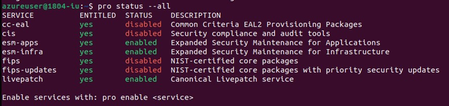
Organizations across government (including local and federal agencies and their contractors), finance, healthcare, and other regulated industries running workloads on Microsoft Azure now have a streamlined path to meet rigorous FIPS 140-3 compliance requirements. Canonical is pleased to announce the availability of Ubuntu Pro FIPS 22.04 LTS on the Azure Marketplace, featuring newly certified cryptographic modules. This offering extends the stability and comprehensive security features of Ubuntu Pro, tailored for state agencies, federal contractors, and industries requiring a FIPS-validated foundation on Azure. It provides the enterprise-grade Ubuntu experience, optimized for performance on Azure in collaboration with Microsoft, and enhanced with critical compliance capabilities. For instance, if you are building a Software as a Service (SaaS) application on Azure that requires FedRAMP authorization, utilizing Ubuntu Pro FIPS 22.04 LTS can help you meet specific controls like SC-13 (Cryptographic Protection), as FIPS 140-3 validated modules are a foundational requirement. This significantly streamlines your path to achieving FedRAMP compliance. What is FIPS 140-3 and why does it matter? FIPS 140-3 is the latest iteration of the benchmark U.S. government standard for validating cryptographic module implementations, superseding FIPS 140-2. Managed by NIST, it's essential for federal agencies and contractors and is a recognized best practice in many regulated industries like finance and healthcare. Using FIPS-validated components helps ensure cryptography is implemented correctly, protecting sensitive data in transit and at rest. Ubuntu Pro FIPS 22.04 LTS includes FIPS 140-3 certified versions of the Linux kernel and key cryptographic libraries (like OpenSSL, Libgcrypt, GnuTLS) pre-enabled, which are drop-in replacements for the standard packages, greatly simplifying deployment for compliance needs. The importance of security updates (fips-updates) A FIPS certificate applies to a specific module version at its validation time. Over time, new vulnerabilities (CVEs) are discovered in these certified modules. Running code with known vulnerabilities poses a significant security risk. This creates a tension between strict certification adherence and maintaining real-world security. Recognizing this, Canonical provides security fixes for the FIPS modules via the fips-updates stream, available through Ubuntu Pro. We ensure these security patches do not alter the validated cryptographic functions. This approach aligns with modern security thinking, including recent FedRAMP guidance, which acknowledges the greater risk posed by unpatched vulnerabilities compared to solely relying on the original certified binaries. Canonical strongly recommends all users enable the fips-updates repository to ensure their systems are both compliant and secure against the latest threats. FIPS 140-3 vs 140-2 The new FIPS 140-3 standard includes modern ciphers such as TLS v1.3, as well as deprecating older algorithms like MD5. If you are upgrading systems and workloads to FIPS 140-3, it will be necessary to perform rigorous testing to ensure that applications continue to work correctly. Compliance tooling Included Ubuntu Pro FIPS also includes access to Canonical's Ubuntu Security Guide (USG) tooling, which assists with automated hardening and compliance checks against benchmarks like CIS and DISA-STIG, a key requirement for FedRAMP deployments. How to get Ubuntu Pro FIPS on Azure You can leverage Ubuntu Pro FIPS 22.04 LTS on Azure in two main ways: Deploy the Marketplace Image: Launch a new VM directly from the dedicated Ubuntu Pro FIPS 22.04 LTS listing on the Azure Marketplace. This image comes with the FIPS modules pre-enabled for immediate use. Enable on an Existing Ubuntu Pro VM: If you already have an Ubuntu Pro 22.04 LTS VM running on Azure, you can enable the FIPS modules using the Ubuntu Pro Client (pro enable fips-updates). Upgrading standard Ubuntu: If you have a standard Ubuntu 22.04 LTS VM on Azure, you first need to attach Ubuntu Pro to it. This is a straightforward process detailed in the Azure documentation for getting Ubuntu Pro. Once Pro is attached, you can enable FIPS as described above. Learn More Ubuntu Pro FIPS provides a robust, maintained, and compliant foundation for your sensitive workloads on Azure. Watch Joel Sisko from Microsoft speak with Ubuntu experts in this webinar Explore all features of Ubuntu Pro on Azure Read details on the FIPS 140-3 certification for Ubuntu 22.04 LTS Official NIST certification link784Views2likes0CommentsNow Generally Available: Built-in CIS Benchmark Auditing for Linux on Azure
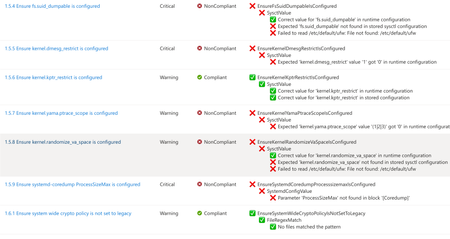
A few months ago, in From Policy to Practice: Built-in CIS Benchmarks on Azure – Flexible, Hybrid-Ready, we introduced a new way to bring Center for Internet Security (CIS) Benchmarks to your Linux estate using Azure Policy with Machine Configuration. It builds on the broader customizable security baseline policies in Machine Configuration capability. Today we're excited to share the next milestone: the audit capability for CIS Benchmarks on Linux is now Generally Available (GA). This release is officially powered by kompli - our native Linux compliance and hardening engine for CIS, STIG, and custom baselines. kompli is the evolution of the engine that drove the preview, now established as the dedicated home for this capability going forward. What "GA" means for you The audit experience is now ready for production use. You can continuously assess your Linux workloads against official, CIS-certified benchmarks - at scale, across Azure and hybrid environments through Azure Arc - and get clear, CIS-style compliance reporting directly in Azure Policy and Azure Resource Graph. If you've read the previous post, the how hasn't changed, so we'll keep this one short: Automated compliance assessment - continuously monitor Linux systems against official CIS benchmarks. Tailored benchmarks - customize evaluations with exceptions and custom parameters, no code changes required. Compliance reporting - detailed, CIS-style reports across your fleet. Hybrid-ready - the same baselines apply to Azure VMs and Arc-enabled servers on-premises or in other clouds. All supported benchmarks are CIS Benchmark Assessment Certified and stay in parity with the content published on the CIS website. Supported distributions and benchmark versions With this release, audit is GA across the following distributions, covering Level 1 + Level 2 Server profiles: Distribution CIS Benchmark Version(s) Profiles Audit Ubuntu 20.04 / 22.04 / 24.04 LTS + Pro v3.0.0 / v2.0.0 + v3.0.0 / v1.0.0 L1 + L2 Server ✓ Red Hat Enterprise Linux 8 / 9 / 10 v3.0.0 + v4.0.0 / v2.0.0 / v1.0.1 L1 + L2 Server ✓ AlmaLinux 8 / 9 v3.0.0 + v4.0.0 / v2.0.0 L1 + L2 Server ✓ Rocky Linux 8 / 9 v2.0.0 + v3.0.0 / v2.0.0 L1 + L2 Server ✓ Oracle Linux 8 / 9 v3.0.0 + v4.0.0 / v2.0.0 L1 + L2 Server ✓ Debian 11 / 12 v2.0.0 / v1.1.0 L1 + L2 Server ✓ SUSE Linux Enterprise 12 / 15 v3.2.1 / v2.0.1 L1 + L2 Server ✓ AKS Optimized Azure Linux 3 v1.0.0 L1 + L2 Server ✓ This GA covers the audit (assessment) capability. Looking ahead, STIG benchmarks are coming next, followed by a granular per-rule auto-remediation capability with dynamic scope assignments. You can run these benchmarks against your own hardened images, against CIS hardened images, and against custom images built on top of vanilla distros — as long as /etc/os-release retains its original content. We're also working with vendors to minimize deviations. Getting started Open Azure Policy in the Azure portal. Under Authoring, select the new Machine Configuration blade. Choose Official Center for Internet Security (CIS) Benchmarks for Linux Workloads, then Modify Settings to pick the distributions you want to assess. Full documentation, including per-distribution rule details, supported parameters, and any known deviations from the official CIS toolset, is available here: Overview: CIS Security Benchmarks for Linux Workloads Per-distribution references: AlmaLinux, Azure Linux, Debian, Oracle Linux, Red Hat Enterprise Linux, Rocky Linux, SUSE Linux Enterprise, and Ubuntu - all linked from the overview page. We're building this with you As part of this GA release, we've also expanded the set of exposed rule parameters compared to the preview - giving you more out-of-the-box customization across rules and distributions. That said, our customer-driven approach still stands: we keep the experience clean by enabling parameters based on real demand, so if there's a rule, benchmark version, or distribution you'd like parameters enabled for - or any feedback on rules, evaluations, or distro coverage - let us know: Open a GitHub issue in the kompli repository Open an Azure support case Try it out, tell us what you think, and help shape what we build next.484Views1like0CommentsIntroducing kars - an Agent Reference Stack for Kubernetes
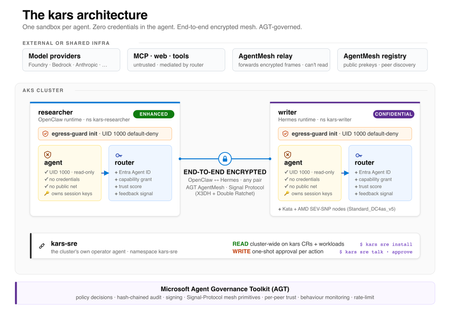
kars is an open-source, Kubernetes-native runtime for AI agents on Azure. It treats every agent as untrusted code - per-pod kernel isolation, zero credentials in the agent process, and an end-to-end encrypted inter-agent mesh - and governs agents on any framework with one set of Kubernetes policies via the Microsoft Agent Governance Toolkit. kars dev runs a governed agent on your laptop in minutes.2.5KViews1like2CommentsCanonical Ubuntu 20.04 LTS Reaching End of Standard Support
We’re announcing the upcoming end of standard support for Ubuntu 20.04 LTS (Focal Fossa) on 31 May 2025, as we focus on delivering a more secure and optimized Linux experience. Originally released in April 2020, Ubuntu 20.04 LTS introduced key enhancements like improved UEFI Secure Boot and broader Kernel Livepatch coverage, strengthening security on Azure. You can continue using your existing virtual machines, but after this date, security, features, and maintenance updates will no longer be provided by Canonical, which may impact system security and reliability. Recommended action: It’s important to act before 31 May 2025 to ensure you’re on a supported operating system. Microsoft recommends either migrating to the next Ubuntu LTS release or upgrading to Ubuntu Pro to gain access to expanded security and maintenance from Canonical. Upgrading to Ubuntu 22.04 LTS or Ubuntu 24.04 LTS Transitioning to the latest operating system, such as Ubuntu 24.04 LTS, is important for performance, hardware enablement, new technology benefits, and is recommended for new instances. It may be a complex process for existing deployments and should be properly scoped and tested with your workloads. While there’s no direct upgrade path from Ubuntu 20.04 LTS to Ubuntu 24.04 LTS, you can directly upgrade to Ubuntu 22.04 LTS, and then to Ubuntu 24.04 LTS, or directly install Ubuntu 24.04 LTS. See the Ubuntu Server upgrade guide for more information. Ubuntu Pro – Expanded Security Maintenance to 2030 Ubuntu Pro includes security patching for all Ubuntu packages due to Expanded Security Maintenance (ESM) for Infrastructure and Applications and optional 24/7 phone and ticket support. Ubuntu Pro 20.04 LTS will remain fully supported until May 2030. New virtual machines can be deployed with Ubuntu Pro from the Azure Marketplace. You can also upgrade existing virtual machines to Ubuntu Pro by in-place upgrades via Azure CLI. More Information More information covering Ubuntu 20.04 LTS End of Standard Support can be found here. Refer to the documentation to learn more about handling Ubuntu 20.04 LTS on Azure. You can also check out Canonical’s blog post and watch the webinar here.6.3KViews1like1Comment