troubleshooting
10 TopicsIntune Troubleshooting 101
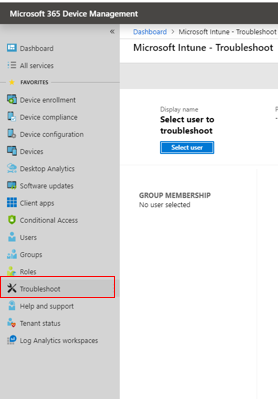
In this Part 1 of a series of posts on troubleshooting, we share where we are today with the troubleshooting blade. If you’ll be at Ignite, swing by the Intune Ignite booth where several PM’s and Dev’s from the troubleshooting team will be ready to gather your experience and feedback.16KViews6likes1CommentRegistry Inventory in Microsoft Intune: Verifying What’s on Your Devices
By: Madison Cooks, Product Manager | Microsoft Intune IT admins need a reliable way to confirm how Windows devices are configured, especially when troubleshooting, validating compliance, or investigating security posture. Policy assignment alone doesn’t always show what’s present on the device and getting registry visibility at scale has often required custom discovery or remediation scripts that take time to build, test, and maintain. With Microsoft Intune’s July (2607) release, device inventory will include Windows registry data, helping IT admins verify a device’s actual configuration, not just the policy assigned. With a new Device inventory property for registry keys, you define the keys you care about in the properties catalog, and Intune collects them for you. There’s no collection logic to build or keep running. This makes registry-based configuration checks easier to operationalize across managed Windows devices, so teams can spend less time maintaining scripts and more time acting on the data. Figure 1: Microsoft Intune device inventory profile creation screen showing the Properties picker with the Registry category selected for inventory data collection. What registry data you collect Registry data collection is configured through the existing properties catalog. For each entry, provide a registry key path and, when needed, a value name. For every targeted device, the device agent attempts collection and reports: Registry key path Value name Value type Value data Microsoft Intune device inventory profile configuration page showing registry key collection settings, including registry path, collection pattern options, and value name fields. The initial release supports the following collection patterns designed for common admin scenarios that use HKEY_LOCAL_MACHINE (HKLM) paths. Single value Specify a registry path and value name to collect one value from that path. For example, collect Secure Boot certificate servicing status from HKLM\SYSTEM\CurrentControlSet\Control\SecureBoot by using values such as UEFICA2023Status, UEFICA2023Error, or UEFICA2023ErrorEvent. All values under a path, non-recursive Specify a registry path to collect all values directly under that path. This pattern doesn't include subkeys. For example, collect values directly under a Windows Update configuration path to help validate expected settings. Same value across subkeys Specify a base registry key path and a value name to collect that value from each immediate subkey. For example, collect DHCP status across network interface subkeys under HKLM\SYSTEM\CurrentControlSet\Services\Tcpip\Parameters\Interfaces. Where registry inventory data appears After collection, registry inventory data will be available in Device inventory at initial release. We’ll expand access to registry data in the coming months, including support in additional reporting and exploration experiences. Microsoft Intune Device Inventory page displaying collected Windows registry data for a device, including registry key paths, values, collection status, and timestamps. This makes registry data available alongside other inventory signals, so admins can use familiar tools to investigate configuration, validate device state, and support troubleshooting without building separate collection scripts. How admins use this You can collect registry data and view it per device in Device inventory - a verified record of each endpoint’s actual configuration and a key source of settings data on each endpoint. This helps answer questions like: Is a setting actually enabled on the device? Which app, version, or configuration is installed? Did a policy apply correctly? Why is this device behaving differently from the rest? Registry data collection in Device inventory is included with Microsoft Intune Plan 1. Collection results and limits If a registry value exists but doesn’t contain data, collection succeeds and the value appears as empty. If the registry path or value name doesn’t exist on a device, that device reports Not found for the collection result. Collection continues for all other devices, so one missing value won’t block results from devices where the value exists. Registry inventory includes safeguards to keep collection focused and manageable. Each collected registry value is capped at 6 KB, and each device can collect up to 100 registry keys. If a value or device exceeds these limits, collection skips the excess data and reports the applicable result for that device. These limits help manage data volume, maintain service performance, and reduce the risk of over-collection. Registry inventory is designed for configuration visibility and troubleshooting, not for collecting sensitive or confidential data. Built-in heuristic detection helps identify and prevent ingestion of values that may contain secrets, credentials, authentication tokens, certificates, private keys, connection strings, or other data that could grant access if exposed. If a value is flagged as potentially sensitive, it isn’t collected. Collection is limited to HKEY_LOCAL_MACHINE (HKLM) paths. This keeps inventory focused on device-level configuration and avoids user-specific registry contexts. Summary Registry inventory in Microsoft Intune helps admins collect Windows registry data in a native, declarative way. Instead of maintaining custom scripts for common inventory scenarios, admins can configure registry collection in the properties catalog and query the results through familiar Intune reporting experiences. Use registry inventory for configuration visibility and troubleshooting across managed Windows devices. As you plan your collection strategy, focus on device-level HKLM data, avoid sensitive values, and remember collection limits to keep inventory targeted and manageable. If you have any feedback or questions, leave a comment below or reach out to us on X @IntuneSuppTeam.18KViews3likes16CommentsUnpacking Endpoint Management: Episodes Available On Demand
Over the course of the Unpacking Endpoint Management series, we brought together experts from across Microsoft Intune, Security, and Customer Experience teams to share practical strategies, lessons learned, and honest conversations about modern endpoint management. While the series has now concluded, the insights remain as relevant as ever. We invite you to explore past episodes on demand and continue connecting with the Intune community through Tech Community, Microsoft Learn, and future opportunities to engage with Microsoft experts. A quick update on the hosts Danny Guillory, a familiar face to the community and a Product Manager for Intune and Configuration Manager, hosted the series alongside Rachelle Blanchard. Together, they brought a strong mix of technical expertise, community engagement, and customer perspective to each episode. Rachelle helped surface real customer questions and guide conversations toward practical outcomes, ensuring each discussion reflected how endpoint management works in the real world. Thank you to everyone who participated Thank you to everyone who participated in Unpacking Endpoint Management and helped shape the conversations throughout the series. Catch up on demand You may have missed them, but you don't have to miss out on the learnings. Watch and learn when it's convenient for you. Policy: from hybrid to cloud-native Device security with Microsoft Intune Trends in endpoint management (live from Tech Takeoff 2026) Not sure where to start? Watch our most recent episode, App management at scale with Intune, now on demand! Watch on demand All episodes of Unpacking Endpoint Management are now available on demand via: aka.ms/JoinUEM. The series brought together experts from across Microsoft Intune, Security, and Customer Experience teams to share practical guidance, lessons learned, and real-world experiences from endpoint management. Continue the conversation While Unpacking Endpoint Management has concluded, there are many ways to stay connected with the Intune team and broader community. Join the Microsoft Intune Community here on Tech Community, and follow us on LinkedIn or @MSIntune and @IntuneSuppTeam on X to engage with experts, discover new content, and stay informed about the latest Intune guidance, best practices, and innovations. A Note from the Team Thank you for being part of the series. We're incredibly grateful to our customers, IT professionals, community members, guest speakers, and Microsoft experts who helped make Unpacking Endpoint Management such a valuable experience. Your questions, feedback, and real-world insights shaped every conversation and helped create meaningful discussions for the broader endpoint management community. Although the series has come to a close, our commitment to listening, learning, and engaging with our community remains unchanged. We look forward to continuing those conversations through the Microsoft Intune Community, Tech Community blogs, Microsoft Learn, events, and future opportunities to connect with Intune product, engineering, and customer success teams. Join the Community to get early insight into what's coming for Intune, connect with experts, and share real-world feedback that helps shape the product. 👉 aka.ms/JoinIntuneCommunity3.5KViews2likes1CommentSupport tip: Navigating the new Single App mode for Company Portal
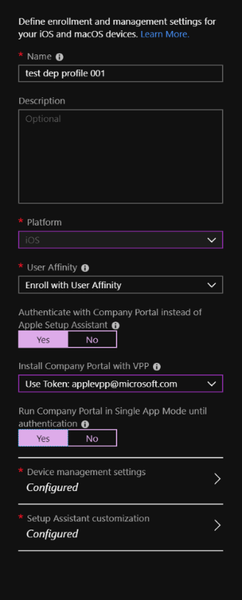
First published on TechNet on Sep 21, 2018 With Intune support for Multi-token DEP, admins are given the option of authenticating with Company Portal when enrolling devices with user affinity as we’ve shared previously in our blog post.7.2KViews1like5Comments