troubleshooting
10 TopicsUnpacking Endpoint Management: Episodes Available On Demand
Over the course of the Unpacking Endpoint Management series, we brought together experts from across Microsoft Intune, Security, and Customer Experience teams to share practical strategies, lessons learned, and honest conversations about modern endpoint management. While the series has now concluded, the insights remain as relevant as ever. We invite you to explore past episodes on demand and continue connecting with the Intune community through Tech Community, Microsoft Learn, and future opportunities to engage with Microsoft experts. A quick update on the hosts Danny Guillory, a familiar face to the community and a Product Manager for Intune and Configuration Manager, hosted the series alongside Rachelle Blanchard. Together, they brought a strong mix of technical expertise, community engagement, and customer perspective to each episode. Rachelle helped surface real customer questions and guide conversations toward practical outcomes, ensuring each discussion reflected how endpoint management works in the real world. Thank you to everyone who participated Thank you to everyone who participated in Unpacking Endpoint Management and helped shape the conversations throughout the series. Catch up on demand You may have missed them, but you don't have to miss out on the learnings. Watch and learn when it's convenient for you. Policy: from hybrid to cloud-native Device security with Microsoft Intune Trends in endpoint management (live from Tech Takeoff 2026) Not sure where to start? Watch our most recent episode, App management at scale with Intune, now on demand! Watch on demand All episodes of Unpacking Endpoint Management are now available on demand via: aka.ms/JoinUEM. The series brought together experts from across Microsoft Intune, Security, and Customer Experience teams to share practical guidance, lessons learned, and real-world experiences from endpoint management. Continue the conversation While Unpacking Endpoint Management has concluded, there are many ways to stay connected with the Intune team and broader community. Join the Microsoft Intune Community here on Tech Community, and follow us on LinkedIn or @MSIntune and @IntuneSuppTeam on X to engage with experts, discover new content, and stay informed about the latest Intune guidance, best practices, and innovations. A Note from the Team Thank you for being part of the series. We're incredibly grateful to our customers, IT professionals, community members, guest speakers, and Microsoft experts who helped make Unpacking Endpoint Management such a valuable experience. Your questions, feedback, and real-world insights shaped every conversation and helped create meaningful discussions for the broader endpoint management community. Although the series has come to a close, our commitment to listening, learning, and engaging with our community remains unchanged. We look forward to continuing those conversations through the Microsoft Intune Community, Tech Community blogs, Microsoft Learn, events, and future opportunities to connect with Intune product, engineering, and customer success teams. Join the Community to get early insight into what's coming for Intune, connect with experts, and share real-world feedback that helps shape the product. 👉 aka.ms/JoinIntuneCommunity3.2KViews1like1CommentRegistry Inventory in Microsoft Intune: Verifying What’s on Your Devices
By: Madison Cooks, Product Manager | Microsoft Intune IT admins need a reliable way to confirm how Windows devices are configured, especially when troubleshooting, validating compliance, or investigating security posture. Policy assignment alone doesn’t always show what’s present on the device and getting registry visibility at scale has often required custom discovery or remediation scripts that take time to build, test, and maintain. With Microsoft Intune’s July (2607) release, device inventory will include Windows registry data, helping IT admins verify a device’s actual configuration, not just the policy assigned. With a new Device inventory property for registry keys, you define the keys you care about in the properties catalog, and Intune collects them for you. There’s no collection logic to build or keep running. This makes registry-based configuration checks easier to operationalize across managed Windows devices, so teams can spend less time maintaining scripts and more time acting on the data. Figure 1: Microsoft Intune device inventory profile creation screen showing the Properties picker with the Registry category selected for inventory data collection. What registry data you collect Registry data collection is configured through the existing properties catalog. For each entry, provide a registry key path and, when needed, a value name. For every targeted device, the device agent attempts collection and reports: Registry key path Value name Value type Value data Microsoft Intune device inventory profile configuration page showing registry key collection settings, including registry path, collection pattern options, and value name fields. The initial release supports the following collection patterns designed for common admin scenarios that use HKEY_LOCAL_MACHINE (HKLM) paths. Single value Specify a registry path and value name to collect one value from that path. For example, collect Secure Boot certificate servicing status from HKLM\SYSTEM\CurrentControlSet\Control\SecureBoot by using values such as UEFICA2023Status, UEFICA2023Error, or UEFICA2023ErrorEvent. All values under a path, non-recursive Specify a registry path to collect all values directly under that path. This pattern doesn't include subkeys. For example, collect values directly under a Windows Update configuration path to help validate expected settings. Same value across subkeys Specify a base registry key path and a value name to collect that value from each immediate subkey. For example, collect DHCP status across network interface subkeys under HKLM\SYSTEM\CurrentControlSet\Services\Tcpip\Parameters\Interfaces. Where registry inventory data appears After collection, registry inventory data will be available in Device inventory at initial release. We’ll expand access to registry data in the coming months, including support in additional reporting and exploration experiences. Microsoft Intune Device Inventory page displaying collected Windows registry data for a device, including registry key paths, values, collection status, and timestamps. This makes registry data available alongside other inventory signals, so admins can use familiar tools to investigate configuration, validate device state, and support troubleshooting without building separate collection scripts. How admins use this You can collect registry data and view it per device in Device inventory - a verified record of each endpoint’s actual configuration and a key source of settings data on each endpoint. This helps answer questions like: Is a setting actually enabled on the device? Which app, version, or configuration is installed? Did a policy apply correctly? Why is this device behaving differently from the rest? Registry data collection in Device inventory is included with Microsoft Intune Plan 1. Collection results and limits If a registry value exists but doesn’t contain data, collection succeeds and the value appears as empty. If the registry path or value name doesn’t exist on a device, that device reports Not found for the collection result. Collection continues for all other devices, so one missing value won’t block results from devices where the value exists. Registry inventory includes safeguards to keep collection focused and manageable. Each collected registry value is capped at 6 KB, and each device can collect up to 100 registry keys. If a value or device exceeds these limits, collection skips the excess data and reports the applicable result for that device. These limits help manage data volume, maintain service performance, and reduce the risk of over-collection. Registry inventory is designed for configuration visibility and troubleshooting, not for collecting sensitive or confidential data. Built-in heuristic detection helps identify and prevent ingestion of values that may contain secrets, credentials, authentication tokens, certificates, private keys, connection strings, or other data that could grant access if exposed. If a value is flagged as potentially sensitive, it isn’t collected. Collection is limited to HKEY_LOCAL_MACHINE (HKLM) paths. This keeps inventory focused on device-level configuration and avoids user-specific registry contexts. Summary Registry inventory in Microsoft Intune helps admins collect Windows registry data in a native, declarative way. Instead of maintaining custom scripts for common inventory scenarios, admins can configure registry collection in the properties catalog and query the results through familiar Intune reporting experiences. Use registry inventory for configuration visibility and troubleshooting across managed Windows devices. As you plan your collection strategy, focus on device-level HKLM data, avoid sensitive values, and remember collection limits to keep inventory targeted and manageable. If you have any feedback or questions, leave a comment below or reach out to us on X @IntuneSuppTeam.17KViews2likes15CommentsKnown issue: Upgrading Microsoft Tunnel version 20260129.1
We identified an upgrade issue with the early March release of Microsoft Tunnel version 20260129.1 that caused servers to become stuck and unable to complete the upgrade. The issue can be resolved by uninstalling and reinstalling the server to a newer version (20260330.1 or later). Alternatively, we’ve created a script to help you update affected servers. This blog explains how to use the mstunnel-patch-2602 script to remediate the issue. Before you begin Before you run the script, make sure you have the following: Access to the Linux virtual machine hosting the Microsoft Tunnel server Permission to run commands with sudo The patch script downloaded to the server from https://aka.ms/mstunnel-patch-2602 When to use this script Use this script if your server is showing one or more of the following behaviors: The server remains on the affected version (20260129.1) and doesn’t move to the latest version In the Intune admin center, the server health state appears as Healthy, but the upgrade banner shows an error The server rolls back to the affected version because of a version mismatch in Agent Settings Identify impacted servers The issue affects servers on version 20260129.1, use the following hash to identify whether your deployment is on this version: Agent: sha256:abbdcd854aa5ac376aed32c828e4c84917e776a701855cd1e3febed18a3e4dae Server: sha256:ad57d6a7ffe21f64fc1577713063ae9b180914cf65bc70b4e49be21299cfc1d3 The issue was resolved with version 20260330.1, released March 30, 2026. You can verify your servers are on this version with the following hash: Agent: sha256:163214b94af6d91a5ef02690f891c5a41e87b1059b9530324716ee34778c1785 Server: sha256:dd62c292528e8e5aa4e7b84418efa42fd3830ec0db40467947cde8125aa17d7e Additionally, in the Intune admin center check the server site auto upgrade setting. If auto upgrade is turned off (Automatically upgrade servers at this site = No), select "Upgrade servers" to configure the latest image for site. Figure 1: Screenshot of the Microsoft Intune admin center showing a Microsoft Tunnel Gateway site named “SimpleSite” with theUpgrade servers option highlighted. Run the script After downloading the script to the server, complete the following steps. Step 1: Enable execution permissions If needed, make the script executable: chmod +x mstunnel-patch-2602.sh Step 2: Run the script Run the script with elevated permissions: sudo ./mstunnel-patch-2602.sh When the script runs, it performs the following actions automatically: Checks whether the current server is using the affected build hashes. Creates backups of the current configuration so the system can revert if the update fails. Stops the Tunnel agent and server services. Updates the configuration with version 20260330.1 hashes Pulls version 20260330.1 and forces mst-cli install without requiring additional user input Expected results After the script completes successfully, the server should be updated to the March 30, 2026 version 20260330.1. This remediation is intended to resolve upgrade failures caused by a version mismatch and eliminate the need for a manual uninstall and reinstall workflow. If you have any questions or issues running the script to update your servers, reply to this post or reach out to the team on X @IntuneSuppTeam. Post Updates: 6/15/26: Added guidance to check the server site auto-upgrade setting in Intune and use the Upgrade servers option when auto upgrade is disabled to apply the latest image.4.2KViews0likes4CommentsHow to enable HTTPS support for Microsoft Connected Cache for Enterprise and Education
By: Aditya Middha | Product Manager 2 - Microsoft Connected Cache Starting on June 16 th , 2026, or soon after, Intune will enforce HTTPS content delivery for customers using Microsoft Connected Cache for Enterprise and Education. To continue using Microsoft Connected Cache to localize Intune Win32 app downloads and reduce the bandwidth impact on your network, you’ll need to configure HTTPS on Connected Cache nodes. Without this configuration, devices will still fetch the requested content, but they’ll fall back to the Content Delivery Network (CDN) and lose the performance and bandwidth savings that Microsoft Connected Cache provides. This guide assumes you have already deployed a standalone Microsoft Connected Cache node in your environment. If not, please see the Create and configure Microsoft Connected Cache nodes page. By the end of this walkthrough, you’ll be able to: Prepare the TLS certificate that your Connected Cache needs Enable HTTPS support on both Windows and Linux‑based Microsoft Connected Cache servers Validate that HTTPS is working end‑to‑end Diagnose the most common setup issues This guide mirrors the workflow described in Microsoft Connected Cache’s public documentation. For further explanation of what HTTPS support changes for Microsoft Connected Cache review HTTPS Support for Microsoft Connected Cache Overview, then proceed to Configure HTTPS on Windows or Configure HTTPS on Linux. Step-by-step: Enabling HTTPS support To keep this walkthrough easy to follow, the screenshots and command examples use a simple, reproducible environment that matches what most admins will see during their first HTTPS configuration. In this guide, the examples are based on: A single Connected Cache node deployment Windows 11, using a local user runtime account Public certificate authority (CA)-signed TLS certificate This baseline environment is only meant to make the screenshots and file paths predictable. Your own environment may look different, and that’s completely fine. Many customers run Microsoft Connected Cache on: Linux (Ubuntu or RHEL) Windows Server 2022 or Windows Server 2025 Networks with outbound restrictions Most of the workflow is identical across these variations. The folder structure, log locations, and command flow will look nearly the same on any Windows host. If you’re running Microsoft Connected Cache on Linux, the workflow is the same, but simpler—bash scripts are ran directly instead of being invoked through PowerShell. If your environment includes proxies, make sure all required endpoints are allowed. Before you start Before generating a certificate signing request (CSR) or importing a certificate, there are a few quick checks to make sure your Connected Cache server can enable HTTPS successfully. First, visit the “Cache Node Management” tab on Azure portal. Under the “Software Version” column, verify that your cache node is running on software version 2.0.0.2112 or higher. If not, you will need to reinstall Connected Cache. Next, confirm the hostname or IP address your client devices use to reach your Connected Cache node—this value will be configured when you generate the CSR. Also, ake sure port 443 is free on the host; Microsoft Connected Cache needs to bind to it. Finally, if your network performs TLS-inspection, ensure the required endpoints are allowed. Intercepted HTTPS traffic will cause devices to reject Microsoft Connected Cache’s TLS certificate, even if everything else is configured correctly. Once these checks are done, your node is ready for the HTTPS workflow: generate the CSR on your Connected Cache host machine, sign it with your CA, and import the resulting certificate. For more details, refer to the documentation: HTTPS on Windows Prerequisites. 1. Generate a CSR The first step in enabling HTTPS support is generating a CSR directly on your Microsoft Connected Cache node. This step cannot be skipped. Microsoft Connected Cache must create the CSR itself so it can generate and retain the private key that will later be paired with your signed certificate during TLS negotiation. When configuring the parameters for the generateCsr script, the most important values to get right are the Subject and SAN. These must match exactly how your managed client devices connect to your Connected Cache node. If the client devices use FQDN, include that FQDN; if they connect via IP, include that IP. A mismatch here won’t break CSR generation, but it’ll cause clients to bypass Microsoft Connected Cache later since they won’t trust the certificate during the TLS negotiation. For parameter configuration guidance on your specific environment, review these documented scenario-based parameter examples. After parameter configuration, you will need to locate the Installer scripts directory, the same as when you installed Microsoft Connected Cache originally. You can move directly to this path by running the following command in your terminal: Push-Location (deliveryoptimization-cli mcc-get-scripts-path) Once in the correct folder path, run the generateCsr command with your configured parameters. Running the command launches the CSR generation workflow inside the Microsoft Connected Cache-managed Windows Subsystem for Linux (WSL) distribution. The terminal output shows exactly what Connected Cache is doing: where it stores certificate files, where logs are written, which WSL distribution is being used, and the final location of the generated CSR. You’ll also see that Microsoft Connected Cache runs the CSR generation as a scheduled task inside WSL—this is expected and part of the normal flow. For example: This output confirms that Microsoft Connected Cache: Validated the CSR request Passed the Subject (Common Name) and SAN values to the internal script Generated the private key and CSR, stored both inside the container Wrote logs to the \Certificates\logs folder Created the CSR file in the Certificates folder When the process completes, you’ll see the timestamped CSR written to the Windows-side certificates folder (…\Certificates\certs). This is the file you’ll submit to your signing CA: Troubleshooting: Every time you run generateCsr, Microsoft Connected Cache writes a full log to a directory that ends with …\Certificates\logs. The terminal output shows you the exact path, and you can always return to this folder if you need to understand what happened during CSR generation. If you do need to troubleshoot, start by opening the most recent log file. The generateCsr log provides a detailed trace of each step. The following lines are checkpoints (in order) that you can look for in the more extensive log output: “Algorithm validation passed / CSR name validation passed” - Microsoft Connected Cache accepted your inputs and is ready to generate the CSR. “Subject Components: … / SAN Components: …” - Microsoft Connected Cache will embed these values into the CSR. If these don’t match your Connected Cache server hostname or IP address, regenerate the CSR. “Attempting to call http://localhost:5000/csr” - Microsoft Connected Cache internal controller is generating the keypair and CSR inside the WSL container. “Key verification succeeded” - Microsoft Connected Cache successfully generated and validated the private key. “CSR verification successful” - OpenSSL has validated the CSR structure. “Successfully copied logs to windowsCerts location” - The logs were written to the host machine directory. “CSR generation completed successfully” - Completed end-to-end successfully. One thing to be aware of: during a successful run, you may still see messages like: mkdir: cannot create directory '/keys': Permission denied chmod: cannot access '/keys': No such file or directory These are not errors. The script checks for required folders before creating them, and if they already exist, those checks generate harmless warnings. As long as the script finishes with a success message and you see a .csr file in the certs folder, the run is successful. 2. Sign the CSR This step occurs outside of the scope of Microsoft Connected Cache. Signing your CSR will rely on the PKI that your organization has chosen to use. This may include an internal ADCS, other enterprise internal PKI, or an externally hosted PKI (DigiCert, Let’s Encrypt, etc.). Of note, Cloud PKI will not work with Connected Cache because it requires the CSR be generated via SCEP before signing. Ensure that your client devices will be able to trust the CA signature. For many customers, we recommend signing using a public CA that Windows client devices automatically trust. Please reference documentation on signing the CSR for more details. The only requirement on the Connected Cache side is that the certificate is in unencrypted .crt format. Microsoft Connected Cache cannot import password-protected certificate formats yet - including .pfx bundles - even if they contain the correct certificate. For now, make sure your signing CA gives you, or allows you to export, a plain X.509 .crt file. After your CA signs the CSR, you’ll import the resulting certificate back to Microsoft Connected Cache. With the signed certificate in hand, place it in the same certs folder where your CSR was generated. Microsoft Connected Cache expects both files to live together so it can pair the returned certificate with the private key created earlier. A successful setup in the folder directory looks like this: If the certificate exists in the Certificates folder in .crt format, you’re ready to continue. Note: The CSR and .crt certificate do not have to have the same name. 3. Import the certificate back to Microsoft Connected Cache Before importing your certificate, remember that the CSR must have been generated on the same Microsoft Connected Cache node. You cannot skip directly to importing a certificate - Microsoft Connected Cache must have created the private key during CSR generation so it can pair the signed certificate with that key. After configuring the parameters referenced in the documentation to import the signed TLS certificate, run the importCert command from the same scripts directory used during CSR generation. When you start the import, Microsoft Connected Cache runs a full verification workflow inside its managed WSL distribution. The terminal output for this step is intentionally simple—it shows only that the certificate file passed basic validation, that the internal import script was invoked, and that the import is running as a scheduled task within the WSL distribution. You’ll also see that logging is active and that Microsoft Connected Cache has begun monitoring the process: Although the terminal output is brief, the full workflow is visible in the import logs. A successful import means Microsoft Connected Cache: Found your .crt file in the expected folder Ran cryptographic verification confirming the certificate, CSR, and private key all match Copied the certificate into the container and updated Microsoft Connected Cache internal configuration Restarted the container with the new certificate Enabled HTTPS for Microsoft Connected Cache’s Intune content endpoints Once these steps are complete, Microsoft Connected Cache is fully configured to serve HTTPS content. You usually won’t see new files added to the Windows certs folder after import as the changes occur inside the Connected Cache container. The final validation that import is successful is if the script exits successfully and the logs show that Microsoft Connected Cache restarted with the new certificate in place. Troubleshooting Troubleshooting certificate import is similar to troubleshooting CSR generation: every run produces a detailed log in the ...\Certificates\logs folder. If import fails, these logs will show exactly which step did not complete. At this stage, SAN or hostname mismatches do not show up; those only appear later during client-side validation. The importCert script only ensures that your certificate, CSR, and private key match (stored inside container, not visible from Certificates folder) and that Microsoft Connected Cache can load them. To help interpret the log, below are the checkpoints you can reference (in order): “Certificate file validation passed” - Microsoft Connected Cache found the .crt file in the certs folder and its .crt format is valid. “Using CertName: … / CSR being used: …” - Microsoft Connected Cache matched the certificate to the CSR that generated the private key. “SUCCESS: The CSR, certificate and private key cryptographic materials all match” - Microsoft Connected Cache verified the keypair, CSR, and certificate are a correct trio. “Nginx restarted successfully with new certificates” - Microsoft Connected Cache is now configured to serve HTTPS on port 443 inside the container. “Certificate import completed successfully” - The end-to-end import succeeded with no errors. Once the importCert script succeeds, your node is ready for validation. Validating HTTPS support end-to-end Once your certificate is imported, the final step is validating that Microsoft Connected Cache is now serving content over HTTPS. Detailed test commands are all documented in the Validate HTTPS on Windows guide. Complete the tests first on the Microsoft Connected Cache server, then on a client device. This order matters - server-side validation confirms Microsoft Connected Cache is listening on port 443 with its new TLS certificate; client-side validation confirms that client devices can trust and use that certificate. On your Microsoft Connected Cache server Start validation on the Microsoft Connected Cache host server. The server side tests include HTTPS and HTTP health endpoint checks that confirm: Microsoft Connected Cache is successfully bound to port 443 The TLS certificate loaded correctly The TLS certificate, private key, and CSR all correspond Microsoft Connected Cache can return its health endpoint over HTTPS If any of the server-side validation steps fail, check the generateCsr and importCert logs in the …\Certificates\logs folder. The validation guide includes troubleshooting tests that help distinguish whether the issue is certificate-related, connectivity-related, or due to another process on the host. Only move on to client-side validation once the Microsoft Connected Cache server passes its own tests. On your client device After confirming the server is configured correctly, the next stage is validating HTTPS content delivery from a client device that is pointed to use Microsoft Connected Cache. The client-side tests contain both browser-based and command line tests that help verify: The client trusts the issuing CA DNS resolves the Microsoft Connected Cache hostname correctly The device can complete a full TLS handshake with Microsoft Connected Cache The device is retrieving HTTPS content from Microsoft Connected Cache rather than falling back to CDN Once both server-side and client side-validation steps succeed, you can be confident that your Microsoft Connected Cache node is fully configured and ready to serve Intune content securely over HTTPS. Known issues with HTTPS Support Configuration Most customers will complete the HTTPS workflow without any problems, but there are a few known issues we want to call out proactively. These issues have been fully addressed with the release of the new Windows-hosted deployment application (v1.0.26.0) for Windows host machines, the new Linux-hosted deployment package (v1.10) for Linux host machines, and the latest GA container release (v2.0.0.2124_e) for all cache nodes. ImportCert issues on Windows Server 2022/2025 using a gMSA account, and on Windows 11 using a local user runtime account If your Microsoft Connected Cache runtime account is a Group Managed Service Account (gMSA) on a Windows Server 2022 or Windows Server 2025 host machine, you may see failures when running importCert. In the importCert logs, this can show up as unsuccessful permissions access or indefinite logging. The same importCert issues can also appear on Windows 11 if you are using a local user as the runtime account. Status: RESOLVED Please download Windows-hosted deployment application v1.0.26.0 by running the following command in an elevated PowerShell window: Add-AppxPackage https://aka.ms/do-mcc-ent-windows-x64 Then you may proceed to re-deploy your Connected Cache node, which will implement the necessary changes. You can further verify that you are deploying with the correct application version. When run in the terminal, the copied “Cache Node deployment command” given in the Azure portal will run deploymcconwsl.ps1 out of the folder path that looks like: C:\ProgramFiles\WindowsApps\Microsoft.DeliveryOptimization_1.0.26.0_neutral__8wekyb3d8bbwe\deliveryoptimization-cli ImportCert hangs on software version 2119_e (buffer bug) During the week of January 19 th , 2026, we deployed container version 2119_e to all customer cache nodes. We discovered a bug where the container’s internal buffer is not cleared during importCert, causing the import to run indefinitely. If you see this behavior and your Azure portal shows that your cache node is on version 2119_e, this is likely the cause. Status: RESOLVED: On March 3 rd , 2026, we pushed container version 2124_e to all cache nodes on the “Fast Ring” update schedule. If your cache node is on software version 2119_e today, you can change the update schedule configuration to the “Fast Ring”. Head to the 3 rd tab (“Updates”) of the Cache Node Configuration on the Azure portal and configure the update ring. Container version 2124_e will be pushed to all “Slow Ring” nodes in early April 2026. If your cache node is still not pulling down container version 2124_e after being configured on the Fast Ring, please reach out to us. The fixes for these issues have all been validated. Once ready for public release, the latest software version will be pushed to all cache nodes and the updated Windows installer will be available to download in Azure portal. Stay tuned to the Microsoft Connected Cache Release Notes for up-to-date information. Enabling HTTPS support on Linux hosts This guide walked through the setup of HTTPS using a Windows-based Microsoft Connected Cache host, since that’s what most customers deploy today. If you're running Microsoft Connected Cache on Linux, the overall steps are the same - generate a CSR on the node, sign it with your CA, and import the resulting .crt file - but a few details differ. For a Linux-hosted Microsoft Connected Cache nodes, shell scripts handle the entire process, specifically generateCsr.sh and importCert.sh. The Enable HTTPS Support on Linux guide documents these steps in detail, including the exact script parameters, file locations, and how to interpret the Linux-specific logs. The biggest differences on Linux are: You run the CSR and import scripts directly in bash (no WSL component). File paths and log locations follow the Linux directory structure (/var/mcc/...). Check port conflicts, firewall configuration, and TLS inspection using Linux tools (ss, iptables, proxy settings). Validation steps use Linux equivalents of the server side tests documented in the Windows validation guide. Maintaining your HTTPS configuration Once your Microsoft Connected Cache node is serving content over HTTPS, the next thing to plan for is ongoing certificate maintenance. TLS certificates aren’t a onetime import - certificates expire, CA chains change, and your operational process needs to keep up. Microsoft Connected Cache will soon surface certificate details both through a command line script and directly in the Azure portal, but those capabilities are not available yet. Until then, verification and rotation rely on simple checks you perform on the Microsoft Connected Cache host. Monitoring The easiest way to monitor your deployment today is to periodically check the Key Metrics chart in the Overview blade of your Microsoft Connected Cache resource in Azure. If Intune content is flowing through Microsoft Connected Cache, that’s a strong proxy signal that HTTPS is healthy. For the certificate itself, many admins perform a lightweight weekly or monthly review: ensuring the TLS certificate is still valid, not approaching expiration, and still matches the configuration you imported. Re-running the validation tests from our public documentation every so often is also a good way to catch any issues early. The updated Windows installer, as mentioned in Known Issues, will also have a PowerShell script that displays the status and expiration date of existing TLS certificates. Renewal When planning for renewal, we recommend starting at least 60 days before the certificate expires. Renewal is typically straightforward: either reuse the existing CSR (most common) or generate a new one, then have your CA resign it, convert it into .crt format, and test the renewed certificate on a test node if you have one. If your workflow doesn’t include a test Connected Cache node, you can still safely import the renewed certificate on your production node - if import fails, Microsoft Connected Cache simply keeps using the existing certificate until a valid one is applied, so you won’t break your environment. If your certificate management system has automation capabilities, you can script Microsoft Connected Cache’s certificate renewal workflow as well - for example, by using Secure Shell (SSH) to remotely to run the generateCSR or importCert scripts on the host machine. For larger or distributed environments, testing the signing and import processes on a non-production node first can help confirm SAN correctness, trust behavior, and chain completeness before touching production. We are actively working to streamline certificate monitoring and renewal inside Microsoft Connected Cache. Summary HTTPS support for Microsoft Connected Cache will soon become a requirement for delivering Intune Win32 apps, and every Microsoft Connected Cache node must be configured for HTTPS by June 16, 2026. After the deadline, Intune Win32 apps will only be delivered via HTTPS. However, all other content – Windows updates, Office apps, etc – will continue to be served via HTTP after the June 16 th enforcement date. This guide walked through the essentials: generating a CSR on your Microsoft Connected Cache node, submitting it to your CA, importing the signed certificate, and validating HTTPS from both the server and client devices. Along the way, you saw how to interpret the logs, verify Connected Cache is using your certificate correctly, and ensure that Teams and/or Intune content is flowing over HTTPS instead of falling back to CDN. As you move forward, keep your workflow consistent - regenerate or reuse CSRs the same way each cycle, validate regularly, and renew certificates well before expiration. Even though improvements are coming soon, completing this setup now ensures your environment is ready long before Intune HTTPS enforcement begins. With your certificate in place, HTTPS validated, and a simple renewal process in hand, your Microsoft Connected Cache deployment is prepared for the June 16 th , 2026 deadline and ready to deliver Intune content securely. FAQs Do I really need HTTPS Support, and by when? Yes. All Microsoft Connected Cache nodes serving Intune Win32 apps must deliver over HTTPS by June 16, 2026. If HTTPS isn’t configured, devices will fall back to CDN when requesting Intune win32 apps —content delivery still works, but you’ll lose caching benefits. Why do I have to generate the CSR on the Connected Cache node? Since Microsoft Connected Cache must generate and retain the private key itself. Certificates signed from any other machine, keypair, or CSR cannot be imported. The CSR you generate on the node produces the only key that Microsoft Connected Cache will accept. Can I reuse an existing certificate? Only if it was originally issued from the CSR generated on the same Microsoft Connected Cache node. If the certificate was created elsewhere (different machine, tooling, or CSR), Microsoft Connected Cache won’t accept it. Can I reuse my CSR when renewing the certificate? Yes. Many customers reuse the same CSR each cycle as long as the CA resigns it. Reusing the old certificate output is not supported. Can I “bring my own certificate”? Not yet. Microsoft Connected Cache only supports certificates created from its own CSR. Support for bringing an external certificate is coming soon; stay up to date by viewing the latest Microsoft Connected Cache Release Notes Can I use a wildcard certificate? Microsoft Connected Cache does not officially support them and they’re not recommended. Wildcards often involve shared private keys across systems, which creates operational and security risks. What certificate formats does Microsoft Connected Cache support? Microsoft Connected Cache only supports unencrypted .crt files today. Password protected .pfx or .p12 formats cannot be imported. What happens if I redeploy Microsoft Connected Cache or the hostname changes? If the hostname or connection path changes, you must request a new certificate that matches the new SAN parameters. If the hostname stays the same and the certificate came from the Connected Cache-generated CSR, you can continue using it. If you have any questions, leave a comment below or reach out to us on X @IntuneSuppTeam! Post Updates: 04/08/26: Updated the “Known issues with HTTPS Support Configuration” section to reflect that previously identified issues have been fully resolved in the latest deployment application and container releases, along with updated guidance for affected cache nodes.6.6KViews0likes6CommentsMicrosoft Security Copilot in Intune deep dive – Part 1: Features available in public preview
By: Zineb Takafi - Product Manager & Lavanya Lakshman - Principal Product Manager | Microsoft Intune Microsoft Intune is a widely used cloud-based endpoint management solution that simplifies the management and security of devices, apps, and data across your organization. Intune is poised to set a new standard for IT productivity and protection with generative AI capabilities powered by Microsoft Security Copilot, an AI-driven security solution designed to empower security and IT professionals. Copilot integrates seamlessly into Intune, transforming critical workflows around policy management, troubleshooting, and security threat resolution. With key integrations in Intune Suite for Endpoint Privilege Management and Device Query, Copilot enhances endpoint security by offering AI-driven insights and potential app elevation risk. These capabilities are designed to reduce manual intervention and accelerate response times. In this blog, we’ll dive into our current capabilities in preview. This is the first blog of our new monthly Copilot in Intune blog series. Each post will spotlight different Copilot capabilities within Intune through demos, practical tips, and real-world scenarios. By following along, you’ll discover our latest innovations with AI in Intune and how to harness the power of Copilot to stay ahead of emerging threats and streamline your management processes. Let’s get started on this journey together and unlock the full potential of Security Copilot in Intune today! Simplify device policy management Security Copilot in Intune helps IT admins quickly review and manage device policies. By selecting the "Summarize with Copilot" button, admins get a clear summary of policies and settings. Copilot’s "Describe the impact" feature helps understand how policies affect users and security. Admins can also investigate specific settings, check for conflicts across policies, and ensure everything aligns with organizational needs—all without manual research. Copilot streamlines policy management, saving time and enhancing security. Effortlessly troubleshoot device issues Copilot in Intune helps IT admins quickly troubleshoot device issues. By navigating to Devices and selecting the faulty device, admins can select “Explore with Copilot” and use the “Summarize this device” prompt to view key details like hardware info, group memberships, compliance state, and reasons for non-compliance. Admins can then compare the faulty device with a healthy one by having Copilot highlight differences in configuration profiles, compliance policies, app configuration policies, discovered apps, managed apps, and hardware. This powerful integration streamlines issue identification, making troubleshooting faster and more efficient. AI-powered Copilot integrations with Intune Suite With Advanced analytics and Endpoint Privilege Management, part of the Intune Suite available as an add-on, customers can take advantage of Copilot integrations to further streamline endpoint management. These AI-powered integrations streamline app elevation requests and complex KQL query creation in device query to get insights on your devices. Identify app risks before approving app privileges Security Copilot in Intune enhances Endpoint Privilege Management by helping IT admins assess the risk of app elevation requests. When users request to elevate unfamiliar apps, admins typically have to research the app’s reputation and potential risks manually. Copilot simplifies this by automatically analyzing the app’s security status. When a user requests elevation for an app, admins can select “Analyze with Copilot” in the Intune admin center. Copilot sends the app’s hash to Microsoft Defender Threat Intelligence, providing critical insights. Copilot flags the app for suspicious indicators tied to a known malware campaign. Use natural language to get real-time device data The integration of Security Copilot with single device query in Intune offers IT admins an easier, more efficient way to monitor and manage devices. With this capability, admins can quickly translate natural language requests into Kusto Query Language (KQL) queries and get real time device data, eliminating the need for in-depth KQL knowledge. For instance, if an admin wants to identify the top 10 processes consuming the most memory on a device, Copilot can automatically convert this request into a precise KQL query. This integration streamlines the process of gathering real-time insights, enabling admins to troubleshoot, optimize, and secure devices more effectively and with greater ease. Use natural language to analyze and query multiple devices With Security Copilot in Intune, IT admins can easily create Kusto Query Language (KQL) queries for multi-device queries, gaining comprehensive insights into their entire device fleet. By navigating to Devices and selecting “Device query” in the Intune admin center, admins can quickly filter devices based on specific criteria. For example, an admin could request a list of devices with at least 8 GB of memory, over 50 GB of storage, and one encrypted volume. Security Copilot translates this natural language request into an accurate KQL query, eliminating the need for advanced KQL knowledge and streamlining the process of managing and securing devices across the organization. What’s next Our AI journey has only just begun, and with each step, we learn and evolve, driven by our commitment to simplifying IT workflows and reducing complexity for customers. We invite you to explore the robust integrations available within Intune where AI assistance transforms everyday tasks like policy management, troubleshooting, device queries, and elevation request evaluation into a more efficient, streamlined process with Copilot. Take advantage of these features today to optimize your security posture and stay ahead of emerging challenges. To get started or learn more about our enhancements visit Copilot in Intune. We look forward to providing further updates in the Copilot in Intune blog series. If you have any questions or want to share how you’re using Copilot in Intune, leave a comment below or reach out to us on X @IntuneSuppTeam or @MSIntune. You can also connect with us on LinkedIn.6.5KViews0likes3CommentsIntune Troubleshooting 101
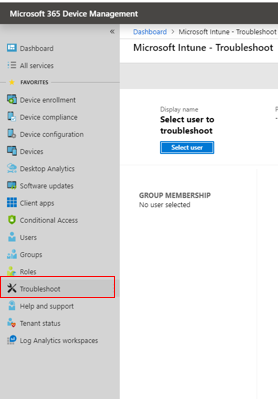
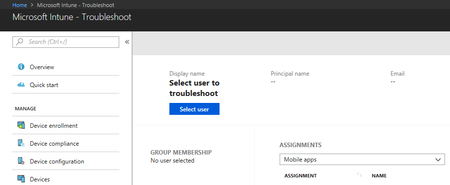
In this Part 1 of a series of posts on troubleshooting, we share where we are today with the troubleshooting blade. If you’ll be at Ignite, swing by the Intune Ignite booth where several PM’s and Dev’s from the troubleshooting team will be ready to gather your experience and feedback.16KViews6likes1CommentSupport tip: Navigating the new Single App mode for Company Portal
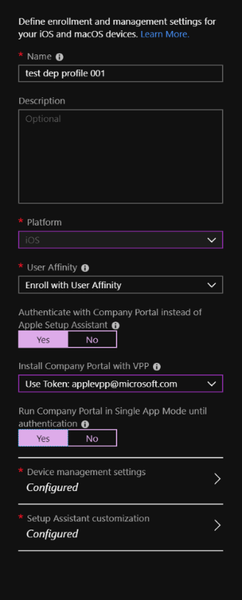
First published on TechNet on Sep 21, 2018 With Intune support for Multi-token DEP, admins are given the option of authenticating with Company Portal when enrolling devices with user affinity as we’ve shared previously in our blog post.7.1KViews1like5Comments