touch
16 Topics
Critical Pen Hover & Stray Ink Issue on New Surface Pro 11 for Business with Slim Pen 2
Hello Microsoft Community and Support Staff, I am writing to report a critical and seemingly widespread issue with the pen input on the brand-new Surface Pro for Business, 13-inch (Intel model, often called Surface Pro 11 "Luna Lake"). The Core Problem: Pen Draws Without Touching the Screen When using the Surface Slim Pen 2, the device begins to register ink input while the pen is still hovering a few millimeters above the screen. It does not require any physical contact or pressure. This "hover-inking" makes handwriting completely unusable. As I write, any time I lift the pen to start a new letter or stroke, the pen continues to draw a line as it moves through the air to its next position. This results in messy, connected handwriting with unwanted "tails," completely defeating the purpose of having a premium inking device. This is Not a Defective Unit - It's a Replicable Problem Initially, I thought I had a faulty device. However, to isolate the issue, I have performed extensive testing: I have personally tested this on [3] brand-new Surface Pro 11 (Intel) devices. I have used [4] different Slim Pen 2s. The exact same hover-inking problem occurred on every single combination of device and pen. Furthermore, I have already performed all standard troubleshooting steps, including: Clean OS installation via Surface Recovery Image. Ensuring all Windows, driver, and firmware updates are installed. Running the Surface Diagnostic Toolkit (which reported no errors). However, the same issue continues to occur even after trying these methods. Additionally, it has been reported that the issue also appears on the latest Surface Pro 12-inch model with the Snapdragon X Plus, just like on the Surface Pro 11 that uses the Qualcomm Snapdragon X Elite instead of Intel’s Lunar Lake. (I do not own any Snapdragon devices myself. If you own a Snapdragon device and are experiencing the same issue, please share your feedback.)" Video Evidence: I have recorded a clear video demonstrating the problem. It shows the pen drawing while hovering on the Surface Pro 11 and makes unwanted tails on handwriting letters. Video Link: https://youtube.com/playlist?list=PLG_7BXFA-cL4evqe0RmRz--iFjDC1HVgT&si=EmEypaAqSyRozr67 Questions for Microsoft: Is this a known issue with the new Surface Pro 11 (Intel) model's firmware or drivers? What are the official steps to escalate this issue directly to the Surface engineering team for a fix? This is a major flaw in a flagship product that severely impacts its core functionality. I have submitted a formal bug report through the Feedback Hub, which can be found here: Feedback Hub Link: https://aka.ms/AAxzh27 I urge the Microsoft team to investigate this with high priority and release a firmware or software update to recalibrate the pen's Initial Activation Force (IAF). Thank you for your attention to this serious matter.1.7KViews12likes9CommentsMaking the everyday easier: Behind the scenes with the Surface Pro 12-Inch Keyboard
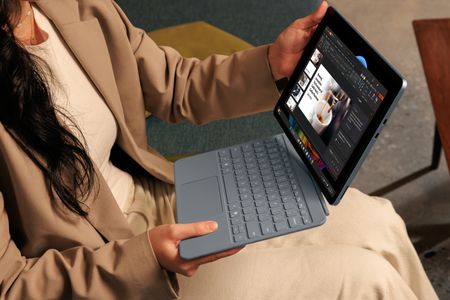
Everyday barriers in plain sight Most people don’t spend much time thinking about their keyboard. That’s part of what makes it work. You open your device, start typing, and the keyboard fades into the background—until it doesn’t. Until the lighting changes, or your eyes are tired, or you can’t quite tell which key your finger is on. For millions of users, that slight friction isn’t just annoying—it’s a daily barrier. A more visible experience The new Surface Pro 12-inch keyboard features thoughtful changes designed to make typing easier for more people. It started with a simple observation: the key legends were hard to see. That insight led to exploration of overlays used in education, typefaces developed for low vision and dyslexia, and the effects of lighting, spacing, and iconography on legibility. Through rounds of prototypes and refinements, the design team shaped characters, adjusted stroke weights, and tuned backlighting to avoid visual washout—all while keeping the familiar Surface feel. The result is the optional Bold keyset: a high-contrast, larger-font version of the standard keyboard. Letters are clearer, spacing more deliberate, and labels that once faded into the keycaps now stand out with clarity. These changes quietly reduce effort, one keystroke at a time. Surface Pro 12-inch Bold keyset Designed for wayfinding We also looked at how people navigate the keyboard by touch. For users who are blind or who rely on tactile orientation, the standard F and J bumps are helpful—but limited. The raised indicators on the F4 and F8 keys that became standard with Surface Laptop 3 and Surface Pro 8 keyboards are also used on the Surface Pro 12-inch keyboard. These positions are intentionally chosen: many common keyboard accessories leave these keys uncovered, making them valuable landmarks. We also included a tactile bump on the down arrow key. For users who navigate interfaces using screen readers, distinguishing up from down by feel is critical. This subtle addition reduces error, speeds up interaction, and supports confidence in every movement. Adapting to different inputs Another shift is adaptive touch mode, built directly into the Surface touchpad and easily toggled on through the Surface app. For many people with limb differences, Cerebral Palsy, or mobility conditions such as arthritis, standard touchpads can be difficult or impossible to use. Adaptive touch mode changes that. When active, it allows users to adjust how the touchpad responds to their input—whether from a fingertip, palm, edge of the hand, foot, or residual limb. Users can also fine-tune settings such as touch sensitivity, the time between clicks for a double-click to register, and the size or location of the right-click region. The result is a touch surface that adapts to the person, not the other way around. For people with limited mobility or a wide range of dexterity capabilities, that flexibility turns the touchpad into a customizable, comfortable, and precise tool for daily computing. Faster access to AI assistance The keyboard also includes a dedicated Copilot key. One press brings up Microsoft Copilot in Windows 11, giving users immediate access to AI-powered assistance. That could mean summarizing a document, rewriting an email, answering a question, or navigating the system itself. For users with cognitive load limitations, memory challenges, or motor delays, this shortcut eliminates several steps—replacing multi-step workflows with a single action. Surface Pro 12-inch keyboard No extra cost, no added steps We made a deliberate decision not to make accessibility a premium option, so these updates don’t come with an added cost. The Bold keyset version is priced the same as the standard Surface Pro 12-inch Keyboard and is available in English only, in select markets, including the US, Canada, and China. The built-in features mean that technology decision makers don’t have to choose between cost and comfort. Users don’t have to identify as needing something different. And no one has to explain why they want a keyboard that’s easier to read or more comfortable to touch. The value of quiet inclusion This is the kind of work we value most. Not chasing a trend or shipping something flashy—but solving a real problem that someone flagged because their experience didn’t feel as seamless as it should. The Surface Pro 12-inch keyboard with Bold keyset isn’t a new category. It’s a better version of something you already know. It shows up quietly. It gets out of the way. It supports more people without asking anyone to justify their needs. That’s what inclusive design can be. Thoughtful. Uncomplicated. Built into the core of the product from the start. And when it works, most people won’t even notice. They’ll just keep typing. Try our latest Surface Keyboards with the Bold keyset and discover how thoughtful design can make your everyday work easier. Visit the Microsoft Store to explore the difference in visibility, comfort, and accessibility for yourself. Enterprise customers can visit the Enterprise customers can get accessibility support here.608Views0likes0Comments
Incorrect touch coordinates on the internal screen of Honor Magic V2
Problem description: On the Honor Magic V2 smartphone, when using the internal screen in an unfolded state, Microsoft Edge incorrectly registers touch input. The touch position is shifted by approximately 5 mm vertically, making the browser nearly unusable. Details: Edge works correctly on the external screen when the device is folded. All other applications (system apps and those from the Play Store) work without this issue, confirming that screen calibration is correct. The problem persists after reinstalling Edge and clearing the cache. Steps to reproduce: 1. Open Microsoft Edge on a Honor Magic V2. 2. Unfold the phone and use the internal screen. 3. Try tapping on elements in the browser. 4. Notice that the touch coordinates are vertically offset (up) by approximately 5 mm. Expected behavior: Touch input should be registered at the correct coordinates, as it works in other apps and on the external screen. Device and software details: Microsoft Edge version: 132.0.2957.129 Android version: 15 Device: Honor Magic V2 Additional information: The issue persists the standard, Beta and Canary versions of Edge.257Views2likes1Comment
Poor performance specific actions
Hello, I wanted to start this discussion as I didn't saw threads about these issues. Sorted by importance First: Specificly on MS Edge no matter on which version there's a seriously noticeable window drag delay when dragging the window on a touch enabled device using your finger or a pen this issue is not present when using the mouse. Also not present on Firefox or other windows apps I don't use chrome as Edge is just top notch. I noticed that the GPU on edge does not get that much utilized compared to firefox when dragging also when the device is plugged in this issue gets weaker not gone but less noticeable might suggest that this is connected to Edges power saving measures? Second: Scaling PDFs especially when drawing got slower I know alot has been changed in order to have the best performance for pdfs but maybe there can be done more to prevent these lags. Third: Regarding vertical tabs the animation feels really choppy and downgrades the experience a tiny bit Hardware Specifications: Surface Book 2 i7-8650U Intel UHD 620 iGPU Nvidia geforce 1050 dGPU 16GB Ram Do others also experience similar issues?1.1KViews0likes1CommentAssign a shortcut to Touch Keyboard in Windows
I need to launch Touch Keyboard without the need to going to the bottom of the screen and click on its icon, because it's time consuming and I have to do this repeatedly. I use mechanical keyboard but in order to write in foreign alphabets, I need to use Touch keyboard which is on my screen and I can use mouse to select words. It'd be great if I could launch Touch keyboards quickly with a keyboard shortcut. Upvote in feedback hub: https://aka.ms/AAdps2m1.5KViews0likes1Comment
Surface pro 3 vs 4 - touch to scroll/pen to write
Greetings all! On my surface 3, when in a Word doc (for example), when i apply my pen I can draw in the document, and when i want to scroll, zoom...etc. I just use my finger. However, on my 4, I cannot do this... Thank you in advance!2KViews0likes1Comment
Has the Edge team forgotten that touch screens exist?
Chromium Edge is completely lacking in touchscreen support and I have seen no mentions of them planning to add any in. Legacy Edge was much better for touch screens. I find it odd, to say the least, that Edge now lacks touch support considering that Microsoft sells tablets. Among the issues: Touching and holding doesn't show the square that indicates a right-click. How long is long enough to trigger a right click? You'll just have to guess and hope. Touching and holding a button on the toolbar has the exact opposite problem. The square appears, but it doesn't disappear after you stop touching the screen. Inability to reorder favorites bar items with touch Inability to reorder extensions on the menu bar with touch You can't select text (with touch) without triggering a right click. It's also different from the rest of Windows, where a single tap selects text. Autofill items have a delete button, but only on hover. You can't easily use a touchscreen to press that button without knowing the location of that button beforehand. Collections lacks touch support (otherwise a great feature) Inability to drag text or images into collections Collections and collection items have a selection box, but only on hover. You can't easily use a touchscreen to press that box without knowing the location of that box beforehand. This is a much less important thing, but there's no rubber-banding effect when scrolling in Collections.5.7KViews11likes10CommentsSplit Keyboard Layout is missing - insider dev build 21318
I have the new keyboard design that was introduced recently. but the Split layout Is missing. I only have: Default, Small and Traditional, No Split layout available. Windows 10 insider Dev build 21318 if you are having the same problem, please add your details to this feedback. Feedback link: https://aka.ms/AAb9lbi833Views0likes0Comments