templates
40 TopicsNotes and documents – the way clinicians want them
The moment after the visit There is a moment in every patient encounter when the clinical story needs to become something more than a note. It may become a referral letter, a set of patient instructions, a school or work note, or a summary that helps a patient remember what was discussed. These documents matter as much as the note itself. A patient needs clear instructions they can understand and follow. A referring physician needs concise context and clinical reasoning. A specialist needs relevant background. Each audience is different; each document has a different purpose. For clinicians, these documents are not administrative leftovers. They are part of care itself. They carry the reasoning, reassurance, precision, and next steps that help patients and care teams move forward with confidence. And yet, creating them often happens under pressure and requires clinicians to rely on memory, whether they are documenting in between patients or after clinic hours. Introducing custom document templates in Dragon Copilot Dragon Copilot's custom document templates are designed to solve this problem by allowing the clinician to create these documents directly in the workflow. A custom document template is a reusable, AI-generated structure that turns a clinical encounter into the right finished document — a referral letter, after-visit summary, work note, pre-operative instructions — in the format the clinician defines. How it works A clinician describes what they need in plain language: "Create a patient-friendly follow-up letter after a cardiology visit." Dragon Copilot generates a draft template from that description. The clinician can then refine it — by speaking naturally— to adjust the tone, the structure, or the level of clinical detail until it reflects how they communicate. The finished template is saved and reusable, and ready to populate from the next encounter's notes. Templates can be built from scratch with a prompt, from a pasted sample, or from an uploaded file, with a preview before the template is used with real patient data. Built around how each clinician works Imagine a clinician finishing a consultation. The conversation was nuanced. The patient asked thoughtful questions. The next step requires a referral letter that reflects not only the diagnosis, but also the clinical reasoning behind it. Traditionally, that letter may be written later, when the clinician is already thinking about the next patient, the next inbox message, or the next task. With custom documents, the clinician can define the structure they need, save it, and generate the right type of output directly in the workflow. Referral letters are just one example. Clinicians create a wide range of documents every day, each designed for a different audience and purpose. A pediatrician needs parent-friendly discharge instructions — plain language, no jargon, clear next steps. A surgeon needs structured pre-operative guidance that follows a consistent format every time. A general practitioner needs a concise work note that takes seconds, not minutes. A specialist needs a referral response that reflects both the diagnosis and the clinical reasoning behind it. Each of these is a different template, built once, refined in conversation, and reused whenever it is needed. The AI adapts to the clinician's specialty, communication style, and intended audience — not the other way around. Clinical impact in real-world workflows Custom documents can create value where clinicians feel pressure most: in the moments after the encounter, when the clinical conversation needs to become clear, actionable communication. In practice, this means less time spent on repetitive drafting, manual rework, switching between documentation tasks, reconstructing details after the visit, creating routine letters, instructions, or summaries from scratch. Custom documents help make documentation more flexible, reusable, and aligned with how care is delivered. A step toward a more human future Less time spent drafting, reworking, and reconstructing details after the visit. More consistency across documents. And clinical communication that reflects how care was delivered — not a generic approximation of it. Custom documents help turn the conversation in the exam room into the right document for the right moment, with less friction and more consistency The goal is a future where clinicians do not have to choose between being present in the room and being precise in the record. Custom document templates in Dragon Copilot are a step toward that future. ------------- Click here to learn more about Dragon Copilot.278Views2likes0CommentsImplementing / Migrating the BizTalk Server Aggregator Pattern to Azure Logic Apps Standard
While the article focuses on the migration path from BizTalk Server, the template is equally suited for new (greenfield) implementations any team looking to implement the Aggregator pattern natively in Azure Logic Apps can deploy it directly from the Azure portal without prior BizTalk experience. The template source code is open source and available in the Azure LogicAppsTemplates GitHub repository. For full details on the original BizTalk implementation, see the BizTalk Server Aggregator SDK sample. Why is it important? BizTalk Server End of life has been confirmed and if you have not started your migration to Logic Apps, you should start soon. This is one of many articles in BizTalk Migration. More information can be found here: https://aka.ms/biztalkeolblog. The migration at a glance: BizTalk orchestration vs. Logic Apps workflow The BizTalk SDK implements the pattern through an orchestration (Aggregate.odx) that uses correlation sets, receive shapes, loop constructs, and send pipelines. The Logic Apps Standard template replicates the same logic using a stateful workflow with Azure Service Bus and CorrelationId-based grouping. The BizTalk solution includes: Component Purpose Aggregate.odx Main orchestration that collects correlated messages and executes the send pipeline FFReceivePipeline.btp Receive pipeline with flat file disassembler Invoice.xsd Document schema for invoice messages InvoiceEnvelope.xsd Envelope schema for output interchange PropertySchema.xsd Property schema with promoted properties for correlation XMLAggregatingPipeline.btp Send pipeline to assemble collected messages into XML interchange The Azure Logic Apps Standard implementation The Logic Apps Standard workflow replicates the same Aggregator pattern using a stateful workflow with Azure Service Bus as the message source and CorrelationId-based grouping. The template is publicly available in the Azure portal templates gallery. Figure 2: The “Aggregate messages from Azure Service Bus by CorrelationId” template in the Azure portal templates gallery, published by Microsoft. Receives messages from Service Bus in batches, groups them by CorrelationId, decodes flat files, and responses with the aggregated result via HTTP. Side-by-side comparison: BizTalk Server vs. Azure Logic Apps Understanding how each component maps between platforms is essential for a smooth migration: Concept BizTalk Server (Aggregate.odx) Azure Logic Apps Standard Messaging infrastructure MessageBox database (SQL Server) Azure Service Bus (cloud-native PaaS) Message source Receive Port / Receive Location Service Bus trigger (peekLockQueueMessagesV2) Message decoding Receive Pipeline (Flat File Disassembler) Decode_Flat_File_Invoice action (FlatFileDecoding) Correlation mechanism Correlation Sets on promoted properties (DestinationPartnerURI) CorrelationId from Service Bus message properties Message accumulation Loop shape + Message Assignment shapes ForEach loop + CorrelationGroups dictionary variable Completion condition Loop exit (10 messages or 1-minute timeout) Batch-based: processes all messages in current batch Aggregated message construction Construct Message shape + XMLAggregatingPipeline Build_Aggregated_Messages ForEach + Compose actions Result delivery Send Port (file, HTTP, or other adapter) HTTP Response or any other regarding business need Error handling Exception Handler shapes + SuspendMessage.odx Scope + error handler actions Schema support BizTalk Flat File Schemas (XSD) Same XSD schemas in Artifacts/Schemas folder State management Orchestration dehydration/rehydration Stateful workflow with run history Key architectural differences Aspect BizTalk Server Azure Logic Apps Standard Processing model Convoy pattern (long-running, event-driven) Batch-based (processes N messages per trigger) Scalability BizTalk Host instances (manual scaling) Elastic scale (Azure App Service Plan) Retry logic Adapter-level retries Built-in HTTP retry policy (3 attempts, 10s interval) Architecture Monolithic orchestration Decoupled: aggregation + downstream processing Monitoring BizTalk Admin Console / HAT Azure portal run history + Azure Monitor Schema reuse BizTalk project schemas Direct XSD reuse in Artifacts/Schemas Deployment MSI / BizTalk deployment ARM templates, Azure DevOps, GitHub Actions How the workflow works 1. Trigger: Receive messages from Service Bus The workflow uses the built-in Service Bus trigger to retrieve messages in batches from a non-session queue. This is analogous to BizTalk's Receive Location polling the message source. 2. Process and correlate: Group messages by CorrelationId Each message is processed sequentially (like BizTalk's ordered delivery). The workflow: Extracts the CorrelationId from Service Bus message properties (equivalent to BizTalk's promoted property used in the Correlation Set) Decodes flat file content with zero refactoring using the XSD schema (equivalent to BizTalk's Flat File Disassembler pipeline component) Groups messages into a dictionary keyed by CorrelationId (equivalent to BizTalk's loop + message assignment pattern) 3. Build aggregated output Once all messages in the batch are processed, the workflow constructs a result object for each correlation group containing the CorrelationId, message count and the array of decoded messages. 4. Deliver results The aggregated output is sent to a target workflow via HTTP POST, following a decoupled architecture pattern. This is analogous to BizTalk's Send Port delivering the result to the destination system. You can substitute this action for another endpoint as needed. This, will depend on your business case. Azure Service Bus: The cloud-native replacement for BizTalk’s MessageBox In BizTalk Server, the MessageBox database is the central hub for all message routing, subscription-based delivery, and correlation. It’s the engine that enables patterns like the Aggregator — messages are published to the MessageBox, and the orchestration subscribes to them based on promoted properties and correlation sets. In Azure Logic Apps Standard, there is no MessaeBox equivalent. Instead, Azure Service Bus serves as the cloud-native messaging backbone. Service Bus provides the same publish/subscribe semantics, message correlation (via the built-in CorrelationId property), peek-lock delivery, and reliable queuing — but as a fully managed, elastically scalable PaaS service with no infrastructure to maintain. This is a fundamental shift in architecture: you move from a centralized SQL Server-based message broker (MessageBox) to a distributed, cloud-native messaging service (Service Bus) that scales independently and integrates natively with Logic Apps through the built-in Service Bus connector. Important: Service Bus is not available on-premises. However, RabbitMQ is available to cover these needs, on-premises. RabbitMQ offers a fantastic alternative for customers looking to replicate BizTalk message routing, subscription-based delivery, and correlation. Decode Flat File Invoice: Reuse your BizTalk schemas with zero refactoring One of the biggest concerns during any BizTalk migration is: “What happens to our flat file schemas and message formats?” The workflow template includes a Decode Flat File action (type FlatFileDecoding) that converts positional or delimited flat file content into XML — exactly like BizTalk’s Flat File Disassembler pipeline component. The key advantage: your original BizTalk XSD flat file schemas work as-is. Upload them to the Logic Apps Artifacts/Schemas folder and reference them by name in the workflow — no modifications, no refactoring. This means: Your existing message formats don’t change — upstream and downstream systems continue sending and receiving the same flat file messages Your BizTalk schemas are directly reusable — the same Invoice.xsd from your BizTalk project works seamlessly with the FlatFileDecoding action Migration effort is significantly reduced — no need to redesign schemas, re-validate message structures, or update trading partner agreements Time-to-production is faster — focus on workflow logic and connectivity instead of rewriting message definitions Notice that, if you need to process XML data, as your data might arrive in XML format, use the XML Operations: Validate, Transform, Parse, and Compose XML with schema. You can find more information at Compose XML using Schemas in Standard Workflows - Azure Logic Apps | Microsoft Learn. The message with correlation Id Each message in the Service Bus queue is a flat file invoice the same positional/delimited text format used in the BizTalk SDK sample. Here's an example: INVOICE12345 DestinationPartnerURI:http://www.contoso.com?ID=1E1B9646-48CF-41dd-A0C0-1014B1CE5064 BILLTO,US,John Connor,123 Cedar Street,Mill Valley,CA,90952 101-TT Plastic flowers 10 4.99 Fragile handle with care 202-RR Fertilizer 1 10.99 Lawn fertilizer 453-XS Weed killer 1 5.99 Lawn weed killer The message structure combines positional and delimited fields: Line 1: Invoice identifier (fixed-length record) Line 2: Destination partner URI — in BizTalk, this value is promoted as a context property and used in the Correlation Set to group related messages Line 3: Bill-to header (comma-delimited: country, name, address, city, state, ZIP) Line 4: Line items (positional fields: item code, description, quantity, unit price, notes) Why CorrelationId is essential In BizTalk Server, the orchestration promotes `DestinationPartnerURI` from the message body into a context property and uses it as the Correlation Set to match related messages. This requires a Property Schema, promoted properties, and pipeline configuration. In Azure Logic Apps Standard, correlation is decoupled from the message body. The `CorrelationId` is a native Azure Service Bus message property with a first-class header set by the message producer when sending to the queue. This means: No schema changes needed: the flat file content stays exactly the same No property promotion: Service Bus provides the correlation identifier out of the box Simpler architecture: the workflow reads `CorrelationId` directly from the message metadata, not from the payload Producer flexibility any system sending to Service Bus can set the `CorrelationId` header using standard SDK methods, without modifying the message body This is why the Aggregator pattern maps so naturally to Service Bus: the correlation mechanism that BizTalk implements through promoted properties and correlation sets is already built into the messaging infrastructure. Step-by-step guide: Deploy the template from the Azure portal The “Aggregate messages from Azure Service Bus by CorrelationId” template is publicly available in the Azure Logic Apps Standard templates gallery. Follow these steps to deploy it: Prerequisites Before you begin, make sure you have: An Azure subscription. If you don’t have one, sign up for a free Azure account . An Azure Logic Apps Standard resource deployed in your subscription. If you need to create one, see Create an example Standard logic app workflow . An Azure Service Bus namespace with a non-session queue configured. A flat file XSD schema (for example, Invoice.xsd) ready to upload to the logic app’s Artifacts/Schemas folder. A target workflow with an HTTP trigger to receive the aggregated results (optional, can be created after deployment). Step 1: Open the templates gallery Sign in to the Azure portal. Navigate to your Standard logic app resource. On the logic app sidebar menu, select Workflows. On the logic app sidebar menu, select Workflows. On the Workflows page, select + Create to create a new workflow. In the “Create a new workflow” pane, select Use Template to open the templates gallery and select Create button. Step 2: Find the Aggregator template In the templates gallery, use the search box and type “Aggregate” or “Aggregator”. Optionally, filter by: o Connectors: Select Azure Service Bus o Categories: All Locate the template named “Aggregate messages from Azure Service Bus by CorrelationId”. o The template card shows the labels Workflow and Event as the solution type and trigger type. o The template is published by Microsoft. Step 3: Review the template details Select the template card to open the template overview pane. On the Summary tab, review: o Connections included in this template: Azure Service Bus (in-app connector) o Prerequisites: Requirements for Azure Service Bus, flat file schema, and connection configuration o Details: Description of the Aggregator enterprise integration pattern implementation Source code: Link to the GitHub repository Select the Workflow tab to preview the workflow design that the template creates and when you are ready select Use this template. Step 4: Provide workflow information In the Create a new workflow from template pane, on the Basics tab: o Workflow name: Enter a name for your workflow, for example, wf-aggregator-invoices o State type: Select Stateful (recommended for aggregation scenarios that require run history and reliable processing) Select Next. Step 5: Create connections On the Connections tab, create the Azure Service Bus connection: o Select Connect next to the Service Bus connection. o Provide your Service Bus connection string or select the managed identity authentication option. For managed identity (recommended), make sure your logic app’s managed identity has the Azure Service Bus Data Receiver role on the Service Bus namespace. 2. Select Next. Step 6: Configure parameters On the Parameters tab, provide values for the workflow parameters: Parameter Description Example value Azure Service Bus queue name The queue to monitor for incoming messages invoice-queue Maximum batch size Number of messages per batch (1-100) 10 Flat file schema name XSD schema name in Artifacts/Schemas Invoice.xsd Default CorrelationId Fallback value for messages without CorrelationId NO_CORRELATION_ID Target workflow URL HTTP endpoint of the downstream workflow https://your-logicapp.azurewebsites.net/... Target workflow timeout HTTP call timeout in seconds 60 Enable sequential processing Maintain message order true 2. Select Next. Step 7: Review and create On the Review + create tab, review all the provided information. Select Create. When the deployment completes, select Go to my workflow. Step 8: Upload the flat file schema Navigate to your logic app resource in the Azure portal. On the sidebar menu, under Artifacts, select Schemas. Select + Add and upload your Invoice.xsd. Confirm the schema appears in the list. Notice that: for this scenario we are using the Invoice.xsd schema, you can/must use the schema your scenario needs. Step 9: Verify and test On the workflow sidebar, select Designer to review the created workflow. Verify all actions are configured correctly. Send test messages to your Service Bus queue with different CorrelationId values. Monitor the Run history to verify successful execution and aggregation. For more information on creating workflows from templates, see Create workflows from prebuilt templates in Azure Logic Apps. Conclusion The Aggregator pattern is a cornerstone of enterprise integration, and migrating it from BizTalk Server to Azure Logic Apps Standard doesn’t mean starting from scratch. By using this template, you can: Reuse your existing XSD flat file schemas directly from your BizTalk projects Replace BizTalk Correlation Sets with CorrelationId-based message grouping via Azure Service Bus Deploy in minutes from the Azure portal templates gallery Scale elastically with Azure App Service Plan Monitor with Azure-native tools instead of the BizTalk Admin Console The template is open source and available at: GitHub PR: Azure/LogicAppsTemplates#108 Template name in Azure portal: “Aggregate messages from Azure Service Bus by CorrelationId” Source code: GitHub repository Whether you’re migrating from BizTalk Server or building a new integration solution from scratch, this template gives you a solid, production-ready starting point. I encourage you to try it, customize it for your scenarios, and contribute back to the community. Resources BizTalk Server Aggregator SDK sample Create workflows from prebuilt templates in Azure Logic Apps Create and publish workflow templates for Azure Logic Apps Flat file encoding and decoding in Logic Apps Azure Service Bus connector overview BizTalk to Azure migration guide BizTalk Migration Starter tool819Views0likes0CommentsIntroducing Azure Data Factory Community Templates
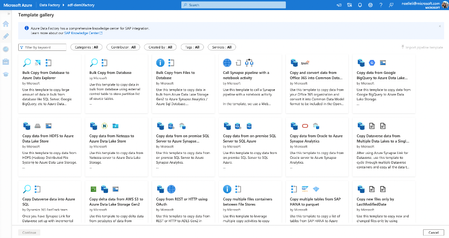
Today, we’re excited to announce that Community Templates are now available, giving our community members an opportunity to contribute to our existing template gallery. Templates are predefined Azure Data Factory pipelines that allow you to get started quickly with Data Factory. Templates are especially useful when you're new to Azure Data Factory or Azure Synapse pipelines and want to get started quickly, reducing development time for building data integration projects, and improving developer productivity. A wide variety of best practices are also infused in templates that cater to different scenarios that you can build on top of. And if you have Git enabled, templates help create shareable pipelines for better collaboration within the same factory.10KViews5likes1Comment📢 Announcing Public Preview: Organizational Templates in Azure Logic Apps
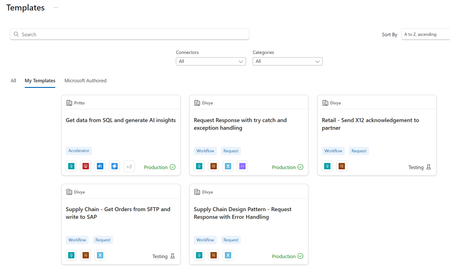
We’re excited to announce the Public Preview of Organizational Templates in Azure Logic Apps— empowering teams to author, share, and reuse automation patterns across their organization. With this release, we’re also rolling out a brand-new UI experience to easily create templates directly from your workflows—no manual packaging required! What Are Logic Apps Templates Templates in Azure Logic Apps help teams accelerate workflow creation by providing prebuilt, reusable automation patterns. They package one or more workflows—along with their connections, parameters, and documentation—into easy-to-deploy blueprints. There are two main types: Workflow Templates – Reusable single-workflow blueprints. Accelerators – Bundled solutions made up of multiple related workflows. These templates have been available in the Logic Apps through the Templates gallery, and many Microsoft-authored templates are already published for common design and integration patterns. Watch the walkthrough of Templates: Templates Experience in Logic Apps What's NEW! Organizational Templates: Standardize, Share, and Scale Organizational Templates enable teams to publish Logic Apps templates scoped to their own environment—allowing you to standardize integration patterns, share best practices, and reuse solutions across your organization without making them public. This feature is especially useful for enterprises looking to promote consistency while still retaining flexibility. Whether you're embedding internal APIs, handling domain-specific logic, or enforcing architectural patterns, organizational templates help you scale with control. You can now: Create templates using a simple UI experience Scope templates to your organization so they’re only visible within your Azure tenant/subscription Publish in test or production mode, enabling safe experimentation and gated rollout Use internal systems and APIs directly in templates without needing to externalize them Download template packages and optionally contribute them to the public GitHub repo With lifecycle management built in, you can mature templates from test to prod, giving teams the structure they need while retaining agility. Access Control and Visibility Across Subscriptions Templates are a first-class Azure resource, which means they: Integrate with Azure RBAC - you can manage access permissions just like any other Azure resource Respect subscription and role scopes - developers only see templates they have permission to access in the selected subscriptions This gives you enterprise-grade control over who can author, view, and deploy templates—giving you full control on how you want to organize the templates and ensuring that the right teams get access to the right automation patterns. Getting Started Before creating a template, make sure the workflow is already deployed. Additionally, ensure that any values meant to be provided by the user are properly parameterized, rather than hardcoded. Create a new Template resource Start by creating a new Logic Apps Template resource in the Azure portal. Go to Manage > Manage Workflows Use this section to add the workflows you want to include in the template. You can add either Standard or Consumption Logic Apps. For each workflow provide the required details. Review connectors Connection information is automatically pulled from the workflows. You can view the connectors, but no action is needed at this stage. Provide parameter details For each parameter, fill in the required metadata such as Display Name and Description to help users understand what values to provide. Review template details On the Profile page, you'll see how your template will appear in the Gallery—including its Title (Display name), Connectors, Tags, and other metadata. When you Save, validation runs automatically at this step. If there are any errors (e.g., unparameterized values or unsupported actions), they must be fixed before publishing. Save progress anytime You can save your template at any point—even in an incomplete state or with validation errors. Publish to Testing/Production When you are ready to test, you can publish to Testing. Once testing is complete, you can change the template’s status from Testing to Production. This will update its availability and visibility in the Templates Gallery. Walkthrough/Feedback We believe that templates are the foundation of repeatable, scalable automation. With organizational templates and intuitive authoring, we’re making it easier than ever to bring consistency and velocity to your Logic Apps development. Start building, start sharing—within your team or with the world. Let us know if you have any feedback or questions. Here is a demo video that shows detailed walkthrough of this feature.1.4KViews1like4Comments
What permissions are needed to create teams from a template?
Hi there! I'm trying to create a new classroom team in Teams, but neither my normal account or my GA account has permissions to create teams from templates, nor from another team. The options are greyed out and the tooltip says I don't have permission. The "from scratch" option is completely missing, only "From a group" is available. I've ensured that both accounts have a license (Education A3) and the appropriate permissions in the Teams Admin Portal (where I can create normal teams from scratch with my admin account no problem). Am I missing something? Are there any more permissions required? I've tried both in a browser and in the desktop app.1.2KViews0likes1Comment🚀 Announcement: Azure Logic Apps Document Indexer in Azure Cosmos DB
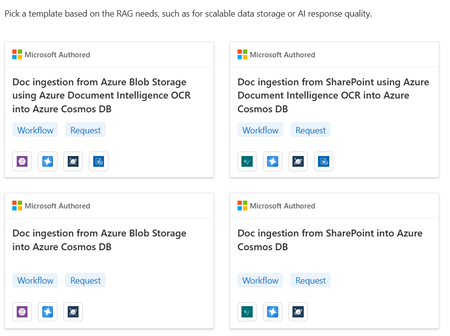
We’re excited to announce the public preview of Azure Logic Apps as a document indexer for Azure Cosmos DB! With this release, you can now use Logic Apps connectors and templates to ingest documents directly into Cosmos DB’s vector store—powering AI workloads like Retrieval-Augmented Generation (RAG) with ease. This new capability orchestrates the full ingestion pipeline—from fetching documents to parsing, chunking, embedding, and indexing—allowing you to unlock insights from unstructured content across your enterprise systems. Check out the announcement from Azure Cosmos team about this capability! How It Works Here’s how Logic Apps powers the ingestion flow: Connect to Source Systems While Logic Apps has more than 1400+ prebuilt connectors to pull documents from various systems, this experience streamlines the entire process via out of box templates to pull data from sources like Azure Blob Storage. Parse and Chunk Documents AI-powered parsing actions extract raw text. Then, the Chunk Document action: Tokenizes content into language model-friendly units Splits it into semantically meaningful chunks This ensures optimal size and quality for embedding and retrieval. Generate Embeddings with Azure OpenAI The chunks are passed to Azure OpenAI via connector to generate embeddings (e.g., using text-embedding-3-small). These vectors capture the meaning of your content for precise semantic search. Write to Azure Cosmos DB Vector Store Embeddings and metadata (like title, tags, and timestamps) are indexed in Cosmos DB’s, using a schema optimized for filtering, semantic ranking, and retrieval. Logic Apps Templates: Fast Start, Full Flexibility We’ve created ready-to-use templates to help you get started fast: 📄 Blob Storage – Simple Text Parsing 🧾 Blob Storage – OCR with Azure Document Intelligence 📁 SharePoint – Simple Text Parsing 🧠 SharePoint – OCR with Azure Document Intelligence Each template is customizable—so you can adapt it to your business needs or expand it with additional steps. We’d Love Your Feedback We’re just getting started—and we’re building this with you. Tell us: What data sources should we support next? Are there specific formats or verticals you need (e.g., legal docs, invoices, contracts)? What enhancements would make ingestion even easier? 👉 Reply to this post or share feedback through this form. Your input shapes the future of AI-powered document indexing in Cosmos DB.681Views0likes1Comment🎙️ Announcement: Logic Apps connectors in Azure AI Search for Integrated Vectorization
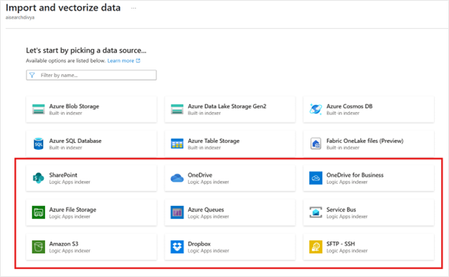
We’re excited to announce that Azure Logic Apps connectors are now supported within AI Search as data sources for ingestion into Azure AI Search vector stores. This unlocks the ability to ingest unstructured documents from a variety of systems—including SharePoint, Amazon S3, Dropbox and many more —into your vector index using a low-code experience. This new capability is powered by Logic Apps templates, which orchestrate the entire ingestion pipeline—from extracting documents to embedding generation and indexing—so you can build Retrieval-Augmented Generation (RAG) applications with ease. Grounding AI with RAG: Why Document Ingestion Matters Retrieval-Augmented Generation (RAG) has become a cornerstone technique for building grounded and trustworthy AI systems. Instead of generating answers from the model’s pretraining alone, RAG applications fetch relevant information from external knowledge bases—giving LLMs access to accurate and up-to-date enterprise data. To power RAG, enterprises need a scalable way to ingest and index documents into a vector store. Whether you're working with policy documents, legal contracts, support tickets, or financial reports, getting this content into a searchable, semantic format is step one. Simplified Ingestion with Integrated Vectorization Azure AI Search’s Integrated Vectorization capability automates the process of turning raw content into semantically indexed vectors: Chunking: Documents are split into meaningful text segments Embedding: Each chunk is transformed into a vector using an embedding model like text-embedding-3-small or a custom model Indexing: Vectors and associated metadata are written into a searchable vector store Projection: Metadata is preserved to enable filtering, ranking, and hybrid queries This eliminates the need to build or maintain custom pipelines, making it significantly easier to adopt RAG in production environments. Ingest from Anywhere: Logic Apps + AI Search With today’s release, we’re extending ingestion to a variety of new data sources by integrating Logic Apps connectors directly with AI Search. This allows you to retrieve unstructured content from enterprise systems and seamlessly ingest it into the vector store. Here’s how the ingestion process works with Logic Apps: Connect to Source Systems Using prebuilt connectors, Logic Apps can fetch content from various data sources including Sharepoint document libraries, messages from Service Bur or Azure Queues, files from OneDrive or SFTP Server and more. You can trigger ingestion on demand or at schedule. Parse and Chunk Documents Next, Logic Apps uses built-in AI-powered document parsing actions to extract raw text. This is followed by the “Chunk Document” action, which: Tokenizes the document based on language model-friendly units Splits the content into semantically coherent chunks This ensures optimal chunk size for downstream embedding and retrieval. Note – Currently we default to a chunk size of 5000 in the workflows created for document ingestion. We’ll be updating the default chunk size to a smaller number in our next release. Meanwhile, you can update it in the workflow if you need a smaller chunk size. Generate Embeddings with Azure OpenAI The chunked text is then passed to the Azure OpenAI connector, where the text-embedding-3-small or another configured embedding model is used to generate high-dimensional vector representations. These vectors capture the semantic meaning of the content and are key to enabling accurate retrieval in RAG applications. Write to Azure AI Search Finally, the embeddings, along with any relevant metadata (e.g., document title, tags, timestamps), are written into the AI Search index. The index schema is created for you ——and can include fields for filtering, sorting, and semantic ranking. Logic Apps Templates: Fast Start, Flexible Design To help you get started, we’ve created Logic Apps templates specifically for RAG ingestion. These templates: Include all the steps mentioned above Are customizable if you want to update the default configuration Whether you’re ingesting thousands of PDFs from SharePoint or syncing files from Amazon S3 bucket, these templates provide a production-grade foundation for building your pipeline. Getting Started Here is step by step detailed documentation to get started using Integrated Vectorization with Logic Apps data sources 👉 Get started with Logic Apps data sources for AI Search ingestion 👉 Learn more about Integrated Vectorization in Azure AI Search We'd Love Your Feedback We're just getting started. Tell us: What other data sources would you like to ingest? What enhancements would make ingestion easier for your use case? Are there specific industry templates or formats we should support? 👉 Reply to this post or share your ideas through our feedback form We’re building this with you—so your feedback helps shape the future of AI-powered automation and RAG.1.3KViews1like0Comments
Deploy Logic App Standard with Application Routing Feature Based on Terraform and Azure Pipeline
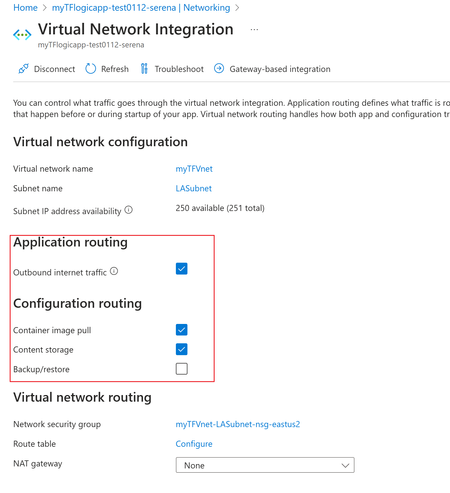
Due to Terraform's cross-cloud compatibility, automation, and efficient execution, among many other advantages, more and more customers use it to deploy integration solutions based on Azure Logic App standard. However, despite the extensive contributions from the community and individual contributors providing Terraform templates and supporting VNET integration solutions for Logic App standards, there are still very few terraform templates covering the "Application routing" and "Configuration routing" settings: This article shared a mature plan to deploy logic app standard then set the mentioned routing features automatically. It's based on Terraform template and Azure DevOps Pipeline. Code Reference: https://github.com/serenaliqing/LAStandardTerraformDeployment/tree/main/Terraform-Deployment-Demo About Terraform Template: Please kindly find the the template in directory Terraform/LAStandard.tf, it includes the terraform definitions for logic app standard, the backend storage account, application insights, virtual network and VNET integration settings. About VNET Routing Configuration Because there is no terraform examples available for VNET routing, we add VNET Settings by invoking "Patch" request to ARM RESTful API endpoint for interacting with logic app standard site: https://management.azure.com/subscriptions/<Your subscription id>/resourceGroups/$(deployRG)/providers/Microsoft.Web/sites/$(deployLA)?api-version=2022-03-01 We figured out the required request body in network trace as the following format: { "properties": { "vnetContentShareEnabled": false, "vnetImagePullEnabled": true, "vnetRouteAllEnabled": false, "vnetBackupRestoreEnabled": false } } Please find the YAML file in TerraformPipeline/logicappstandard-terraform.yml. Within the Yaml file , the "AzureCLI@2" task is used to send the request by Azure CLI command. task to send the patch request. Special Tips: To use the terraform task during Azure pipeline run, it's required to install terraform extension (which you can find in the following link): https://marketplace.visualstudio.com/items?itemName=ms-devlabs.custom-terraform-tasks Terraform tasks: Reference: Deploy Logic App Standard with Terraform and Azure DevOps pipelines https://registry.terraform.io/providers/hashicorp/azurerm/latest/docs/resources/app_service https://azure.microsoft.com/en-us/products/devops/pipelines584Views2likes0CommentsAutomating Logic Apps connections to Dynamics 365 using Bicep
I recently worked with a customer to show the ease of integration between Logic Apps and the Dataverse as part of Dynamics 365 (D365). The flows of integrations we looked at included: Inbound: D365 updates pushed in near real-time into a Logic Apps HTTP trigger. Outbound: A Logic App sending HTTP requests to retrieve data from D365. The focus of this short post will be on the outbound use case, showing how to use the Microsoft Dataverse connector with Bicep automation. A simple use case The app shown here couldn't be much simpler: it's a Timer recurrence which uses the List Rows action to retrieve data from D365, here's an snip from an execution: Impressed? 🤣 Getting this setup clicking-through the Azure Portal is fairly simple. The connector example uses a Service Principal to authenticate the Logic App to D365 (OAuth being an alternative), so several parameters are needed: Additionally you'll be required to configure an Environment parameter for D365, which is a URL for the target environment, e.g. https://meaingful-url-for-your-org.crm.dynamics.com. Configuring the Service Principal may be the most troublesome part and is outside of the scope of this Bicep automation, and would be considered a separate task per-environment. This page may help you complete the required identity creation. So... what about the Bicep? You can see the Bicep files in the GitHub repository here. We have to deploy 2 resources: resource laworkflow 'Microsoft.Logic/workflows@2019-05-01' = { } ... resource commondataserviceApiConnection 'Microsoft.Web/connections@2016-06-01' = { } ... The first Microsoft.Logic/workflows resource deploys the app configuration, and the second Microsoft.Web/connections resource deploys the Dataverse connection used by the app. The relationship between resources after deployment will be: The Bicep for such a simple example took some trial and error to get right and the documentation is far from clear, something I will try to get improved. In hindsight it seems straight forward, these snippets outline where I struggled. A snip from the connections resource: resource commondataserviceApiConnection 'Microsoft.Web/connections@2016-06-01' = { name: 'commondataservice' ... properties: { displayName: 'la-to-d365-commondataservice' api: { id: '/subscriptions/${subscription().subscriptionId}/providers/Microsoft.Web/locations/${location}/managedApis/commondataservice' ... The property at path properties.api.id is all important here. Now looking at the workflows resource: resource laworkflow 'Microsoft.Logic/workflows@2019-05-01' = { name: logicAppName ... parameters: { '$connections': { value: { commondataservice: { connectionName: 'commondataservice' connectionId: resourceId('Microsoft.Web/connections', 'commondataservice') id: commondataserviceApiConnection.properties.api.id } } } ... Here we see the important parameters for the connection configuration, creating the relationship between the resources: connectionName: reference the name of the connection as specified in the resource. connectionId: uses the Bicep resourceId function to obtain the deployed Azure resource ID. id: references the properties.api.id value specified earlier. So fairly simple, but understanding what value is required where isn't straight forward and that's where documentation improvement is needed. Secret Management An extra area I looked at was improved secret management in Bicep. Values required for the Service Principal must be handled securely, so how do you achieve this? The approach I took was to use the az.getSecret Bicep function within the .bicepparm file, allowing for a secret to be read from an Azure KeyVault at deployment time. This has the advantage of separating the main template file from the parameters it uses. The KeyVault used is pre-provisioned which stores the Service Principal secrets and not deployed as part of this Bicep code. using './logicapps.bicep' ... param commondataserviceEnvironment = getSecret( readEnvironmentVariable('AZURE_KV_SUBSCRIPTION_ID'), readEnvironmentVariable('AZURE_KV_RESOURCE_GROUP'), readEnvironmentVariable('AZURE_KV_NAME'), 'commondataserviceClientSecret') This example obtains the commondataserviceClientSecret parameter value from Key Vault at the given Subscription, Resource Group, Key Vault name, and secret name. You must grant Azure Resource Manager access to the Key Vault, enabled by the setting shown below: The Subscription ID, Resource Group name, and Key Vault name are read from environment variables using the readEnvironmentVariable function, showing another possibility for configuration alongside individual .bicepparm file per-environment. In Summary While this was a very simple Logic Apps use case, I hope it ties together the areas of connector automation, configuration, and security, helping you accelerate the time to a working solution. Happy integrating!1.5KViews1like0Comments