synchronization
9 TopicsIntegrating Azure DevOps with Jira Service Management: Real-World Use Cases
If your development team works in Azure DevOps while support operates in Jira Service Management (JSM), you're probably dealing with manual ticket updates, information silos, and delayed responses. This friction slows down ticket resolution and creates unnecessary back-and-forth between teams. You can integrate both systems to automate data exchange and keep everyone on the same page. In this post, we'll explore why this integration matters, common use cases I've seen from teams using both platforms, and the key features you should consider when setting up your integration. Why Integrate Azure DevOps with Jira Service Management? When you integrate Azure DevOps with JSM, ticket escalation becomes automatic. A critical bug reported in JSM creates a work item in Azure DevOps with complete context—error logs, customer details, priority level, and all relevant information. Status updates sync bidirectionally. Your support team sees development progress without switching tools. Developers get full customer context without leaving Azure DevOps. The real benefits: Eliminate copy-paste errors Real-time visibility into work status Faster incident resolution Clear audit trails for SLAs and post-mortems Each team stays productive in their preferred environment Without integration, support agents need to check Azure DevOps regularly for updates to relay to customers. This creates delays, introduces errors, and wastes time on both sides. Common Use Cases for Azure DevOps + JSM Integration I have worked with hundreds of teams integrating these platforms. Here are the most common scenarios: 1. Incident and Bug Escalation This is probably the most common use case. Critical bugs reported in JSM automatically create high-priority work items in Azure DevOps with error logs, affected user details, and complete customer context. As developers update the work item, adding comments, changing status, or resolving the bug, those changes flow back to JSM automatically. Support agents can keep customers informed without constantly asking the dev team for updates. Use Case: Current Setup: Support uses JSM for customer tickets. Development uses Azure DevOps for bug tracking. Problem: Manually updating both systems is time-consuming and error-prone. Solution: Two-way sync ensures bugs and updates flow automatically between both systems. 2. Feature Request Management When customers submit feature requests through JSM and they get approved, they automatically flow to Azure DevOps as backlog items with inline images, custom fields, attachments, and more. When development completes the feature, the original JSM request closes automatically and notifies the customer. Use Case: Current Setup: Product managers collect feature requests in JSM. Developers track work in Azure DevOps. Problem: Manually creating work items for approved requests takes time, and context gets lost. Solution: Approved JSM requests automatically create Azure DevOps work items with full context. 3. Multi-Platform Sync for MSPs A central JSM instance can route tickets to different Azure DevOps projects based on work item type. This works especially well for MSPs managing multiple clients. You can connect your JSM instance with multiple client Azure DevOps environments while keeping data completely isolated per client. Use Case: Current Setup: An MSP uses one JSM instance. Multiple clients use separate Azure DevOps environments. Problem: Routing tickets manually to the right client's Azure DevOps is inefficient. Solution: Conditional routing based on customer tags or custom fields automatically sends tickets to the correct Azure DevOps project. 4. Post-Merger System Integration When two companies merge, one might use JSM for service management while the other uses Azure DevOps for development and QA. Rather than forcing everyone onto a single platform immediately, you can connect both systems to let teams continue using their existing tools during the transition. Use Case: Current Setup: Merged company with different tool stacks. Problem: Forcing immediate migration disrupts workflows. Solution: Integration bridges the gap while you plan a longer-term consolidation strategy. Key Features to Consider When Choosing Your Integration Approach Bidirectional vs. Unidirectional Sync Bidirectional sync is essential when both teams need to update shared information like status, priority, and comments. Updates flow both ways automatically without sync conflicts. For some use cases, you might only need one-way sync. For example, JSM → Azure DevOps for escalations where only support creates tickets, but developers provide all updates. Selective Filtering You don't want to sync everything. Look for solutions that let you sync only tickets meeting specific criteria: priority levels, labels, custom fields, or status values. Example filters: Only sync JSM tickets with "escalate-to-dev" label Only sync Azure DevOps bugs tagged "customer-reported" Only sync high and highest priority items This keeps Azure DevOps boards focused on actionable work rather than cluttered with routine requests. Field Mapping Flexibility JSM and Azure DevOps use different field structures. Your integration needs to handle transformations between JSM's field structure and Azure DevOps work item fields without losing data. Common mappings: JSM Status → Azure DevOps State JSM Priority → Azure DevOps Priority Custom fields require explicit mapping rules Scalability The solution should handle your current ticket volume and grow with your organization. Look for reliable performance, error handling, retry mechanisms, and the ability to add more integrations as your needs expand. Security and Compliance Essential security features: Encryption in transit and at rest OAuth or Basic authentication ISO certification Role-based access controls For MSPs: Complete data isolation between client environments Audit logging for compliance requirements Conflict Resolution You need clear rules for what happens when both sides update the same field simultaneously. Common approaches include last-write-wins logic or timestamp-based priority. Technical Implementation Approaches Webhooks + REST APIs Azure DevOps Service Hooks, combined with JSM REST API, provide real-time bidirectional sync. This is the recommended approach for most teams. The flow works like this: Change happens in Azure DevOps Service Hook triggers webhook Integration middleware receives a webhook Middleware calls the JSM REST API to update the ticket The same flow works in reverse for JSM → Azure DevOps updates. Custom Middleware For complex requirements, custom middleware gives you maximum flexibility: Custom field transformation logic Complex routing rules Conditional synchronization Workflow orchestration Error handling and retry logic Common technology stacks include Azure Functions, Logic Apps, or custom Node.js/Python microservices. Third-Party Integration Platforms Many teams opt for dedicated integration platforms rather than building from scratch. These platforms offer pre-built connectors for both JSM and Azure DevOps, significantly reducing implementation time. What third-party platforms typically provide: Pre-configured connectors that understand both JSM and Azure DevOps data structures out of the box Visual or scripting interfaces for setting up field mappings, filters, and sync rules with or without writing code Managed infrastructure so you don't need to host and maintain your own integration servers Built-in error handling and retry logic that handles API failures automatically Audit logging and monitoring dashboards for tracking sync activity and troubleshooting issues Support for complex scenarios like multi-project routing, conditional logic, and custom field transformations Regular updates to keep pace with API changes in both platforms When to consider third-party platforms: You need to get integration running quickly without significant development effort Your team lacks in-house expertise in API integration You want managed infrastructure rather than maintaining your own servers You need support and documentation for troubleshooting You plan to integrate multiple tools beyond just JSM and Azure DevOps You require complex field mappings and conditional routing that would be time-consuming to build Trade-offs to consider: Recurring subscription costs vs. one-time development investment Less control over the exact implementation compared to custom solutions Dependency on the platform's feature set and release cycle Data flows through a third-party service (though reputable platforms offer strong security and compliance) Most platforms available in the Azure DevOps marketplace or Atlassian marketplace offer free trials, allowing you to test their capabilities before committing. Choose the right approach considering the above trade-offs and advantages I have discussed. Good luck! Let's discuss if you have anything specific in mind related to this post.1.1KViews1like2Comments
Outlook on Windows 11: when local sync re‑contaminates global settings
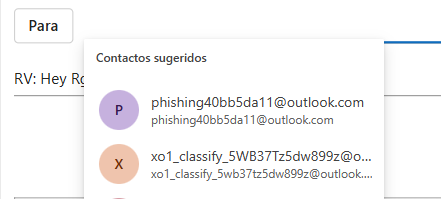
Introduction I want to share a finding that I believe is concerning: the Outlook client on Windows 11 can act as a vector of “re‑contamination” of local data, reactivating settings that were already disabled in the cloud. While this is not malware in the strict sense, the behavior is contradictory enough that it undermines privacy and user trust. Context of the issue To avoid any doubt, I disabled the Expanded People Suggestions option in all three possible places: Outlook client on Windows 11. Outlook Web. Global Privacy settings in my Microsoft Account. In every case, the option was disabled and the exported configuration file appeared empty, confirming that the deletion had been applied correctly. Cross‑account contamination → when another account was added to the Outlook client, the contaminated suggestions were transferred and appeared in that account as well, even though those addresses had never been used there. Evidence observed Empty file in the cloud → confirms that the deletion was effective. Desktop client re‑sync → uploads obsolete local data and reactivates the option. Result → the global configuration once again shows suggestions that had already been disabled. Injected email addresses → the suggestions included addresses that I have never used or contacted. These appear to have been introduced by third parties or internal contamination, not by my own activity. Cross‑account contamination → when another account was added to the Outlook client, the contaminated suggestions were transferred and appeared there too. Implications The Outlook client does not respect privacy preferences set in the cloud. Local data takes precedence over global settings, which contradicts modern synchronization logic. The presence of never‑used, injected email addresses raises serious concerns about data integrity and possible external contamination. This may affect many users, not just an isolated case. Reflection This behavior creates the perception that the client acts like intrusive software: even if the user deletes data in the cloud, the client “resurrects” it from its local cache. In practical terms, it is a form of re‑contamination that compromises confidence in synchronization between client and server. The fact that injected addresses appear in suggestions makes the issue even more problematic, as it suggests external influence beyond the user’s own history. Conclusion The cloud should be the source of truth. If a user disables data in Outlook Web and in the global Microsoft Account settings, no local client should have the ability to reactivate it. This finding deserves attention because it directly affects privacy, data integrity, and the coherence of the Microsoft ecosystem. Invitation Has anyone else observed this behavior in Outlook for Windows 11? Have you seen deleted cloud settings reappear after reinstalling or re‑synchronizing the client, or injected email addresses that were never used showing up in suggestions?242Views0likes1CommentiOS 26.4 iPhone Contact Sync with Microsoft Exchange Online
For the past 2–3 weeks, several of our iOS users have been experiencing synchronization issues with Exchange contacts. Contacts intermittently disappear from their devices and then re-sync after some time. In some cases, the re-synchronization process is significantly delayed. Anyone else experiencing the same issue?498Views1like2Comments
Impossible to open Autocad files using desktop instead of Web App in SharePoint Online doc library?
We are now running SharePoint Online (SPO). Our company has decided to get rid of a shared network file storage and move our Autocad files over to (SPO). I hit a bit of a snag with non-MS applications while trying to open them through the browser. We have AutoCAD files in our document library. When users try and click on it, it automatically tries and open it thorough Autodesk web app, which we never have. Is this already built-in for SPO? Why does it give me that option? I have activated the setting for the site to open using client application instead of the browser through the site collection settings and also the same in the document library settings advanced settings. I believe it only OPENS Microsoft based applications if we turn this on and not any other applications, correct? My questions are: Why did SPO show us the autodesk wep app option? Is it by default built into share point? How or why did that appear? Is the "open with client applications" only work for Microsoft products and nothing else like acrobat pdf, autocad, or other programs installed on the users computer? For example, if we have an application called ABC and creates a file with an extension .123 and we try and click in it we n share point, would it not show or gives us the option to “open with” ABC application on the user’s desktop? For example an autocad (.dwg) or acrobat (.pdf) or photoshop (.psd) or illustrator (.eps), etc... file via the web browser, won't open their desktop apps, correct? So how I can I make it open automatically using the desktop application and NOT the web app stored on the sharepoint online document library then like the ones I listed above if these applications were installed on that desktop? Can this be done or does the library have to be sync'd for it to work first? if sync'd to our personal one drive or organizational onedrive? How can we have users just click on an AutoCAD file, .dwg in SharePoint and have AutoCAD automatically open via the browser? Same with say a .pdf file via the browser? Or do we have to sync it and then open the file that way via file explorer and it will automatically open and use Autocad similar to that of a regular or network drive? The sync is soooo unbearably and unacceptably slow unlike Dropbox. Any suggestions? or impossible to use with Autocad desktop with SharePoint Online document library?13KViews1like2Comments
Synchronisation lente Onedrive bureautique
Bonjour, au démarrage du poste, OneDrive se lance et doit me synchroniser mes bibliothèques Sharepoint. Je le trouve assez long à m'afficher mes nuages bleus à chaque démarrage (environ 1 à 2 min). J'ai pourtant un débit web de 100 mb/s symétrique. Une idée de cette lenteur ? Ma bibliothèque fait environ 200go mais est-ce qu'il scan tout au démarrage ? normalement non, la synchro se fait une fois ensuite c'est de l'entretien des nouvelles modfis. bref, merci pour votre aide.1.8KViews0likes1Comment
Azure AD Manual Sync using MS Graph API
Hi, Is there a MS Graph API endpoint for manually syncing details of applications in Azure AD to our application? When registering applications to our self-service application, the response of Azure AD took too long that caused a time-out on our application. I was wondering to manually sync the details to our application. Is there an available endpoint for that?909Views0likes0CommentsAzure AD Manual Sync
Hi, Is there a MS Graph API endpoint for manually syncing details of applications in Azure AD to our application? When registering applications to our self-service application, the response of Azure AD took too long that caused a time-out on our application. I was wondering to manually sync the details to our application. Is there an available endpoint for that?681Views0likes0Comments
User property mappings between local AD, Azure AD and SharePoint Online?
I'm having trouble finding out property mappings from local AD via Azure AD landing in the SharePoint Online User Profile Service. For example, how would I track down what the equivalent property of the SharePoint Online User Profile Service property "People:SPS-Location" is in Azure AD as well as local AD? We're using Azure AD Connect to sync user objects to Azure AD which in turn get picked up by the SharePoint Online User Profile service. Thanks for your advice.1.2KViews0likes0Commentsoutlook.com as IMAP client
Hi, outlook.com has an option to synchronize via IMAP protocol with 'external' e-mail source. However it looks like it is just a one-time import of the folder structure and content (e-mail messages). Later only messages are imported in unpredictable intervals. This is what we are encountering with our accounts from external e-mail server services providers. So, this is not the same or similar to what you can do with classic IMAP clients like MS Outlook for Windows and MS Outlook for Mac? Thanks, Maciej1KViews0likes0Comments