subscription edition
4 Topics
Exchange SE EWS Extended Protection / ARR SSL Bridging / Third-Party NTLM Authentication
We are troubleshooting a third-party SaaS integration that connects to Microsoft Exchange SE through EWS using NTLM authentication. The application successfully reaches Exchange through our reverse-proxy infrastructure, but NTLM authentication fails when EWS Extended Protection is configured as Allow. Exchange/IIS records the final authentication failure as: HTTP Status: 401.1 Win32 Status: 0x80090346 SSPI Error: SEC_E_BAD_BINDINGS Windows description: Client's supplied SSPI channel bindings were incorrect. We performed a controlled test where Extended Protection was temporarily changed from Allow to None on one Exchange server. The same third-party application then authenticated successfully through NTLM, established the expected service-account identity, received HTTP 200 from EWS, and the application reported a successful connection. Extended Protection was immediately restored to Allow after the test. Exchange Architecture Our on-premises Exchange environment consists of: Four Exchange Server mailbox servers. Two servers at each of two datacenter locations. Exchange Database Availability Group (DAG) providing mailbox database availability across the environment. Exchange client services are published through a pair of Microsoft ARR reverse-proxy servers in the DMZ. Windows Network Load Balancing is used on the proxy tier. ARR uses Exchange web farms containing multiple Exchange backend servers. EWS traffic is HTTPS from the external client to ARR and HTTPS again from ARR to Exchange, so the connection is SSL bridged rather than sent to Exchange as unencrypted HTTP. ARR uses Weighted Round Robin for the EWS backend farm. ARR backend HTTP keep-alive is enabled. Certificate Architecture The ARR and Exchange tiers intentionally use different certificates. ARR uses a publicly trusted certificate for the externally published Exchange namespaces. Exchange uses an internally issued PKI certificate for the internal Exchange HTTPS endpoints. This separation is intentional because the public certificate lifecycle is significantly shorter than our internal PKI certificate lifecycle, and we would prefer not to introduce recurring public certificate replacements across all Exchange servers unless required. Therefore, the SSL path is effectively: External application → HTTPS/public certificate → ARR → HTTPS/internal PKI certificate → Exchange EWS Exchange EWS Configuration The Exchange EWS virtual directories currently have: Windows Authentication: True Basic Authentication: True OAuth Authentication: True ExtendedProtectionTokenChecking: Allow ExtendedProtectionFlags: none ExtendedProtectionSPNList: empty IIS Windows Authentication for EWS has: Windows Authentication enabled Negotiate provider enabled NTLM provider enabled Extended Protection token checking: Allow Third-Party Client The third-party application identifies its EWS client as: exchangelib/3.3.0 (python-requests/2.32.4) The application is using NTLM authentication. Testing Performed We verified the following: The third-party application can reach the published EWS endpoint through ARR. TLS connectivity is successful. ARR successfully proxies the requests to Exchange. The Exchange EWS endpoint is reachable. The service account is enabled and its password is valid. The service account successfully authenticates to the same EWS environment using Basic authentication. The same service account successfully authenticates using independently tested NTLM authentication. Other applications successfully authenticate to the same Exchange environment. The third-party application reaches Exchange and begins NTLM negotiation, but Exchange rejects the final authentication with SEC_E_BAD_BINDINGS. We also reviewed domain-controller authentication logs during the failed authentication and did not observe a corresponding normal credential-validation failure for the service account. Controlled Extended Protection Test We performed a controlled A/B test on a single Exchange EWS virtual directory. Normal production configuration ExtendedProtectionTokenChecking = Allow Result: Third-party application reaches EWS. NTLM negotiation begins. Authentication does not establish the service-account identity. IIS returns HTTP 401.1. Final Win32 status is 0x80090346. SSPI reports SEC_E_BAD_BINDINGS. Temporary diagnostic configuration ExtendedProtectionTokenChecking = None Windows Authentication remained enabled. Result: The third-party application successfully completed NTLM authentication. Exchange identified the authenticated service account. The EWS transaction completed with HTTP 200 on both the frontend and backend. The third-party application's configuration interface reported Saved successfully. The test lasted only a few minutes, after which Extended Protection was immediately restored to: ExtendedProtectionTokenChecking = Allow Both Exchange servers involved in the test were subsequently verified to have Windows Authentication enabled and Extended Protection restored to Allow. No IIS reset, service restart, or server reboot was required during the test. Additional Security Context We do not want to leave Extended Protection disabled as a permanent workaround. We understand that Extended Protection / Channel Binding Token validation provides protection against NTLM credential-relay and man-in-the-middle attacks. We also have separate security work underway related to Extended Protection enforcement and want to ensure that the long-term solution for this integration does not weaken the intended Exchange security posture. Assistance Requested We would like Microsoft's or the Community's guidance on the following: Is our interpretation correct that the SEC_E_BAD_BINDINGS result is caused by the Channel Binding Token being generated against the external ARR TLS connection while Exchange validates it against the separate ARR-to-Exchange TLS connection? With IIS ARR performing SSL bridging, is using the identical certificate and private key on both the ARR and Exchange HTTPS endpoints the only Microsoft-supported method for using NTLM with Extended Protection in this topology? Is there any Microsoft-supported method for retaining: the publicly trusted certificate on ARR, the internal-PKI certificate on Exchange, SSL bridging, and Extended Protection, while supporting an NTLM EWS client that presents CBT? Is there a supported method to create a scoped exception for a specific third-party EWS integration while retaining Extended Protection for all other EWS, MRSProxy, and Exchange client traffic? If a scoped exception is supported, can it be restricted by a dedicated EWS publication path, virtual directory, application pool, hostname, source network, or other supported Exchange/IIS mechanism? Would Microsoft support a separate EWS publishing endpoint specifically for this application, or would that create an unsupported Exchange configuration? Does setting EWS ExtendedProtectionTokenChecking=None have implications for MRSProxy/EPA protection beyond normal EWS application traffic? Given that we have a multi-server DAG environment behind ARR, are there additional Extended Protection requirements regarding: certificate consistency, ARR affinity, TLS configuration, backend server selection, SPNs, or NTLM connection persistence? If Microsoft recommends using an identical certificate across ARR and Exchange, must this certificate be identical only for the Exchange servers participating in the EWS ARR farm, or must it be consistently deployed across all Exchange servers in the organization/DAG? What Microsoft-supported architecture would you recommend that allows us to keep Extended Protection enabled while avoiding unnecessary dependency on short-lived publicly issued certificates across the internal Exchange tier? Our goal is not to disable Extended Protection. We want to implement a supported configuration that preserves the NTLM relay protections provided by Extended Protection while allowing the required third-party EWS integration to function. We can reproduce both the failure and successful diagnostic test on demand and can provide IIS, Exchange HTTPProxy, ARR, and Extended Protection configuration output if required41Views0likes1CommentExchange Server SE Licensing, Part II
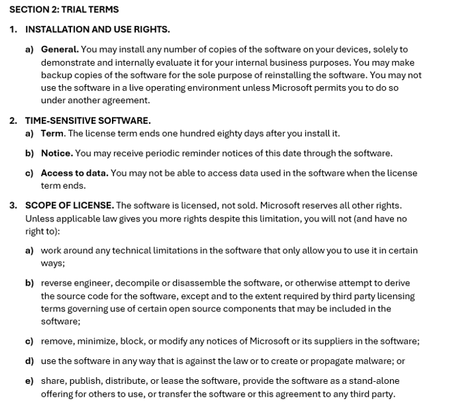
Since posting my previous article about licensing and product keys in Exchange Server SE, I’ve received a ton of follow-up questions. Many of them were public, and I answered them publicly. Many were sent privately and answered privately, but I wanted to publicly share that information because I think it may generally be helpful. Discrepancies on Microsoft’s web site There were questions were about Microsoft’s Exchange Server Subscription Edition Licensing page, which talks about Server licenses and Client Access Licenses (CALs), but doesn’t mention anything about a subscription, or Software Assurance (SA), or cloud subscription licenses. If you look at the Exchange Server 2019 version of that page (before Exchange Server SE was released) you’ll notice that the SE version is simply a copy and paste of Exchange Server 2019 version. I’ve said and written many times that licensing for Exchange Server SE is the same as it was for Exchange Server 2019, and that is a true statement. There were also questions about Microsoft’s Exchange Server licensing FAQ, which still talks about Exchange Server 2019 licensing, and also fails to mention subscriptions or SA. So, how does my article reconcile with the information on Microsoft’s licensing pages? The answer is that, while Microsoft’s licensing pages are accurate, they are also incomplete because they don’t mention anything about a subscription, SA, or cloud licenses. The good news is that I’m told by Microsoft that they will be updating those pages with complete information (and perhaps consolidating them). I don’t have a timeline to share, but updates to those pages are coming. But I’m not sure those pages actually matter, given that the source of licensing truth is Microsoft’s Product Terms web site, which has three main areas: Product Terms that describe the license terms and Use Rights of Products and Services for VL programs; Other Documents related legal materials referenced in the Product Terms; and Licensing Resources, which are links to additional information. You can (and should) also review Microsoft’s Universal License Terms (ULTs), which apply to all software products licensed through Microsoft Volume Licensing. Note that these may not be your only rights and the only terms to which you are bound. For example, SA grants additional rights and comes with additional terms. And your VL agreement may include additional rights and terms. One of the “code changes” in Exchange Server SE RTM was the updating of a rich text file that ships with Exchange Server. This file contains the Microsoft Software License Terms (MSLT), to which you must agree in order to install Exchange Server. The MSLT is displayed, however, only when using the GUI version of Setup. But you don’t need to run Setup to view the MSLT; the file—License.rtf—is localized in several languages in the Setup files under \Setup\ServerRoles\Common\Eula\<language>. Using the Trial Edition Beyond 180 days There were several questions about using a Trial Edition beyond 180 days after installing it. Microsoft’s ULTs explicitly state that “An assigned product key is required for licensed use of the software.” It also talks about technical measures that Microsoft may use to enforce these terms, but as I mentioned in my previous article, Exchange Server implements product keys, but it does not implement any activation or validation of the software. The MSLT for Exchange Server SE states “If you do not have a product key, then Section 2 (Trial) applies to you.” Some (but not all) of Section 2 is shown below. Paragraph 2 of Section 2 makes it clear that the software rights are time-sensitive and limited to 180 days after installation (2a), that you may receive periodic reminders about this time limit (2b), and that you may not be able to access data when the license term ends (2c). The language in Section 2 is used in the MSLT for multiple products. In the case of Exchange Server SE, an admin will see a message in the Exchange admin center when the Trial period ends (as described in 2b), but the product remains fully functional, and data is fully accessible, contrary to the statements in 2c. More on License Terms Paragraphs 6 and 7 on Section 2 are also worth noting: Paragraph 6 states that Microsoft is not obligated to provide support for Trial Edition deployments. While Microsoft has no obligation to provide support, they will do so, even for Trial Editions. In fact, they likely won’t ask about licensing or product keys unless its germane to the support case (for example, you can’t mount more than 5 databases on a server because it is a Trial or Standard Edition). Paragraph 7 discusses software updates, which in the case of Exchange Server SE, includes CUs, SUs, HUs, and IUs. Exchange Server SE does not check for updates, does not download updates, and does not install updates. It does include the optional Exchange Emergency Mitigation service, but that applies mitigations and does not download updates. Exchange Server SE also includes Feature Flighting which will be used by Microsoft in the future to enable features or changes present in an update, but it won’t download or install those updates automatically. Windows Server has the ability to check for and install updates, and an Exchange admin can opt into these automatic updates which include Exchange Server SUs; however, it’s a best practice to control updates to Exchange Server by installing them manually or using controlled automation. If you do install an SU manually using the GUI, then you’ll see additional License Terms, as shown below, that state the license requirements for installing the SU. Based on the above License Terms, if you don’t have a valid license for Exchange Server SE, then you don’t have the right to install the SU. Again, though, Exchange Server uses the honor system, and there is nothing that blocks the install. Client Access Licenses and Management Licenses One of the three ways to allow users or devices to legally access Exchange Server SE is by using CAL or ML equivalency licenses (the other two ways are L+SA or Exchange Online licenses). CALs are used by a user or a device, and MLs are licenses that are used by management software. “Licensing software with CALs and MLs can be complicated due to the technical nature of server products and networks.” That’s a direct quote from Microsoft’s web site, and it’s very true. Microsoft has user CALs, device CALs, External Connector licenses, Server MLs for managing server operating systems (OSEs), OSE client MLs, user client MLs, and core-based licensing. Exchange Server SE (like SharePoint Server SE and Skype for Business Server SE) use the Server+CAL model (which is what the aforementioned Microsoft’s licensing pages are trying to convey). Microsoft also offers what are called CAL Suites, which is a single license that covers multiple products (e.g., one CAL that covers Exchange Server, SharePoint Server, Skype for Business Server, Windows Server, etc.). There is a Core CAL Suite and an Enterprise CAL Suite, and the Enterprise CAL Suite also includes licenses for online services such as Exchange Online Archiving for Exchange Server and Exchange Online Protection. If you have deployed on-premises and you do want to move to the cloud, Microsoft also offers CAL Suite Bridges, which is a subscription-based licensing path that moves you from L+SA to cloud subscription licenses. This is where things can get tricky when comparing licensing costs between on-premises and the cloud. Remember, cloud licensing is deployment-agnostic, so you can purchase cloud licenses and deploy solely on-premises. Ultimately, the most economical approach will depend on what you are buying and how much.797Views0likes0CommentsExchange Server SE Licensing and Product Keys
It seems that there’s a lot of confusion about licensing and product keys for Exchange Server SE; not just here on the Microsoft Tech Community, but also on Reddit, on LinkedIn, and in the general Exchange community. So, I thought I would write an article to try to clear up that confusion. https://www.linkedin.com/pulse/exchange-server-se-licensing-product-keys-scott-schnoll-qjhic/ If you're confused about licensing or product keys, this may help.159Views0likes0Comments
SharePoint Subscription Edition/BDC - The Business Data Connectivity Metadata Store unavailable
Hey Community, today I encountered a problem with a customers SharePoint Server (running Subscription Edition). The customer uses five WebApplications with one of them for MySite, and the other four as collaboration applications for projects, service management and such. The customers wants to use the Business Data Connectivity Service Application to link a SQL datatabase to one of his sharepoints list via external content types. If the customer uses SharePoint Designer 2013 and navigates to External Content Types the error "Business Data Connectivity Metadata Store is currently unavailable". If the customer then tries to add a new External Content Type the error "This could be due to the fact that the server certificate is not configured properly with HTTP.SYS in the HTTPS case. This could also be caused by a mismatch of the security binding between the client and the server." pops up. So i began checking if the BDC service is associated with the webapplication that he's trying to add a new connection to - service application associations are correct. Next thing is i checked on permissions with the BDC, everything seems to be set up correct. After that I tried accessing the _vti_bin/BDC.svc - with no problems I comes up in browser right away, no errors with the certificate. So I dug out a couple of registry entries to see if SchUseStrongCrypto is set, so it uses TLS1.2 and 1.3 instead of the unsecure old stuff, and everything seems to be set up correctly aswell. From there I went to Managed Metadata Service and Secure Store Service, checking on permission, BDC-Service-Account has the permissions to access that services aswell, and they're working properly. Finally I set up a new web application listening on non-ssl (http://bdc.companyname.com/) and with NTLM auth instead of Kerberos. Then created a fresh site collection for testing BDC without HTTPS, Kerberos and certificates. Launched the SharePoint Designer 2013 and could access the External Content Types tab without any problem. So I then put the wildcard-certificate for all the other webapps in place for my new webapplication bdc.companyname.com and set the listening port to 443. After that the External Content Types stopped working with the same error as mentioned above, no connection to the bdc-service whatsoever. The certificate is from a companywide certificate authority and is trusted on all clients and servers accessing sharepoint and its services. Is there something wrong with the setup of that certificate? ULS-Logs throws a 401 on https://a.companyname.com/sites/{site}/_vti_bin/BDC.svc when I try to launch the External Content Types in SharePoint Designer 2013. If anyone has encountered this phenomenon before, please hit me up 😉 Facts again: Autentication: Negotiate (Kerberos) Product: Microsoft SharePoint Subscription Edition Farm-Type: Single Server (Custom) Service not working properly: Business Data Connectivity Service Webapplication: SSL-secured with a wildcard-certificate (*.companyname.com) RSA 4096 SHA-2561.8KViews0likes0Comments