sqlserveronlinux
41 TopicsSQL Server Containers and SQL Server on Linux Now Available on Windows via WSL!
We're kicking off 2025 with exciting news! We are thrilled to announce that developers can now easily get started with SQL Server container images and SQL Server on Linux installations directly on their Windows machines using Windows Subsystem for Linux (WSL). This new capability is designed to streamline your development process, making it more efficient and versatile. Why Use SQL Server on WSL? With WSL, you can run a Linux environment directly on Windows without the overhead of a traditional virtual machine. This means you can now develop and test your SQL Server applications in a Linux environment, right from your Windows desktop. Here are some key benefits: Seamless Integration: Easily switch between Windows and Linux environments. Development Focused: Ideal for development and testing purposes. Giving Developers access to the power of both Windows and Linux at the same time on a Windows machine. For detailed instructions on installation and getting started with WSL, please refer Install WSL | Microsoft Learn. Important Note: This setup is intended for development and testing purposes only and is not supported for production environments. There are two ways to get started with SQL Server on WSL: Install SQL Server as a systemd service: This allows you to manage it using systemctl commands. Deploy SQL Server containers in WSL: You can also deploy SQL Server containers, with the option for persistent storage if needed. For more information, please refer to the tutorial on WSL 2: Install SQL Server on Windows Subsystem for Linux - SQL Server on Microsoft Learn. Getting Started Install WSL: If you haven't already, install WSL on your Windows machine. You can follow the official Microsoft documentation for a step-by-step guide. Choose your Linux distribution: We recommend running SQL Server in WSL environments on one of the Supported platforms as documented, for the version of SQL Server you intend to run. Set Up SQL Server Containers: Pull the latest SQL Server container images from the Docker Hub and set them up in your WSL environment. (and/or) Install SQL Server on Linux: Alternatively, you can install SQL Server directly on your Linux distribution within WSL. Thanks, Andrew Carter (lead), Eric Julien from the Engineering team, Rafid Lafta from CSS and Randolph West for the Technical documentation.2.1KViews7likes2CommentsAnnouncement: Upcoming Changes to SQL Server on Linux Virtual Machine (VM) Provisioning in Azure
We’re making an important update to how customers provision SQL Server on Linux virtual machines (VMs) in Azure. What’s Changing? Starting soon, Linux-based SQL Server Virtual Machine (VM) images published by Microsoft will be removed from the Azure Marketplace. As a result, these SQL Server on Linux images will no longer be visible in the Azure SQL hub during VM provisioning, nor accessible via CLI, Azure Portal, or PowerShell scripts. This change is part of our broader effort to simplify and modernise the provisioning experience for SQL Server Linux on Azure. Why Are We Making This Change? We’re transitioning away from image-based provisioning to a script-based model that offers greater flexibility, automation, and control. This fresh approach will allow customers to: Choose their preferred supported Linux distribution (RHEL, SLES or Ubuntu (Pro)) Select SQL Server version and edition Configure licensing options Customise deployment parameters through scripts and ability to add VM extensions. This shift ensures a more consistent and extensible experience across all supported platforms. When Will This Happen? The deprecation of Linux VM images will begin shortly and will be completed over the next couple of months. During this transition, customers may notice the SQL Server on Linux based Azure marketplace image listings may not be available. What Should You Do? For the Azure Virtual Machines deployed using the SQL on Linux Azure marketplace images in the past they'd continue to work, but if you’re planning to deploy new SQL Server on Linux based Azure Virtual Machines, please follow the below steps: Manual installation is recommended during this transition period. Start by creating a Linux Virtual Machine using the Azure Portal, CLI, or PowerShell. Once the VM is provisioned, follow the official SQL Server installation documentation to complete the setup. VM Creation Guidance: You can refer to this guide for step-by-step instructions on creating an Azure Linux-based virtual machine: https://learn.microsoft.com/en-us/azure/virtual-machines/linux/quick-create-portal Choosing a Linux Distribution: Feel free to select the distribution that best fits your requirements. For a list of endorsed Linux distributions on Azure, see: Linux distributions endorsed on Azure - Azure Virtual Machines | Microsoft Learn Please note, SQL Server is officially supported only on the following Linux distributions. Based on the distribution you choose, refer to the corresponding documentation for SQL Server installation guidance: Red Hat Enterprise Linux (RHEL) SUSE Linux Enterprise Server (SLES) Ubuntu For more details on supported distributions refer to: SQL Server 2025 - Supported Linux distributions SQL Server 2022 - Supported Linux distributions A new script-based provisioning experience is coming soon - stay tuned for announcements. We’ll continue to share updates through the Azure portal, documentation, and this blog.1.4KViews3likes0Comments
Managed Identity support for Azure Key Vault in SQL Server running on Linux
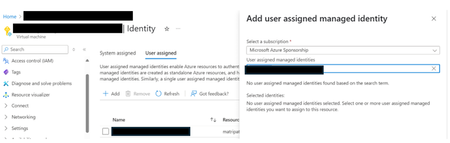
We are happy to announce that, you can now use Managed Identity to authenticate to Azure Key Vault from SQL Server running on Azure VM (Linux) available from SQL Server 2022 CU18 onwards. This blog will walk you through the process of using a user-assigned managed identity to access Azure Key Vault and configure Transparent Data Encryption(TDE) for a SQL database. Managed Identity: Microsoft Entra ID, formerly Azure Active Directory, provides an automatically managed identity to authenticate to any Azure service that supports Microsoft Entra authentication, such as Azure Key Vault, without exposing credentials in the code. Refer Managed identities for Azure resources - Managed identities for Azure resources | Microsoft Learn for more details. VM Setup and Prerequisites: Before diving into the setup, it's essential to ensure that your Azure Linux VM has SQL Server installed and that the VM has identities assigned with the necessary key vault permissions. Set up SQL Server running on Azure Linux VM. Refer SQL Server on RHEL VM in Azure: RHEL: Install SQL Server on Linux - SQL Server | Microsoft Learn, SQL Server on SLES VM in Azure: SUSE: Install SQL Server on Linux - SQL Server | Microsoft Learn, SQL Server on Ubuntu VM in Azure: Ubuntu: Install SQL Server on Linux - SQL Server | Microsoft Learn for more details. Create user-assigned Managed Identity. Refer https://learn.microsoft.com/en-us/azure/active-directory/managed-identities-azure-resources/how-to-manage-ua-identity-portal for more details. Go to Azure Linux VM resource in the Azure portal and click on Identity tab under security blade. Go to the User assigned tab in the right side panel and click on Add. Select the user-assigned managed identity and click on Add. Create a Key Vault and Keys. Refer Integrate Key Vault with SQL Server on Windows VMs in Azure (Resource Manager) - SQL Server on Azure VMs | Microsoft Learn for more details. Assign Key Vault Crypto Service Encryption User role to the user-assigned managed identity to perform wrap and unwrap operations. Go to the key vault resource that you created, and select the Access control (IAM)setting. Select Add> Add role assignment. Search for Key Vault Crypto Service Encryption User and select the role. Select Next. In the Members tab, select Managed identity option and click on Select members option, and then search for the user-assigned managed identity that you created in Step 3. Select the managed identity and then click on Select button. Setting the primary identity on Azure Linux VM To set the managed identity as the primary identity for Azure Linux VM, you can use the mssql-conf tool packaged with SQL Server. Here are the steps: Use the mssql-conf tool to manually set the primary identity. Run the following commands: sudo /opt/mssql/bin/mssql-conf set network.aadmsiclientid <client id of the managed identity> sudo /opt/mssql/bin/mssql-conf set network.aadprimarytenant <tenant id> 3. Restart the SQL Server: sudo systemctl restart mssql-server Enable TDE using EKM and managed identity: Refer Managed Identity Support for Extensible Key Management (EKM) with Azure Key Vault (AKV) - SQL Server on Azure VMs | Microsoft Learn for configuration steps for Azure Windows VM. These steps remain same for SQL Server running on an Azure Linux VM. 1.Enable EKM in SQL Server running on the Azure VM. 2.Create credential and encrypt the database. When using the CREATE CREDENTIAL command in this context, you only need to provide the 'Managed Identity' in the IDENTITY argument. Unlike earlier scenarios, you do not need to include a SECRET argument. This simplifies the process and enhances security by not requiring a secret to be passed. Conclusion: Using managed identity to access Azure Key Vault in SQL Server running on an Azure Linux VM boosts security, streamlines key management, and supports compliance. With data protection being paramount, Azure Key Vault’s integration along with managed identity offers a robust solution. Stay tuned for more insights on SQL Server on Linux! Official Documentation: Managed Identity Support for Extensible Key Management (EKM) with Azure Key Vault (AKV) - SQL Server on Azure VMs | Microsoft Learn Extensible Key Management using Azure Key Vault - SQL Server Setup Steps for Extensible Key Management Using the Azure Key Vault Azure Key Vault Integration for SQL Server on Azure VMs615Views3likes0CommentsSQL Server 2022 for RHEL 9 and Ubuntu 22.04 is now Generally Available (GA)
We are happy to announce that Starting CU 10 release for SQL Server 2022 , SQL Server 2022 on RHEL 9 and Ubuntu 22.04 is now generally available (GA), meaning you can run production workload on SQL Server 2022 deployed on Red Hat Enterprise Linux (RHEL) 9 and Ubuntu 22.04. For SQL Server 2022 on RHEL 9, the SELinux integration that enables you to run SQL Server 2022 on RHEL 9 as confined application is also now generally available. If you've had the preview packages installed previously, we recommend that you please uninstall the preview bits and upgrade to SQL Server 2022 GA packages available at the following repos, for steps on how to update repos refer the Configure repositories for installing and upgrading SQL Server on Linux - SQL Server | Microsoft Learn documentation. For RHEL 9 use the repo: https://packages.microsoft.com/config/rhel/9/ For Ubuntu 22.04 use the repo: https://packages.microsoft.com/config/ubuntu/22.04/ For further details on getting started with the installation of SQL Server 2022 on RHEL 9 refer: RHEL: Install SQL Server on Linux - SQL Server | Microsoft Learn & for SQL Server on Ubuntu 22.04 refer: Ubuntu: Install SQL Server on Linux - SQL Server | Microsoft Learn SQL Server 2022 container images on RHEL 9 & Ubuntu 22.04 also generally available: SQL Server 2022 on RHEL 9 and Ubuntu 22.04 are also available as container images and generally available (GA). It is easy for you to get started. Like always, you can use both podman and/or docker tool. To pull and run the production ready SQL Server 2022 images on RHEL 9 use the tag: 2022-CU10-rhel-9.1 #Pull the image podman pull mcr.microsoft.com/mssql/rhel/server:2022-CU10-rhel-9.1 #Run a container using the above image podman run -e 'ACCEPT_EULA=Y' -e 'MSSQL_SA_PASSWORD=<YourP@ssword>' -e 'MSSQL_PID=Developer' -h sql22rhel9 --name sql22rhel9 -p 1433:1433 -d mcr.microsoft.com/mssql/rhel/server:2022-CU10-rhel-9.1 To pull and run the production ready SQL Server 2022 images on Ubuntu 22.04 use the tag: 2022-CU10-ubuntu-22.04 #Pull the image docker pull mcr.microsoft.com/mssql/server:2022-CU10-ubuntu-22.04 #Run a container use the above image docker run -e 'ACCEPT_EULA=Y' -e 'MSSQL_SA_PASSWORD=<YourP@ssword>' -e 'MSSQL_PID=Developer' -h sql22ubu2204 --name sql22ubu2204 -p 1433:1433 -d mcr.microsoft.com/mssql/server:2022-CU10-ubuntu-22.048.6KViews3likes6CommentsSQL Server 2022 now available for both RHEL 9 and Ubuntu 22.04 in Preview mode
Update as of 23 Nov 2023: SQL Server 2022 on RHEL 9 and Ubuntu 22.04 is now GA starting with the release of CU 10 for SQL Server 2022. For details, please refer the GA blog here: SQL Server 2022 for RHEL 9 and Ubuntu 22.04 is now Generally Available (GA) - Microsoft Community Hub We are glad to announce that SQL Server 2022 is now available in preview mode for both Red Hat Enterprise Linux (RHEL) 9 and Ubuntu 22.04. For this preview, only Evaluation edition is available, which is limited to 180 days starting Thursday, July 27th, 2023. In your Dev/Test environments, you may now take advantage of the most recent SQL Server 2022 improvements on both RHEL 9 and Ubuntu 22.04. Currently, production workloads on RHEL 9 and Ubuntu 22.04 are not supported by the SQL Server 2022 preview packages. You can run the production workloads for SQL Server 2022 on RHEL 8 and Ubuntu 22.04 and they are fully supported. SELinux Integration: With this preview release, you now have the option to run SQL Server 2022 as a confined application when you have the SELinux enabled and in enforcing mode. Thus, seamlessly integrating with the SELinux enabled secure environments. This integration is made possible by the new package called "mssql-server-selinux" which enables the custom policies required to run SQL Server as confined application with SELinux. For more information about confined and unconfined applications with SELinux, see Getting started with SELinux. If you prefer to run SQL Server as unconfined application like in previous version of RHEL, then you can skip the installation of the "mssql-server-selinux" package and just install the mssql-server package like you did with the previous RHEL versions. For details on how you can get started with SQL Server 2022 on RHEL 9 preview please refer: RHEL: Install SQL Server on Linux - SQL Server | Microsoft Learn Getting Started with SQL Server 2022 on Ubuntu 22.04 (preview) You can get started with the SQL Server 2022 on Ubuntu 22.04 preview for details refer : Ubuntu: Install SQL Server on Linux - SQL Server | Microsoft Learn SQL Server Container images (preview) The preview packages for SQL Server 2022 on RHEL 9 and Ubuntu 22.04 are also available as container images and it is easy for you to get started. Like always, you can use both podman and/or docker tool. SQL Server 2022 preview container image based on RHEL 9: You can pull the preview container image using the tag: 2022-preview-rhel-9 as shown below podman pull mcr.microsoft.com/mssql/rhel/server:2022-preview-rhel-9 Deploy the SQL Server containers using the command below, please note the use of Evaluation edition as this is currently in preview podman run -e 'ACCEPT_EULA=Y' -e 'MSSQL_SA_PASSWORD=<YourP@ssword>' -e 'MSSQL_PID=Evaluation' -h sqlpreview --name sqlpreview -p 1433:1433 -d mcr.microsoft.com/mssql/rhel/server:2022-preview-rhel-9 SQL Server 2022 preview container image based on Ubuntu 22.04: You can pull the preview container image using the tag: 2022-preview-ubuntu-22.04 as shown below docker pull mcr.microsoft.com/mssql/server:2022-preview-ubuntu-22.04 Deploy the SQL Server containers using the command below, please note the use of Evaluation edition as this is currently in preview docker run -e 'ACCEPT_EULA=Y' -e 'MSSQL_SA_PASSWORD=<YourP@ssword>' -e 'MSSQL_PID=Evaluation' -h sqlpreview --name sqlpreview -p 1433:1433 -d mcr.microsoft.com/mssql/server:2022-preview-ubuntu-22.04 For further details on container images, refer: For RHEL based SQL Server 2022 preview container images: Microsoft SQL Server - RHEL based images For Ubuntu based SQL Server 2022 preview container images: Microsoft SQL Server - Ubuntu based images Let us know your experience with the preview package: If you have any feedback or issue that you'd like to report for these preview packages we recommend you to use any of the following options that suits you the best. 1) Send us an email with your feedback to sqlpreviewpackage@microsoft.com. 2) Another option would be to submit your comments directly on Azure Ideas ( Use the SQL Server on Linux Group on the left side of the page) 3) Alternatively, you can open issues related to the preview packages Issues · microsoft/mssql-docker (github.com) on GitHub. We hope you give SQL Server 2022 preview packages on Red Hat 9 and Ubuntu 22.04 a try and let us know what you think!10KViews3likes2CommentsSQL Server containers on Kubernetes with S3-compatible object storage - Getting started
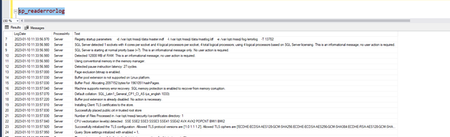
One of the new features introduced with SQL Server 2022 is the ability to connect to any S3-compatible object storage and SQL Server supports both Backup/Restore and data lake virtualization with Polybase integration. In this blog, we will demonstrate both of these features for SQL Server 2022 Containers running on Kubernetes. As usual, I will use the Azure Kubernetes Service as my Kubernetes environment 🙂. To know more about these features, refer SQL Server backup to URL for S3-compatible object storage - SQL Server | Microsoft Learn and Access external data: S3-compatible object storage - PolyBase - SQL Server | Microsoft Learn. Before we enable Polybase for SQL Server containers, let's go over the prerequisites for this demo: Pre-requisites: You need to have an S3 – Object storage that you can connect to and in this blog, I have configured a MinIO based S3-object storage server on Ubuntu with TLS configured. For details on how to configure this refer: Deploy MinIO: Single-Node Single-Drive — MinIO Object Storage for Linux and Network Encryption (TLS) — MinIO Object Storage for Linux. MinIO setting details: Minio Console is configured at : https://10.0.0.82:9001/ and the Server endpoint is configured at : https://10.0.0.82:9000/ On the MinIO server, I have enabled ports 9000 and 9001 in the firewall. The public certificate that I used to configure TLS on the MinIO server is called "public.crt," and I have it downloaded and saved on my Windows client. Customized SQL Server Container: Let's create the customized SQL Server container image, that'll be used to deploy the SQL Server containers on the Kubernetes cluster. Here are the steps for creating the customised SQL Server containers; for this demonstration, I created the custom container image for this demo on the same Ubuntu-based Azure VM that I used to configure the MinIO Server. ## Step 1: Create a DockerFile with the below content # Base OS layer: Latest Ubuntu LTS FROM mcr.microsoft.com/mssql/server:2022-latest USER root # Install prerequistes since it is needed to get repo config for SQL server RUN apt-get update && \ apt-get install -y software-properties-common && \ rm -rf /var/lib/apt/lists/* RUN add-apt-repository "$(wget -qO- https://packages.microsoft.com/config/ubuntu/20.04/mssql-server-2022.list)" && \ apt-get install -y mssql-server-polybase EXPOSE 1433 USER mssql # Run SQL Server process CMD ["/opt/mssql/bin/sqlservr"] # Step 2: Let's build the container image sudo docker build -t mssql-pb-update . # Step 3: Tag the image and push to your container registry, in this case I am using Azure Container Registry(ACR)that I have. sudo docker tag sql-pb-update amvinacr.azurecr.io/sql-pb-update:latest sudo docker tag mssql-pb-update amvinacr.azurecr.io/sql-pb-update:latest # To know more about the ACR refer: https://learn.microsoft.com/en-us/azure/container-registry/container-registry-tutorial-quick-task Azure Kubernetes Service based cluster creation and attaching it to the Azure Container Registry(ACR) In this blog, I am deploying SQL Server containers on Azure Kubernetes Service(AKS) based Kubernetes cluster called "sqlk8s", I have integrated my AKS cluster with the above Azure Container Registry(ACR) to which I pushed my images in the above sample code. For detailed steps on AKS cluster creation and attaching it to your choice of container registry in Azure please refer the below two articles: Quickstart: Deploy an AKS cluster by using Azure CLI - Azure Kubernetes Service | Microsoft Learn Integrate Azure Container Registry with Azure Kubernetes Service - Azure Kubernetes Service | Microsoft Learn Let's get started With the pre-requisties done, now we can start deploying SQL Server containers on our AKS cluster using the custom image that we created, that installs polybase. But, before we start deploying SQL Server containers, we need two configmaps and one secret object in the AKS cluster, with the details as shown below, I am running all these commands from my Windows client which has kubectl installed and is able to connect to the AKS cluster 'sqlk8s' that I created in previous steps. As the endpoint will be validated by the certificate, we will use one configmap object to load the public.crt certificate required for configuring the secure channel between SQL Server and the MinIO Storage. You can use the command below to generate the configmap from the public.crt file. I have copied the certificate public.crt to the following location on my Windows machine: "C:\pb\demo\certs\public.crt" # Use the below command to create the configmap using the file "public.crt" kubectl create configmap mssql-tls --from-file="C:\pbdemo\certs\public.crt" # You can verify that the, the configmap is created using the command below and the sample output is shown below with obfuscated lines in the output. C:\>kubectl describe configmap mssql-tls Name: mssql-tls Namespace: default Labels: <none> Annotations: <none> Data ==== public.crt: ---- -----BEGIN CERTIFICATE----- MIIDjjCCAnagAwIBAgIUf/RP+g+9uFAKD4TB0R2ot6jZMJAwDQYJKoZIhvcNAQEL BQAwZjELMAkGA1UEBhMCVVMxCzAJBgNVBAgMAlZBMRIwEAYDVQQHDAlTb21ld2hl cmUxDjAMBgNVBAoMBU15T3JnMQ0wCwYDVQQLDARNeU9VMRcwFQYDVQQDDA5taW5p b3NlcnZlcnVidTAeFw0yMzAxMDYxNTA0MjhaFw0zMzAxMDMxNTA0MjhaMGYxCzAJ BgNVBAYTAlVTMQswCQYDVQQIDAJWQTESMBAGA1UEBwwJU29tZXdoZXJlMQ4wDAYD VQQKDAVNeU9yZzENMAsGA1UECwwETXlPVTEXMBUGA1UEAwwObWluaW9zZXJ2ZXJ1 YnUwggEiMA0GCSqGSIb3DQEBAQUAA4IBDwAwggEKAoIBAQCcC0irpVFJQaVqiuKP LuRQUdYxehTvFCuCJLpGhS03XczCWKzemd0a3W/UC01N+tbFzpmCi0/l+R5SFsVC 3tRPKlngtDOICnYPpKSaWz03o3BgwNqtuKtucboXp3Qo+5DSd7XDi1qY+plY6LwC vbjLtjNBfyWlwS6nhTjDebvUY6w0xNmG8w1H9fPZcq/gsSGUnPyvywEENYmk5R6X xxxxxxxxxxxxxxxxxxxxxxxxxxxxxxxxxxxxxxxxxxxxxxxxxxxxxxxxxxxxxxxx xxxxxxxxxxxxxxxxxxxxxxxxxxxxxxxxxxxxxxxxxxxxxxxxxxxxxxxxxxxxxxxx xxxxxxxxxxxxxxxxxxxxxxxxxxxxxxxxxxxxxxxxxxxxxxxxxxxxxxxxxxxxxxxx 1J/rLOJUVeKRvpbLraN25VoEoS8hz07DT3gmtVyJgpEK1oJ+mEs94ae76ujr5MGm M4HgV4+o9wxqjWdPyFDny/1EPsv30VqbcwmbkuPE7UHG4JH/5gxqxnXJcPnr3BQy 4GU= -----END CERTIFICATE----- The second configmap object is used to load mssql.conf, which contains the polybase Trace flag 13702, which is required for SQL Server on Linux. This configmap is generated using the yaml script shown below: # Create a yaml file called: mssql_config.yaml and save it to the location "C:\pbdemo\certs\mssql_config.yaml" kind: ConfigMap apiVersion: v1 metadata: name: mssql data: mssql.conf: | [EULA] accepteula = Y accepteulaml = Y [coredump] captureminiandfull = true coredumptype = full [language] lcid = 1033 [filelocation] defaultdatadir = /var/opt/mssql/userdata defaultlogdir = /var/opt/mssql/userlog [traceflag] traceflag0 = 13702 # We are ready to create the configmap using the command as shown below: Kubectl apply -f “C:\pbdemo\certs\ mssql_config.yaml” # You can inspect the configmap using the command shown below with the sample output as well C:\>kubectl describe configmap mssql Name: mssql Namespace: default Labels: <none> Annotations: <none> Data ==== mssql.conf: ---- [EULA] accepteula = Y accepteulaml = Y [coredump] captureminiandfull = true coredumptype = full [language] lcid = 1033 [filelocation] defaultdatadir = /var/opt/mssql/userdata defaultlogdir = /var/opt/mssql/userlog [traceflag] traceflag0 = 13702 Events: <none> The secret object in the cluster is used to save the sa password for SQL Server, the command to create the secret is as shown below kubectl create secret generic mssql --from-literal=MSSQL_SA_PASSWORD="MyC0m9l&xP@ssw0rd" Deploy SQL Server Containers We are now ready to deploy SQL Server containers, below is the deployment yaml called "sqldeploy.yaml" that is used to deploy one SQL Server container as a statefulset deployment using the Azure disk as the storage class. Using this YAML we deploy: One SQL Server instance, with separate PV(persistent volumes) and Persistent volume claims (PVCs) for User database, user log and tempdb files. We are loading the public.crt certificate to the folder: /var/opt/mssql/security/ca-certificates folder inside the container. We are loading the mssql.conf file with various parameter and the required trace flag 13702. At the end, we create the external load balancer Service to be able to connect to the SQL Server. # Create the sqldeploy.yaml at the location "C:\pbdemo\certs\sqldeploy.yaml", and paste the content below, you can modify it according to your requirements. kind: StorageClass apiVersion: storage.k8s.io/v1 metadata: name: azure-disk provisioner: kubernetes.io/azure-disk parameters: storageaccounttype: Standard_LRS kind: Managed --- apiVersion: apps/v1 kind: StatefulSet metadata: name: mssql labels: app: mssql spec: serviceName: "mssql" replicas: 1 selector: matchLabels: app: mssql template: metadata: labels: app: mssql spec: securityContext: fsGroup: 10001 containers: - name: mssql command: - /bin/bash - -c - cp /var/opt/config/mssql.conf /var/opt/mssql/mssql.conf && /opt/mssql/bin/sqlservr image: amvinacr.azurecr.io/sql-pb-update:latest ports: - containerPort: 1433 env: - name: ACCEPT_EULA value: "Y" - name: MSSQL_ENABLE_HADR value: "1" - name: MSSQL_SA_PASSWORD valueFrom: secretKeyRef: name: mssql key: MSSQL_SA_PASSWORD volumeMounts: - name: mssql mountPath: "/var/opt/mssql" - name: userdata mountPath: "/var/opt/mssql/userdata" - name: userlog mountPath: "/var/opt/mssql/userlog" - name: tempdb mountPath: "/var/opt/mssql/tempdb" - name: mssql-config-volume mountPath: "/var/opt/config" - name: mssql-tls-configmap mountPath: "/var/opt/mssql/security/ca-certificates/" volumes: - name: mssql-config-volume configMap: name: mssql - name: mssql-tls-configmap configMap: name: mssql-tls volumeClaimTemplates: - metadata: name: mssql spec: accessModes: - ReadWriteOnce resources: requests: storage: 8Gi - metadata: name: userdata spec: accessModes: - ReadWriteOnce resources: requests: storage: 8Gi - metadata: name: userlog spec: accessModes: - ReadWriteOnce resources: requests: storage: 8Gi - metadata: name: tempdb spec: accessModes: - ReadWriteOnce resources: requests: storage: 8Gi --- apiVersion: v1 kind: Service metadata: name: mssql-0 spec: type: LoadBalancer selector: statefulset.kubernetes.io/pod-name: mssql-0 ports: - protocol: TCP port: 1433 targetPort: 1433 name: tcpsql # You can run the below command to deploy SQL Server conatiner based on the deployment yaml file called sqldeploy.yaml Kubectl apply -f “C:\pbdemo\certs\sqldeploy.yaml” # You can run the kubectl get command to see all the SQL Server container deployed, sample command and output shown below for reference C:\>kubectl get all NAME READY STATUS RESTARTS AGE pod/mssql-0 1/1 Running 0 92m NAME TYPE CLUSTER-IP EXTERNAL-IP PORT(S) AGE service/kubernetes ClusterIP 10.0.0.1 <none> 443/TCP 16h service/mssql-0 LoadBalancer 10.0.252.15 20.235.55.7 1433:31551/TCP 13s NAME READY AGE statefulset.apps/mssql 1/1 97m Connect to SQL Server - Demo time We are ready to connect to the SQL Server, feel free to use your favorite SQL Server tool .viz SQL Server Management Studio(SSMS) or Azure Data Studio (ADS) and connect to the SQL Server and run the below commands to virtualize data and access CSV or parquet files and/or to take backups of the databases on the S3 based object storage. I'm using the SSMS tool and running the below queries. I connect to the SQL Server and confirm that that TLS certificate public.crt is loaded by SQL Server, I can do that from the errorlog using the command : sp_readerrorlog from the T-SQL edition and the sample output is shown below with the certificate loaded: Backup/Restore to S3-based object storage: To take S3 based backups, I need to first create bucket on the storage in this case, I connect to the MinIO portal and create the bucket called "sqltest" as shown below and then create a credential to access the storage. Now, use the below sample T-SQL script to create the credential and running the backup, the backup should be successful as shown below CREATE CREDENTIAL [s3://10.0.0.82:9000/sqltest] WITH IDENTITY = 'S3 Access Key', SECRET = 'amit:mypass12345'; BACKUP DATABASE S3_backup_demo TO URL = 's3://10.0.0.82:9000/sqltest/S3_backup_demo_db.bak' WITH STATS = 10 You can view the backup file created on the MinIO console as shown below: Data Virtualization- Polybase Here are the steps to configure data virtualization, below T-SQL sample script is used to configure the following steps: We verify the polybase feature is installed, then configure and enable polybase feature for SQL Server. Create the database scoped credential to access the object storage Now, we create the external data source and link it with the credential that we created in the preceding step. We are now ready to query the data from the external data source -- Verify the Polybase feature is installed: SELECT SERVERPROPERTY ('IsPolyBaseInstalled') AS IsPolyBaseInstalled; -- Enable polybase feature using the commmands below: exec sp_configure @configname = 'polybase enabled', @configvalue = 1; reconfigure with override exec sp_configure @configname = 'polybase enabled' --Next, let’s create a database and database scoped credential to access the object storage. create database pb_demo USE pb_demo CREATE MASTER KEY ENCRYPTION BY PASSWORD = 'mypass123@'; CREATE DATABASE SCOPED CREDENTIAL s3_dc WITH IDENTITY = 'S3 Access Key', SECRET = 'amit:mypass12345' ; -- To verify, the credential is created you can run the below command: SELECT * FROM sys.database_scoped_credentials; -- Now go ahead and try creating the External data source: CREATE EXTERNAL DATA SOURCE s3_ds WITH (LOCATION = 's3://10.0.0.82:9000/',CREDENTIAL = s3_dc) -- When creating the external data source, if you see the below error, then please restart the container and run the same command again that should solve the below error Msg 46530, Level 16, State 11, Line 20 External data sources are not supported with type GENERIC. --We now have the credential and the external data source created to query files on the object storage to query a CSV based file that is already present on the object storage you can run the command as shown below SELECT * FROM OPENROWSET( BULK '/sqltest/test.csv', FORMAT = 'CSV', DATA_SOURCE = 's3_ds') WITH ( c1 varchar(50) ) AS [Test1] -- To query a parquet file that is available on the object storage you can run the below query, I copied a sample parquet file that is available here: https://github.com/Teradata/kylo/tree/master/samples/sample-data/parquet to my Minio object storage. SELECT * FROM OPENROWSET ( BULK '/sqltest/userdata1.parquet' , FORMAT = 'PARQUET' , DATA_SOURCE = 's3_ds' ) AS [Test12] Note: You can also use Create External Table as (CETAS) to access both parquet and CSV files for SQL Server on Linux. I hope you find this helpful to get started with polybase and S3 storage integration with SQL Server 2022 containers. Special thanks to my colleagues from the Polybase team for helping me with this demo. Happy learning!14KViews3likes6CommentsIntroducing Pacemaker HA Agent v2 for SQL Server on Linux (In Preview)
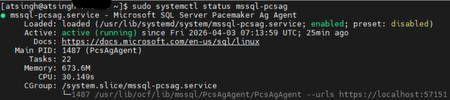
We are excited to introduce the next generation of high availability (HA) Agent for SQL Server on Linux: Pacemaker HA Agent v2. This release is a major step forward, designed to reduce planned and unplanned failover times, compared to the previous agent, based on internal engineering improvements. Why Pacemaker Is Required for SQL Server HA on Linux For users new to Linux, it’s important to understand how high availability works on this platform. On Windows Server, Always On availability groups use an underlying Windows Server Failover Cluster (WSFC) to: Monitor node health Detect failures Orchestrate automatic failovers Always On availability groups on Linux rely on an external cluster orchestrator for health monitoring and failover coordination, with Pacemaker HA Agent being one of the cluster orchestrators, responsible for: Monitoring node and application health Coordinating failover decisions Helping mitigate split‑brain scenarios through improved write‑lease evaluation Managing resources such as availability groups and listeners The Pacemaker HA Agent is the integration layer that allows Pacemaker to understand SQL Server health and manage availability groups safely. Evolution of the SQL Server Pacemaker HA Agent With SQL Server 2025 CU3 and later, Pacemaker HA Agent v2 is available in preview for Red Hat Enterprise Linux and Ubuntu through the mssql-server-ha package. Pacemaker HA agent v2 uses a service‑based architecture. The agent runs as a dedicated system service named mssql-pcsag, which is responsible for handling SQL Server–specific high availability operations and communication with Pacemaker. You can manage mssql-pcsag service by using standard system service controls to start, restart, status and stop this service by using the operating system's service manager (for example, systemctl). # Start the mssql-pcsag service sudo systemctl start mssql-pcsag # Restart the mssql-pcsag service sudo systemctl restart mssql-pcsag # Check the status of the mssql-pcsag service sudo systemctl status mssql-pcsag # Stop the mssql-pcsag service sudo systemctl stop mssql-pcsag Limitations of Pacemaker HA Agent v1 While the original agent enabled SQL Server HA on Linux, customers running production workloads encountered several challenges: Failover delays of 30 seconds to 2 minutes during planned or unplanned events Limited health detection, missing conditions such as I/O stalls and memory pressure Rigid failover behavior, unlike the flexible policies available on Windows (WSFC) Incomplete write‑lease handling, requiring custom logic No support for TLS1.3 for Pacemaker and SQL Server communications How Pacemaker HA Agent v2 Addresses These Gaps Pacemaker HA Agent v2 is a ground‑up improvement, designed to improve the reliability characteristics of SQL Server HA on Linux. 1. Faster & Smarter Failover Decisions The new agent introduces a service‑based health monitoring architecture, moving beyond basic polling. This allows SQL Server to report detailed diagnostic signals - improving detection speed and helping reduce failover delays in supported configurations. 2. Flexible Automatic Failover Policies inspired by the WSFC health model Pacemaker HA Agent v2 supports failure‑condition levels (1–5) and health‑check timeout model aligned with those available in Always On availability groups on Windows. This provides: Fine‑grained control over failover sensitivity, allowing administrators to tune when failover should occur. Improved detection of internal SQL Server conditions, such as memory pressure, internal deadlocks, orphaned spinlocks, and other engine‑level failures. Failover decisions are now driven by detailed diagnostics from sp_server_diagnostics, enabling faster and more accurate response to unhealthy states and providing enhanced resiliency capabilities for SQL Server AG on Linux. You can configure the failure condition level and health check timeout using the following commands: -- Setting failure condition level ALTER AVAILABILITY GROUP pacemakerag SET (FAILURE_CONDITION_LEVEL = 2); -- Setting health check timeout ALTER AVAILABILITY GROUP pacemakerag SET (HEALTH_CHECK_TIMEOUT = 60000); After applying the configuration, validate the setting using the sys.availability_groups DMV: 3. Robust Write Lease Validity Handling To prevent split‑brain scenarios, SQL Server on Linux uses an external write‑lease mechanism. In v1, lease information was not fully integrated into failover decisions. In v2, the agent actively evaluates the write-lease validity, before initiating transitions. This supports controlled role changes and improved data consistency behavior during failover events, depending on cluster configuration. 4. TLS 1.3 Support Pacemaker HA agent v2 includes design updates to support TLS 1.3–based communication for health checks and failover operations, when TLS 1.3 is enabled. Supported Versions & Distributions Pacemaker HA Agent v2 supports: SQL Server 2025 CU3 or later RHEL 9 or later Ubuntu 22.04 or higher. Preview upgrade & migration guidance for non-production environments New or existing non-prod deployments running SQL Server 2025 (17.x) can migrate from Pacemaker HA Agent v1 to v2 using following approach: Drop the existing AG resource sudo pcs resource delete <NameForAGResource> This temporarily pauses AG synchronization but does not delete the availability group (AG). After the resource is recreated, Pacemaker resumes management and AG synchronization automatically. Create a new AG resource using the v2 agent (ocf:mssql:agv2) sudo pcs resource create <NameForAGResource> ocf:mssql:agv2 ag_name=<AGName> meta failure-timeout=30s promotable notify=true Validate cluster health sudo pcs status Resume normal operations References Create and Configure an Availability Group for SQL Server on Linux - SQL Server | Microsoft Learn Thank You, Engineering: David Liao Attinder Pal Singh639Views2likes3CommentsSQL Server 2025: Deeply Integrated and Feature-rich on Linux
SQL Server continues to power mission-critical workloads across enterprises, and with SQL Server 2025, we’re delivering innovations that redefine performance, security, developer experience, AI innovation and flexibility along with additional features tailored for Linux environments. Momentum on SQL Server for Linux The adoption of SQL Server on Linux has been phenomenal. The public preview of SQL Server 2025 has seen remarkable adoption, with Linux based deployments experiencing substantial growth reflecting strong demand for cross-platform capabilities. Enterprises are embracing Linux for cloud native architectures, containers, and Kubernetes deployments and SQL Server is meeting them where they are, enabling customers to run their modern production workloads seamlessly. We’ve collaborated closely with partners such as Canonical, DH2i, PortWorx, and Red Hat (listed alphabetically) to ensure support for the latest distributions and maintain robust high-availability solutions through clustering stacks provided by our partners What’s new in SQL Server 2025 on Linux Here are the highlights: Security Enhancements TLS 1.3 Support for stronger encryption option for data that is transmitted across a network between the client application and SQL Server instance. For details, refer: Encrypt Connections to SQL Server on Linux - SQL Server | Microsoft Learn Ability to Configure Custom password policies via Active Directory (adutil) or mssql.conf for non-domain setups. This allows you to define parameters like minimum password length similar to Windows domain policies whether or not your SQL Server instance on Linux is domain joined. This upgrade gives SQL Server authentication the flexibility and security that enterprises need. Learn more here: Use Custom Password Policy for SQL Logins on Linux - SQL Server | Microsoft Learn Container Images for SQL Server 2025 are now signed to ensure image integrity. Expanded Platform Support Preview support for RHEL 10 and Ubuntu 24.04, expanding enterprise Linux coverage to include support for latest releases from Red Hat and Canonical. For details refer: Get Started with SQL Server 2025 on RHEL 10- preview and Get started with SQL Server 2025 on Ubuntu 24.04- Preview Starting with SQL Server 2025, SUSE Linux Enterprise Server (SLES) is not supported. If you are currently using SQL Server 2022 or an earlier version on SLES, you will continue to receive cumulative updates and support as outlined in the SQL Server 2022 Lifecycle policy or the relevant policies for earlier versions, with no changes to your existing experience for existing deployments. To upgrade to SQL Server 2025, back up your databases and restore them to a supported distribution. Performance Optimizations Tmpfs Support for SQL Server on Linux: For SQL Server on Linux running on physical machines, virtual machines, or containers, you can now host tempdb data and log files on the tmpfs filesystem. This enhancement significantly improves performance for workloads prone to tempdb disk spills, delivering faster throughput and efficiency in this scenario. For containers-based SQL deployment, you can also host all data and log files including user and system database on the tmpfs filesystem, delivering ultra-fast I/O for development and testing scenarios. However, note that data stored on tmpfs is ephemeral and will be lost when the container restarts. Therefore, only use this option for databases where data loss after restart is acceptable, such as in development or test environments. Learn more about tmpfs support here: Enable and Run tempdb on tmpfs for SQL Server 2025 on Linux - SQL Server | Microsoft Learn Advanced Analytics Generic ODBC Data Source Support with PolyBase Seamlessly query external data sources from Linux-based SQL Server using bring your own driver (BYOD) similar to SQL Server on Windows. This feature uses an external service to securely isolate and load drivers, ensuring safe usage. For details refer: Use ODBC Data Source with SQL Server on Linux - SQL Server | Microsoft Learn Developer Experience VS Code – SQL Server (mssql) Extension: Deploy SQL Server 2025 local containers directly from Visual Studio Code using the SQL Server (mssql) extension for a streamlined developer workflow. For details refer: SQL Server (mssql) - Visual Studio Marketplace Validated Pattern with Red Hat We’ve partnered with Red Hat to deliver a validated deployment pattern for SQL Server on RHEL Supercharging Financial Insights with RAG-Based Search on Microsoft SQL Server. The validated patterns are an advanced form of reference architecture, offering a streamlined approach to deploying complex business solutions. To learn more about Validated patterns and how it's different from traditional reference architecture please refer: About Validated Patterns | Validated Patterns. Quotes from our partners: "The work we’re doing with Microsoft to optimize SQL Server on Red Hat Enterprise Linux is a powerful testament to the strength of our collaboration. With the new features in SQL Server, including support for Red Hat Enterprise Linux 10 and enabling streamlined deployment via Red Hat Ansible Automation Platform, we are making it easier than ever for customers to deploy and manage this critical workload across the hybrid cloud. This collaboration extends beyond just enabling core performance to deliver innovative, validated patterns, such as leveraging Red Hat Enterprise Linux AI with SQL Server for retrieval-augmented generation (RAG) and generative AI scenarios, and providing a more consistent experience for customers, whether they are deploying via the Azure Marketplace or on-premises. Our mutual goal is to minimize complexity, increase confidence and help enterprises harness the full potential of their data and AI investments on a trusted, open foundation." Gunner Hellekson, vice president and general manager, Red Hat Enterprise Linux, Red Hat "The availability of SQL Server 2025 on Ubuntu 24.04 provides developers and enterprises a robust foundation for building and deploying demanding AI-driven applications." Jehudi Castro-Sierra, Public Cloud Alliance Director, Canonical “As a leading provider of high availability and database management software, we're thrilled about the performance enhancements and features added to SQL Server 2025. New capabilities like Vector Search and AI-powered optimization will allow our customers to drive business success through data-driven decision-making, faster query execution, improved throughput, and reduced downtime. The automated tuning and maintenance capabilities will also significantly improve operational efficiency, and reduce the complexity and cost associated with database management. Our participation in the SQL Server 2025 EAP has allowed us to ensure that we will provide comprehensive high availability support for our customers’ mission-critical database deployments of SQL Server 2025, including native TLS 1.3 support for encrypted communications, ensuring modern, secure, and high-performance connectivity across all environments. Whether our customers are deploying native or containerized instances on Windows or Linux, DH2i software solutions will ensure nearest-to-zero downtime and fully automatic failover. Additionally, we will be ready to provide secure and intelligent HA for the complex, cross-platform data estates that our customers will be building to support their SQL Server 2025-backed AI applications.” -OJ Ngo, Co-Founder & CTO, DH2i Learn More Explore the full list of features: What's New for SQL Server 2025 Preview on Linux - SQL Server | Microsoft Learn Join us at Microsoft Ignite for deep-dive sessions and demos.2.3KViews2likes4CommentsSQL Server 2025 Preview RC1: Now Supporting Red Hat Enterprise Linux (RHEL) 10
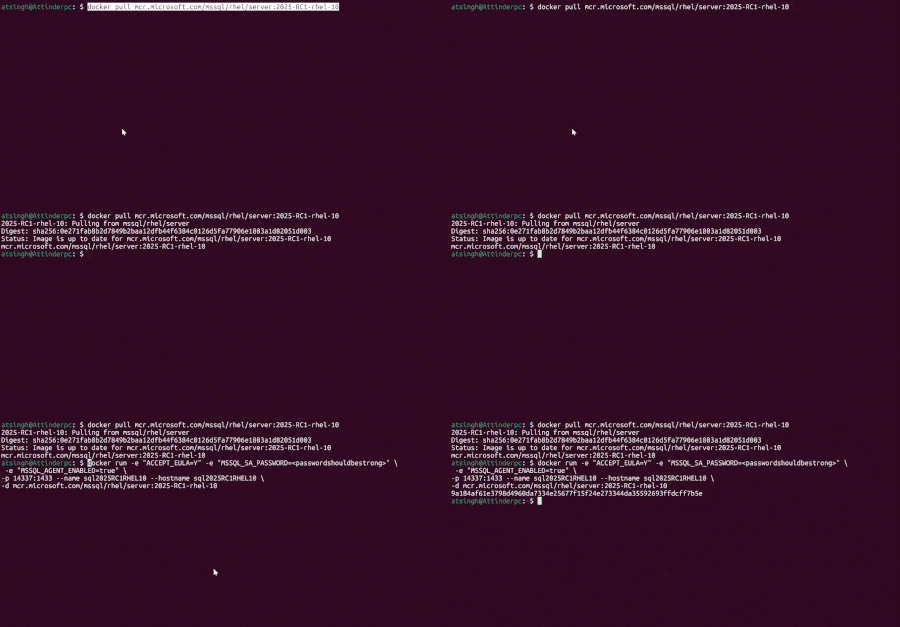
We’re happy to announce that SQL Server 2025 Release Candidate 1 (RC1) now includes preview support for Red Hat Enterprise Linux (RHEL) 10, expanding our commitment to modern, secure, and flexible Linux-based deployments. RHEL 10 Support in SQL Server 2025 RC1 You can now deploy SQL Server 2025 Preview on RHEL10 for your Dev/Test environments using the Enterprise Evaluation Edition, which is valid for 180 days. For your production workloads you could use SQL Server 2022 on RHEL 9 or Ubuntu 22.04. Deploying SQL Server 2025 RC1 on RHEL10 You can follow the Quickstart: Install SQL Server and create a database on RHEL10 to install SQL Server and create a database on RHEL10. It walks you through everything—from preparing your system to installing and configuring SQL Server. To explore the latest improvements in SQL Server 2025 RC1, check out What's New in SQL Server 2025 - SQL Server | Microsoft Learn. I was particularly interested in testing the new Half-precision float support in vector data type. To do this, I deployed SQL Server RHEL10 (the tag is 2025-RC1-rhel-10) container on WSL2 and I already have Docker Desktop installed on my local machine to manage containers. I launched the SQL Server 2025 RC1 container, connected to it using SQL Server Management Studio (SSMS), and successfully tested the vector data type enhancement. docker pull mcr.microsoft.com/mssql/rhel/server:2025-RC1-rhel-10 docker run -e "ACCEPT_EULA=Y" -e "MSSQL_SA_PASSWORD=passwordshouldbestrong" \ -e "MSSQL_AGENT_ENABLED=true" \ -p 14337:1433 --name sql2025RC1RHEL10 --hostname sql2025RC1RHEL10 \ -d mcr.microsoft.com/mssql/rhel/server:2025-RC1-rhel-10 SELECT @@VERSION GO CREATE DATABASE SQL2025onRHEL10 GO USE SQL2025onRHEL10 GO -- Step 0: Enable Preview Features ALTER DATABASE SCOPED CONFIGURATION SET PREVIEW_FEATURES = ON; GO -- Step 1: Create a Table with a VECTOR(5, float16) Column CREATE TABLE dbo.Articles ( id INT PRIMARY KEY, title NVARCHAR(100), content NVARCHAR(MAX), embedding VECTOR(5, float16) ); -- Step 2: Insert Sample Data INSERT INTO Articles (id, title, content, embedding) VALUES (1, 'Intro to AI', 'This article introduces AI concepts.', '[0.1, 0.2, 0.3, 0.4, 0.5]'), (2, 'Deep Learning', 'Deep learning is a subset of ML.', '[0.2, 0.1, 0.4, 0.3, 0.6]'), (3, 'Neural Networks', 'Neural networks are powerful models.', '[0.3, 0.3, 0.2, 0.5, 0.1]'), (4, 'Machine Learning Basics', 'ML basics for beginners.', '[0.4, 0.5, 0.1, 0.2, 0.3]'), (5, 'Advanced AI', 'Exploring advanced AI techniques.', '[0.5, 0.4, 0.6, 0.1, 0.2]'); -- Step 3: Perform a Vector Similarity Search Using VECTOR_DISTANCE function DECLARE @v VECTOR(5, float16) = '[0.3, 0.3, 0.3, 0.3, 0.3]'; SELECT TOP (3) id, title, VECTOR_DISTANCE('cosine', @v, embedding) AS distance FROM dbo.Articles ORDER BY distance; -- Step 4: Optionally Create a Vector Index CREATE VECTOR INDEX vec_idx ON Articles(embedding) WITH ( metric = 'cosine', type = 'diskANN' ); -- Step 5: Perform a Vector Similarity Search DECLARE @qv VECTOR(5, float16) = '[0.3, 0.3, 0.3, 0.3, 0.3]'; SELECT t.id, t.title, t.content, s.distance FROM VECTOR_SEARCH( table = Articles AS t, column = embedding, similar_to = @qv, metric = 'cosine', top_n = 3 ) AS s ORDER BY s.distance, t.title; Conclusion The addition of RHEL10 support in SQL Server 2025 Preview is a major milestone in delivering a modern, secure, and flexible data platform for Linux users. We encourage you explore these new capabilities and share your feedback to help us continue enhancing SQL Server for the Linux ecosystem. You can share your feedback using any of the following methods: Email us at sqlpreviewpackage@microsoft.com with your thoughts and suggestions. Submit your ideas on Azure Ideas (Use the SQL Server on Linux Group on the left side of the page) Alternatively, you can open issues related to the preview packages Issues · microsoft/mssql-docker (github.com) on GitHub. We hope you give SQL Server 2025 preview on RHEL10 a try - and we look forward to hearing what you think!981Views2likes0Comments