sqlserveronlinux
44 TopicsAnnouncing SQL Server 2025 Preview Support on Ubuntu 26.04 LTS
We are excited to announce preview support for SQL Server 2025 on Ubuntu 26.04 LTS, starting with SQL Server 2025 CU11. This brings SQL Server 2025 to Canonical's latest long-term support release, giving developers and organizations an opportunity to evaluate SQL Server on a modern Ubuntu platform. Alongside this announcement, this blog covers: how to install SQL Server 2025 on Ubuntu 26.04, and the simplified Azure deployment experience for SQL Server on Linux Azure VMs. Preview note: SQL Server 2025 support on Ubuntu 26.04 is currently in preview and is intended for evaluation and testing, not production workloads. Supported platforms and package availability continue to evolve - always check the Release notes for SQL Server on Linux for the latest supported OS matrix. Why Ubuntu 26.04 support matters Organizations increasingly standardize their infrastructure on long-term support (LTS) operating system releases to maintain consistency across their environments. With SQL Server 2025 support on Ubuntu 26.04, you can begin evaluating your database workloads on Canonical's latest LTS release while taking advantage of improvements in the underlying operating system. SQL Server 2025 also introduces capabilities such as native vector search and external AI model integration, enabling developers to build modern AI-enabled applications using their existing SQL Server data. This preview provides an opportunity to validate application compatibility, evaluate deployment configurations, and prepare for future adoption. One SQL Server engine across deployment environments SQL Server provides a consistent core database engine across Windows and Linux, allowing organizations to use familiar database capabilities and tools across different environments. SQL Server on Linux can be deployed on physical servers, virtual machines, and supported container platforms, giving customers flexibility in how they manage their database infrastructure. Ubuntu 26.04 preview support expands the operating system options available for evaluating SQL Server 2025. Installing SQL Server 2025 on Ubuntu 26.04 Option 1: Package-based installation The installation follows the familiar SQL Server on Ubuntu workflow: configure the Microsoft package repository, install SQL Server, and complete the initial setup. Step 1: Import Microsoft’s GPG key First, install the required utilities and import Microsoft's package signing key. # Ensure curl is available, then import the Microsoft signing key sudo apt-get update && sudo apt-get install -y curl curl -fsSL https://packages.microsoft.com/keys/microsoft.asc | sudo gpg --dearmor -o /usr/share/keyrings/microsoft-prod.gpg Step 2: Download the SQL Server 2025 package Note: While the SQL Server 2025 package repository configuration for Ubuntu 26.04 is being finalized, you can install SQL Server 2025 CU11 Preview by downloading the .deb package directly using the following commands: # Download SQL Server 2025 CU11 Preview wget https://packages.microsoft.com/ubuntu/26.04/mssql-server-preview/pool/main/m/mssql-server/mssql-server_17.0.5065.9-3-preview_amd64.deb Step 3: Install SQL Server 2025 Update the package index and install the SQL Server engine. sudo apt-get update sudo apt-get install -y mssql-server Step 4: Configure SQL Server Run the SQL Server configuration utility to select your edition, accept the license terms, and configure the system administrator password. # Choose edition, accept the license terms, set the SA password sudo /opt/mssql/bin/mssql-conf setup # Verify the service is running systemctl status mssql-server --no-pager Step 5: Install SQL Server command-line tools (optional) You can also install the SQL Server command-line utilities, including sqlcmd and bcp. First, register the Microsoft production repository. # Add the prod repo, then install sqlcmd / bcp (mssql-tools18) curl -fsSL https://packages.microsoft.com/config/ubuntu/26.04/prod.list | sudo tee /etc/apt/sources.list.d/mssql-release.list sudo apt-get update sudo apt-get install -y mssql-tools18 unixodbc-dev Option 2: Container deployment You can also evaluate SQL Server 2025 on Ubuntu 26.04 LTS using the preview container image available from Microsoft Container Registry (MCR). Step 1: Pull the SQL Server 2025 container image Note: SQL Server container image can be used with Docker or Podman. For simplicity, the examples below use Docker commands. Podman users can follow the same steps by substituting docker with podman. docker pull mcr.microsoft.com/mssql/server:2025-CU11-ubuntu-26.04-preview Step 2: Run the SQL Server container docker run -d \ --name sql2025-ubuntu2604 \ --hostname sql2025 \ -e ACCEPT_EULA=Y \ -e MSSQL_SA_PASSWORD='<YourStrongPassword>' \ -p 1433:1433 \ -v sql2025data:/var/opt/mssql \ mcr.microsoft.com/mssql/server:2025-CU11-ubuntu-26.04-preview Replace <YourStrongPassword> with a strong password that meets SQL Server password complexity requirements. Step 3: Verify that the container is running docker ps # To view SQL Server startup logs: docker logs sql2025-ubuntu2604 That’s it. With SQL Server 2025 installed on Ubuntu 26.04, you can connect using familiar tools such as SQL Server Management Studio (SSMS), the MSSQL extension for Visual Studio Code, or sqlcmd. You can now begin exploring SQL Server 2025 capabilities and validating your applications on Ubuntu 26.04. Simplifying SQL Server on Linux deployments in Azure In addition to expanding operating system support, we've introduced a more flexible way to deploy SQL Server on Linux Azure Virtual Machines. Traditionally, customers deployed SQL Server on Linux using preconfigured Azure Marketplace images that included both the operating system and SQL Server. The new script-based deployment experience simplifies this approach by allowing customers to provision a Linux VM and configure SQL Server as part of the deployment process. Instead of relying on a preconfigured SQL Server image, customers can start with a supported Linux operating system image and select their SQL Server configuration. How script-based deployment works If you prefer a SQL-first deployment experience, the Azure SQL hub provides a streamlined way to deploy SQL Server on Linux Azure VMs. Go to the Azure SQL hub at aka.ms/azuresqlhub. Under SQL Server, select SQL Server on Azure VMs, and then select + Create. Select the operating system for your deployment. You will be redirected to the Create a virtual machine experience. Your operating system selection is automatically carried forward, and Install SQL Server option is enabled by default under the Advanced tab. Configure the remaining VM and SQL Server settings. You can also use advanced configuration to upload a custom mssql.conf file, configure SQL connectivity, enable Azure Key Vault integration, and the tuned performance profile. Select Review + create, review the configuration summary, and then select Create. Azure provisions the VM, installs and configures SQL Server through the same script-based deployment flow, and automatically registers the VM with the SQL IaaS Agent extension. Getting started & reference Install on Ubuntu: Quickstart: Install SQL Server and create a database on Ubuntu Installation guidance: Installation guidance for SQL Server on Linux Supported platforms: Release notes for SQL Server on Linux Containers: Deploy and connect to SQL Server Linux containers SQL IaaS Agent extension (Linux): Overview · Register a Linux SQL Server VM Wrapping up Preview support for SQL Server 2025 on Ubuntu 26.04 LTS marks another step in expanding deployment flexibility for SQL Server on Linux. Together with the new script-based deployment experience on Azure VMs and integration with the SQL IaaS Agent extension, customers have more options to deploy and manage SQL Server on Linux. We encourage you to explore SQL Server 2025 on Ubuntu 26.04 in your test environments and share your feedback to help us continue improving the experience.185Views2likes0CommentsStrengthen SQL Server security on Azure Local with confidential VMs (In Preview)
SQL Server holds some of the most sensitive data an organization runs, including the business data that local AI applications and agents query. Azure Local provides a Microsoft-managed, distributed infrastructure platform for running SQL Server in virtual machines at customer locations, so data can stay on premises. Data at rest and in transit is commonly protected, but while SQL Server processes queries, the data it works with sits in memory. Confidential virtual machines (CVMs) on Azure Local help protect it there. Protecting SQL Server requires more than securing the database engine. With a standard VM, the host operating system, the hypervisor, and anyone with administrative access to the host all sit inside the trust boundary of the workload. At edge and remote sites with less physical control, that is a lot of trust to place in the infrastructure. CVMs on Azure Local, now generally available on AMD processors and in preview on Intel processors, bring hardware-based memory encryption and attestation to customer-owned edge infrastructure. They provide hardware-based isolation between the VM, the hypervisor, and host management code. SQL Server 2025 runs on Ubuntu 24.04 inside the CVM. For SQL Server workloads, the value is straightforward: help keep data confidential while it is in use, even from the infrastructure it runs on. Where confidential VMs fit Consider CVMs when SQL Server data should stay private from the people and systems that operate on the underlying infrastructure, such as regulated and sovereign data, edge and remote sites, hosted or partner-run clusters, and local AI applications that query sensitive business data. Protect SQL Server data while it is in use CVMs on Azure Local use AMD SEV-SNP or Intel TDX to encrypt guest memory in hardware, so SQL Server's buffer pool and in-memory data stay encrypted and isolated from the host and its administrators. CVMs don't protect against sophisticated physical side-channel attacks, so pair them with physical safeguards at the site. Data on disk, in backups, and in transit still needs SQL Server's own protections. The following table shows how they fit together. What you're protecting Threat Protection SQL Server memory, including the buffer pool Host administrators or a compromised host CVM memory encryption (AMD SEV-SNP or Intel TDX) Operating system disk and boot chain Host-side tampering Integrity-protected image Data, log, and tempdb files A copy of the data disk taken from the host TDE with keys in Azure Key Vault Backups Copies stored outside the VM Backup encryption Network traffic Interception between clients and SQL Server Encrypted connections (TLS) Sensitive columns Privileged database users Always Encrypted Start from an integrity-protected image CVMs follow a clean-room, image-driven model. You build a hardened Ubuntu 24.04 image with SQL Server 2025 installed and enable integrity protection, which helps protect the guest operating system disk and boot chain from host-side tampering. The root file system is read-only, so SQL Server databases, logs, and tempdb live on a separate writable data disk. To maintain the security boundary, guest management isn't supported, so plan guest changes, including SQL Server updates, as new image builds rather than in-place changes. Plan availability around confidential VMs CVMs don't support live migration or failover between nodes in an Azure Local cluster, so plan maintenance around the CVMs on each node, build availability into the database design, and keep regular SQL Server backups outside the VM. Verify the environment with attestation Attestation helps you confirm that SQL Server is running in a genuine confidential environment before you trust it with sensitive data. The CVM produces a hardware-rooted attestation report that Microsoft Azure Attestation validates, so plan cloud connectivity from the site. Get started with SQL Server on confidential VMs Prepare a CVM-ready cluster. Deploy Azure Local 2607 or later on validated AMD or Intel hardware with confidential VMs enabled by following the Azure Resource Manager template guidance. Hardware partners for both include Dell, HPE, and Lenovo. Find specific validated systems in the Azure Local solutions catalog. Build the SQL Server image. Use the integrity-protected CVM image builder in the AzureStack-Tools repository to create an Ubuntu 24.04 image, add SQL Server 2025, and point SQL Server at a separate data disk. Create the confidential VM. Create the CVM from your image with the data disk attached by following the CVM creation and connection guidance. Verify and connect. Verify the CVM with attestation and connect your applications. For detailed guidance, see Deploy SQL Server on Azure Local. Review the confidential VM overview for current limitations. Frequently asked questions How is this different from Always Encrypted? Always Encrypted protects selected columns from anyone without the column keys, including database administrators. A CVM protects all of SQL Server's memory from the host and infrastructure operators. They address different threats, so use both when you need protection from both groups. Can I convert an existing VM into a confidential VM? No. CVMs are created from a purpose-built, integrity-protected image. Create a new CVM and move your databases into it with backup and restore. Does it support SQL Server on Windows? Not yet. This release supports Ubuntu 24.04 guests only. A stronger foundation for sensitive database workloads When SQL Server runs in a confidential VM on Azure Local, its memory is encrypted and isolated from the host, the hypervisor, and infrastructure operators, and attestation provides evidence of that protection before applications connect. That brings confidential computing to SQL Server workloads that need to stay on premises.102Views2likes0CommentsMicrosoft ODBC Driver 18.6.2 for SQL
What Is the Microsoft ODBC Driver for SQL? The Microsoft ODBC Driver for SQL provides native connectivity from Windows, Linux, and macOS applications to SQL Server, Azure SQL Database, Azure SQL Managed Instance, and Microsoft Fabric. It is the recommended driver for new application development using the ODBC API, and it supports , Always Encrypted, distributed transactions, and modern authentication methods including Microsoft Entra ID (formerly Azure Active Directory). Whether you're building high-throughput data pipelines, managing enterprise databases, or developing cloud-native applications on Microsoft Fabric, the ODBC driver is a foundational component of the SQL Server connectivity stack. What's New in 18.6.2 Improved Vector Parameter Handling for Prepared Statements Version 18.6.2 improves the handling of output and input/output vector parameters when using prepared statements. This enhancement benefits applications that rely on parameterized queries with array bindings — a common pattern in batch processing and high-performance data access layers. Microsoft Fabric Redirection Support (Up to 10 Redirections) The driver now allows up to 10 server redirections per connection attempt, up from previous limits. This change directly supports Microsoft Fabric redirection scenarios, where connections may be transparently routed through multiple endpoints before reaching the target workspace. If your applications connect to Fabric SQL endpoints, this update ensures more reliable connectivity in complex routing topologies. Alpine Linux Packaging Improvements Architecture detection and packaging have been improved for Alpine Linux environments, making it easier to deploy the driver in lightweight, container-based workloads that use Alpine as a base image. Bug Fixes This release addresses several important issues reported by the community and identified through internal testing: Parameter Array Processing SQL_ATTR_PARAMS_PROCESSED_PTR accuracy — Fixed an issue where the number of processed parameter sets was not reported correctly when executing parameter arrays. Applications that inspect SQL_ATTR_PARAMS_PROCESSED_PTR after batch execution will now see the correct count. SQL_PARAM_IGNORE handling — Fixed SQL_ATTR_PARAMS_PROCESSED_PTR and row counting when SQL_PARAM_IGNORE is used within parameter arrays, ensuring that ignored parameters are accounted for properly. Crash Fixes SQLNumResultCols segmentation fault — Resolved a segfault that occurred when calling SQLNumResultCols in describe-only scenarios where no parameter bindings are present. Table-valued parameter (TVP) NULL handling — Fixed a segmentation fault triggered by NULL values in TVP arguments. Applications passing TVPs with nullable columns should no longer experience unexpected crashes. bcp_bind Consecutive Field Terminators (Known Issue from 18.6.1) bcp_bind fix — Corrected bcp_bind to properly handle consecutive field terminators without misinterpreting them as empty fields. This resolves a known issue introduced in version 18.6.1, where consecutive terminators were incorrectly interpreted as NULL values instead of empty strings. If you deferred upgrading to 18.6.1 because of this issue, 18.6.2 is the recommended target version. Linux Packaging Debian EULA acceptance — Fixed Debian package installation to correctly honor EULA acceptance and complete successfully, eliminating a friction point for automated deployments. RPM side-by-side installation — Fixed RPM packaging rules to allow installing multiple driver versions side by side, which is important for environments that need to maintain backward compatibility or perform staged rollouts. Distributed Transactions XA recovery — Fixed XA recovery to compute transaction IDs correctly, avoiding scenarios where recoverable transactions could be missed during the recovery process. This is a critical fix for applications using distributed transactions with XA transaction managers. Upgrading from Older Versions If you are upgrading from a version prior to 18.6.1, you will also benefit from the features introduced in that release: Vector data type support — Native support for the vector data type (float32), enabling AI and machine learning scenarios directly through ODBC. ConcatNullYieldsNull property — Connection-level control over null concatenation behavior. New platform support — Azure Linux 3.0 ARM, Debian 13, Red Hat 10, and Ubuntu 25.10. Version 18.6.2 builds on these additions with the stability and correctness fixes described above. Download & Installation Windows Platform Download Link x64 Download x86 Download ARM64 Download Linux & macOS Installation packages for supported Linux distributions and macOS are available on Microsoft Learn: Download ODBC Driver for SQL Server (Linux/macOS) Documentation & Release Notes For the full list of changes, platform support details, and known issues, see the official release notes: Windows Release Notes Linux & macOS Release Notes Bug Fixes Get Started We encourage all users to upgrade to version 18.6.2.1 to take advantage of the fixes and improvements in this release — particularly if you are using parameter arrays, table-valued parameters, bcp operations, or connecting to Microsoft Fabric endpoints. As always, we welcome your feedback. If you encounter issues, please report them through the SQL Server feedback channel or open an issue on the Microsoft ODBC Driver GitHub repository. Happy coding!5.1KViews0likes3Comments
BULKADMIN role support for SQL Server on Linux is now Generally Available
Starting with SQL Server 2025 CU9 and SQL Server 2022 CU27, SQL Server on Linux supports the bulkadmin fixed server role and the ADMINISTER BULK OPERATIONS permission for performing bulk data import operations without requiring users to be members of the sysadmin fixed server role. This capability enables you to use operations such as BULK INSERT and OPENROWSET(BULK...) while following a least-privilege security model. Previously on SQL Server on Linux, these operations required sysadmin membership. With this GA (Generally Available) release, organizations running SQL Server on Linux can provide users with the permissions required for bulk data loading without granting broader sysadmin privileges, improving alignment with the principle of least privilege. The feature applies to SQL Server on Linux, including on-premises, SQL Server on Azure VMs and container deployments. Learn more: BULK INSERT (Transact-SQL) - SQL Server | Microsoft Learn Announcing Preview of bulkadmin role support for SQL Server on Linux | Microsoft Community Hub253Views0likes0CommentsMove to Modern SQL Server Licensing with Confidence
Why eligible customers should move to pay-as-you-go licensing (PAYG) For eligible SQL Server workloads, PAYG should be the preferred licensing approach when moving away from licenses and Software Assurance. It aligns billing with measured usage, adapts as the estate changes, and reduces the operational burden of managing fixed license quantities. The transition requires deliberate resource-configuration updates, but the result is a more flexible and manageable licensing model. Align cost with measured usage: Adopt consumption-based billing for eligible SQL Server resources instead of maintaining fixed license allocations. Scale without repeated license true-ups: Let billing adjust as workloads are added, removed, migrated, resized, or used intermittently. Manage licensing through Azure: Use Azure-based controls to review resource-level licensing and improve visibility across the estate. Reduce license administration: Spend less time tracking fixed quantities and aligning individual resources with license inventory. Optimize committed consumption: After establishing stable PAYG usage, evaluate applicable Azure savings plans or reservations to help reduce costs. Guidance for transitioning your resource settings Once your organization decides to adopt PAYG for eligible SQL Server workloads, update the license configuration on each resource so billing reflects that decision. A commercial or licensing change alone does not update resource-level settings. Plan this configuration work as part of the transition rather than treating it as a follow-up. Starting early gives teams time to validate security, networking, Azure Arc connectivity, billing, and operational processes before switching the broader estate. Automate the transition to pay-as-you-go SQL licensing at scale Choose the transition approach that fits your estate PowerShell for a controlled bulk change Use PowerShell when you need a targeted transition across a defined tenant, subscription, resource group, or resource scope. Discover and review resources before making changes. Test the transition with a limited scope. Update eligible resources in bulk when the organization is ready. Validate the resulting license configuration and billing signals. Azure Policy for ongoing governance Use Azure Policy to transition existing SQL resources to PAYG and continuously enforce the desired licensing configuration. Azure Policy helps identify configuration drift, maintain compliance, and automatically remediate non-compliant resources at scale. Define the approved license configuration for eligible resources. Assign policy at the appropriate subscription or resource group scope. Monitor compliance through centralized Azure views. Remediate resources that drift from the approved configuration. Recommended path to PAYG Commit to the PAYG target. Confirm which eligible workloads will move and identify the teams responsible for licensing, Azure, security, networking, and SQL operations. Prepare the estate. For SQL Server running outside of Azure, connect to Azure Arc. Inventory eligible SQL resources and confirm that Azure Arc connectivity and required organizational approvals are in place. Prove the transition. Test resource updates and billing behavior in a limited resource group or subscription. Move at scale. Use PowerShell for a controlled bulk transition, then apply Azure Policy for ongoing governance where appropriate. Verify and operate. Review the resulting configuration, monitor compliance, and reassess as the SQL estate grows or changes. Evaluate commitment-based savings. After establishing a stable PAYG usage pattern, assess whether an applicable Azure savings plan or reservation could reduce costs. Review eligibility, coverage, and commitment terms with your Microsoft representative. Learn more Automate the transition to pay-as-you-go SQL licensing at scale Manage licensing and billing of SQL Server enabled by Azure Arc Pricing guidance for SQL Server on Azure VMs Azure SQL Database pricing Eligibility, billing treatment, prerequisites, and available licensing options vary by resource and licensing arrangement. Review the applicable Microsoft terms and product guidance, and consult your Microsoft representative or licensing specialist as needed.992Views0likes2CommentsMicrosoft ODBC Driver 17.11.1 for SQL Server Released
We are pleased to announce the general availability of Microsoft ODBC Driver 17.11.1 for SQL Server, released on April 30, 2026. This servicing update delivers important bug fixes and expands Linux platform support. Key Highlights Stability and correctness fixes for parameter array processing, including accurate updates to SQL_ATTR_PARAMS_PROCESSED_PTR and improved row counting when SQL_PARAM_IGNORE is used in parameter arrays. Fixed a connection error that could occur when processing Data Classification metadata in ODBC asynchronous mode. Updated RPM packaging rules to allow installation of multiple driver versions side by side. Corrected XA recovery to ensure proper computation of transaction IDs and recovery of missing transactions. Debian package installation now honors license acceptance for successful completion. New Platform Support Platform Versions macOS 14, 15, 26 Debian 13 Red Hat Enterprise Linux 10 Oracle Linux 9, 10 SUSE Linux Enterprise Server 16 Ubuntu 24.04, 25.10 Alpine Linux 3.21, 3.22, 3.23 Download The driver is available for download from the Microsoft ODBC Driver for SQL Server documentation page. Linux Installation Install or update using your distribution's package manager: Debian/Ubuntu: sudo apt-get update sudo apt-get install msodbcsql17 Red Hat/Oracle Linux: sudo yum install msodbcsql17 SUSE: sudo zypper install msodbcsql17 Alpine: sudo apk add msodbcsql17 Feedback We welcome your feedback. Please report issues on the SQL Server feedback site or open an issue on the ODBC Driver GitHub repository.1.2KViews0likes2CommentsIntroducing Pacemaker HA Agent v2 for SQL Server on Linux (In Preview)
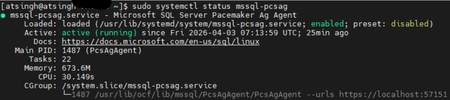
We are excited to introduce the next generation of high availability (HA) Agent for SQL Server on Linux: Pacemaker HA Agent v2. This release is a major step forward, designed to reduce planned and unplanned failover times, compared to the previous agent, based on internal engineering improvements. Why Pacemaker Is Required for SQL Server HA on Linux For users new to Linux, it’s important to understand how high availability works on this platform. On Windows Server, Always On availability groups use an underlying Windows Server Failover Cluster (WSFC) to: Monitor node health Detect failures Orchestrate automatic failovers Always On availability groups on Linux rely on an external cluster orchestrator for health monitoring and failover coordination, with Pacemaker HA Agent being one of the cluster orchestrators, responsible for: Monitoring node and application health Coordinating failover decisions Helping mitigate split‑brain scenarios through improved write‑lease evaluation Managing resources such as availability groups and listeners The Pacemaker HA Agent is the integration layer that allows Pacemaker to understand SQL Server health and manage availability groups safely. Evolution of the SQL Server Pacemaker HA Agent With SQL Server 2025 CU3 and later, Pacemaker HA Agent v2 is available in preview for Red Hat Enterprise Linux and Ubuntu through the mssql-server-ha package. Pacemaker HA agent v2 uses a service‑based architecture. The agent runs as a dedicated system service named mssql-pcsag, which is responsible for handling SQL Server–specific high availability operations and communication with Pacemaker. You can manage mssql-pcsag service by using standard system service controls to start, restart, status and stop this service by using the operating system's service manager (for example, systemctl). # Start the mssql-pcsag service sudo systemctl start mssql-pcsag # Restart the mssql-pcsag service sudo systemctl restart mssql-pcsag # Check the status of the mssql-pcsag service sudo systemctl status mssql-pcsag # Stop the mssql-pcsag service sudo systemctl stop mssql-pcsag Limitations of Pacemaker HA Agent v1 While the original agent enabled SQL Server HA on Linux, customers running production workloads encountered several challenges: Failover delays of 30 seconds to 2 minutes during planned or unplanned events Limited health detection, missing conditions such as I/O stalls and memory pressure Rigid failover behavior, unlike the flexible policies available on Windows (WSFC) Incomplete write‑lease handling, requiring custom logic No support for TLS1.3 for Pacemaker and SQL Server communications How Pacemaker HA Agent v2 Addresses These Gaps Pacemaker HA Agent v2 is a ground‑up improvement, designed to improve the reliability characteristics of SQL Server HA on Linux. 1. Faster & Smarter Failover Decisions The new agent introduces a service‑based health monitoring architecture, moving beyond basic polling. This allows SQL Server to report detailed diagnostic signals - improving detection speed and helping reduce failover delays in supported configurations. 2. Flexible Automatic Failover Policies inspired by the WSFC health model Pacemaker HA Agent v2 supports failure‑condition levels (1–5) and health‑check timeout model aligned with those available in Always On availability groups on Windows. This provides: Fine‑grained control over failover sensitivity, allowing administrators to tune when failover should occur. Improved detection of internal SQL Server conditions, such as memory pressure, internal deadlocks, orphaned spinlocks, and other engine‑level failures. Failover decisions are now driven by detailed diagnostics from sp_server_diagnostics, enabling faster and more accurate response to unhealthy states and providing enhanced resiliency capabilities for SQL Server AG on Linux. You can configure the failure condition level and health check timeout using the following commands: -- Setting failure condition level ALTER AVAILABILITY GROUP pacemakerag SET (FAILURE_CONDITION_LEVEL = 2); -- Setting health check timeout ALTER AVAILABILITY GROUP pacemakerag SET (HEALTH_CHECK_TIMEOUT = 60000); After applying the configuration, validate the setting using the sys.availability_groups DMV: 3. Robust Write Lease Validity Handling To prevent split‑brain scenarios, SQL Server on Linux uses an external write‑lease mechanism. In v1, lease information was not fully integrated into failover decisions. In v2, the agent actively evaluates the write-lease validity, before initiating transitions. This supports controlled role changes and improved data consistency behavior during failover events, depending on cluster configuration. 4. TLS 1.3 Support Pacemaker HA agent v2 includes design updates to support TLS 1.3–based communication for health checks and failover operations, when TLS 1.3 is enabled. Supported Versions & Distributions Pacemaker HA Agent v2 supports: SQL Server 2025 CU3 or later RHEL 9 or later Ubuntu 22.04 or higher. Preview upgrade & migration guidance for non-production environments New or existing non-prod deployments running SQL Server 2025 (17.x) can migrate from Pacemaker HA Agent v1 to v2 using following approach: Drop the existing AG resource sudo pcs resource delete <NameForAGResource> This temporarily pauses AG synchronization but does not delete the availability group (AG). After the resource is recreated, Pacemaker resumes management and AG synchronization automatically. Create a new AG resource using the v2 agent (ocf:mssql:agv2) sudo pcs resource create <NameForAGResource> ocf:mssql:agv2 ag_name=<AGName> meta failure-timeout=30s promotable notify=true Validate cluster health sudo pcs status Resume normal operations References Create and Configure an Availability Group for SQL Server on Linux - SQL Server | Microsoft Learn Thank You, Engineering: David Liao Attinder Pal Singh729Views2likes3CommentsCreating a Contained Availability Group and Enabling Database Creation via CAG Listener
A Contained Availability Group (CAG) is designed to simplify high availability and disaster recovery by encapsulating system databases (master, msdb) within the availability group itself. This means that logins, jobs, credentials, and other metadata are automatically replicated across replicas, eliminating the need for manual synchronization and reducing operational complexity. Starting with SQL Server 2025 CU1, you can create or restore databases directly through the CAG listener - without connecting to the physical instance - by enabling a session context key. Why Contained AGs Matter Self-contained HA unit: Each CAG has its own copy of master and msdb, making it independent of the physical SQL instance. Simplified failover: When the AG fails over, all associated metadata moves with it, ensuring applications continue to function without manual intervention. Improved automation: Supports scenarios where direct access to the SQL instance is restricted, enabling operations through the AG listener. Enhanced security: Reduces exposure by limiting instance-level access; operations can be scoped to the AG context. Streamlined management: Eliminates the need for login and job replication scripts across replicas. Step 1: Prepare the Database for Availability Group This example uses SQL Server on Linux; however, the steps are identical for SQL Server on Windows. In this walkthrough, an existing database named CAGDB is added to a Contained Availability Group (CAG). Before adding the database to the CAG, verify that it is configured for FULL recovery mode and perform a full database backup. ALTER DATABASE CAGDB SET RECOVERY FULL; GO BACKUP DATABASE CAGDB TO DISK = N'/var/opt/mssql/backups/CAGDB.bak' WITH INIT, COMPRESSION; GO Note: On Linux, ensure that the backup target directory exists and is owned by the mssql user. sudo mkdir -p /var/opt/mssql/backups sudo chown mssql:mssql /var/opt/mssql/backups Step 2: Create the Contained Availability Group On your Linux SQL Server nodes, run: CREATE AVAILABILITY GROUP [CAGDemo] WITH ( CLUSTER_TYPE = EXTERNAL, CONTAINED ) FOR DATABASE [CAGDB] REPLICA ON N'node1' WITH ( ENDPOINT_URL = N'tcp://node1:5022', AVAILABILITY_MODE = SYNCHRONOUS_COMMIT, FAILOVER_MODE = EXTERNAL, SEEDING_MODE = AUTOMATIC ), N'node2' WITH ( ENDPOINT_URL = N'tcp://node2:5022', AVAILABILITY_MODE = SYNCHRONOUS_COMMIT, FAILOVER_MODE = EXTERNAL, SEEDING_MODE = AUTOMATIC ); GO #Connect to secondary replicas and join the AG: ALTER AVAILABILITY GROUP [CAGDemo] JOIN WITH (CLUSTER_TYPE = EXTERNAL); ALTER AVAILABILITY GROUP [CAGDemo] GRANT CREATE ANY DATABASE; Step 3: Configure Listener and Connect Create a listener and connect using SSMS or sqlcmd: ALTER AVAILABILITY GROUP [CAGDemo] ADD LISTENER N'CAGDemoListener' ( WITH IP ( (N'*.*.*.*', N'255.255.255.0') ), PORT = 1453 ); GO Step 4: Connect to CAGDemoListener and attempt Database Creation (Failure) When connected through the listener: CREATE DATABASE TestCAGDB; Result:\ Msg 262, Level 14, State 1: CREATE DATABASE is not allowed in this context.\ This happens because database creation is blocked by default in a contained AG session. Step 5: Enable Database Creation in CAG Session or Instance master EXEC sp_set_session_context key = N'allow_cag_create_db', @value = 1; This enables database creation for your current session. Step 6: Retry Database Creation (Success) CREATE DATABASE TestCAGDB; Result: Database created successfully within the contained AG context. Users with dbcreator role in the CAG context can perform this action. Step 7: Backup the database. ALTER DATABASE TestCAGDB SET RECOVERY FULL; BACKUP DATABASE TestCAGDB TO DISK = N'/var/opt/mssql/data/backups/TestCAGDB.bak'; Step 8: Add database to the CAG ALTER AVAILABILITY GROUP [CAGDemo] ADD DATABASE [TestCAGDB]; Optional: To automate Steps 4 - 8, you can create a stored procedure (for example: [dbo].[sp_cag_create_db]) and execute it while connected through the Contained Availability Group (CAG) listener context. CREATE OR ALTER PROCEDURE [dbo].[sp_cag_create_db] @database_name sysname, @createdb_sql NVARCHAR(MAX) = NULL AS BEGIN SET NOCOUNT ON DECLARE @fIsContainedAGSession int EXECUTE @fIsContainedAGSession = sys.sp_MSIsContainedAGSession if (@fIsContainedAGSession = 1) BEGIN DECLARE @SQL NVARCHAR(MAX); EXEC sp_set_session_context = N'allow_cag_create_db', @value = 1; IF @createdb_sql IS NULL SET @SQL = 'CREATE DATABASE ' + QUOTENAME(@database_name); ELSE SET @SQL = @createdb_sql; PRINT @SQL EXEC sp_executesql @SQL; SET @SQL = 'ALTER DATABASE ' + QUOTENAME(@database_name) + ' SET RECOVERY FULL'; PRINT @SQL EXEC sp_executesql @SQL; SET @SQL = 'BACKUP DATABASE ' + QUOTENAME(@database_name) + ' TO DISK = N''NUL'''; PRINT @SQL EXEC sp_executesql @SQL; DECLARE _Name sysname; set _Name = (SELECT name FROM sys.availability_groups ags INNER JOIN sys.dm_exec_sessions des ON ags.group_id = des.contained_availability_group_id WHERE @@SPID = des.session_id); SET @SQL = 'use master; ALTER AVAILABILITY GROUP ' + QUOTENAME(@AG_Name) + ' add DATABASE ' + QUOTENAME (@database_name) PRINT @SQL EXEC sp_executesql @SQL; EXEC sp_set_session_context key = N'allow_cag_create_db', @value = 0; END ELSE BEGIN RAISERROR('This can only be used with a contained availability group connection.', 16, 1); END END GO At a high level, this procedure simplifies database onboarding into a CAG by orchestrating the following actions as a single workflow: Creating (or restoring) the database Setting the recovery model to FULL Taking the initial backup required for availability group seeding Adding the database to the target Contained Availability Group Example: Create a database Execute the following command to create NewTestDB and add it to the target CAG. EXEC [dbo].sp_cag_create_db @database_name = [NewTestDB]; Example: Restore a database The stored procedure also supports an optional parameter, @createdb_sql, which allows you to provide a custom SQL statement to create or restore a database (for example, restoring from a backup). Once the database backup file exists and is accessible to SQL Server, you can use this parameter to perform the operation. Important: When @createdb_sql is used, the procedure executes that SQL statement directly. Ensure the SQL statement is from a secured and trusted source. DECLARE @restoreSql NVARCHAR(MAX); SET @restoreSql = N' RESTORE DATABASE AdventureWorks2022 FROM DISK = ''/var/opt/mssql/backups/AdventureWorks2022.bak'' WITH MOVE ''AdventureWorks2022'' TO ''/var/opt/mssql/data/AdventureWorks2022.mdf'', MOVE ''AdventureWorks2022_log'' TO ''/var/opt/mssql/data/AdventureWorks2022_log.ldf'', RECOVERY; '; EXEC dbo.sp_cag_create_db @database_name = N'AdventureWorks2022', @createdb_sql = @restoreSql; Conclusion Contained Availability Groups represent a major step forward in simplifying high availability for SQL Server. By encapsulating system databases within the AG context, they eliminate the complexity of synchronizing logins, jobs, and credentials across replicas. With the new capability in SQL Server 2025 CU1 to create or restore databases directly through the AG listener using sp_set_session_context, organizations can streamline automation and reduce operational overhead. References What Is a Contained Availability Group Deploy a Pacemaker Cluster for SQL Server on Linux1.2KViews1like0CommentsAnnouncing Preview of bulkadmin role support for SQL Server on Linux
Bulk data import using operations like BULK INSERT and OPENROWSET(BULK…) BULK INSERT (Transact-SQL) - SQL Server | Microsoft Learn is fundamental to ETL and data ingestion workflows. On SQL Server running on Linux, these operations have traditionally required sysadmin privileges, making it difficult to follow least‑privilege security practices. With the preview of BULKADMIN role support for SQL Server on Linux, this gap is addressed. Starting with SQL Server 2025 (17.x) CU3 and SQL Server 2022 CU24, administrators can grant the bulkadmin role or the ADMINISTER BULK OPERATIONS permission to enable bulk imports without full administrative access. This capability has long been available on SQL Server on Windows and is now extended to Linux, bringing consistent and more secure bulk data operations across platforms. Bulk import operation Bulk import operations enable fast, large‑volume data loading into SQL Server tables by reading data directly from external files instead of row‑by‑row inserts. Learn more Use BULK INSERT or OPENROWSET (BULK...) to Import Data to SQL Server - SQL Server | Microsoft Learn Who this is for DBAs, Data engineers, ETL developers and application engineers who want to perform bulk data imports without over‑privileging users. Why this matters Improved security posture: Eliminates the need for sysadmin access for bulk operations, enforcing least‑privilege security principle and reducing security risk. Better operational flexibility: Allows DBAs to safely delegate bulk data ingestion to application, ETL, and operational teams without expanding the attack surface. Parity with SQL Server on Windows: Closes a long‑standing gap between SQL Server on Windows and Linux, simplifying cross‑platform administration. Designed with layered security controls on Linux Bulk operations on Linux continue to enforce additional security checks beyond SQL permissions. Administrators must explicitly configure: Linux file system permissions for the SQL Server service account Approved bulk load directories using mssql-conf (by configuring the path through bulkadmin.allowedpathslist setting in mssql-conf) This ensures, SQL Server can only read data from explicitly allowed locations, reducing the risk of unauthorized file access. Learn more: For a quick overview, the typical flow to enable bulk import operations on SQL Server on Linux looks like this: Install SQL Server 2025 (17.x) CU3 Grant BULKADMIN role or ADMINISTER BULK OPERATIONS permission Configure allowed directories and required filesystem permissions Run bulk import operations using BULK INSERT or OPENROWSET (BULK...) For detailed guidance and example, refer to the official documentation: 👉 Configure bulk import operations for SQL Server on Linux Summary With BULKADMIN role support on SQL Server for Linux, customers can now enable bulk data imports without compromising security. This enhancement delivers better role separation, security best practices, and a smoother operational experience for SQL Server on Linux. We encourage customers to explore this capability and adopt least privileged bulk data workflows in their Linux environments.463Views0likes0CommentsAnnouncing GA of SQL Server 2025 on RHEL 10 and Ubuntu 24.04, with additional enhancements for Linux deployments
We are excited to announce the General Availability (GA) of SQL Server 2025 on Red Hat Enterprise Linux (RHEL) 10 and Ubuntu 24.04, starting with the CU1 release. This milestone empowers enterprises to deploy SQL Server 2025 on the latest Linux distributions, ensuring robust compatibility, enhanced security, and optimal performance for mission-critical workloads. The GA reinforces our commitment to delivering a modern, secure, and AI-ready database platform across diverse Linux environments. CU1 Release Highlights Key Features: Production-Ready Support: GA support for RHEL 10 and Ubuntu 24.04, enabling production deployments on the newest Linux platforms. Important: Update your SQL Server repository To ensure you are installing the production-ready GA version of SQL Server 2025, it is essential to update your repository from mssql-server-preview.repo to mssql-server-2025.repo. Continuing to use the preview repository may result in installing pre-release builds that are not intended for production workloads. You can proceed with the installation steps as described in the official documentation: RHEL: Install SQL Server on Linux Ubuntu: Install SQL Server on Linux Enable database creation or restoration in Contained Availability Group sessions You can now use the session context key 'allow_cag_create_db' set via the existing stored procedure sp_set_session_contex to enable database creation and restoration directly within a contained availability group (CAG) session through the CAG listener. Only users with the dbcreator role can create databases in a CAG session, and only users with the db_owner or sysadmin role can restore databases. Example: EXEC sp_set_session_context @key = N'allow_cag_create_db', @value = 1; This command enables the feature for your session. To disable it, set @value = 0. Enhanced Observability: SQL Server 2025 on Linux introduces new Dynamic Management Views (DMVs) that provides comprehensive, system-level insights. These DMVs collect and expose metrics from the underlying operating system, allowing administrators to monitor and diagnose not only SQL Server’s performance, but also the impact of other processes running on the same host. This holistic visibility helps distinguish between issues caused by SQL Server and those originating from other workloads or infrastructure bottlenecks, enabling more effective troubleshooting and optimization for mission-critical deployments. sys.dm_os_linux_cpu_stats: Enables users to identify CPU saturation, investigate I/O waits, analyze system responsiveness, and correlate SQL Server performance with broader OS activity, helping to separate database-specific bottlenecks from infrastructure-wide challenges. sys.dm_os_linux_disk_stats: Facilitates detection of log flush slowness, assessment of checkpoint or read-heavy workloads, and identification of external I/O pressure from noisy neighbors on shared hosts, helping teams optimize storage tiers and queue settings. sys.dm_os_linux_net_stats: Provides real-time visibility into network interface statistics, enabling proactive monitoring and troubleshooting of connectivity and throughput issues. Collectively, these DMVs equip database professionals with actionable, OS-level metrics to maintain stability, optimize performance, and ensure reliability in mission-critical Linux deployments. References What’s New in SQL Server 2025 Contained Availability Group You can share your feedback using any of the following methods: Submit your ideas on Azure Ideas (Use the SQL Server on Linux Group on the left side of the page) Alternatively, you can open issues: Issues · microsoft/mssql-docker (github.com) on GitHub. We hope you give SQL Server 2025 CU1 on RHEL10 or Ubuntu 24.04 a try - and we look forward to hearing what you think!1.1KViews1like1Comment