sharepoint
4123 TopicsIntroducing a team knowledge base, curated by Copilot and agents
Collaboration is changing as teams of humans and agents now work together to get more done. That’s why we’ve evolved Copilot to empower these human-agent teams: just last month, we announced copilot in Teams, Autopilot as your digital teammate, and new tools in Copilot for managing a team’s content workflows. Today, we are taking the next step in human-agent team collaboration, designed to help address the problem of fragmented and outdated information and enable agent teammates to have the required team context they need to perform tasks and answer questions. In Frontier Preview, Copilot and agents in the newly announced Copilot app, Teams, and SharePoint will be able to create, contribute to, curate, and reference a team’s knowledge base in SharePoint. If the player doesn’t load, open the video in a new window: Open video Knowledge bases can support a range of team needs by bringing together the context people and agents need to do their best work. Here are some examples of how we are working with frontier teams to leverage a knowledge base: Legal: Collecting isolated knowledge from emails, files, and personal notes to help agents reference relevant context when creating agreements and contracts. Engineering: Combining technical specifications, user feedback, market research, and product history to give coding agents project context and support the onboarding of new engineers. Sales: Organizing account knowledge and history so sales agents can recommend relevant next steps or quickly provide account snapshots. Team members can explicitly contribute content— whether email, messages, meetings or content that is already on the SharePoint sites they work with. Copilot will organize all this information into an up-to-date knowledge base for the team, readable to people and grounding any agents that are working with the team. Turning raw content into synthesized knowledge At its core, the knowledge base is a specialized library of interlinked agent-friendly markdown files, created by Copilot using Work IQ’s native knowledge compilation engine. This content processing platform can help transform a team’s content into agent-ready knowledge to improve agent performance and results. In our early internal testing, we see that an agent’s responses were up to 4x faster and 30% more token-efficient with the knowledge base when retrieving content to answer questions and performing team tasks 1 . Figure 1: The knowledge base pipeline We believe this is the first step in transforming how human-agent teams work together by leveraging Work IQ’s knowledge compilation engine. As the science advances, the engine improves. By combining advances in content processing with the latest corpus enrichment innovations from our Applied Science research teams, we are continually improving how enterprise content is transformed into usable knowledge. The evidence is promising so far. For example, in a recent paper, we evaluated agents on the task of answering complex questions that require connecting information across multiple documents. We observed significant improvements in both cost efficiency and quality when compared with traditional agents that worked with the original documents or other enrichment methods. Figure 2: Retrieval quality and cost improvement when using the knowledge base corpus map. Note: Results are from a synthetic test environment and published in a public research paper. With millions of sites created by customers every day, SharePoint plays a critical role as the home for the content and knowledge of a team, whether as a vibrant site of pages, files, and lists or the backing content store for a Teams Channel or Modern Group. When enhanced with a knowledge base, the SharePoint site evolves from a content source to the context layer for a team that people, Copilot, and agents can use and reference together. What’s available now This is rolling out now to our Frontier preview tenants. You can start by adding a knowledge base to any SharePoint site— including those backing Teams Channels and Microsoft 365 Groups. You can further use Copilot in SharePoint and the newly announced Autopilot in the Copilot app to create, curate and use your knowledge base. And with the power of Autopilot, you can also use the knowledge base directly from within Teams, from email (by emailing your autopilot). If the player doesn’t load, open the video in a new window: Open video Note: While the knowledge base and its tools are available in Frontier public, the integration with Autopilot requires access to Autopilot, which is rolling out on a separate cadence. Knowledge base is currently available only to users enabled for usage-based billing. Administrators can manage access and spending through the Microsoft 365 admin center. Learn more about managing AI experiences enabled by usage-based billing and how to create the right policies for your organization. Because knowledge base capabilities are currently in preview, billing terms may change before general availability. What’s coming soon Next on our roadmap: Knowledge bases in more places you work, including tools in Cowork and Copilot in Teams, and custom agents created in Microsoft Copilot Studio. Deeper integration with M365 groups – to allow for easier bootstrapping knowledge bases from existing sources (channels, email). Automated, ongoing curation with the help of Microsoft Copilot Studio’s agent flows to help keep your knowledge bases up to date as your organization’s content changes. Greater content scaling, building on our corpus map approach to support larger volumes of content with higher quality at a lower cost. Integration with CLIs and coding agents via Work IQ to allow a broader range of agents to contribute to and work with a knowledge base. If the player doesn’t load, open the video in a new window: Open video More content AI innovation across the Copilot ecosystem Our content AI strategy is focused on helping organizations turn their content into knowledge that people and agents can use in the flow of work. We’re continuing to bring that strategy to life across the Microsoft 365 and Copilot ecosystem with knowledge bases in SharePoint. And we’re not done yet! Here are a few more recent updates in the content AI space: SharePoint tools in Work IQ are coming soon. Last month, we announced that SharePoint tools were coming to the new Copilot app through Work IQ. Copilot in SharePoint is now generally available, bringing Copilot directly into the place where your organization’s content lives. It helps you understand, create, organize, and act on content with AI. Learn more in last month’s blog. New capabilities to govern the content that powers AI. Copilot and agents perform best on well-governed content. The SharePoint Admin Agent is the centerpiece of our new capabilities for getting there. Admins can use natural language to get tenant-level analysis and guided remediation across permissions, content lifecycle, storage, and settings. They can also monitor cross-geo content moves (preview). Catalog management turns a sprawling tenant into structured, manageable content clusters, so admins can scale actions like site attestations, access reviews, and Restricted Content Discovery, and build rollout plans that better match how their organization works. A detailed file level EEEU permissions report enables targeted cleanup, insights on agent access show which agents are reaching SharePoint and OneDrive content, and Governance Hub helps site owners follow through on assigned actions. Today’s preview is just a first step, and we look forward to building this with you. Learn more about how you can be among the first to put the knowledge base to work for your teams and help shape what comes next by sharing feedback. You can either share in-product feedback using Copilot in SharePoint, Autopilot, or sign up here for an opportunity to go deeper with us on this journey. References: 1. Results are based on Microsoft internal testing, October 2026.11KViews6likes0CommentsTracking File-Level Archiving Activity in SharePoint Online with PowerShell
File-level archiving is now generally available and can be applied to files automatically, by users through the SharePoint browser UX, or via a Graph API. The big problem with Purview retention processing is its black box nature, so to discover how effective retention labels with an archiving step are, we use the Microsoft Graph PowerShell SDK to check the archiving status of files and report the results via email. All in a nice script, of course. https://office365itpros.com/2026/10/14/file-level-archiving-report/15Views0likes0CommentsCopilot, Microsoft 365 & Power Platform Community call
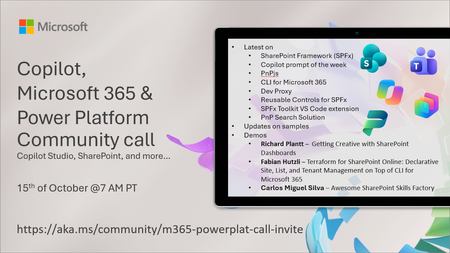
💡 Copilot, Microsoft 365 & Power Platform weekly community call focuses on different use cases and features within the Microsoft 365 and Power Platform - across Microsoft 365 Copilot, Copilot Studio, SharePoint, Power Apps and more. Demos in this call are presented by the community members. 👏 Looking to catch up on the latest news and updates, including cool community demos, this call is for you! 📅 On 15th of October we'll have following agenda: Latest on SharePoint Framework (SPFx) Latest on Copilot prompt of the week PnPjs CLI for Microsoft 365 Dev Proxy Reusable Controls for SPFx SPFx Toolkit VS Code extension PnP Search Solution Demos this time Richard Plantt – Getting Creative with SharePoint Dashboards Fabian Hutzli – Terraform for SharePoint Online: Declarative Site, List, and Tenant Management on Top of CLI for Microsoft 365 Carlos Miguel Silva – Awesome SharePoint Skills Factory 📅 Download recurrent invite from https://aka.ms/community/m365-powerplat-dev-call-invite 📞 & 📺 Join the Microsoft Teams meeting live at https://aka.ms/community/m365-powerplat-dev-call-join 💡 Building something cool for Microsoft 365 or Power Platform (Copilot, SharePoint, Power Apps, etc)? We are always looking for presenters - Volunteer for a community call demo at https://aka.ms/community/request/demo 👋 See you in the call! 📖 Resources: Previous community call recordings and demos from the Microsoft Community Learning YouTube channel at https://aka.ms/community/youtube Microsoft 365 & Power Platform samples from Microsoft and community - https://aka.ms/community/samples Microsoft 365 & Power Platform community details - https://aka.ms/community/home 🧡 Sharing is caring!145Views0likes0CommentsCopilot Extensibility community call - October 2026
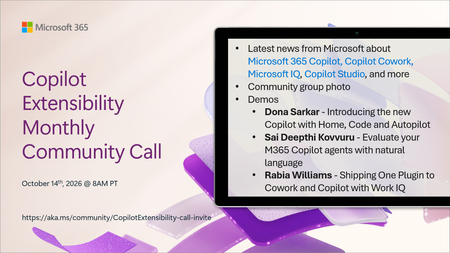
🚀 The Copilot Extensibility Monthly Community Call is a recurring virtual gathering designed to keep the global developer and maker community consistently connected, informed, and engaged with the latest advancements in Microsoft 365 Copilot, Copilot Cowork, Microsoft Scout, GitHub Copilot, Microsoft IQ, etc. and their extensibility ecosystem. 👏 Monthly Wednesday call is for all community members to see Microsoft PMs, engineering and Cloud Advocates showcasing the art of possible with the Microsoft AI technologies. 📅 On the 14th of October we'll have following agenda: News and updates from Microsoft Community group photo Dona Sarkar – Introducing the new Copilot with Home, Code and Autopilot Sai Deepthi Kovvuru - Evaluate your M365 Copilot agents with natural language Rabia Williams - Shipping One Plugin to Cowork and Copilot with Work IQ 📞 & 📺 Join the Microsoft Teams meeting live at https://aka.ms/community/CopilotExtensibility-call-join 🗓️ Download recurrent invite for this weekly call from https://aka.ms/community/CopilotExtensibility-call-invite 👋 See you in the call! 💡 Building something cool with Microsoft AI technologies (Copilot, Cowork, Copilot Studio, Microsoft IQ, etc)? We are always looking for presenters - Volunteer for a community call demo at https://aka.ms/community/request/demo 📖 Resources: Previous community call recordings and demos from the Microsoft Community Learning YouTube channel at https://aka.ms/community/youtube Labs and training material about Microsoft 365 Copilot Extensibility - https://aka.ms/copilotdevcamp Microsoft 365 & Power Platform samples from Microsoft and community - https://aka.ms/community/samples Microsoft 365 & Power Platform community details - https://aka.ms/community/home 🧡 Sharing is caring!206Views0likes0CommentsCopilot, Microsoft 365 & Power Platform product updates call
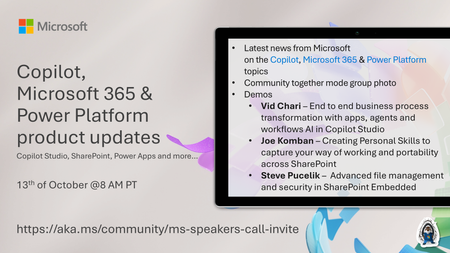
💡Copilot, Microsoft 365 & Power Platform product updates call concentrates on the different use cases and features within the Microsoft 365 and in Power Platform. Call includes topics like Microsoft 365 Copilot, Copilot Studio, Microsoft Teams, Power Platform, Microsoft Graph, Microsoft Viva, Microsoft Search, Microsoft Lists, SharePoint, Power Automate, Power Apps and more. 👏 Weekly Tuesday call is for all community members to see Microsoft PMs, engineering and Cloud Advocates showcasing the art of possible with Microsoft 365 and Power Platform. 📅 On the 13th of October we'll have following agenda: News and updates from Microsoft Together mode group photo Vid Chari – End to end business process transformation with apps, agents and workflows AI in Copilot Studio Joe Komban – Creating Personal Skills to capture your way of working and portability across SharePoint Steve Pucelik – Advanced file management and security in SharePoint Embedded 📞 & 📺 Join the Microsoft Teams meeting live at https://aka.ms/community/ms-speakers-call-join 🗓️ Download recurrent invite for this weekly call from https://aka.ms/community/ms-speakers-call-invite 👋 See you in the call! 💡 Building something cool for Microsoft 365 or Power Platform (Copilot, SharePoint, Power Apps, etc)? We are always looking for presenters - Volunteer for a community call demo at https://aka.ms/community/request/demo 📖 Resources: Previous community call recordings and demos from the Microsoft Community Learning YouTube channel at https://aka.ms/community/youtube Microsoft 365 & Power Platform samples from Microsoft and community - https://aka.ms/community/samples Microsoft 365 & Power Platform community details - https://aka.ms/community/home 🧡 Sharing is caring!138Views0likes0Comments
Tired of Excel exports, Power BI, or separate web parts for charts? Try in-place list visuals.
Hi Microsoft Tech Community, If you manage operational data in SharePoint Lists, you know the drill: your data is accurate and updated, but presenting it visually usually means leaving SharePoint entirely or navigating away from the list itself. Whether it is exporting raw data to Excel, setting up and embedding custom SPFx web parts on separate pages, or configuring full Power BI reports just for basic charts, the process often feels like overkill for quick, everyday reporting. I would love to open a discussion around Graphify—a solution designed specifically to eliminate these extra steps by bringing instant, interactive charts directly inside SharePoint Lists. Why In-Place Visual Analytics Matter: • Zero-Setup Data Decoding: Automatically reads list schemas, column types, and formatted fields to generate meaningful charts instantly—no manual dataset mapping required. • Beyond Basic List Formatting & Web Parts: Replaces clunky custom web parts and limited list formatting options with dynamic visual cards right where your data lives. • 100% Native In-Place Security: All analytics render securely within your tenant; your data never leaves your SharePoint environment. • Rich Customization & Exporting: - Automated Trend & Performance Insights: Instantly highlight highs, lows, and distribution patterns across list records. - Custom Color & Column Controls: Align chart visuals directly with your list styling and brand palette. - One-Click Export: Save chart views as images or embed them seamlessly onto SharePoint communication and team pages. Try It Out: Interactive Free Playground Instead of reading through docs or scheduling a demo, you can test how the interface and chart rendering work in real-time using simulated list data in our live playground. Explore Graphify & Test the Interactive Playground Here: https://tenantforge.cloud/sharepoint/graphify Discussion Questions for the Community: 1. What is your current go-to for list reporting: Power BI, custom SPFx web parts, standard view formatting, or Excel exports? 2. Where do existing M365 list visualization options fall short for your end users? 3. How critical is keeping visual reporting in-place within the SharePoint List experience versus sending users to separate reporting pages or dashboards? Looking forward to hearing how other admins, developers, and power users are handling list visualizations!51Views0likes0CommentsArchive Old Teams Channel Email Files with Microsoft 365 Archive
The File-level archiving API supports any file stored in a SharePoint Online document library, including the emails sent to Teams channels and stored in folders where the email files often disappear from view, occupying valuable storage quietly and without fuss. Finding and moving the email files to Microsoft 365 Archive makes sense because it saves on storage and stops AI tools using old email to generate responses. Here’s how to archive old email files with PowerShell. https://office365itpros.com/2026/10/06/file-level-archiving-teams/59Views0likes0CommentsCopilot, Microsoft 365 & Power Platform Community call
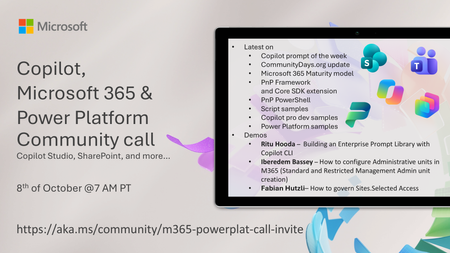
💡 Copilot, Microsoft 365 & Power Platform weekly community call focuses on different use cases and features within the Microsoft 365 and Power Platform - across Microsoft 365 Copilot, Copilot Studio, SharePoint, Power Apps and more. Demos in this call are presented by the community members. 👏 Looking to catch up on the latest news and updates, including cool community demos, this call is for you! 📅 On 8th of October we'll have following agenda: Latest news and events from Microsoft Topics Copilot prompt of the week CommunityDays.org update Microsoft 365 Maturity model PnP Framework and Core SDK extension PnP PowerShell Script samples Copilot pro dev samples Power Platform samples Demos this time Ritu Hooda – Building an Enterprise Prompt Library with Copilot CLI Iberedem Bassey – How to configure Administrative units in M365 (Standard and Restricted Management Admin unit creation) Fabian Hutzli – How to govern Sites.Selected Access 📅 Download recurrent invite from https://aka.ms/community/m365-powerplat-dev-call-invite 📞 & 📺 Join the Microsoft Teams meeting live at https://aka.ms/community/m365-powerplat-dev-call-join 💡 Building something cool for Microsoft 365 or Power Platform (Copilot, SharePoint, Power Apps, etc)? We are always looking for presenters - Volunteer for a community call demo at https://aka.ms/community/request/demo 👋 See you in the call! 📖 Resources: Previous community call recordings and demos from the Microsoft Community Learning YouTube channel at https://aka.ms/community/youtube Microsoft 365 & Power Platform samples from Microsoft and community - https://aka.ms/community/samples Microsoft 365 & Power Platform community details - https://aka.ms/community/home 🧡 Sharing is caring!252Views0likes0CommentsCopilot, Microsoft 365 & Power Platform product updates call
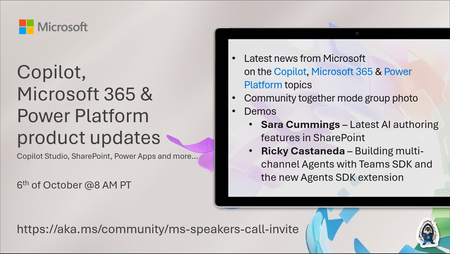
💡Copilot, Microsoft 365 & Power Platform product updates call concentrates on the different use cases and features within the Microsoft 365 and in Power Platform. Call includes topics like Microsoft 365 Copilot, Copilot Studio, Microsoft Teams, Power Platform, Microsoft Graph, Microsoft Viva, Microsoft Search, Microsoft Lists, SharePoint, Power Automate, Power Apps and more. 👏 Weekly Tuesday call is for all community members to see Microsoft PMs, engineering and Cloud Advocates showcasing the art of possible with Microsoft 365 and Power Platform. 📅 On the 6th of October we'll have following agenda: News and updates from Microsoft Together mode group photo Sara Cummings – Latest AI authoring features in SharePoint Ricky Castaneda – Building multi-channel Agents with Teams SDK and the new Agents SDK extension 📞 & 📺 Join the Microsoft Teams meeting live at https://aka.ms/community/ms-speakers-call-join 🗓️ Download recurrent invite for this weekly call from https://aka.ms/community/ms-speakers-call-invite 👋 See you in the call! 💡 Building something cool for Microsoft 365 or Power Platform (Copilot, SharePoint, Power Apps, etc)? We are always looking for presenters - Volunteer for a community call demo at https://aka.ms/community/request/demo 📖 Resources: Previous community call recordings and demos from the Microsoft Community Learning YouTube channel at https://aka.ms/community/youtube Microsoft 365 & Power Platform samples from Microsoft and community - https://aka.ms/community/samples Microsoft 365 & Power Platform community details - https://aka.ms/community/home 🧡 Sharing is caring!204Views0likes0Comments
SharePoint - Stop sharing - new behavior or new bug?
It used to be possible for a user with Contribute permission in a library to upload a file, share it, and the stop sharing it. The result of sharing the file would be that unique permisions then apply to the file. That is, it would no longer inherit permissions from its parent container. If the user then stopped sharing the file, permisisons would be reset and again inherit permissions. This behavior has very recently changed. The person with Contribute permission who shared it can no longer stop sharing it (the Stop sharing button is grayed out). Only someone with Full Control permission can stop sharing it, and if they do, permissions for all members are removed from the fiile except for the site owners group. A user reported this new behavior to me after accidentally sharing with the wrong person, and being unable to undo their mistake. Anyone else concur with my understanding of this being a new behavior?176Views0likes3Comments