sharepoint
133 Topics
PowerShell 7 PnP.PowerShell Header Issue
I am trying to connect to the PnPOnline module using PS7. I am running PowerShell version 7.6.0 (Core), PnP.PowerShell PSEdition Core, and have my PnP PowerShell App registered in Azure I have my top level site as the $siteURL variable, my ClientID number as the $clientID variable and the ClientSecret value as the $clientSecret variable... When using the command Connect-PnPOnline -Url $siteUrl -ClientId $clientId -ClientSecret $clientSecret the following is returned: WARNING: Connecting with Client Secret uses legacy authentication and provides limited functionality. We can for instance not execute requests towards the Microsoft Graph, which limits cmdlets related to Microsoft Teams, Microsoft Planner, Microsoft Flow and Microsoft 365 Groups. You can hide this warning by using Connect-PnPOnline [your parameters] -WarningAction Ignore Connect-PnPOnline: The given header was not found. I have double checked my variables, and all components and still receiving this error. I know there is a certificate method for the App Registration, but what else need to happen to make my connection successful? Or should I go the certificate route for the App Registration?Solved437Views0likes2Comments
Cannot install PnP.Powershell
Something has changed recently I can no longer execute scripts that I had. So I decided to re-install various bits and pieces. When I come to install PnP.Powershell I get an error: 'WARNING: Unable to resolve package source 'https://www.powershellgallery.com/api/v2'.2.1KViews1like7Comments
Set-PnpSensitivityLabel cmdlet not found after installing module
Hi All! I've been working on a script to set sensitivity labels for all files in a SharePoint folder. I'm using the cmdlet "Set-PnPSensitivityLabel" but it isn't found. I've uninstalled pnp.powershell. I've reinstalled it. I've updated it. I've imported it. (Repeated these steps twice) The cmdlet is still not found. I've listed all the cmdlets in the module and it is not being installed. Any suggestions would be appreciated.160Views0likes0CommentsConnect-SPOService not working in PowerShell 7
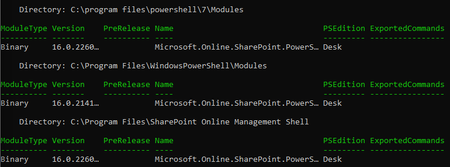
Hi all, I'm having some issues getting Connect-SPOService working in PowerShell 7 (7.2.4). It works fine in Windows PowerShell (5.1.22), however it will always generate errors when trying to us it in PS 7 which I've listed below. Firstly if I open Windows PS, I can use it straight away, however if I open PS 7, I have to import the module in order to use it. I guess I can fix this with a profile adjustment, but is there a reason why this would be the case? Secondly even when it's been imported, if I try to connect with the following, I get an error: Connect-SPOService -Url https://***-admin.sharepoint.com Connect-SPOService: No valid OAuth 2.0 authentication session exists Never seen this before in Windows PS and I'm not sure how to resolve it so I tried connecting with this instead. Still got an error but a different one this time: Connect-SPOService -Url https://***-admin.sharepoint.com -Credential ***@***.com Connect-SPOService: The sign-in name or password does not match one in the Microsoft account system. I know these are the right credientials as again they work fine in Windows PS. This lead me to think that something still wasn't being imported correctly into PS 7, so I had a look at the modes, and I noticed that the ExportedCommands don't appear when Get-Module is run in PS 7, but again they do in Windows PS. I'm guessing this could be part of the issue but I'm not sure how to resolve it. From what I can see everything appears fine, but I'm sure I'm missing something here. I've tried setting my ExecutionPolicy to unrestricted in case that was the problem, however it didn't appear to change anything. If anyone has seen this before or could provide any help it would be greatly appreciated. I realise that I could just use Windows PS, but it feels like PS 7 is the way forward and it would be nice to better understand why this is happening. Many thanks in advance.Solved47KViews0likes10CommentsPowerShell Script to Follow a SharePoint Site for a User
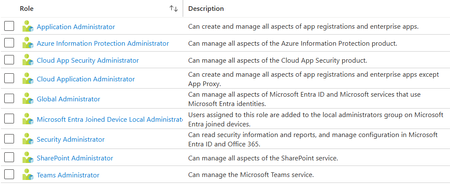
Good morning! I've been struggling with this for a while now. I've tried multiple scripts that are supposed to do this and run into many errors. I have a new script I found, which seems to mostly work, but it gives me this one error: Write-Error: Response status code does not indicate success: Forbidden (Forbidden). It looks like a permissions issue. I'm executing this in VSC, running under my user account, but when it connects to Graph, I'm authenticating it as my admin account, which has the following roles: I do realize how easy it is for users to follow a site, but this is one of those messed-up political situations, so I need a way to do this. After the error, it just hangs here: Add users to follow site(. [Adding user 'Ken Ce.] Here is the script I'm using: # Example: .\Add-FollowUserSite.ps1 -UsersMail "user1@[domain].com","user2@[domain].com","user3@[domain].com" -SitesUrl "https://[domain].sharepoint.com" [CmdletBinding()] param( [Parameter(Mandatory=$true,HelpMessage="List of Users Mails")] [String[]]$UsersMail=@("user1@[domain].com","user2@[domain].com","user3@[domain].com"), [Parameter(Mandatory=$true,HelpMessage="List of SharePoint Url to follow")] [String[]]$SitesUrl=@("https://[domain].sharepoint.com") ) Begin{ # Validate Modules ffor Microsoft graph users exist if (Get-Module -ListAvailable -Name microsoft.graph.users) { Write-Host "Microsoft Graph Users Module Already Installed" } else { try { Install-Module -Name microsoft.graph.users -Scope CurrentUser -Repository PSGallery -Force -AllowClobber } catch [Exception] { $_.message } } # Validate Modules ffor Microsoft graph users exist if (Get-Module -ListAvailable -Name microsoft.graph.sites) { Write-Host "Microsoft Graph Sites Module Already Installed" } else { try { Install-Module -Name microsoft.graph.sites -Scope CurrentUser -Repository PSGallery -Force -AllowClobber } catch [Exception] { $_.message } } # Import Modules Microsoft.Graph.users and Microsoft.Graph.sites to be used Import-Module Microsoft.Graph.users Import-Module Microsoft.Graph.sites Write-Host "Connecting to Tenant" -f Yellow Connect-MgGraph -Scopes "Sites.ReadWrite.All", "User.Read.All" Write-Host "Connection Successful!" -f Green } Process{ $count = 0 $UsersMail | foreach { #Get user Graph properties $mail = $_ $user = Get-MgUser -ConsistencyLevel eventual -Count 1 -Search ([string]::Format('"Mail:{0}"',$mail)) $SitesUrl | foreach { #Get Site Graph properties $domain = ([System.Uri]$_).Host $AbsolutePath = ([System.Uri]$_).AbsolutePath $uriSite = [string]::Format('https://graph.microsoft.com/v1.0/sites/{0}:{1}',$domain,$AbsolutePath) $site = Invoke-MgGraphRequest -Method GET $uriSite #Create Body for Post request $body = @' { "value": [ { "id": "{$SiteID}" } ] } '@.Replace('{$SiteID}',$site.id) #Graph call that include user to follow site $uriFollow = [string]::Format('https://graph.microsoft.com/v1.0/users/{0}/followedSites/add',$user.Id) #Include follow option from user to SharePoint Site try{ $response = Invoke-MgGraphRequest -Method POST $uriFollow -Body $body -ContentType "application/json" Write-Host "User '$($user.DisplayName)' is following site '$($AbsolutePath)'" -f Green } catch { Write-Error $_.Exception } } $count += 1 #progress bar Write-Progress -Activity 'Add users to follow site(s)' -Status "Adding user '$($user.DisplayName)' to follow sites... ($($count)/$($UsersMail.Count))" -PercentComplete (($count / $UsersMail.Count) * 100) } } End { Disconnect-MgGraph Write-Host "Finished" -ForegroundColor Green } Any help would be greatly appreciated.804Views0likes4CommentsTrouble with
I'm having a bear of a time getting this script to work. It's supposed to follow a specific SharePoint site for a specific user. As you can see from the code sample, I've made a lot of changes, REM'd out things already to get this thing to work. Currently, I'm stuck with this error: "The term 'New-MgUserFollowedSite' is not recognized as a name of a cmdlet, function, script file, or executable program." I've seen this error many other times, and it usually means the module isn't installed or outdated. In this case of uninstalled and reinstalled all of Microsoft.Graph, Microsoft.Graph.Sites, and Microsoft.Graph.Users. I've even tried updating them and importing them. Nothing works. We are running modern SharePoint in the cloud. Here's the code: #Requires -Modules @{ModuleName='Microsoft.Graph.Users';ModuleVersion='2.6.0'} # Install module if not already present: Install-Module Microsoft.Graph.Users -Scope CurrentUser # Install-Module Microsoft.Graph.Users -Scope CurrentUser # Install-Module Microsoft.Graph.Sites -Scope CurrentUser # Configuration $SiteURL = "https://XXXXXXXXX.sharepoint.com/sites/XXXXXXXX" # Replace with the actual site URL $UserEmail = "email address removed for privacy reasons" # Replace with the user's email address # Function to follow the site for a user function Follow-SPOSite { param( [string]$SiteURL, [string]$UserEmail ) # Get the site ID # $site = Get-MgSite -Filter "webUrl eq '$SiteURL'" $siteId = "XXXXXXXXXXXXXXXXXXXXXX" # Replace with the actual site ID # Get the user ID $user = Get-MgUser -Filter "mail eq '$UserEmail'" $userId = $user.Id # Follow the site for the user try { New-MgUserFollowedSite -UserId $userId -OdataId "https://graph.microsoft.com/v1.0/sites/$siteId" Write-Host "Successfully followed site '$SiteURL' for user '$UserEmail'." -ForegroundColor Green } catch { Write-Host "Error following site '$SiteURL' for user '$UserEmail': $($_.Exception.Message)" -ForegroundColor Red } } # Connect to Microsoft Graph try { Connect-MgGraph -Scopes "User.Read.All", "Sites.ReadWrite.All" } catch { Write-Host "Error connecting to Microsoft Graph: $($_.Exception.Message)" -ForegroundColor Red exit } # Follow the SharePoint site Follow-SPOSite -SiteURL $SiteURL -UserEmail $UserEmail # Disconnect from Microsoft Graph Disconnect-MgGraph You may ask why not just show the user how to follow sites. It's one of those political situations where someone high up is being intransigent about adopting SharePoint, and well I just have to find a way to follow sites for this one person.Solved200Views0likes1Comment
Purview -> Powershell
i need to export some users their data before their licenses are removed. It is about 60 users, so i would rather user powershell instead of the purview portal to automate the job. So i have been playing around with the commandlets, to get an idea to build the script. The strange thing is what i see in Powershell is not represented in the Purview portal. We had an older compliance case which was no longer used. I tried to remove the compliance case by the Purview portal, but nothing happens when clicking "delete case" or "close case". i then reverted back to PowerShell by using the Remove-ComplianceCase "$CaseName", where the compliance case was successfully removed. When running the Get-ComplianceCase, i can see that the old compliance case is indeed removed, however the removed compliance case is still present in the Purview portal even several hours after deleting the case with PowerShell. Then started to play around with a new compliance search New-ComplianceSearch -Name "$($TargetMailbox.displayName) License Cleanup" -ExchangeLocation "$($TargetMailbox.PrimarySmtpAddress)" -Case "License Cleanup" -SharePointlocation "$($PNPPersonalSite.url)" after refreshing a couple of times i could see the compliance search in the purview portal. Then started the compliance search by using the Start-ComplianceSeacrh commandlet and verified that the search status was completed: Get-compliancesearch "$($TargetMailbox.displayName) License Cleanup" | select status However in the Purview portal no statistics were shown (not available yet). Didn't spend to much attention as i already saw discrepancies between the purview portal and what i saw in Powershell, so continued exporting compliance search with a compliance search action to export the data in the process manager New-ComplianceSearchAction -SearchName ""$($TargetMailbox.displayName)" -Export Can successfully retrieve the compliancesearch action in Powershell and can see that the status is completed, but fail to retrieve the export in the purview portal. Get-ComplianceSearchAction -case "License CleanUp" -includecredential | fl Did not achieve a way in downloading the export results via PowerShell, but would already be pretty pleased if i could achieve the first two steps via PowerShell. But as i am unable to retrieve the export in the Purview portal, i am afraid that i am still stuck. I can create an export in the Purview portal from the compliance search i created in Powershell. Can anyone please explain me the issue with the discrepancies between what i see in PowerShell and the Purview Portal and is it possible to see the exports created in powershell in the purview portal? And is it feasible to download the export from Powershell as well (Start-Process)?429Views0likes0CommentsList SharePoint Sites, their Libraries, their folders, and their Permissions for Given User
I need to run an audit on the permissions without our SharePoint instance. I'm trying to mix a bunch of code together to achieve this and I'm failing. I would like an output like this: Site 1 Title Permission ---------------------------------------- Library 1 Read Library 2 Full Control Library 3 Contribute Library 4 Read Library 5 Contribute Site 2 Title Permission ---------------------------------------- Library 1 Read Library 2 Full Control Library 3 Contribute Library 4 Read Library 5 Contribute The closest I've gotten is permissions looping through the Sites, but it keeps outputting the same libraries for each site, and it's not even accurate. #Set Parameter $TenantSiteURL="https://contoso.sharepoint.com" #Connect to the Tenant site Connect-PnPOnline -Url $TenantSiteURL -Credentials (Get-Credential) #Get All Site collections - Exclude: Seach Center, Redirect site, Mysite Host, App Catalog, Content Type Hub, eDiscovery and Bot Sites $SiteCollections = Get-PnPTenantSite | Where -Property Template -NotIn ("SRCHCEN#0", "REDIRECTSITE#0", "SPSMSITEHOST#0", "APPCATALOG#0", "POINTPUBLISHINGHUB#0", "EDISC#0", "STS#-1") #Loop through each site collection ForEach($Site in $SiteCollections) { Write-Host "" $Site.Title #Get all document libraries $DocLibs = Get-PnPList #Get ID and Title of the document library $DocLibs.Title }8.3KViews0likes2Comments
I want to create Sharepoint Verisoning Report on my Tenant
I have created a script, but dont seem to be able to find out how many file versions there are , Config Variables $TenantAdminURL = "https://admin.sharepoint.com" $CSVFilePath = "C:\Temp\RESTART.csv" #Get the Root Web #$Web = Get-PnpWeb #$versions = Get-SPOListItemVersion -ListItem $listItem #Get the Site Title Write-host -f Green $Web.Title #Connect to Admin Center using PnP Online Connect-PnPOnline -Url $TenantAdminURL -ClientId “cabf4-cc9b-4dcf-807b-8af94c3c4333" -Interactive -ForceAuthentication #Delete the Output Report, if exists if (Test-Path $CSVFilePath) { Remove-Item $CSVFilePath } #Get All Site collections - Exclude: Seach Center, Redirect site, Mysite Host, App Catalog, Content Type Hub, eDiscovery and Bot Sites $SiteCollections = Get-PnPTenantSite | Where { $.URL -like '/sites' -and $.Template -NotIn ("SRCHCEN#0", "REDIRECTSITE#0", "SPSMSITEHOST#0", "APPCATALOG#0", "POINTPUBLISHINGHUB#0", "EDISC#0", "STS#-1")} #Get All Large Lists from the Web - Exclude Hidden and certain lists $ExcludedLists = @("Form Templates","Site Assets", "Pages", "Site Pages", "Images", "Site Collection Documents", "Site Collection Images","Style Library") $SiteCounter = 1 #Loop through each site collection ForEach($Site in $SiteCollections) { #Display a Progress bar Write-Progress -id 1 -Activity "Processing Site Collections" -Status "Processing Site: $($Site.URL)' ($SiteCounter of $($SiteCollections.Count))" -PercentComplete (($SiteCounter / $SiteCollections.Count) * 100) #Connect to the site Connect-PnPOnline -Url $Site.URL -Interactive #Get all document libraries $DocumentLibraries = Get-PnPList | Where-Object {$_.BaseType -eq "DocumentLibrary" -and $_.Hidden -eq $False -and $_.Title -notin $ExcludedLists -and $_.ItemCount -gt 0} $ListCounter = 1 $ItemsColl = $List2.Items #Iterate through document libraries ForEach ($List in $DocumentLibraries) { $global:counter = 0 $FileData = @() Write-Progress -id 2 -ParentId 1 -Activity "Processing Document Libraries" -Status "Processing Document Library: $($List.Title)' ($ListCounter of $($DocumentLibraries.Count))" -PercentComplete (($ListCounter / $DocumentLibraries.Count) * 10) #Get All Files of the library with size > 100MB $Files = Get-PnPListItem -List $List -Fields FileLeafRef,FileRef,SMTotalFileStreamSize -PageSize 500 -ScriptBlock { Param($items) $global:counter += $items.Count; Write-Progress -Id 3 -parentId 2 -PercentComplete ($global:Counter / ($List.ItemCount) * 10) -Activity "Getting List Items of '$($List.Title)'" -Status "Processing Items $global:Counter to $($List.ItemCount)";} | Where {($_.FileSystemObjectType -eq "File") -and ($_.FieldValues.SMTotalFileStreamSize/1MB -gt 100)} #Collect data from each files ForEach ($File in $Files) { $FileData += [PSCustomObject][ordered]@{ Site = $Web.url Library = $List.Title FileName = $File.FieldValues.FileLeafRef URL = $File.FieldValues.FileRef Size = [math]::Round(($File.FieldValues.SMTotalFileStreamSize/1MB),2) } } #Export Files data to CSV File $FileData | Sort-object Size -Descending $FileData | Export-Csv -Path $CSVFilePath -NoTypeInformation -Append $ListCounter++ #Write-Progress -Activity "Completed Processing List $($List.Title)" -Completed -id 2 } $SiteCounter++ }69Views0likes0CommentsBest way to remove UseClientIntegration from each role definition (SharePoint Online)
I've created a PS script that removes Use Client integration from each permission level (role definition). This works, but as a side effect it gives the custom role definitions a new id. This can cause issues further down the line. Here is the part of the script which replaces the existing permission levels (role defs): #Install App to the Site Install-PnPApp -Identity $App.Id # Get all existing role definitions $roleDefinitions = Get-PnPRoleDefinition foreach ($role in $roleDefinitions) { # Create a new custom role definition by copying the existing one $newRoleName = "Custom_" + $role.Name # Clone the existing permission levels excluding Client Int.: Add-PnPRoleDefinition -RoleName $newRoleName -Clone $role -Exclude UseClientIntegration # Remove the original role definition Remove-PnPRoleDefinition -Identity $role.Name -Force } # Get the new role definitions: $newRoleDefinitions = Get-PnPRoleDefinition # Rename each permission to remove the "Custom_" foreach ($newRole in $newRoleDefinitions) { Set-PnPRoleDefinition -Identity $newRole.Name -NewRoleName $newRole.Name.TrimStart("Custom_") } # Remove the erroneously created permission levels: if($role.Name -eq "Custom_Limited Access" -or "Custom_Web-Only Limited Access" -or "Custom_Full Control") { Remove-PnPRoleDefinition -Identity "Custom_Limited Access" -Force Remove-PnPRoleDefinition -Identity "Custom_Web-Only Limited Access" -Force Remove-PnPRoleDefinition -Identity "Custom_Full Control" -Force Set-PnPRoleDefinition -Identity "ntribute" -NewRoleName "Contribute" #Not sure why earlier in the script it changes Contribute to "ntribute" but i'm having to rename it here. } I need a better way to do this, as you can see it's an amateur effort. I need someway to remove UserClientIntegration from each permission level but keep the original permission level role def id.135Views0likes0Comments