sharepoint embedded
111 TopicsMGDC for SharePoint and SharePoint Embedded
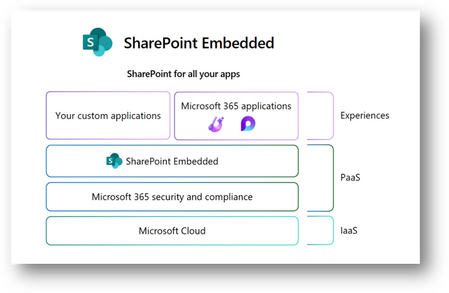
1. MGDC for SharePoint and SharePoint Embedded In this post, we’ll discuss how to use data from Microsoft Graph Data Connect (MGDC) for SharePoint to understand how SharePoint Embedded is being configured and used in your tenant. If you’re new to MGDC, get an overview at https://aka.ms/SharePointData. If you’re not familiar with SharePoint Embedded, check this Overview of SharePoint Embedded. 2. Introduction SharePoint Embedded is an API-only solution to use the power of the Microsoft 365 file and document storage platform. You can use it to build applications that expose Microsoft 365 features including those from Office, Purview and Copilot. The SharePoint Embedded files are stored in “File Storage Containers”, created by your enterprise applications or a third-party application. 3. MGDC for SharePoint and SharePoint Embedded One important detail is that MGDC for SharePoint sees these containers and files used by SharePoint Embedded. You can see the Containers (under Sites), the permissions granted and even each individual file inside the Containers. 4. Web Template Id To filter sites for SharePoint Embedded containers, just look for SharePoint Sites in MGDC that have the RootWeb.WebTemplateId of 70. This is used to differentiate this scenario, in the same way that OneDrives are sites with the RootWeb.WebTemplateId of 21. You can also check for the RootWeb.Template, which shows as “CSPCONTAINER” for SharePoint Embedded. A typical container for SharePoint Embedded will show in the SharePoint Sites datasets like this: { "ptenant": "00000001-0000-0000-0000-000000000000", "Id": "00000002-0000-0000-0000-000000000000", "Url": "https://tenantname.sharepoint.com/contentstorage/CSP_00000009-0000-0000-0000-000000000000", "ArchiveState": "None", "RootWeb": { "Configuration": 0, "Id": "00000003-0000-0000-0000-000000000000", "Title": "Ideas", "WebTemplate": "CSPCONTAINER", "WebTemplateId": 70, "LastItemModifiedDate": "2025-01-10T22:55:18.000Z" }, "WebCount": 1, "StorageQuota": 27487790694400, "StorageUsed": 149186, "StorageMetrics": { "MetadataSize": 8506, "TotalFileCount": 2, "TotalFileStreamSize": 41924, "TotalSize": 149186 }, "GroupId": "00000000-0000-0000-0000-000000000000", "GeoLocation": "CAN", "IsInRecycleBin": false, "RecycleBinItemCount": 0, "RecycleBinItemSize": 0, "SecondStageRecycleBinStorageUsage": 0, "IsTeamsConnectedSite": false, "IsTeamsChannelSite": false, "TeamsChannelType": "None", "IsCommunicationSite": false, "IsHubSite": false, "HubSiteId": "00000000-0000-0000-0000-000000000000", "IsOneDrive": false, "BlockAccessFromUnmanagedDevices": false, "BlockDownloadOfAllFilesOnUnmanagedDevices": false, "BlockDownloadOfViewableFilesOnUnmanagedDevices": false, "IsExternalSharingEnabled": true, "ShareByEmailEnabled": true, "ShareByLinkEnabled": true, "SensitivityLabelInfo": {}, "IBMode": "Open", "RelatedGroupId": "00000000-0000-0000-0000-000000000000", "Owner": { "Name": "System Account" }, "SecondaryContact": {}, "ReadLocked": false, "ReadOnly": false, "CreatedTime": "2025-01-09T22:54:50Z", "LastSecurityModifiedDate": "2025-01-09T22:57:11Z", "Operation": "Full", "LastUserAccessDate": "2025-01-09T22:54:51Z", "SnapshotDate": "2025-01-11T00:00:00Z" } Note: In all the sample JSON objects shown in this post, ids were redacted with zeros. You can learn more about how SharePoint uses WebTemplateId to identify the type of site at MGDC for SharePoint FAQ: Is OneDrive included? 5. Permissions The SharePoint Permissions dataset includes all the permissions granted for all the several types of SharePoint content, including OneDrive, Teams-connected sites, and SharePoint Embedded containers. Granular permissions by folder and individual files are also included. Here’s a typical object from the SharePoint Permissions dataset: { "ptenant": "00000001-0000-0000-0000-000000000000", "SiteId": "00000002-0000-0000-0000-000000000000", "WebId": "00000003-0000-0000-0000-000000000000", "ListId": "00000004-0000-0000-0000-000000000000", "ItemType": "File", "ItemURL": "contentstorage/CSP_00000009-0000-0000-0000-000000000000/Document Library/LoopAppData/ProjectBlue.loop", "FileExtension": "loop", "RoleDefinition": "Contribute", "LinkId": "00000005-0000-0000-0000-000000000000", "ScopeId": "00000006-0000-0000-0000-000000000000", "LinkScope": "Organization", "SharedWithCount": [], "SharedWith": [], "Operation": "Full", "SnapshotDate": "2025-01-11T00:00:00Z", "ShareCreatedBy": { "Type": "User", "Name": "Test User", "Email": "test@tenantname.onmicrosoft.com", "UPN": "test@tenantname.onmicrosoft.com" }, "ShareCreatedTime": "2025-01-09T22:55:51Z", "ShareLastModifiedBy": { "Type": "User", "Name": "Test User", "Email": "test@tenantname.onmicrosoft.com", "UPN": "test@tenantname.onmicrosoft.com" }, "ShareLastModifiedTime": "2025-01-09T22:55:51Z", "ListItemId": 4, "UniqueId": "00000007-0000-0000-0000-000000000000" } Note: The example above shows a single Contribute permission to a Loop file using a sharing link. Loop uses SharePoint Embedded to store files and it’s something you can easily configure and test in your tenant. MGDC for SharePoint will show all permissions granted in SharePoint Embedded containers, included permissions granted at various levels of the SharePoint hierarchy (site, web, library, folder, or file) and diverse types of security principals (users, SharePoint groups and Entra ID groups, internal or external). You can learn more about it at MGDC for SharePoint FAQ: What is in the Permissions dataset? 6. Files Finally, you can get a complete list of every file inside the SharePoint Embedded containers, including details like file name, size, author, last modifier and more. Here’s a typical object from the SharePoint Files dataset: { "ptenant": "00000001-0000-0000-0000-000000000000", "SiteId": "00000002-0000-0000-0000-000000000000", "Author": { "Name": "Test User", "Email": "test@tenantname.onmicrosoft.com" }, "DirName": "Document Library/LoopAppData", "Extension": "loop", "FileName": "ProjectBlue.loop", "IsLabelEncrypted": false, "ItemId": "00000008-0000-0000-0000-000000000000", "ListId": "00000004-0000-0000-0000-000000000000", "ListServerTemplate": "DocumentLibrary", "MajorVersion": 4, "MinorVersion": 0, "ModifiedBy": { "Name": "Test User", "Email": "test@tenantname.onmicrosoft.com" }, "Operation": "Full", "ScopeId": "00000006-0000-0000-0000-000000000000", "SensitivityLabelInfo": {}, "SiteUrl": "https://tenantname.sharepoint.com/contentstorage/CSP_00000009-0000-0000-0000-000000000000", "SizeInBytes": 24301, "SizeInBytesWithVersions": 57765, "TimeCreated": "2025-01-09T22:55:08Z", "TimeLastModified": "2025-01-09T22:56:13Z", "WebId": "00000003-0000-0000-0000-000000000000", "WebTemplateId": 70, "SnapshotDate": "2025-01-11T00:00:00Z" } Note: SharePoint Embedded does not support minor versions, so the “MinorVersion” column in the Files dataset will always show zero in this scenario. For details, check the schema for the SharePoint Files dataset. 7. Filtering You can easily download entire datasets and use Azure Data Tools to filter for rows where WebTemplateId is 70. For Sites and Files, there is also a mechanism to filter at the source, so you pull from Microsoft Graph Data Connect only the data related to SharePoint Embedded. The same filtering mechanism can be used to pull data just for a specific site, filtered by Id. For details, check this article about Filtering SharePoint dataset at the source. 8. Conclusion I hope this post helped you understand how to use MGDC for SharePoint to gather information about SharePoint Embedded containers and files. For more information, visit https://aka.ms/SharePointData.
Build AI-powered apps without creating a vector database
How do you build AI-powered applications that can reason over enterprise content while maintaining security, compliance, and governance? The latest SharePoint Embedded post explores how the https://devblogs.microsoft.com/microsoft365dev/build-ai-powered-apps-without-creating-a-vector-database?utm_source=social-M365dev can make it easier to ground AI experiences in content stored within customers' Microsoft 365 tenants. We also look at the SharePoint Embedded MCP Server (preview), an open-source developer tool that enables AI coding assistants like GitHub Copilot in Visual Studio Code or the CLI, Claude, Cursor, and Azure AI Foundry to help provision, configure, and manage SharePoint Embedded applications using natural language. Together, these capabilities help developers: Ground AI on enterprise content Avoid managing a separate vector database Respect Microsoft 365 security and compliance controls Accelerate development with AI-powered tooling https://devblogs.microsoft.com/microsoft365dev/build-ai-powered-apps-without-creating-a-vector-database?utm_source=social-M365dev to learn how to build the next generation of intelligent, enterprise-ready applications.25Views0likes0CommentsJoin Microsoft and M-Files on Sept 23: Content readiness for AI and Agents webinar
What does it take to get your content ready for Microsoft Copilot and Agentic AI? Join M-Files and Microsoft for the “https://aka.ms/SPEmbedded/Webinar/M-Files-20260923” webinar on September 23, 2pm ET, to find out. Ian Story, Principal Product Manager, Microsoft, will be presenting with Cheryl McKinnon (Principal Analyst, Forrester) and Ryan Barry (Vice President of Strategic Operations & Corporate Development, M-Files). Together they'll explore what it takes to make enterprise content ready for the next generation of AI-powered applications and agents. https://aka.ms/SPEmbedded/Webinar/M-Files-20260923 In this webinar, you’ll hear practical perspectives on how to: Assess content readiness: Identify the quality, governance, access, and discoverability gaps that can limit Copilot and agent outcomes. Build a trusted knowledge foundation: Keep content secure, compliant, and permission-aware while making it easier for AI to retrieve the right information. Reduce fragmentation: Bring content and context together so users and agents can work with higher precision. Prepare for agentic workflows: Move beyond static document storage toward intelligent, adaptive content experiences that support reasoning and action. See you there!168Views0likes0Comments
Recycle Bin and Site Content Hidden for Site Members and Site Visitors
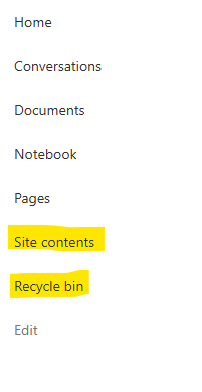
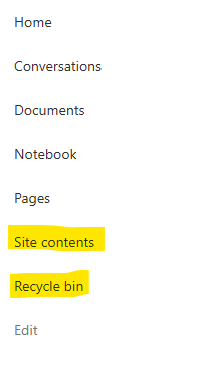
I posted this before but made a mistake with my write up, so I am reposting. I have a requirement that the Recycle bin and Site Contents should be be hidden from the Site Members and Site Visitors. Please how can I achieve this because the Server Infrastructure activation is not working for me. Any workarounds? Please help756Views0likes1CommentCopilot, Microsoft 365 & Power Platform product updates call
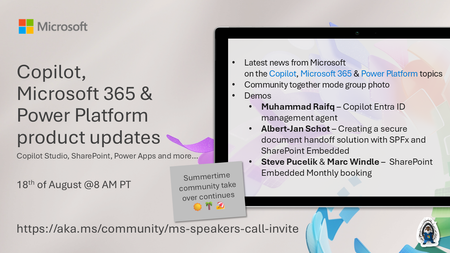
💡Copilot, Microsoft 365 & Power Platform product updates call concentrates on the different use cases and features within the Microsoft 365 and in Power Platform. Call includes topics like Microsoft 365 Copilot, Copilot Studio, Microsoft Teams, Power Platform, Microsoft Graph, Microsoft Viva, Microsoft Search, Microsoft Lists, SharePoint, Power Automate, Power Apps and more. 👏 Weekly Tuesday call is for all community members to see Microsoft PMs, engineering and Cloud Advocates showcasing the art of possible with Microsoft 365 and Power Platform. 📅 On the 18th of August we'll have following agenda: News and updates from Microsoft Together mode group photo Muhammad Raifq – Creating a Copilot Entra ID management agent Albert-Jan Schot – Creating a secure document handoff solution with SPFx and SharePoint Embedded Steve Pucelik & Marc Windle – SharePoint Embedded Monthly booking 📞 & 📺 Join the Microsoft Teams meeting live at https://aka.ms/community/ms-speakers-call-join 🗓️ Download recurrent invite for this weekly call from https://aka.ms/community/ms-speakers-call-invite 👋 See you in the call! 💡 Building something cool for Microsoft 365 or Power Platform (Copilot, SharePoint, Power Apps, etc)? We are always looking for presenters - Volunteer for a community call demo at https://aka.ms/community/request/demo 📖 Resources: Previous community call recordings and demos from the Microsoft Community Learning YouTube channel at https://aka.ms/community/youtube Microsoft 365 & Power Platform samples from Microsoft and community - https://aka.ms/community/samples Microsoft 365 & Power Platform community details - https://aka.ms/community/home 🧡 Sharing is caring!205Views0likes0Comments
SharePoint List Web Parts - New UX
Hey everyone, I am hoping I can get some assistance on the following request. My organization's using SharePoint to manage multiple processes, but am confused with a new UX update that's come in the last few days. Please look at the following example, which is a list with a modern calendar view: For all of my lists, that are used as a web part on a different Site Page, have been given an ability to add a 'New Item', by selecting the title name, which's very frustrating as all of our list processes already have their own system to collect information and it seems as though I cannot turn off this functionality. Any help would be very much appreciated.523Views0likes7CommentsDynamic Mandatory Fields
In a SharePoint library, I have folders which are = a. Admin b. Events c. Furniture and Moves d. Janitorial and Maintenance e. Parking and Transportation f. Shipping and Receiving g. Supplies and Equipment h. Waste and Recycling I have Meta data across the library whose data type are all choices and are: a. Document Type = Contract, Financial, planning b. Building = Gym, Garage, Heating c. Asset Category = Office, Playground d. Fiscal Year = FY23, FY24, FY25, FY26, FY27 e. Vendor = Maple Leaf, Canadian Tire, Home Depot f. Status = Active, Pending, Not Active g. Retention Label = 3 years, 5 years h. Service Type = Admin, Events, Furniture and Moves, Janitorial and Maintenance, Parking and Transportation, Shipping and Receiving, Supplies and Equipment, Waste and Recycling Service Type and Retention Label are mandatory fields, with the Rule below for all the files in the various folders: IF Folder Name = Admin, then Service Type = Admin and Retention Label = 5 years; the mandatory fields should be Document Type, Status and Fiscal Year IF Folder Name = Events, then Service Type = Events and Retention Label = 3 years; the mandatory fields should be Document Type, Status and Fiscal Year, Building and Vendor IF Folder Name = Furniture and Moves, then Service Type = Furniture and Moves and Retention Label = 3 years; the mandatory fields should be Document Type, Status and Building IF Folder Name = Janitorial and Maintenance, then Service Type = Janitorial and Maintenance and Retention Label = 3 years; the mandatory fields should be Document Type, Status and Fiscal Year IF Folder Name = Parking and Transportation, then Service Type = Parking and Transportation and Retention Label = 3 years; the mandatory fields should be Document Type, Status and Fiscal Year IF Folder Name = Shipping and Receiving, then Service Type = Shipping and Receiving and Retention Label = 3 years; the mandatory fields should be Document Type, Status IF Folder Name = Supplies and Equipment, then Service Type = Supplies and Equipment and Retention Label = 3 years; the mandatory fields should be Document Type, Status and Fiscal Year IF Folder Name = Waste and Recycling, then Service Type = Waste and Recycling and Retention Label = 3 years; the mandatory fields should be Document Type, Status and Vendor I have used Column Default Value Settings for SharePoint to display Auto-Display the Service Type and Retention Label, but I cannot seem to perform the conditional mandatory fields using Validations setting for the other requirements. Please help633Views0likes1CommentRecycle Bin and Site Content Hidden for Site Members and Site Visitors
I have a requirement that the Recycle bin and Site Contents should not be be hidden from the Site Members and Site Visitors. Please how can I achieve this because the Server Infrastructure activation is not working for me. Any workarounds? Please help597Views0likes2Comments
Can not move any web part around once placed inside one of these flexible sections
I have been advised to use this flexible section for more freedom with placement on the grid. Once a text web part or any web part is dragged from the toolbox onto this flexible section it becomes immobile. Neither the Move cursor state nor the Move web part handle on said web part allows the web part itself to be moved in any way inside this section. Screen captures included below for clarity. Move cursor: Move web part handle: This bug persists with any web part dragged out of sharepoint's toolbox onto this flexible section205Views0likes2CommentsDisable Details form in Sharepoint List
I have a list embedded into a Sharepoint page that uses dynamic filtering. The list functions as a filter for a seperate list on the page and the details pop-up is unnecessary. There are also columns on the main list that are hidden in the custom view, but are visible in the details pop-up. I would like to disable the details pop-up entirely, as everything the user needs to see is on the list. Is there a way to do this? I have been searching online but I can't find a solution.Solved259Views0likes2Comments