settings
2324 Topics
Microsoft Teams transcription language settings
Hi! With a Microsoft 365 Business Premium license and a Copilot license, I can use transcription during a Teams meeting by setting the spoken language to Auto Detect. However, the transcription is sometimes inaccurate. Is there a way to limit the language detection scope? For example, is it possible that I select only English and Chinese, and Auto Detect is restricted to those two languages instead of also attempting to detect languages such as Spanish or French ?67Views0likes1Comment
Architectural Limitation: Move LBR from Gateway to Voice Routes for Shared Trunks
The Problem: Currently, Location-Based Routing (LBR) in Microsoft Teams is hard-locked to the root OnlinePSTNGateway object (e.g., via -GatewaySiteLbrEnabled). This creates two major administrative roadblocks: Derived Trunk Limitations: For organizations utilizing multi-tenant partner architectures and derived trunking models (such as AudioCodes Live Pro/Express), the underlying global gateway configuration is owned and managed by the provider. Because administrators lack root modification rights over these shared gateway objects, they cannot enable or configure LBR. https://imgur.com/a/RzTE4nu Managing gateways via the Teams Admin Center (Voice > Direct Routing > SBCs) results in restricted or failing LBR configurations. Rigid Global Enforcement: Forcing LBR as a strict hardware-level switch creates deployment roadblocks, such as entirely blocking unmapped or remote workers. This is overly restrictive in regions like North America, where strict anti-toll-bypass compliance is not a legal mandate (unlike regions like India). The Proposed Solution: Decouple LBR from the Gateway Object: Shift LBR evaluation away from the root hardware gateway switch toggle and allow it to occur at the Voice Route, PSTN Usage, or Calling Policy layer. Support Derived & Shared Trunks: This decoupling will instantly make LBR compatible with multi-tenant SBC models, allowing enterprises to manage geographic routing via distinct voice routes (which are already peered with gateways), bypassing the need for root gateway property access. Regional Flexibility & Compliant Enforcement: Enable regional flexibility so enterprises can bypass unnecessary toll-bypass blocks in regions where they aren't mandated (like North America) without breaking calls for "Unknown" network sites. Crucially, for heavily regulated regions like India, system-enforced policies should automatically lock LBR on to strictly maintain local country regulations without relying on manual overrides. Business Impact: This enhancement will unlock advanced routing flexibility for thousands of enterprises utilizing modern cloud-hosted and derived trunking architectures. It bridges the gap between legacy PBX design constraints and modern multi-tenant cloud voice management, significantly reducing deployment friction for global organizations.20Views0likes0Comments
Meeting setup in teams Channel is not allowing me to update the Agenda and send updates
I am interested to understand why when I have setup a meeting from A channel I am not able to change the invitation to all the team members. When I go into teams Calendar ,. I update the agenda description, the send updates at the top right view shows up when I do the changes , however , When I click it , the changes don't take effect.157Views0likes1Comment
Shared Channels: @Channel mentions fail to trigger activity notifications for team-shared members
Hello everyone, I am facing a persistent issue regarding notification behavior in Microsoft Teams Shared Channels that I hope someone can clarify or help with. Scenario: We have a Shared Channel that is shared with multiple teams (e.g., 17 teams in total). Note: I know that this way of communicating is not the recommended way, but we are not allowed to use any Viva products etc. Users accessing the channel are members of those shared-in teams, but they are not listed as direct individual members in the Shared Channel's own member list. Users have their channel notification settings correctly configured to receive notifications (e.g., "All new posts" or standard banner/activity settings). The Problem: When someone uses a channel mention (e.g., @ChannelName) in this shared channel, the users who have access via the team-sharing mechanism do not receive any activity feed notifications. The workaround/oddity: They only receive the activity notification if we explicitly add each user as a direct individual member to the Shared Channel. The dilemma: Since the channel is shared with 17 teams, adding hundreds of users manually or via scripts as direct members creates massive redundancy and clutters the UI (users see the team and the channel redundantly). Inconsistency: We noticed that in older shared channels created some time ago, channel mentions worked across team shares without needing direct individual memberships. It seems newer shared channels behave differently and strictly require direct membership to trigger activity feed notifications for @Channel mentions. Questions: Is this a known design limitation or a recent backend change in Microsoft Teams for newer Shared Channels regarding how @Channel mentions resolve indirect team members? How are organizations supposed to utilize @Channel mentions effectively in large-scale collaborations involving multiple shared teams without bloating the direct membership list? Any insights or workarounds would be greatly appreciated. Thank you!178Views0likes2Comments
Security loophole in Private Channels?
We came across an interesting use case in our organization today. We have a Team and a private channel within that Teams team. Within the private channel a subsite was created. I am not an owner or member of the Team nor am I a member or owner of the private channel. However during creation of the subsite I was able to be invited with unique permissions to the subsite and I was successfully able to access it. After the initial creation of the subsite, our admin was not able to add or remove or effect any additional permissions on that subsite. Is this a loophole? I expected that without being a member of the private channel I would have absolutely zero access to any items associated with the private channel and site. Which has remained true (when I go to the private channel URL I get denied access) except that I do have access to this specific subsite. My instinct is that the reason permissions cannot be changed after the fact is that this is a genuine loophole and permissions weren't intended by Microsoft to be able to be granted at all on the subsite. This is due to the fact it is under the private channel and permissions should only be able to be changed via the admin UI or from the Teams application. Has anyone come across this in their work? Any guesses or explanations for why the subsite access would be initially available? Is this just genuinely a loophole in the permissions architecture?325Views0likes2Comments
Cannot deploy Custom backgrounds for Teams in VDI environment
We have detected (or so we think) a malfunction in Teams on VDI when attempting to deploy Teams backgrounds that should be available to users for their video calls. The only article that documents how to do this is the following: https://learn.microsoft.com/en-us/microsoftteams/custom-meeting-backgrounds It clearly states that the path where custom Teams backgrounds are stored is in the user profile, specifically in the folder: %LOCALAPPDATA%\Packages\MSTeams_8wekyb3d8bbwe\LocalCache\Microsoft\MSTeams\Backgrounds\Uploads Expected Process The process is not direct, but it is straightforward. Using a script, a UUID is generated, which is used to create two image files (JPG, BMP, or PNG format, depending on the original image). For example, if the original is a JPG: UUID.JPG UUID_thumb.JPG These two files are copied to the path above, and on the next Teams session startup they should be available to the user. ✅ This works correctly in physical (non-VDI) environments. Tested many times without issues. What We Have Observed in VDI Even when the file pair is copied to the correct path within the user's FSLogix profile, the image does not become available in the Teams client — even after restarting Teams multiple times or even the VDI session itself. After each restart, the files are confirmed to be persistent and located at the correct profile path.[ %LOCALAPPDATA%\Packages\MSTeams_8wekyb3d8bbwe\LocalCache\Microsoft\MSTeams\Backgrounds\Uploads folder contents] When a background image is added manually through the Teams UI, a folder is created in OneDrive called "Microsoft Teams User Custom Video Backgrounds". If additional images are manually added to that OneDrive folder, they do not appear as available in Teams. This leads us to believe that the upload process performs additional operations in the registry or other configuration locations beyond simply copying the file. A ProcMon capture was performed, but after an initial superficial inspection, it was not possible to determine exactly what is happening under the hood.514Views0likes2Comments
Not receiving any notifications in my Samsung S26 Ultra
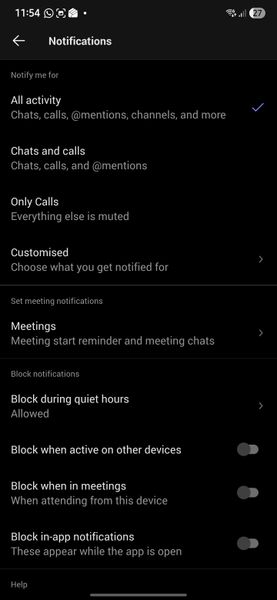
Hello, Since I moved to Samsung S26 Ultra, I am not getting any notifications. Following are my settings. Please help to fix the issue. Following are settings in Samsung phone Following are settings in my Teams app in deskop Following is the settings set for all my channels Thanks356Views0likes3Comments
Sharing sound
Teams screen sharing does not show “Include sound” option for multiple users I’m having an issue with Microsoft Teams screen sharing that I haven’t been able to resolve. I work in a call center, and we use Teams for peer coaching and training. When an agent shares their screen, I need to be able to hear both the agent and the customer they are speaking with through our call-center application (Amazon Connect). The problem is that most of our agents do not have the “Include sound” / “Include computer sound” option when they click Share in Teams. They can share their screen normally, and I can hear the agent speaking, but I cannot hear the audio from the call they are handling. What makes this especially strange is that the option does appear for me when I share my screen. Or if it doesn't show I can simply re-download the desktop version and it will fix itself.... but that doesn't work for anyone else. We have already tried: Reinstalling Teams Using the Teams desktop application Using Teams in a web browser Trying different browsers Restarting the computers Having multiple affected agents repeat the same troubleshooting Nothing has brought the audio-sharing option back for them Any suggestions for what we should check would be greatly appreciated.327Views0likes2CommentsHas anyone successfully used "Hide attendee names" in Teams Meetings or Webinars with Teams Premium?
Hello, I'm trying to understand the current status of the**"Hide attendee names"** feature in Microsoft Teams. Our organization has Teams Premium, and according to Microsoft's documentation, the feature should be available for both Meetings and Webinars. The documentation even provides separate instructions for each scenario. However, during a recent Microsoft Support call, I was told that the feature is actually available only for Town Hall events and not for standard Teams Meetings or Webinars. This appears to contradict the current Microsoft documentation, so I'm looking for real-world feedback from other administrators. Questions: Has anyone successfully enabled Hide attendee names in a standard Teams Meeting? Has anyone used it in a Webinar? We have Teams Premium. If it works for you, what licenses are assigned to the organizer? Do you actually see the Hide attendee names option in Meeting Options? Is there any specific policy, rollout, or configuration required? Has Microsoft Support ever told you that the feature is Town Hall only? Microsoft documentation: https://support.microsoft.com/en-us/teams/meetings/hide-attendee-names-in-microsoft-teams-meetings-and-webinars At this point I'm trying to determine whether: The documentation is incorrect or outdated. The feature is being rolled out gradually. There is an undisclosed licensing or policy requirement. Microsoft Support provided incorrect information. The feature has been silently restricted to Town Hall events. Any feedback from tenants where this is actually working would be very helpful. Thanks! Giuseppe421Views0likes2Comments