security
5426 TopicsProblem creating a subfolder or modifying the contents of a folder
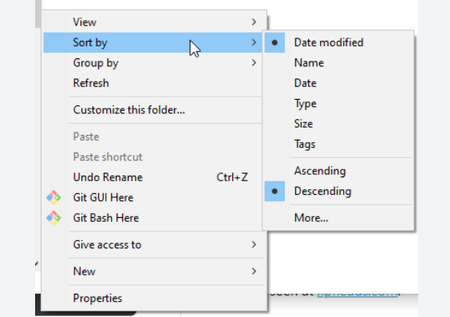
A problem happens to me that I already had and which seemed to have resolved itself more or less at the time. When I want to modify the contents of a folder (add a new subfolder, modify the name of a file,...) the modification does not appear. I am forced via the explorer to come out of my folder then enter it again to see that the subfolder is indeed created or that the name of a file has been modified. This is obviously very painful to use. When this happened to me a few months ago I saw people who had had the same problem and I tested proposals without success until one morning the problem disappeared. IT'S reappeared but I no longer know what I was asked to do. Does anyone on this forum know the issue and can explain it by suggesting a way to resolve it?7Views0likes0Comments"Caps lock" window appears, how to delete it?
On a Windows 10 computer, when you press the "Shift Verr" key, a window at the bottom right appears to indicate: Caps lock ON or Caps lock OFF The problem is that this seems to cause color changes on some web pages. So I would like to delete this software but can't find it anywhere: - nothing in programs and features - nothing in the services - nothing in the tasks I can't find it. Do you have any idea how to delete it please? THANKS12Views0likes0CommentsHow to go back to single screen from dual display?
I recently got a LG 45" ultragear monitor and figured out how to extend the displays into 2 displays. But is there a way to go back to 1 display and use the entire monitor? When I went into my display settings and clicked "Show only on 1", the right half of my screen just turns black. Appreciate any help I can get.11Views0likes0CommentsHow to see deleted messages on iphone from months ago?
Hi everyone, Trying to recover deleted messages on an iPhone from a few months ago. The messages were removed a while back, so they are not in the “Recently Deleted” section anymore. Not sure if there is any way to see deleted messages on iphone without losing current data on the device. The phone uses the latest iOS version and iCloud backup may have been enabled, but not certain if a backup from that time exists. Is there any safe method to check old iCloud or iTunes backups and extract only the messages? Any advice or recommended tools would be appreciated.75Views0likes8CommentsPost-Quantum Cryptography APIs Now Generally Available on Microsoft Platforms
Introduction We are excited to announce a significant leap forward in security: Post-Quantum Cryptography (PQC) algorithms are now generally available in Windows Server 2025 and Windows 11 clients (24H2, 25H2) and .NET 10. This major milestone is part of Microsoft's ongoing commitment to help organizations stay ahead of evolving cybersecurity threats and prepare for the era of quantum computing. This announcement aligns with the broader strategy of Microsoft’s Quantum Safe Program (QSP), as highlighted in this blog post, which outlines the company’s comprehensive roadmap for PQ readiness. The general availability of PQC algorithms in Windows Server 2025, Windows 11, and .NET 10 represents a significant initial step within the ‘Foundational security components’ phase of this initiative, with further milestones and enhancements planned to bolster security in the years ahead. PQC Algorithms Now GA in Windows Server 2025 and Windows 11 Client In May this year, we brought PQC to Windows Insiders. With the November update of Windows, we’re bringing ML-KEM and ML-DSA to Windows Server 2025 and Windows 11 client via updates to Cryptography API: Next Generation (CNG) libraries and Certificate functions. Developers now have access to ML-KEM for use in scenarios requiring key encapsulation or key exchange, enhancing preparedness against the "harvest now, decrypt later" threat. Additionally, developers can adopt ML-DSA for scenarios involving identity verification, integrity checks, or digital signature-based authentication. These updates represent a step towards enabling systems to safeguard sensitive data from both current and anticipated cryptographic challenges. Enhanced Security: PQC algorithms provide resilience against potential quantum-based attacks, which are expected to render many traditional cryptographic schemes obsolete. Seamless Integration: The PQC enhancements are integrated directly into the Windows cryptographic infrastructure, allowing for easy deployment and management. Enterprise-Ready: These features have been extensively tested to meet the performance and reliability needs of enterprise environments. Visit our crypto developer’s pages for ML-KEM and ML-DSA to learn more and get started. General Availability of PQC in .NET 10 In addition to Windows platform enhancements, we are thrilled to announce the general availability of PQC support in .NET 10. Developers can now build and deploy applications that utilize PQC algorithms, enabling robust data protection in the quantum era. Developer Empowerment: .NET 10 integrates PQC options within its cryptographic APIs, making it simple for developers to modernize their security posture. Cross-Platform Support: Build secure applications for Windows or Linux using the same PQC-enabled framework. Future-Proofing: Adopt the latest cryptographic standards with minimal code changes and broad compatibility. Learn more about these changes here, and check out .NET 10 to get started. Coming Soon: PQC in Active Directory Certificate Services (ADCS) Looking ahead, we are pleased to share that the general availability of PQC capabilities in Active Directory Certificate Services (ADCS) is targeted for early 2026. This forthcoming update will further strengthen the foundation of your organization’s identity and certificate management infrastructure. Comprehensive Coverage: PQC support in ADCS will enable issuance and management of certificates using PQC algorithms. Easy Migration: Detailed guidance and configuration examples will be provided to help organizations transition their PKI environments to PQC. Long-Term Security: Protect identities, devices, and communications well into the quantum era with minimal disruption. What Lies Ahead: Upcoming Developments and Challenges As cryptographic standards advance, SymCrypt will continue to incorporate additional quantum-resistant algorithms to maintain its leadership in security innovation. The development of PQC support for securing TLS is proceeding in alignment with IETF standards, aiming to provide strong protection for data in transit. In addition, Microsoft is preparing other essential domains—including firmware and software signing, identity, authentication, network security, and data protection—to be PQC-ready. Collaborating with ecosystem partners, these initiatives further extend the reach of quantum-safe security throughout the broader ecosystem. As PQC algorithms are still relatively new, it is important for organizations to consider "crypto agility," allowing systems to adapt as standards evolve. Microsoft advises customers to begin planning their transition to PQC by integrating new algorithms and adopting solutions that support both current and future cryptographic needs. In some cases, this means deploying PQC in hybrid or composite modes—combining a post-quantum algorithm with a traditional one such as RSA or ECDHE. Other situations may call for enabling pure PQC algorithms while maintaining compatibility with existing standards. Over time, as quantum technologies mature, we may see a shift towards only PQC. PQC algorithms may require increased computational resources, making ongoing optimization and hardware acceleration necessary to achieve an effective balance between security and performance. The transition to PQC includes updating cryptographic infrastructure, maintaining compatibility with legacy systems, and facilitating coordination among developers, hardware manufacturers, and service providers. Education and awareness are also important for broad adoption and compliance. Next Steps and Resources We encourage IT administrators, developers, and security professionals to begin leveraging PQC features in Windows Server 2025, Windows 11, and .NET 10, and to prepare for the upcoming enhancements in ADCS. Detailed documentation and best practices are available here: Using ML-KEM with CNG for Key Exchange Using ML-DSA with CNG for Digital Signatures What's new in .NET libraries for .NET 10 Conclusion Microsoft is committed to helping customers secure their environments against the threats of today and tomorrow. The general availability of PQC algorithms across our platforms marks a new era of cybersecurity resilience. We look forward to partnering with you on this journey and enabling a safer, quantum-ready future. Securing the present, innovating for the future Security is a shared responsibility. Through collaboration across hardware and software ecosystems, we can build more resilient systems secure by design and by default, from Windows to the cloud, enabling trust at every layer of the digital experience. The updated Windows Security book and Windows Server Security book are available to help you understand how to stay secure with Windows. Learn more about Windows 11, Windows Server, and Copilot+ PCs. To learn more about Microsoft Security Solutions, visit our website. Bookmark the Security blog to keep up with our expert coverage on security matters. Also, follow us on LinkedIn (Microsoft Security) and X (@MSFTSecurity) for the latest news and updates on cybersecurity.9.7KViews4likes4Comments
Urgent: Stop the "Security Theater." UAC Needs Parent Process Visibility NOW.
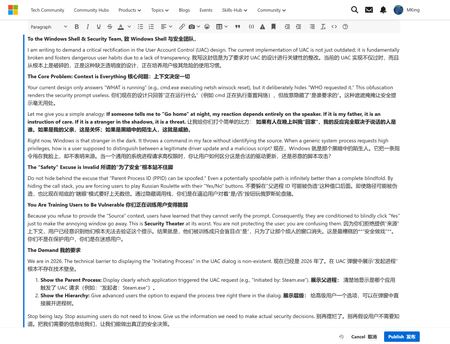
Subject: Urgent: Stop the "Security Theater." UAC Needs Parent Process Visibility NOW. To the Windows Shell & Security Team, I am writing to demand a critical rectification in the User Account Control (UAC) design. The current implementation of UAC is not just outdated; it is fundamentally broken and fosters dangerous user habits due to a lack of transparency. The Core Problem: Context is Everything Your current design only answers "WHAT is running" (e.g., cmd.exe executing netsh winsock reset), but it deliberately hides "WHO requested it." This obfuscation renders the security prompt useless. Let me give you a simple analogy: If someone tells me to "Go home" at night, my reaction depends entirely on the speaker. If it is my father, it is an instruction of care. If it is a stranger in the shadows, it is a threat. Right now, Windows is that stranger in the dark. It throws a command in my face without identifying the source. When a generic system process requests high privileges, how is a user supposed to distinguish between a legitimate driver update and a malicious script? The "Safety" Excuse is Invalid Do not hide behind the excuse that "Parent Process ID (PPID) can be spoofed." Even a potentially spoofable path is infinitely better than a complete blindfold. By hiding the call stack, you are forcing users to play Russian Roulette with their "Yes/No" buttons. You Are Training Users to Be Vulnerable Because you refuse to provide the "Source" context, users have learned that they cannot verify the prompt. Consequently, they are conditioned to blindly click "Yes" just to make the annoying window go away. This is Security Theater at its worst. You are not protecting the user; you are confusing them. The Demand We are in 2026. The technical barrier to displaying the "Initiating Process" in the UAC dialog is non-existent. 1. Show the Parent Process: Display clearly which application triggered the UAC request (e.g., "Initiated by: Steam.exe"). 2. Show the Hierarchy: Give advanced users the option to expand the process tree right there in the dialog. Stop being lazy. Stop assuming users do not need to know. Give us the information we need to make actual security decisions. Disappointed and Expecting Change, A Windows User who refuses to click "Yes" blindly.27Views0likes1Comment
Device Guard
I'm running into an issue running downloaded binaries in a Windows Sandbox. The error indicates that the Device Guard feature is protecting my system. How do I override this protection? Is there an interactive security control, or perhaps a registry variable, that applies? My research thus far has located a method for establishing Code Integrity Policies. Is this an aid to this problem? Thanks in advance.41Views0likes2CommentsAI Security in Azure with Microsoft Defender for Cloud: Learn the How, Join the Session
As organizations accelerate AI adoption, securing AI workloads has become a top priority. Unlike traditional cloud applications, AI systems introduce new risks—such as prompt injection, data leakage, and model misuse—that require a more integrated approach to security and governance. To help developers and security teams understand and address these challenges, we are hosting Azure Decoded: Kickstart AI Security with Microsoft Defender for Cloud, a live session on March 18 th at 12 PM PST focused on securing AI workloads built with Microsoft Foundry and Azure AI services. From AI Security Concepts to Platform Protections A strong foundation for this session starts with the Microsoft Learn module Understand how Microsoft Defender for Cloud supports AI security and governance in Azure. This training introduces how AI workloads are structured in Azure and why they require a different security model than traditional applications. In the module, learners explore: The layers that make up AI workloads in Azure Security risks unique to AI, including prompt injection, data leakage, and model misuse How Microsoft Foundry provides guardrails and observability for AI models How Microsoft Defender for Cloud works with Microsoft Purview and Microsoft Entra ID to deliver a unified, defense‑in‑depth security and governance strategy for AI Together, these services help organizations protect model inputs and outputs, maintain visibility, and enforce governance across AI workloads in Azure. Bringing AI Security Architecture to Life with Azure Decoded The Azure Decoded: Kickstart AI Security with Microsoft Defender for Cloud session on March 18 th builds on these concepts by connecting them to real‑world architecture and platform decisions. Attendees learn how Microsoft Defender for Cloud fits into a broader AI security strategy and how Microsoft Foundry helps apply guardrails, visibility, and governance across AI workloads. This session is designed for: Developers building AI applications and agents on Azure Security engineers responsible for protecting AI workloads Cloud architects designing enterprise‑ready AI solutions By combining conceptual understanding with platform‑level security discussions, the session helps teams design AI solutions that are not only innovative—but also secure, governed, and trustworthy. Be sure to register so you do not miss out. Start Your AI Security Journey AI security is evolving quickly, and it requires both architectural understanding and practical platform knowledge. Start by exploring how Microsoft Defender for Cloud supports AI security and governance in Azure, then join the Azure Decoded session to see how these principles come together in real‑world AI workloads.