reporting
77 TopicsRegistry Inventory in Microsoft Intune: Verifying What’s on Your Devices
By: Madison Cooks, Product Manager | Microsoft Intune IT admins need a reliable way to confirm how Windows devices are configured, especially when troubleshooting, validating compliance, or investigating security posture. Policy assignment alone doesn’t always show what’s present on the device and getting registry visibility at scale has often required custom discovery or remediation scripts that take time to build, test, and maintain. With Microsoft Intune’s July (2607) release, device inventory will include Windows registry data, helping IT admins verify a device’s actual configuration, not just the policy assigned. With a new Device inventory property for registry keys, you define the keys you care about in the properties catalog, and Intune collects them for you. There’s no collection logic to build or keep running. This makes registry-based configuration checks easier to operationalize across managed Windows devices, so teams can spend less time maintaining scripts and more time acting on the data. Figure 1: Microsoft Intune device inventory profile creation screen showing the Properties picker with the Registry category selected for inventory data collection. What registry data you collect Registry data collection is configured through the existing properties catalog. For each entry, provide a registry key path and, when needed, a value name. For every targeted device, the device agent attempts collection and reports: Registry key path Value name Value type Value data Microsoft Intune device inventory profile configuration page showing registry key collection settings, including registry path, collection pattern options, and value name fields. The initial release supports the following collection patterns designed for common admin scenarios that use HKEY_LOCAL_MACHINE (HKLM) paths. Single value Specify a registry path and value name to collect one value from that path. For example, collect Secure Boot certificate servicing status from HKLM\SYSTEM\CurrentControlSet\Control\SecureBoot by using values such as UEFICA2023Status, UEFICA2023Error, or UEFICA2023ErrorEvent. All values under a path, non-recursive Specify a registry path to collect all values directly under that path. This pattern doesn't include subkeys. For example, collect values directly under a Windows Update configuration path to help validate expected settings. Same value across subkeys Specify a base registry key path and a value name to collect that value from each immediate subkey. For example, collect DHCP status across network interface subkeys under HKLM\SYSTEM\CurrentControlSet\Services\Tcpip\Parameters\Interfaces. Where registry inventory data appears After collection, registry inventory data will be available in Device inventory at initial release. We’ll expand access to registry data in the coming months, including support in additional reporting and exploration experiences. Microsoft Intune Device Inventory page displaying collected Windows registry data for a device, including registry key paths, values, collection status, and timestamps. This makes registry data available alongside other inventory signals, so admins can use familiar tools to investigate configuration, validate device state, and support troubleshooting without building separate collection scripts. How admins use this You can collect registry data and view it per device in Device inventory - a verified record of each endpoint’s actual configuration and a key source of settings data on each endpoint. This helps answer questions like: Is a setting actually enabled on the device? Which app, version, or configuration is installed? Did a policy apply correctly? Why is this device behaving differently from the rest? Registry data collection in Device inventory is included with Microsoft Intune Plan 1. Collection results and limits If a registry value exists but doesn’t contain data, collection succeeds and the value appears as empty. If the registry path or value name doesn’t exist on a device, that device reports Not found for the collection result. Collection continues for all other devices, so one missing value won’t block results from devices where the value exists. Registry inventory includes safeguards to keep collection focused and manageable. Each collected registry value is capped at 6 KB, and each device can collect up to 100 registry keys. If a value or device exceeds these limits, collection skips the excess data and reports the applicable result for that device. These limits help manage data volume, maintain service performance, and reduce the risk of over-collection. Registry inventory is designed for configuration visibility and troubleshooting, not for collecting sensitive or confidential data. Built-in heuristic detection helps identify and prevent ingestion of values that may contain secrets, credentials, authentication tokens, certificates, private keys, connection strings, or other data that could grant access if exposed. If a value is flagged as potentially sensitive, it isn’t collected. Collection is limited to HKEY_LOCAL_MACHINE (HKLM) paths. This keeps inventory focused on device-level configuration and avoids user-specific registry contexts. Summary Registry inventory in Microsoft Intune helps admins collect Windows registry data in a native, declarative way. Instead of maintaining custom scripts for common inventory scenarios, admins can configure registry collection in the properties catalog and query the results through familiar Intune reporting experiences. Use registry inventory for configuration visibility and troubleshooting across managed Windows devices. As you plan your collection strategy, focus on device-level HKLM data, avoid sensitive values, and remember collection limits to keep inventory targeted and manageable. If you have any feedback or questions, leave a comment below or reach out to us on X @IntuneSuppTeam.18KViews3likes16CommentsFrom hours to minutes: Rethinking Microsoft Intune compliance reporting with the Export API
By: Daniel Gerrity – Principal Product Manager | Microsoft Intune If you manage a large device fleet with Microsoft Intune, you’ve almost certainly needed to get reporting data out of the service at scale — compliance state, device inventory, app status, endpoint analytics, or one of the many other reports admins rely on for operations and audit evidence. Intune supports this pattern through the export API, which generates supported reports as asynchronous export jobs instead of requiring you to retrieve the same data through thousands of operational Graph calls. You can see the full list of reports available through the export API in Intune reports and properties available using Graph API documentation. In the illustrative scenario below, moving one nightly job from operational Graph reporting endpoints to the Intune export API (exportJobs) cuts the work from roughly 100,000 API calls to about 15 while producing the same report data. The runtime drops from ~2.5 hours to ~15 minutes. Here’s how, and why the pattern holds up as your fleet grows. Note on the numbers The figures below are a representative example for a hypothetical 50,000-device enterprise, “Contoso,” and are rounded for clarity. Your results may vary based on fleet size, policy count, and how many compliance settings you evaluate. The scenario Contoso runs a nightly job that answers a deceptively simple question: For each device, across every compliance policy assigned to it, what is the state of each individual setting? This is a classic per-device, per-compliance-policy, per-setting state export. It’s the raw material behind compliance dashboards, audit evidence, remediation targeting, and “why is this device noncompliant” investigations. In Intune’s reporting catalog, this is the DeviceStatusSummaryByCompliancePolicySettingsReportV3 report. Contoso has ~50,000 managed devices, and the job runs once a day. The old way: Operational Graph APIs The intuitive approach treats compliance data as something you fetch, per device, right now. The script: Enumerates the fleet (managedDevices). Loops over every device, and for each one calls the operational reporting or setting-state endpoints (such as managedDevices detail and settingStates) to pull that device’s per-policy, per-setting results. Pages through the results in small JSON pages (often 50 rows at a time), reassembling everything client-side. It works. It just doesn’t scale because the number of calls is a function of the number of devices. At roughly two operational calls per device, 50,000 devices is on the order of ~100,000 Graph calls per run. That volume brings its own tax: Throttling. You hit service protection limits and have to implement retry/back-off logic. Threading. To finish inside the window at all, you parallelize which means concurrency bugs, partial failures, and harder debugging. Fragility. A run that makes 100,000 calls has 100,000 chances to fail, and a mid-run failure often means starting over. Time. End=to-end, the job lands around ~2.5 hours. Every time Contoso onboards more devices, this job gets slower and more expensive - the worst possible scaling direction for something that runs every night. The new way: Export API (exportJobs) The export API flips the model. Instead of asking Graph to compute results device-by-device in real time, you ask Intune to generate the entire report once, server-side, and hand you back a single file. The flow is a short, asynchronous handshake: 1. POST /deviceManagement/reports/exportJobs { "reportName": "DeviceStatusSummaryByCompliancePolicySettingsReportV3", "format": "csv", ...optional filter/select... } → returns a jobId, status: "notStarted" 2. GET /deviceManagement/reports/exportJobs('{jobId}') → poll until status: "completed" (a handful of polls while it builds) → response includes a short-lived download URL 3. GET {download URL} → one zipped CSV containing every device × policy × setting row That’s the whole pattern: request → poll → download → unzip → load. One report, one file, the entire fleet inside it. Count the calls: one POST to start the job, a handful of GET polls while Intune builds the file, and one GET to download it - call it ~15 calls total. Not ~15 per device. ~15 for the whole 50,000-device run. And that number barely moves whether Contoso has 50,000 devices or 150,000. Runtime drops to about ~15 minutes, most of which is simply waiting for the export to finish - cheap poll calls, not active compute. Most importantly, the output schema is identical. The CSV columns match what the old per-device loop assembled, so nothing downstream; dashboards, warehouse tables, alerting, has to change. You swap the acquisition layer and leave everything else alone. Side by side Comparison Operational Graph APIs Recommended Export API ( exportJobs ) Pattern Per-device loop plus paging Async export → download one file API calls per run ~100,000 ~15 Calls scale with Number of devices Nothing. The handshake remains fixed. Runtime ~2.5 hours ~15 minutes Concurrency Threading required None needed Output schema — Unchanged and drop-in compatible Net result — ~6,000× fewer API calls ~10× faster runtime Why it scales: Roundtrips, not bytes Here’s the subtlety worth internalizing, because it’s easy to get wrong. There are two different costs in this job, and they scale on different axes: The number of API calls - round-trips across the wire. The volume of data - the actual compliance rows you move. The data volume is the same either way. 50,000 devices × N settings is 50,000 × N rows, whether you assemble them from 100,000 little paged responses or receive them in one CSV. The export doesn’t move less data - it moves the same data. And yes, that file grows with both device count and setting count. More devices, bigger file; more settings, bigger file. So the win isn’t fewer bytes. The win is fewer round-trips. Every one of those 100,000 operational calls relies on authentication, TLS setup, network latency, and service-protection (throttling) accounting regardless of how much data it returns. Multiply that fixed overhead by 100,000 and it dominates everything. The export only pays that tax twice: once to start the job, once to download the file. Intune does the assembly server-side and streams you the result in a single bulk transfer. That reframes the scaling story: Call count is essentially constant - it doesn’t grow with devices or settings. It’s one job and one download. Data volume grows with devices and settings but a bigger CSV is a bigger single download, not more calls. Bulk transfer is exactly what HTTP is good at. Runtime has a mild data dependency: a larger fleet takes Intune a little longer to build the file. But you absorb that as a few extra seconds of poll-waiting, not as thousands of extra calls you have to orchestrate, retry, and throttle-manage. What the IT admin actually gets Beyond the raw speed, here’s the value that shows up in day-to-day operations: Your maintenance window comes back. A 15-minute job leaves room for everything else. Fewer moving parts to maintain. No custom throttling handler, no thread pool, no resumability logic. Less code is less to break at 2 a.m. Reliability by design. Two roundtrips means two failure points, and the server does the heavy lifting of assembling a consistent snapshot. Lower cost and lower service impact. Eliminating ~100,000 calls is easier on your tenant’s throttling limits and a better citizen for the Intune service overall. Room to grow. Because call count is decoupled from device count, doubling the fleet doesn’t double the job, you just download a somewhat larger file. No downstream disruption. Same schema for the output means the migration is contained to the ingestion step which is a low-risk swap, not a re-platforming. When to use which The export API isn’t a universal replacement, it’s best used for bulk, point-in-time snapshots: Reach for exportJobs when you need the whole fleet’s state (or a large, filtered slice) on a schedule such as nightly compliance loads, audit exports, warehouse hydration. Stick with the operational endpoints when you need a single device right now, an interactive “check this one device” lookup, or a real-time remediation trigger where waiting on an async job doesn’t make sense. The two are complementary. The mistake isn’t using the operational APIs, it’s using them in a loop to reconstruct something the export API will hand you in one file. The takeaway The per-device loop feels natural because it mirrors how we think about devices, one at a time. But at fleet scale, the question isn’t “what’s the state of this device?” a hundred thousand times over. It’s “give me the state of everything,” once. The export API is built for exactly that question, and answering it the right way turned a multi-hour nightly grind into a coffee break - from ~100,000 calls to about 15, ~10× faster, with zero downstream changes. If you have any questions, leave a comment below or reach out to us on X: @IntuneSuppTeam!2.5KViews0likes1Comment
MS PROJECT 2019 UPDATE and Purchasing Options
HI We are currently using Microsoft Project Professional 2019 desktop version, but we are facing challenges with its reporting limitations. Specifically, the software can only display a maximum of 75 rows in its reports. As our weekly reports often exceed this limit, we find ourselves spending considerable time on manual entries. For our monthly reports, we can manage the filtering process to avoid this limitation, but the weekly reports require a hierarchical structure to display task statuses, and unfortunately, there is no workaround for this constraint. While researching this issue, I found discussions indicating that the 2025 version of Microsoft Project can display up to 150 rows, which would help us address our challenges. I have a couple of questions: 1. Does the new version of Microsoft Project 2025 indeed support the display of up to 150 rows? 2. What is the best approach for upgrading: subscription or standalone? 3. Could you provide pricing information and tell us where we can obtain it? Thank you! Best regards, Teshome HPU PMO Office454Views0likes1CommentCreate historical reports using Azure Log Analytics and Microsoft Intune diagnostic data
By: Janusz Gal – Sr Product Manager | Microsoft Intune Azure Log Analytics gives Intune admins a flexible way to create custom reports from diagnostic data, especially when you need longer history or tailored calculations that go beyond what the Microsoft Intune admin center’s built-in reports provide. By using the Intune diagnostic data you’re already collecting, you can customize reporting for your organization’s unique requirements. In this post, you’ll walk through the steps to create a 30-day device compliance trend report. The resultant report can be run automatically, used in dashboards, or even further customized for a longer period or with additional data. Before we begin, if you haven’t configured a Log Analytics workspace in your tenant, review the following detailed information on the pre-requisites and costs on Microsoft Learn: Route logs to Azure Monitor using Microsoft Intune. In the Microsoft Intune admin center, navigate to Reports > Diagnostic settings, and add a new Diagnostic setting policy to send data to a Log Analytics workspace. Figure 1 Reports > Diagnostic settings, used to configure new or existing diagnostic settings. For a device compliance trend report, ensure the Devices log category is selected: Figure 2 Reports > Diagnostic settings > Selected configuration; Devices log selected. After configuring the setting, navigate to Reports > under Azure monitor, Log Analytics. Figure 3 Reports > Log Analytics; used to query log Analytics workspaces. In the New Query window, enter the following query: IntuneDevices | where TimeGenerated > ago(30d) | summarize Total = count(), Compliant = countif(CompliantState == "Compliant"), NonCompliant = countif(CompliantState == "Noncompliant"), InGracePeriod = countif(CompliantState == "InGracePeriod"), NotEvaluated = countif(CompliantState == "Not Evaluated" or CompliantState == ""), ConfigManager = countif(CompliantState == "ConfigManager") by bin(TimeGenerated, 1d) | extend ComplianceRate = round(100.0 * Compliant / Total, 2) | order by TimeGenerated asc This query will return daily device compliance trends over the past 30 days, from the IntuneDevice table. Figure 4 Reports > Log Analytics; results after running query. Select Chart > Chart type > Stacked Area to show a visual of the trending device state over time. Figure 5 Reports > Log Analytics > Chart > Stacked Area. If you’d like to create other reports but aren’t sure of the schema, one trick you can use is to run the following query in the above Log Analytics workspace to get all the column names: IntuneDevices | getschema Then to get all the values from those columns, you can modify the query to return the distinct values from a specific column such as CompliantState: IntuneDevices | distinct CompliantState Now that you have the query created in Log Analytics, you can save it to run anytime, pin it to a dashboard, or even create a new alert rule to let you know if compliance has gone below a certain threshold. To pin it as a dashboard, on the Query pane select the ellipsis (…) > Pin to > Azure dashboard. Figure 6 Reports > Log Analytics; pin query to dashboard flow. Then select the dashboard you’d like to use. Figure 7 Reports > Log Analytics; select dashboard to pin. Once pinned, simply navigate to Dashboard within the Intune admin center, and you’ll see the query pinned on the selected dashboard. Figure 8 Dashboard showing Log Analytics query. To show more than the past 24-hours, select the Customize Tile button and select Override the dashboard time settings at the tile level, with Timespan set to Past 30 days. Figure 9 Dashboard > Selected Query > Customize Tile button. If you’d like to always see the data in a chart form, select the edit icon on the pinned dashboard item and append the following to the end of the query: | render areachart with (kind=stacked) Figure 10 Dashboard > Selected query > Edit > modified query to show chart. After clicking Apply, the dashboard shows the following: Figure 11 Dashboard showing updated historical device compliance query as a stacked area chart. You’ve now seen end-to-end how to turn Intune diagnostic data into a 30-day device compliance trend report with diagnostic data and Log Analytics. From here, the next step is to operationalize it - save the query, extend the timeframe, join in additional diagnostic tables, or set an alert so you’re notified when compliance drops below your threshold. Better yet, see if you can pick one reporting gap your team is living with today and build it using this pattern. With the right tooling, Intune data can be shaped into views and insights that reflect your organization’s unique needs. Let us know if you have any questions by leaving a comment below or reach out on X @IntuneSuppTeam!3KViews0likes0Comments
Baseline Resourcing Assistance
Hello, I have been transferring a 1700 line schedule from a different program into MS Project. I have got the current schedule loaded and resourced, and all is working well. I have set this now as Baseline1. As part of reporting requirements, I have been asked to report current state (Baseline1) against original state (Baseline). I manually loaded the original baseline dates into Baseline Start & Baseline Finish columns on the schedule, prior to setting Baseline1 in the hope this would force those dates to become Baseline. When I run the Visual 'Baseline Work' Report for Cumulative Actual Work vs Baseline1 Work, I get the expected result, but if I also import Baseline work that data reads as 0, as it appears the resources have not applied to the baseline to create a work calculation for measurement. How can I ensure the resources are applied to all 3 fields (Baseline, Baseline1 and Actual)? Thanks in advance, KSolved665Views0likes4Comments
Workload by week/ month export to Excel
I like to use Visual report, but that doesn’t work.. I have MSProject 2016 and office 365. so I have tried to use save as (export) as xls. But I can’t get the load or week or month. anyone that can help out setup in table format. I think… the I can build the rest in Excel if needed br runeSolved659Views0likes4Comments
Regarding Existing Microsoft Applications for End-to-End Operational Management
I would like to inquire whether Microsoft offers any pre-built, production-ready applications—preferably within the Dynamics 365 ecosystem—that are currently in use by customers and proven to be stable, which support the following functionalities: Work Order Management Operational Management Production Planning and Control Resource Management Asset Management Quality Management Inventory Management Barcode Scanning for real-time job tracking (start/finish) Profitability and Financial Reporting Hours Variation Analysis( Planned Vs Actual) Cost Variation Analysis( Planned Vs Actual) We are seeking a solution that integrates these capabilities into a unified platform, ideally with real-time data capture and reporting features. If such a solution exists, we would appreciate details regarding its availability, deployment options, licensing, and customer success stories. Looking forward to your guidance
Project Online - Business Drivers matrix table in Power BI
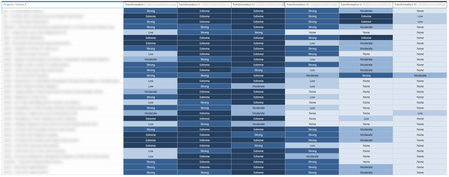
Hi! After classifying our ongoing projects we could get to this matrix table in Project Online: There are 6 Business Drivers where each project contributes on a rating scale (None, Low, Moderate, Strong, Extreme) I am stuck on Power BI to find the relation between each Project, the rating scale and each Business Driver to be able to build the same matrix table in Power BI: Any help would be much appreciated!761Views0likes6Comments
Track equipment capacity in MS Project
Hello, I have decent experience using MS Project desktop but currently struggling with how or if MS project is able to track equipment capacity in terms of quantity/units. Ideally, I would like project to alert/show capacity for an equipment based on task start/end date show capacity for future planning. For example, I have 70 samples to run on the equipment but capacity is 40 samples. I know that the 70 samples can't go through, but how can I set the equipment capacity in project to call this out? I have been tinkering with resource sheets, names, %, but don't understand how to manipulate it so that if I set an equipment capacity at 40 units (not %), it will show me capacity alerts. I also want to enter in tasks that are happening months out and would like capacity alerts to be called out in this situation too. This is how I'm tracking it in project. I don't want to put each sample as it's own line item as there are many projects with X samples so I keep it as a high level task with the project and associated sample count. Maybe it's how I am tracking that doesn't allow for tracking capacity in units? Any suggestions are appreciated. Thank you.397Views0likes1Comment