productivity
25 Topics
Vertical Tabs! Enable control of pin/collapse pane (please!)
Edge's native implementation of vertical tabs when combined with tab groups make it an ideal browser for organized productivity and that's why I continue to use it as my daily driver on all desktop platforms. There is just one major pain point I find with using the vertical tab features: toggling its visibility. Of course, using vertical tabs makes more efficient use of screen real-estate (for landscape-oriented displays), but that does mean less screen space for actual webpage content, a reality which becomes obvious with 2+ vertical-tab-enabled browser windows open side-by-side. Thankfully, Edge includes convenient UI buttons to "Collapse" and "Pin" the vertical tab pane's visibility, but this is currently the only way to toggle this behavior, diminishing productivity of keyboard-centric use. Recently, the Edge team added the keyboard shortcut Ctrl+Shift+,(comma) — which switches the UI between vertical and classic tabs at the top. This is great, but it negates the value of having a collapsible vertical tab pane which would still show webpage favicons in the same visual paradigm of a vertical list and feels like a much more natural UI toggle. Some other users in the Edge Insider community have pointed out that such a side-panel collapse/expand key shortcut exists in many other popular programs as well. I've been trying to find some way of automating the collapse/pin behavior of the vertical tab pane, but it doesn't seem feasible without a proper menu option. Please consider adding a key shortcut specifically for this behavior, or instead include an option in the alt-menu dropdown that can be triggered via something like Power Automate. Thanks again to Edge team for all their work9.7KViews24likes5Comments
How do you handle sensitive PDF files in Edge without third-party cloud uploads?
Hi everyone, When working with sensitive PDF documents (like financial or personal files), most online PDF editors require uploading files to third-party cloud servers. This raises obvious privacy and security concerns for many users. The most reliable way to maintain data privacy today is using Client-Side Browser Processing (WebAssembly & JavaScript), where operations run entirely inside the local browser memory without transmitting any data over the internet. Key advantages of pure client-side processing: Total Privacy: Zero file transfers or external server logs. Instant Speed: Processing relies on your local CPU, bypassing slow upload/download waiting times. No Software Installation: Works directly inside browsers like Microsoft Edge. For those looking for a practical example of this architecture, https://pdfdocflow.com is a free tool offering 24 browser-based tools (merging, splitting, compressing, watermarking, and signing) operating 100% locally with zero server uploads. How do you usually handle sensitive PDFs while browsing, and do you prefer client-side web tools over installing dedicated software?60Views0likes0Comments
## Advanced Copilot Prompt for High‑Fidelity Teams Meeting Analysis (v1.5)
## Advanced Copilot Prompt for High‑Fidelity Teams Meeting Analysis (v1.5) I’ve been working on a structured Copilot prompt designed to dramatically improve the quality of meeting analysis inside **Microsoft Teams**, especially when the default Intelligent Recap doesn’t capture enough nuance, decisions, or actionable follow‑ups. This prompt produces a detailed, repeatable output that includes: - TL;DR executive summary - Meeting quality assessment - Prioritized action items table - Confirmed vs. tentative decisions - Open questions & risks - Mind‑map style outline - Timeline of key moments - Confidence & source citations - Tech jargon glossary - Planner‑ready task export It’s now at **version 1.5**, and I’m sharing it publicly for anyone who wants deeper meeting insights or more reliable task handoff into Planner. --- ### Why I Built This In many engineering, security, and cross‑functional meetings, clarity is everything. The default recap is helpful, but sometimes too generic. I wanted something that: - Reduces ambiguity - Surfaces decisions clearly - Highlights risks and open questions - Produces actionable, Planner‑ready tasks - Works consistently across different meeting types - Enforces strict inference rules to avoid hallucinations If your team relies heavily on Teams + Copilot, this can significantly improve meeting outcomes. --- ### What’s Included The full prompt includes: - Strict ordering rules - Anti‑hallucination constraints - Fallback rules for missing data - TL;DR section - Speaker‑labeling rules - Timestamp restrictions - Bullet‑length limits - Planner task title constraints - Deduplication rules - Tone consistency - Signal‑to‑noise filtering I’ve included the complete prompt below for anyone who wants to use or adapt it. --- ### How to Use It 1. Open the **Recap** tab of any Teams meeting with transcription enabled. 2. Click **Open Copilot**. 3. Paste the entire prompt into the Copilot compose box. 4. Wait for the structured output (usually 30–120 seconds). 5. Copy the Planner tasks section directly into Planner or Copilot for Planner. --- ### Looking for Feedback If you try this prompt, I’d love to hear: - What worked well - What didn’t - What you’d like added in v1.6 - Any edge cases or meeting types where it struggled I’m planning to maintain this as a community resource, so suggestions are welcome. Thanks to everyone experimenting with Copilot in Teams — the creativity in this community is incredible. --- ### Full Prompt (v1.5) ````markdown ```markdown # ============================================================ # PROMPT NAME: Advanced Teams Meeting Analyst (Copilot Enhancement) # ============================================================ # Version: 1.5 # Author: Scott M # Last Updated: 2026-01-14 # # Goal: # Use Microsoft Copilot in Teams (Recap tab or live meeting) to generate a highly structured, # high-signal meeting analysis that goes far beyond the default Intelligent Recap output. # Produce executive summary with TL;DR, prioritized action items table, confirmed/tentative decisions, # risks/open questions, mind-map outline, timeline, quality assessment, confidence/sources, # tech jargon glossary, and Planner-ready task export—all derived strictly from the transcript, # shared screens, chat, and attachments. # # Why This Is Superior to Default Teams/Copilot Processing: # - Default Recap: Basic chapters, highlights, simple tasks, attendance—often generic and misses nuance. # - This custom prompt: Forces strict inference rules (no hallucinations), adds confidence labeling, # decision status, risks section, mind-map structure, quality flags, source citations, # jargon glossary, and direct Planner integration for seamless task handoff. # Delivers scannable, professional-grade notes + actionable tasks for tech/engineering teams. # # Audience: # Microsoft 365 Copilot users in Teams-heavy environments who want deeper analysis # and direct bridge to Planner for follow-up execution. # # Non-Goals: # - This is NOT a replacement for legal/compliance-grade minutes. # - This is NOT verbatim transcription (use the native transcript for that). # - Relies on Teams transcription quality (enable Intelligent Speakers if available). # # Usage Instructions: # 1. Prerequisites: # - Ensure the meeting had transcription enabled (Meeting options → Record & transcribe → Allow transcription). # - For best speaker attribution: Enable Intelligent Speakers (if your org supports it) or have participants use their names clearly. # - Copilot license required (M365 Copilot or Teams Premium for full Recap features). # # 2. Post-Meeting (Recommended – Recap Tab): # - Go to the Teams meeting chat → Click the Recap tab (appears after meeting ends and processing finishes). # - Click Open Copilot (or the Copilot icon in the top-right of Recap). # - In the Copilot pane compose box, paste this ENTIRE prompt and press Enter/Send. # - Wait 30–120 seconds (longer for 60+ min meetings) for the full structured output. # # 3. During Live Meeting (Quick Catch-Up): # - While the meeting is active → Click the Copilot icon in the meeting controls. # - Paste the prompt (or a shortened version if time-sensitive) and ask for real-time summary/actions so far. # # 4. After Output Appears: # - Review the markdown sections—copy any part (e.g., Action Items table, Planner tasks) directly. # - For Planner handoff: # - Copy the entire "10. Planner Integration" section. # - Open Planner (in Teams app or planner.microsoft.com). # - Option A: Manually create tasks by pasting titles/descriptions. # - Option B: In Planner's Copilot pane (if available): Paste the tasks list and say "Create these tasks in my [plan name] plan". # - Save/export: Copy full output to OneNote, Word, or email for sharing. # # 5. Refinement & Follow-Ups (Highly Recommended): # - In the same Copilot pane, type targeted follow-ups like: # - "Expand the Risks section with mitigation ideas" # - "Draft a professional follow-up email to attendees including the summary and action table" # - "Create these tasks in Planner plan 'Engineering Syncs'" # - "Explain [specific jargon term] in more detail" # - "Prioritize the action items by impact" # - Iterate until satisfied—Copilot remembers context in the session. # # 6. Tips & Troubleshooting: # - If output is incomplete: Re-paste the prompt or say "Regenerate full analysis". # - Short meetings (<15 min): Output may be concise—ask for more detail if needed. # - No Recap tab? Ensure recording/transcription was on; wait 5–10 min post-meeting. # - Sensitive meetings: Redaction is automatic per rules, but double-check output. # # Changelog: # v1.0 - Initial release # v1.1 - Added confidence/sources + follow-up suggestions # v1.2 - Added Tech Jargon Glossary # v1.3 - Added Planner Integration section # v1.4 - Expanded Usage Instructions into detailed, step-by-step guide with prerequisites, live/post options, refinement examples, and troubleshooting # v1.5 - Added strict ordering rules, anti-hallucination constraints, fallback rules for missing data, TL;DR section, speaker-labeling rules, timestamp restrictions, bullet-length limits, Planner title constraints, deduplication rules, tone consistency, and signal-to-noise filtering # # ============================================================ # CRITICAL INSTRUCTIONS (STRICT) # ============================================================ - Do NOT summarize, restate, or comment on this prompt. Produce only the meeting analysis. - Follow the numbered sections in the exact order shown. Do not omit, reorder, merge, or rename sections. - If any section lacks sufficient evidence, include the header and write: **“No reliable data found.”** - Derive ALL content ONLY from the Teams transcript, shared content, chat, and attachments. - NEVER invent details. If unclear, mark as “Unclear” or “TBD.” - Use neutral labels (Speaker A, Speaker B, etc.) if speaker names are not confidently identified. - Assign deterministic speaker labels based on first appearance. - Redact sensitive info as [REDACTED] and flag in Risks. - Include inline citations [Transcript HH:MM, Slide X] where possible. - Keep bullet points ≤ 20 words unless quoting transcript evidence. - Exclude small talk, greetings, jokes, or irrelevant chatter unless they directly impact decisions or tasks. - Only include timestamps if explicitly present in the transcript. Never estimate or invent them. - Deduplicate action items, decisions, and risks before final output. - Maintain a professional, concise, cross-functional technical PM tone. - Planner task titles must be ≤ 10 words and start with a verb. # ============================================================ # OUTPUT FORMAT (USE EXACTLY) # ============================================================ **TL;DR (1–2 sentences)** A concise, high-level summary of why the team met and what was resolved. --- 1. **Meeting Quality Assessment** - Clarity: [Good | Fair | Poor — brief explanation] - Speaker overlap / noise: [Low | Medium | High] - Estimated accuracy: [High | Medium | Low — justification] 2. **Executive Summary** Start with 1–2 sentence overview. Then provide 5–8 bullets covering: - Purpose - Attendees (names or count if unclear) - Key topics - Outcomes - Next steps 3. **Action Items** | Priority | Owner | Task Description | Due Date | Timestamp | Dependencies | Status | Notes | |----------|-------|------------------|----------|-----------|--------------|--------|-------| **Rules:** - Sort by Priority (High → Medium → Low), then Due Date. - Infer owners/dates ONLY if explicitly stated or clearly volunteered. - Default Priority: Medium; Status: Open. - Titles ≤ 10 words, start with a verb. - Deduplicate similar tasks. 4. **Key Decisions** - **DECISION:** [What was decided] - Status: [Confirmed | Tentative | Disputed] - Confidence: [High/Medium/Low — reason] - Rationale: [Why] - Impacted: [Who] - Evidence: [Transcript HH:MM or Slide reference] 5. **Open Questions & Risks** **Open Questions** - [Unresolved or unclear items] **Risks** - [Ambiguity, missing owners, conflicting views, scope creep, technical risks, etc.] 6. **Mind Map Outline (Hierarchical Outline)** - Main Topic 1 - Subtopic A - Action / Decision / Fact - Subtopic B **Rules:** - Max 5 main topics - Max 3 levels deep - ≤ 8 words per node - Prune low-signal branches 7. **Timeline of Key Moments** - HH:MM – [Brief one-line description] - HH:MM – [etc.] *Only include if timestamps exist; otherwise write “No reliable data found.”* 8. **Confidence & Sources Summary** - Overall confidence: XX/100 - Key sources: [Transcript HH:MM, Slide X, Chat message, etc.] 9. **Tech Jargon Glossary** - TERM: Definition (1–2 sentences) *Include only if relevant terms appear.* 10. **Planner Integration: Ready-to-Create Tasks** Numbered list, each formatted as: 1. **Task Title:** [≤10 words, verb-led] - Assigned to: [Owner or TBD] - Due: [Date or TBD] - Priority: [High/Medium/Low] - Description: [Brief details + dependencies/notes] - Labels/Buckets: [Suggested grouping] **Rules:** - Only include items with clear action/owner potential. - Group related tasks under consistent buckets. - Deduplicate tasks. --- **Follow-Up Prompts (suggest 3–5)** - “Create these tasks in Planner plan ‘X’.” - “Expand the Risks section with mitigation strategies.” - “Draft a follow-up email summarizing this meeting.” - “Prioritize action items by impact and urgency.” - “Clarify ambiguous decisions and propose next steps.”3.5KViews1like2Comments
Voice-Based Integration to Simplify Task Capture in Microsoft To Do
Hi everyone, We’re working on Gennie, a voice-based assistant designed to integrate with task and productivity tools like Microsoft To Do to make everyday task capture easier. Many tasks come up during meetings, calls, or while switching between apps, but they often get added to task lists later, sometimes missing important context. The goal of this integration is to let users speak tasks or reminders naturally and have them organized in Microsoft To Do, while keeping Microsoft To Do as the primary task manager. Some Microsoft To Do–specific use cases we’re exploring: Creating tasks using voice Adding notes or details to existing tasks hands-free Capturing quick reminders as they come up Reducing friction between conversations and task entry We’d love to hear from the community: Where does task capture slow you down today? Which Microsoft To Do actions would benefit most from voice input? Looking forward to learning from your workflows and feedback.473Views1like1Comment
To Do Task Details Not Showing
When I am in To Do, I can only add and complete tasks. I no longer have the option to click in and see details, add notes, or edit titles. I can see the area they are supposed to pop up in, but I can't expand the side window or see any information.207Views0likes0Comments
Looking for Feedback on To-Do List Usage for Design thinking
Hello everyone I’m currently working on a design thinking project for a To-Do List apps and I’m trying to better understand how real users use task management tools like Microsoft To Do I would really appreciate it if you could share your experiences and problems by answering a few questions What features do you use most in to do list apps What are your biggest challenges or frustrations when using To-Do List apps Are there any features you wish existed in Microsoft To Do How do you usually organize your tasks and priorities Your feedback will be very valuable for my research and will help me design a more user-friendly task management experience Thank you so much for your time and insights Best regards228Views0likes1CommentBoost mobile productivity with Surface Laptop 5G for Business and Surface Copilot+ PCs
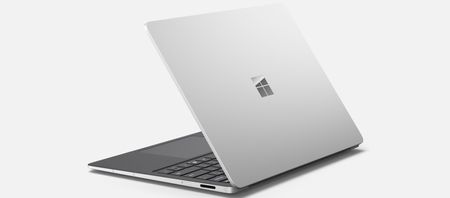
Surface Laptop 5G is here to supercharge mobile productivity. With built-in AI, enterprise-grade 5G, and up to 20 hours of battery life, it’s designed for secure, seamless work—anywhere. We'll explore engineering and design highlights that make these devicines shine. Also available for order starting today, Surface Laptop for Business 13-inch and Surface Pro for Business 12-inch bring the power of Copilot+ PCs to more mobile form factors.1.9KViews1like0CommentsThinking by hand: digital inking with Surface Pen
Keyboard and mouse or touchpad have become fundamental to everyday work. Microsoft Surface engineers have spent years refining those traditional tools to deliver exceptional experiences—but that’s not the end of the story. What if there was another tool—something that added flexibility, creativity, and a more personal way to engage with your ideas? That’s where inking comes in. The digital inking experience on Surface devices is designed to facilitate new ways of working. To understand how a seemingly simple tool can transform productivity, we spoke with Surface MVPs, who are experts recognized for their deep knowledge of Surface devices. They shared how using the Surface Pen supports effective ideation, collaboration, and innovation. To learn how embracing digital ink can enhance your business’s device strategy, read on. Ideas in motion Some ideas are easier to write down. Others are easier to draw. Inking makes it simple to capture both with sketches, diagrams, or notes as thinking develops. Rob Quickenden, Chief Technology Officer at Cisilion, relies on the Surface Pen to communicate complex concepts. "In meetings, I often draw solutions for customers or my team directly in OneNote or Whiteboard, whether offline or in real time," he says. That could mean a rough outline of a network infrastructure, a quick process flow for a marketing project, or notes layered over a shared document to streamline decision-making. Inking can communicate ideas that would otherwise require long explanations, which can increase the efficiency of collaboration. Surface Slim Pen 2 capabilities include a feature called Zero Force inking, which reduces the delay between the pen touching the screen and the ink appearing. A sharper tip and precision tilt detection enhance control. Haptic feedback provides tactile cues that simulate a writing sensation. The added tactile response engages the hand and the mind for intuitive and fluid inking. The result feels natural—like pen on paper, but with the expansive capabilities of digital technology. Digital efficiency, handcrafted engagement: how handwriting activates complex brain connectivity Research using EEG analysis shows that handwriting with a digital pen activates more complex brain connectivity patterns than typing, supporting memory formation and deeper learning.[1] Yet traditional handwritten notes come with drawbacks: they pile up, get misplaced, and aren’t searchable. OneNote Copilot now supports inked notes, allowing users to analyze both typed and handwritten notes directly from the ribbon or canvas.[2] With Microsoft Surface Pro and Microsoft 365, handwritten notes can be synced, searched, and converted to type. In OneNote, you can write meeting notes with the pen, circle key points, and later search for any word—even handwritten ones. Brett Gilbertson, Digital Skills Coach and Microsoft Surface MVP, says, “The most underutilized and overlooked feature on Surface Pro is the pen. It’s essential for notetaking, ideating, and creating—a true thinking tool.” He switches seamlessly between structured notes in OneNote and freeform sketches in Whiteboard. Collaboration without friction: Enhancing remote and in-person teamwork with digital inking In digital meetings, quick visuals help teams align. Inking adds this layer of interaction, turning passive screens into active workspaces. Josh Jones, Modern Work Specialist at Microsoft, uses the Surface Pen during Teams meetings to stay focused and effective. “Nothing is more impressive in a Teams sales call than quickly annotating or scribbling on a PowerPoint presentation to emphasize a point,” he says. In project planning, inking supports real-time changes. During a Whiteboard session, participants can add ideas and adjust flowcharts without switching tools. Everyone stays engaged because the interaction is direct and visible. The Surface Slim Pen button can be set to open apps like OneNote or Whiteboard or launch capture tools. With one press, a user moves from thinking to doing. In-person work benefits as well. Drawing on a shared screen helps explain steps or review feedback without adding to the agenda. Teams can sketch a timeline, update a checklist, or approve changes on the spot, and visual ideas can be captured in real time. Precision productivity: achieving detailed control with Surface Pen The touchpads on Surface devices are designed to be highly responsive and accurate, but fine tasks may benefit from additional control only a pen can offer. The Surface Pen delivers that control, supporting designers, engineers, and professionals who work with detailed visuals. SungKi Park, IT & Integrated Communication Coordinator, integrates inking into both creative and business tasks. "I use the Surface Pen a lot for Adobe Photoshop and Illustrator work," he says. "And for work, I use it for signing electronic documents." In Photoshop, the pressure-sensitive pen refines brush strokes and selections. In Illustrator, tilt functionality creates natural shading. Precision matters in everyday work, as well, whether signing contracts, marking up reports, or annotating documents. Mobility without compromise Work doesn’t happen in one place. It shifts between offices, airports, coffee shops, and meeting rooms. Sometimes, a different input method makes all the difference. Anand Narayanaswamy, a freelance writer and author, balances both touch and pen input flexibly to enable focused work in more places. "I use both the touchscreen and pen depending on the task," he says. "For instance, I use the pen for drawing in Paint, which helps me create stunning visuals." The pen's precision and ease of use make it ideal for quick sketches, annotations, and signing documents on the go. Switching between keyboard, touch, and pen keeps work moving. A quick note in OneNote during a call. A diagram in Whiteboard while waiting for a flight. A contract signed on the spot, no printer required. The Surface Slim Pen 2 makes portability seamless. It magnetically attaches to Surface Pro Signature Keyboard or Surface Laptop Studio, so it stays charged and in reach, providing up to 15 hours of battery life.[3] Technology made human Work takes many forms—structured notes, quick sketches, informal ideas jotted down between meetings. Inking empowers employees with more options to match the input method to the task. When pen, screen, and software are engineered to work together, the experience becomes seamless, whether capturing notes, collaborating on visual ideas, or just brainstorming. If you’re excited by the power of the pen to change how your teams work for the better, Surface provides a thoughtfully engineered set of features to maximize the value of the technology. Discover the latest Surface Pro devices for business to get started. [1] Handwriting but not typewriting leads to widespread brain connectivity: a high-density EEG study with implications for the classroom, Front. Psychol. , 25 January 2024, Sec. Educational Psychology, Volume 14 – 2023, https://doi.org/10.3389/fpsyg.2023.1219945 [2] Subscription required for some features. [3] Battery life varies significantly based on device configuration, usage, network and feature configuration, signal strength, settings, and other factors. Learn more about Surface battery performance for details.2.4KViews3likes0Comments¿Cómo instalar GitHub Copilot en Visual Studio?
[Blog original en inglés] GitHub Copilot es un asistente de programación impulsado por Inteligencia Artificial (IA) que puede ejecutarse en varios entornos, ayudándote a ser más eficiente en tus tareas diarias de programación. En este blog, te mostraremos específicamente cómo funciona GitHub Copilot en Visual Studio y cómo puede aumentar tu productividad. Comprendiendo la diferencia entre GitHub Copilot y GitHub Copilot Chat: GitHub Copilot funciona directamente en tus archivos de código, proporcionando sugerencias para tu código. Funciona de manera similar a IntelliSense, pero es capaz de proponer bloques completos de código en base a lo que estás escribiendo. También proporciona acceso a comandos, puede explicar el código y ofrecer funciones adicionales directamente respecto a tus archivos. GitHub Copilot Chat funciona en una ventana independiente dentro del entorno de Visual Studio. Proporciona un asistente de chat que puede recordar el contexto de la conversación y ofrecer sugerencias inteligentes. Ambas extensiones se pueden instalar por separado. Te recomendamos probar ambas para que puedas elegir la que prefieras. En próximas oportunidades, te mostraremos más detalles sobre cada una de estas extensiones. Instalando las extensiones de GitHub Copilot Ambas extensiones se pueden instalar directamente desde Visual Studio, a través del menú Extensiones / Administrar extensiones. Desde allí, busca GitHub Copilot y GitHub Copilot Chat. También puedes dirigirte a Visual Studio Marketplace, que contiene una gran cantidad de extensiones para mejorar tu experiencia con Visual Studio. Ten en cuenta que GitHub Copilot requiere Visual Studio 2022 17.5.5 o posterior. Más información Para obtener más información, consulta nuestra colección de recursos aquí. Mantente al tanto de este blog para más contenido sobre Visual Studio. Y, por supuesto, ¡también puedes suscribirte a nuestro canal de YouTube para más contenido!664Views0likes0Comments