power automate
413 Topics
Is there a way to send an email with an attachment for a form submission
Hello. I couldn't find a clear answer on this. Is there a way to use power automate to send attachment(s) via email to a form sender depending on their answers on a form? Example - Information request Would you like more information on dogs - ( ) yes ( ) no Would you like more information on cats - ( ) yes ( ) no Would you like more information on rabbits - ( ) yes ( ) no If the person selects yes for one of the options it would send them a specific PDF via email. If they select yes for multiple options, it would send them a single email with multiple PDFs that coordinate with the questions. The PDFs are available to pull from either my one drive or share point.85Views0likes1CommentCreate an Internal Support Ticket Hub with Microsoft Lists, Forms & Power Automate
Setting Up the Support Ticket Portal First, we will set up the support ticket portal. This is where ticket requests will populate, be triaged, assigned and managed. It's a central location where the support team members can keep track of their tasks as well as keep the client informed through automated notifications upon status changes. Let's get started! 1. Create the Microsoft List: Navigate to Microsoft Lists from the Microsoft365.com App launcher in the upper left. Select the “+ New list” and choose the “Issue Tracker" template. Fill out the list information (name, description*, color*, icon*, and associate it with a team or save to your lists) and select create to make your form (*optional). In this case, associating the list with a team is required as it is needed for notification purposes later on in the tutorial. Review the list items from the template and customize the list to what your organization needs. Include columns that capture essential details such as issue description, priority level, assigned to, and status. Ensure the list is set up to store all necessary information for managing support tickets. There will be items you need captured from the person submitting the form as well as items to triage, assign, and track the status of the case. 2. Creating the Support Ticket Form In the list menu, select the "Forms" tab to create a new form. Customize the form by removing or unchecking questions that are designed for the support team, leaving only the questions needed from the person submitting the ticket. For example, you’d remove the Priority, Status and Assigned To fields from the form because those items are not determined by the submitter, but by the internal staff triaging the case. Ensure the form captures essential details such as the issue description, associated files, and contact information. 3. Enabling Notifications and Assigning Tickets In the form settings, select the toggle next to "Notify me" so that whenever a new item (support ticket) is submitted, you are immediately notified. This ensures that you don't miss an urgent request. Preview your form Check for changes or adjustments you’d like to make. If everything is good, congratulations! You’ve made your support ticket form! 4. The Workflow Process: Now that your form and list are created you can test out your new form and ticket portal. Grab the link to your new form by selecting the forms button again in the menu. Select the link sign to copy the link. Let's test things out. Fill out the form with information as if you are an employee submitting a ticket about an issue. Refresh and check your Microsoft List to make sure the form responses were automatically added. Triage the case. In the Microsoft List, double click on the form submission list item. Here, the support admin will triage the case by assigning it to a member of the support team, updating the status of the ticket to "In Progress" and assigning it a priority status. When a ticket is assigned, the assigned staff member receives a notification, ensuring they are aware of their new task. If they need to get in contact with the employee that submitted the case, they are able to come to the list item, and check for contact/email details in the email column. Team members can update the status of the ticket to "In Progress" when they start working on it and then to "Completed" once the issue is resolved. These status updates help track the progress of each ticket and ensure timely resolution. Congratulations! You have an internal support ticket portal and form. To further enhance the transparency and efficiency of your internal support ticket system, you can implement additional notifications to keep the requester informed about the status of their ticket. By setting up automated notifications in Power Automate for when a ticket is marked as "In Progress" and "Completed," you ensure that the requester is always aware of the current status of their issue. This not only improves communication but also boosts confidence in the support process, as employees feel assured that their concerns are being actively addressed and resolved. 5. Automating Notifications with Power Automate Create a Flow: From the Microsoft365.com app launcher, open Power Automate. Click "+ Create" and select "Automated Cloud Flow". Choose a flow name and set the trigger to "When an item or file is modified". Configure the Flow: On the canvas, select the trigger to enter the required data. The site address your Microsoft List is attached to and the list or library name. Next, we must add a trigger condition in order for the flow to only trigger when the status column has been changed. In the settings tab add the following trigger condition NOt(equals(triggerOutputs()?['body/Status'], triggerOutputs()?['body/PreviousStatus'])) Return to the canvas to create a new action. Select the + sign under your trigger. In the search menu, search for the condition action. For the value of the condition, we want to choose the Status Value from the dynamic field (the lightning bolt). We want to make sure the condition states “Status Value is equal to In progress”. (Capitalization matters here so make sure the capitalization of “In progress” matches the way it is spelled on your Microsoft List”. In the "True" column of your condition we will add a new action. Select “Send an email (V2) Inside of your action select, “Switch to Advanced Mode” to be able to enter dynamic fields or fields directly associated with your form submission. In the "To" field, select the lightning bolt for a dynamic entry. And select the “Issue logged by Email”. This will add the email address of the form sender to the “To” field and who the notifications will be sent to. In the Subject field type and appropriate title such as “Support Ticket Status Update”. In the Body field type a message to the requester. For example, "Hello, you are receiving this message to notify you that your support ticket for" (dynamically insert the name of the issue) “has been changed to “In Progress”. At this point, the flow now sends notifications for when the status column has been modified to “In Progress. Now, let's do the same and send a notification for when the status has been changed to “Completed”. In the False column, we are going to add another condition. The values for the condition will be the same except where it once said, “In Progress” it will say “Completed”. You want the statement to read “Status value is equal to Completed”. In the true column add the same action for sending an email and fill out the details accordingly. Save and test your flow. Test and Deploy: Test the flow to ensure it works as expected. Select Test and choose Manually. This specific flow is triggered when the status column has been modified to “In Progress” or “Completed”. Test both separately to make sure both works. You will see green check marks and receive a notification to the email you provided earlier when filling out the form with sample data. In this example, I tested the flow by updating the status to “In Progress” so in this case I have green check marks along the left side because that follows the first conditions. The green check marks will follow the right-side path if I choose to test the “Completed” status. Here is a copy of the email that was sent to the inbox. Once satisfied, deploy the flow to automate the notification process, enhancing communication and satisfaction. Conclusion By leveraging Microsoft Lists and Forms, you can create a robust internal support ticket system that streamlines the process of submitting, triaging, and resolving support requests. The integration with Power Automate further enhances this system by automating notifications, ensuring that all parties are kept informed throughout the process. This setup not only improves efficiency but also boosts employee satisfaction by providing a transparent and responsive support system.14KViews1like3Comments
Modernizing Nonprofit Operations with Power Automate
Nonprofits often rely on manual processes because they feel simpler. But manual workflows create bottlenecks, inconsistencies, and unnecessary administrative burden. Power Automate enables nonprofits to automate routine tasks using low‑code logic, connectors, and triggers. How Power Automate Works Power Automate uses: Triggers (e.g., “When a form is submitted”) → Learn more: Triggers in Power Automate [learn.microsoft.com] Actions (e.g., “Send an email,” “Create a SharePoint item”) → See: Create cloud flows and actions [learn.microsoft.com] Connectors (Microsoft 365, Dynamics, Salesforce, Mailchimp, etc.) → Overview: Power Automate connectors [learn.microsoft.com] Logic (conditions, loops, approvals) → Tutorial: Get started with cloud flows [learn.microsoft.com] This allows nonprofits to build workflows without writing code. Workflows Nonprofits Can Deploy Immediately (With Real Triggers) 1. Automated Donor Thank‑You Emails ✅ Trigger: When a row is added (Excel Online – Business) Actions: Send personalized thank-you email (Outlook) Create item (SharePoint) to log donation Post message (Teams) to notify staff 2. Volunteer Application Routing ✅ Trigger: When a new response is submitted (Microsoft Forms) Actions: Get response details Create item (SharePoint list) Condition: route based on program interest Send confirmation email Notify program manager (Teams) 3. Intake Form → SharePoint Database ✅ Trigger: When a new response is submitted (Microsoft Forms) Actions: Get response details Create structured SharePoint record Condition: check urgency level Create follow-up task (Planner) 4. Social Media Scheduling ✅ Trigger: When a file is created (properties only) (SharePoint) Actions: Retrieve file metadata Post content via connector Notify communications team 5. Event Registration Automation ✅ Trigger: When a new response is submitted (Microsoft Forms) Actions: Send confirmation email Create Outlook calendar event Create SharePoint attendance record 6. Document Approval Workflows ✅ Trigger: When a file is created (properties only) (SharePoint) Actions: Start and wait for approval Update file status Notify stakeholders Technical Best Practices Use environment variables for URLs and credentials Store data in SharePoint lists for scalability Use error handling and retry policies Document workflows for continuity Apply DLP policies to protect sensitive data Final Thought Power Automate gives nonprofits the ability to scale operations without scaling staff. Every workflow starts with a real trigger tied to a business event, ensuring automation runs instantly and reliably. By standardizing processes and reducing manual intervention, organizations can improve data accuracy, accelerate response times, and create more consistent experiences for donors, volunteers, and program participants. Automation also enhances visibility across teams, making it easier to track activities, measure impact, and make informed decisions. Most importantly, Power Automate frees staff from repetitive administrative tasks, allowing them to focus on higher‑value work—building relationships, delivering services, and advancing the organization’s mission. In a resource‑constrained environment, this shift is not just efficient—it is transformative.416Views0likes2Comments
Is there any solution to getting question names yet for a form submission in Power Automate?
It's been about 10 years now. Surely there is a solution to dynamically retrieve question names without needing a janky britttle workaround that may or may not work, not just IDs (get form response etc), without having to rely on a hard coded list of questions with answers inserted in against them.555Views0likes1CommentHave OneDrive or SharePoint files/folders on home screen of iPad without internet connection?
This. I'm on a big iOS project. We have several users who need files on an ipad when traveling, and be able to open them when there is no internet connectivity. These files aren't intended to be edited, just 'read only.' These files do not contain any sensitive corporate data. The content lives in SharePoint online and I'm using OneDrive as a bridge to their sharepoint site. BUT the files can only be viewed on the ipad within the OneDrive app without internet access. These are devices using user affinity enrollment. Initially, the solution for users was to use the 'Mark Offline' feature within the OneDrive iOS app. I used Power Automate to have it fetch new files found in OneDrive and move them to the teams SharePoint site. These shared devices are locked down (an understatement). These will be used by the least computer savy/literate people and so having them dive through OneDrive folder after folder, even offline, is a tall order to ask. I totally get it and don't want them doing that either. So now I have to move onto plan B. How can we put the files that live within OneDrive/Sharepoint onto the home screen without an internet connection when the ipad is 'out in the field.?' This would make it infinitely easier for them. The key here is to not have end users manually moving files around. We don't want them to even have to go into OneDrive and mark folders/files offline, if possible. We don't have the SharePoint app on them. I tried the SP app a while back, and it is a hot mess of garbage. I could revisit it. Whatever I can get to work of course we'll have to modify our Intune polices. Thoughts?353Views0likes1Comment
Planner Premium in GCCH
Hi all, We are looking to do more with Planner Premium and are frustrated at the lack of tools given to gov clouds to support the conversion of Planner basic plans to Planner Premium. We don't have the magic button to add the premium views like commercial. I then attempted to build a flow to do this based on a basic plan exported to Excel and we don't have the action within Power Automate to interact with Premium plans. It only allows me to select the basic Planners, the Premium ones don't show up in the drop-down to select. Has any one else figured out a way to do this other then manually recreating your tasks from one plan to another?Microsoft Power Platform community call - June 2026
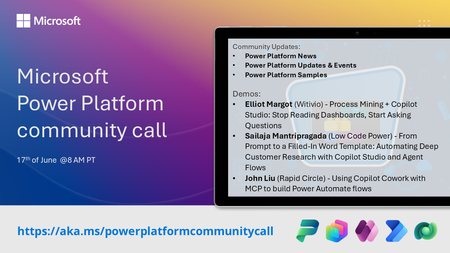
💡 Power Platform monthly community call focuses on different extensibility options for builders, makers and developers within the Power Platform. Typically demos are from our awesome community members who showcase the art of possible within the Power Platform capabilities. 👏 Looking to catch up on the latest news and updates, including cool community demos, this call is for you! 📅 On 17th of June we'll have following agenda: Power Platform Updates & Events Latest on Power Platform samples Elliot Margot (Witivio) - Process Mining + Copilot Studio: Stop Reading Dashboards, Start Asking Questions Sailaja Mantripragada (Low Code Power) - From Prompt to a Filled-In Word Template: Automating Deep Customer Research with Copilot Studio and Agent Flows John Liu (Rapid Circle) - Using Copilot Cowork with MCP to build Power Automate flows 📅 Download recurrent invite from https://aka.ms/powerplatformcommunitycall 📞 & 📺 Join the Microsoft Teams meeting live at https://aka.ms/PowerPlatformMonthlyCall 💡 Building something cool for Microsoft 365 or Power Platform (Copilot, SharePoint, Power Apps, etc)? We are always looking for presenters - Volunteer for a community call demo at https://aka.ms/community/request/demo 👋 See you in the call! 📖 Resources: Previous community call recordings and demos from the Microsoft 365 & Power Platform community YouTube channel at https://aka.ms/community/videos Microsoft 365 & Power Platform samples from Microsoft and community - https://aka.ms/community/samples Microsoft 365 & Power Platform community details - https://aka.ms/community/home349Views0likes1CommentIs Power Automate Becoming the New Technical Debt in Dynamics 365 Projects?
Power Automate has transformed how organisations build automation within Dynamics 365 and the Power Platform. Teams can automate processes quickly, reduce manual effort, and deliver business value without extensive custom development. At the same time, I have noticed an interesting challenge in some organizations as Power Platform adoption matures. Over time, hundreds of flows can be created by different teams, often with varying levels of governance, documentation, and ownership. Business logic may become distributed across multiple automations, making troubleshooting, maintenance, and long-term support more complex. On the other hand, many organisations have successfully scaled Power Automate by implementing strong governance practices and automation standards. I'm interested in hearing different perspectives from the community. Have you seen Power Automate become difficult to manage at scale, or has it reduced technical debt in your organization? What governance, architecture, or operational practices have worked best for balancing innovation with maintainability?167Views1like0CommentsBuild an AI Resume Screening Multi-Agent
Hello everyone 👋 I recently built an AI-powered resume screening multi-agent that automates the hiring intake and candidate evaluation process. The solution automatically: Accepts resume uploads Stores resumes in SharePoint Evaluates candidates using AI Matches resumes against job requirements Generates recruiter-ready summaries Sends automated recruiter notifications Technologies Used: • Power Automate • AI Builder • SharePoint • Outlook • GPT-Based Prompting This is Part 1 of my AI Hiring Multi-Agent Series. I’d love to hear feedback from the community and learn how others are approaching AI-powered recruitment workflows. Newsletter: https://www.linkedin.com/pulse/build-ai-resume-screening-multi-agent-sajeda-sultana-k1ege/?trackingId=TQzoIUy0RveiwXLIgEKvSQ%3D%3D If you find it helpful, please share it with others who may benefit from it as well.431Views4likes2Comments
Outlook add-in
Is there a way to create an item in Microsoft Lists directly from Outlook email? For example, a data entry form that would populate the fields of the Microsoft Lists. I have this function with Smartsheet and hoping that the same functionality exists in the Microsoft environment.7.7KViews1like3Comments