planner
99 TopicsWhat's new in Microsoft Planner | September 2026
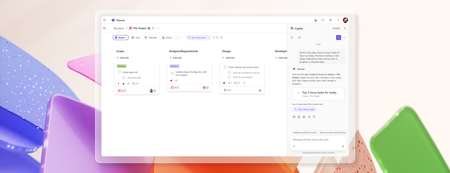
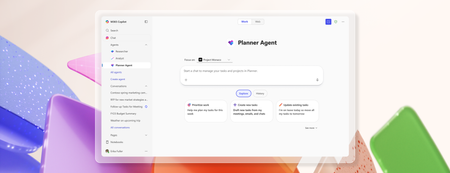
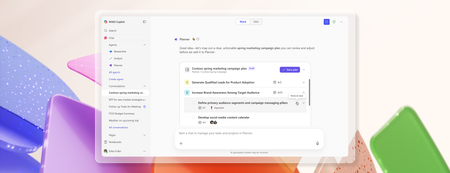
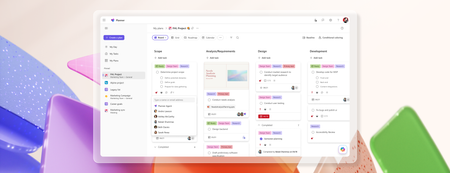
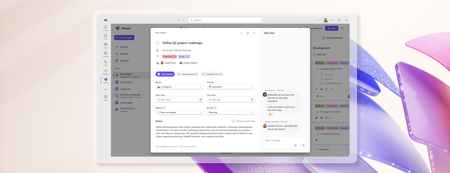
Fall is officially here, and with it comes our first quarterly edition of What's New in Microsoft Planner! Each quarter, we'll bring the latest Planner updates together in one place. We're continuing to invest in Planner to help people work alongside AI to plan and get work done, whether you're tracking your own tasks or coordinating a shared plan across your team. This quarter's updates give you a clearer view of your work, new ways to save time keeping plans current, and more places to manage tasks where work already happens. Planner Agent is now built directly into basic plans, so you can ask questions about your plan, create and update tasks, and focus on your top priorities without leaving Planner. We're also making Planner Agent in Copilot more capable, with fuller answers on large, complex plans and faster, more reliable responses. You'll also find updates that bring Planner closer to where your team collaborates, from adding Planner as a tab in private and shared Teams channels to bringing your tasks and plans into Outlook. And the new Task Details Side Pane lets you update assignments, dates, and checklists without losing sight of the bigger picture. Read on to see everything that's new in Planner this quarter and share your feedback through the Planner Feedback Portal. Keep the details and bigger picture in view Task Details Side Pane Planner now offers a new way to view and edit task details without losing sight of the plan or task list. The Task Details Side Pane opens alongside Board, Grid, and My Tasks views. Assignees, dates, notes, and checklists can be updated without leaving that view. Seeing task details alongside the plan makes it easier to review assignments and dates without losing context. Planner now also remembers the preferred task details layout when the app is reopened. On smaller screens, task details automatically open in a dialog for a better fit. Save time planning and getting work done Chat with Planner Agent in Planner Planner Agent chat is available directly in basic plans. It allows teams to ask questions about the plan, create and update tasks, and filter the view to focus on the top priorities. With chat built into the plan, teams can now review tasks and make updates without leaving Planner to start a separate conversation in Copilot. Planner Agent in Microsoft Copilot More context for large plans: Planner Agent can now use more information from large and complex plans when answering questions. It leverages the latest frontier models for more in-depth reasoning and draws more effectively on work content. These improvements help find relevant tasks and include more supporting plan details in responses, giving teams a fuller picture of the work being reviewed. Create larger plans in Copilot: The previous 30-task limit when creating a plan has been removed, allowing Planner Agent to generate larger initial task lists without a limit. Teams can review the proposed tasks in Copilot before saving them to the plan. Improvements also extend beyond plan creation, with faster responses and fewer interruptions across the Planner Agent experience in Copilot. Assign tasks to team members: Users can set task owners by asking Planner Agent or using task cards in the agent's responses, without leaving the conversation in Copilot. Choose how Planner Agent responds: A new model selector offers Quick response, Think deeper, and Auto modes. Users can choose a quicker response, request more in-depth reasoning, or let Planner Agent select the mode automatically. Planner capabilities in Copilot Users can keep tasks current while handling other work in one conversation, without opening Planner or a separate Planner Agent chat. In Copilot Chat, users can now search for tasks and plans, get answers about their work, create or update tasks, and take action on plans. The same chat includes capabilities from Outlook, Excel, PowerPoint, and other apps. Users can access these alongside Planner capabilities without switching between agents. Manage work where it happens Planner in Outlook Planner is now available in Outlook, bringing tasks and plans, along with Planner Agent, into the inbox. This experience supports both personal task tracking and collaborative planning, so individual commitments and shared work can be managed in one place. With Planner in Outlook, people can track progress, coordinate responsibilities, and take action without leaving their inbox. To get started in Outlook on the web or the new Outlook for Windows, select Apps, search for Planner, then add and pin it for quick access. Planner tabs in Teams channels Planner can now be added as a tab in private and shared Team channels. Team members can create a new basic plan or select an existing plan shared with the group associated with the channel. Once added, the plan is easy to find in the channel where the team collaborates. Members can return to that dedicated space to review tasks and manage projects together.6.3KViews6likes7Comments
Create reusable plans faster with custom templates in Planner
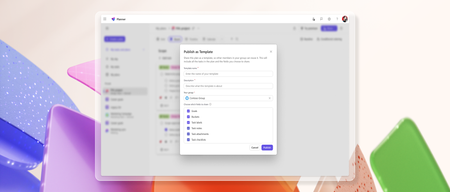
Turn any basic plan in Microsoft Planner into a reusable, shareable template to speed up planning and ensure consistency across plans. Custom templates capture key plan elements such as tasks, goals, buckets, labels, notes, attachments, and checklists to help teams plan faster and stay consistent. To publish a template, create and customize a basic plan to fit your needs. When you're ready, select Share and choose Publish as Template. Enter a template name and description, pick the Microsoft 365 group to share it with, choose which parts of the plan to include, and select Publish. fields selected. Once published, the template can be reused to create new basic plans. To create a plan from a template, click Create a plan, then go to either Shared or Created by me and select a template to use. How teams use custom templates Standardized onboarding processes An HR team onboarding new hires each month can use a custom template to create plans with the right tasks, buckets, and checklists already in place, helping ensure each onboarding follows the same process. Fast project setup with templates A marketing team launches frequent campaigns and uses a custom template to spin up new plans instantly. With pre-filled tasks, attachments, and checklists built in, they save time and stay aligned on key details. Addressing your feedback Tell us what you think about custom templates by selecting the Feedback icon (person with a chat bubble) in the top right corner of the app, then select Feedback from the dropdown menu. We also encourage you to share any feature requests by adding your ideas to the Planner Feedback Portal. Your feedback helps inform our feature updates, and we look forward to hearing from you. Learn more Learn how to use custom templates in Planner. Learn how to export and manage Planner custom template data. Visit planner.cloud.microsoft to access Planner directly from your browser. Sign up to receive future communication about Planner. Check out the Planner adoption page and Planner help & learning page to learn more about Planner. Visit the Microsoft 365 roadmap for feature descriptions and estimated release dates for Planner.12KViews3likes3CommentsIntroducing a refreshed design, task chat, and more in Microsoft Planner
We’re excited to announce that a modernized user interface and new features are now rolling out to basic plans in both Planner in Teams and Planner for the web. The updated design offers enhanced navigation, responsive layouts, a new goals view for setting objectives and priorities, and task chat—one of your most requested features—to enable real-time collaboration and @ mentioning team members. This release aims to make planning easier for everyday users while preparing for future AI-powered capabilities. Our goal is to streamline planning by making it more intelligent and connected, so teams can concentrate on achieving results rather than managing tasks. What's new in Planner A refreshed design: With this rollout, users will be able to manage their plans in a cleaner, more modern interface that brings a more consistent planning experience across work. Planner’s new look was designed to feel simpler, allowing users to find what they need. It reduces visual clutter, improves layout and spacing, and creates a more focused workspace. Task chat with @ mentions: A new task chat is coming to basic plans, bringing real-time, threaded conversations directly into tasks, including @ mentions, rich formatting, emojis, and notifications to help keep decisions tied to the specific task at hand. Plan members who are @ mentioned in a task will receive a notification in their Teams Activity feed and via email and can select the notification which takes them directly to the task card for additional context. Note that previously, users received notifications for every task comment, but as a result of customer feedback, we now only send notifications to mentioned users. The ability to @ mention team members directly in a task has been a top request, and we’re excited to roll this out in a familiar, chat-based experience. Please note, premium plans will continue to utilize the existing task conversation experience. This will converge into the new experience at a later point in time. Goals view: Basic plans will now include a dedicated Goals view, allowing teams to set clear, well-defined objectives to help prioritize work. By connecting tasks to shared goals, teams achieve greater alignment, gain clarity on priorities, and track progress and outcomes—driving the plan forward together. Access to Goals view in basic plans requires either a Planner premium license or a Microsoft 365 Copilot license. Notes on availability Please note that not all users will see the new Planner interface at the same time. This refreshed interface, along with Task chat and Goals view, begins rolling out to basic plans today and will continue to roll out over the coming weeks. This is only the beginning This redesign lays the groundwork for many more improvements coming to Planner in the next few weeks and months, including: Project Manager agent in basic plans – to help with task execution and the creation of status reports. Custom templates. Planner in Outlook. Stay tuned for announcements regarding these updates and more aligned to our long-term vision for integrated work management. Feature availability, naming, and timelines are subject to change. Please refer to the Microsoft 365 Roadmap for the latest status. Addressing your feedback We heard your feedback about inconsistencies between basic and premium plans. This refresh starts closing those gaps, so features appear consistently across plans based on your license. For example, users with a Planner premium license will now see Goals in basic plans, and users with a Microsoft 365 Copilot license will soon have access to Project Manager Agent in basic plans as well. Tell us what you think about the new Planner interface, Task chat, and Goals view by selecting More (circled question mark icon) in the top right corner of the app, then selecting Feedback from the dropdown menu. We also encourage you to share any feature requests by adding your ideas to the Planner Feedback Portal. Your feedback helps inform our feature updates, and we look forward to hearing from you. Learn more Visit planner.cloud.microsoft to access Planner directly from your browser. Sign up to receive future communication about Planner. Learn more about Planner in our Frequently asked questions. Check out the Planner adoption page and Planner help & learning page to learn more about Planner. Visit the Microsoft 365 roadmap for feature descriptions and estimated release dates for Planner. Walk through the interactive demos for Project Manager Agent in Planner and Project Manager Agent skills in Teams meetings.55KViews9likes132CommentsIn case you missed it: A roundup of the latest Planner announcements
The Microsoft Planner team recently celebrated two pivotal milestones: International Project Management Day and Microsoft Ignite. To round out the year, here’s a quick look at some of the new and existing features we announced. 7 hidden gems to effectively manage your tasks In honor of International Project Management Day on November 6, our team published a blog post to highlight lesser-known but powerful Planner features that help teams work more efficiently across Planner and Microsoft Teams. These features include the ability to bulk edit tasks, export plans to Excel, and auto-generate status reports. To learn more, check out our blog post, “7 hidden gems to effectively manage your tasks in Microsoft Planner.” Planner at Microsoft Ignite At Microsoft Ignite 2025, we unveiled a major wave of updates that deepen the integration between Planner, Teams, and the Project Manager Agent—bringing AI-powered coordination, automation, and compliance capabilities into everyday workflows. In meetings, Facilitator now listens for spoken intent, captures decisions as actionable tasks, and generates documents using meeting context. Tasks are automatically synced to Planner, reducing manual follow-up and ensuring alignment as soon as the meeting wraps. In Teams channels, the Channel Agent can create and update tasks, answer plan-related questions, and produce richer status reports. These status reports are now enhanced with Planner data for better visibility into progress, risks, and blockers. Workback plan generation is now available in channels, helping teams quickly create reverse timelines based on a target deadline. Please note, the Teams meetings and channel capabilities mentioned above are available in public preview and require a Microsoft 365 Copilot license. To learn more about Project Manager Agent skills in Teams meetings and channels, as well as newly released compliance features, see our recent blog post, “The next chapter for AI-powered work management in Microsoft Planner.” The new Planner in Teams for GCC High Also worth mentioning is the availability of the new Planner in Teams for our customers in the GCC High environment. As of October, all existing tasks, basic plans, and premium plans have been migrated to the new Planner in Teams. GCC High customers can now plan, track, and collaborate on work alongside their chats, meetings, and files. Learn more and access some of our most frequently asked questions in our recent blog post: The new Planner in Microsoft Teams is now available to customers in GCC High. Feedback We want to hear from you about how these features and others can make working with Planner more effective. Tell us what you think using the Feedback button in the top-right corner of the web app, or by selecting the ? icon in the top-right corner of Planner in Teams, then selecting Feedback. We also encourage you to share any feature requests by adding your ideas to the Planner Feedback Portal. Your feedback helps inform our feature updates, and we look forward to hearing from you as you try Planner’s new and existing capabilities! Planner resources Watch the on-demand Breakout session from Ignite 2025. Walk through the interactive demos for Project Manager Agent in Planner and Project Manager Agent skills in Teams meetings. Learn more about Planner on the Planner adoption page. Sign up to receive future communication about Planner. Check out the Microsoft 365 roadmap for feature descriptions and estimated release dates for Planner. Visit the Planner help page to learn more about Planner.6.4KViews0likes2Comments