planner
99 TopicsGet ready for the new Microsoft Planner for the web
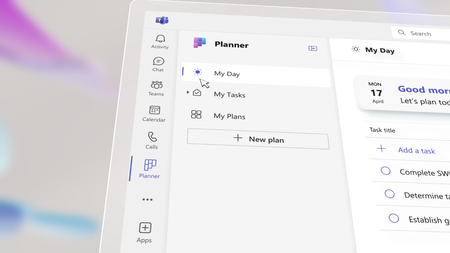
We are thrilled to announce that, in the coming weeks, we’ll start rolling out the new Microsoft Planner for the web! We first announced the new Planner last November at Microsoft Ignite, and this past April, we launched the first version of the new Planner app in Microsoft Teams.528KViews28likes99CommentsTransitioning to Microsoft Planner and retiring Microsoft Project for the web
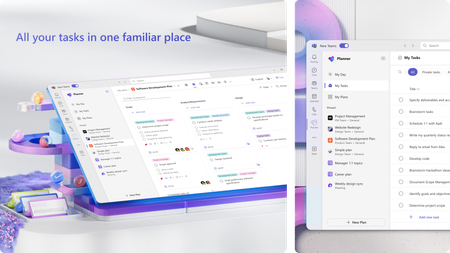
Today, we are announcing the transition to Planner, which aims to provide a unified work management experience through a modern work stack integrating Project for the web, To Do, and Planner. In August 2025, we will retire Project for the web, as well as the Project and Roadmap apps in Microsoft Teams. Users will be redirected to Planner for the web and Planner in Teams as Project for the web becomes Planner. Streamlined tools with a focus on innovation and user experience Previously, Project for the web, Project in Teams, and Roadmap in Teams operated as separate endpoints from Planner. Since Planner for the web and Planner in Teams include the same premium plans as Project for the web, we are consolidating our endpoints to ease confusion. Additionally, Planner integrates basic plans—those created with a Microsoft 365 E3 or E5 license—into a single solution. By unifying our platforms and capabilities, we’ve created an integrated experience within one app, allowing users to seamlessly access both premium and basic plans with a premium plan license for an improved work management experience. This transition is the next step in delivering the experience announced at Microsoft Ignite 2023. No migration or change in licensing is required—all plans previously created in Project for the web are accessible in both Planner for the web and Planner in Teams. With a premium license, Planner provides access to familiar capabilities such as basic plans, along with premium features like Goals, Sprints, Task History, Advanced Dependencies with lead and lag, Baselines, and more. Additionally, it includes our next-generation AI-powered work management tools, including Copilot and the Project Manager agent. Transitioning to Planner (redirect from Project for the web and Project and Roadmap apps in August 2025) Starting in early August, for users who have not already transitioned, when launching Project for the web or Roadmap for the web, users will see a page redirecting them to open Planner for the web https://planner.cloud.microsoft/; you may also use Planner in Teams. Existing Project and Roadmap tabs in Teams will no longer open the associated projects but will inform users to re-pin their tab using the Planner tab for Teams. The Project tab and Roadmap tab apps are no longer available in the Teams app store. Users can manage and create premium plans in Planner, like their current usage in Project for the web. The Project Power App will retain its user experience and be renamed “Planner Power App.” Benefits of using Planner, plus new capabilities Customers find that having too many work management apps can reduce collaboration, miss opportunities, and lower productivity. Planner addresses this by offering one work management solution: A consolidated view of all tasks in “My Tasks” and “My Day.” Access to premium and basic plans and features, from task management to enterprise-level capabilities with low code/no code extensibility. Planner supports your company's work management journey with familiar features, enhanced experiences, and a focus on innovation with a foundation of AI and security including: AI capabilities to automate and boost productivity. Enterprise-grade security at every level. Collaboration between humans and AI for efficient team project management. Copilot in Planner (public preview) and Microsoft 365 Copilot with the new Project Manager agent (public preview) help users work smarter. Project Manager agent automates project management tasks, from plan creation to task execution for you and your team. Easily create new plans, generate tasks by adding goals, assign tasks to the agent, and tracks the agent’s progress. Between late April and early September 2025, we will introduce the following functionalities to Planner: Planner rollout to Government Cloud Community (GCC) High. Users will be able view and manage non-default environment (named organization) plans directly in Planner. The Project Power App will be renamed “Planner Power App” (buttons will be updated accordingly). Project Microsoft 365 admin center settings will migrate to the Planner page. Tenants with premium licenses with no Microsoft 365 license will gain access to basic plan functionality in Planner. Project for the web features that will not be available in Planner to simplify the solution include: Roadmaps: Planner will not support opening Roadmaps. Instead, users can use the Planner Portfolio feature to re-create their existing Roadmaps as Portfolios. Note that Portfolios in Planner will not support adding rows for Azure DevOps or Project Online. Roadmap data will remain available in Dataverse. Import .mpp files: The ability to import a plan created in Project desktop is not available in Planner but can be done through Planner (formerly Project) Power Apps/Accelerator. Learn how to move your project from Project desktop to Planner Power Apps. Roadmap tab in Teams: Users are not able to pin Portfolios as a tab in Teams. How can you prepare for the transition? To ensure a smooth transition to Planner, we recommend that administrators notify users and update any internal documentation to reflect the changes. This retirement will happen automatically in August with no admin action required before or after the rollout. We recommend that you re-create existing Roadmaps as Portfolios in Planner before the redirect begins; and to proactively re-pin your Project in Teams tabs using the Planner in Teams tabs. Supporting resources are available, including detailed guidelines on how to re-create existing Roadmaps as Portfolios in Planner, how to create a new plan with Copilot in Planner (public preview), and how to access and use the Project Manager agent to generate tasks for a plan and assign Project Manager to tasks for execution. We also recommend visiting the Microsoft Planner adoption page for additional helpful resources and information. Resources Check out the “Transitioning to Planner and retiring Project for the web” section in our Frequently asked questions about Microsoft Planner article. Visit the Planner Adoption page. Visit the Microsoft 365 Roadmap for feature descriptions and estimated release dates. Stay up to date on the latest announcements from the Planner and Project team by visiting the Planner Blog and Project Blog. Visit the Planner help & learning page to learn more about existing capabilities in Planner. Watch Planner demos for inspiration on how to get the most out of Planner in Microsoft Teams.490KViews12likes155CommentsUnleashing the power of agents in Microsoft Planner
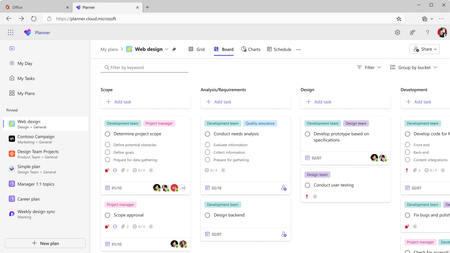
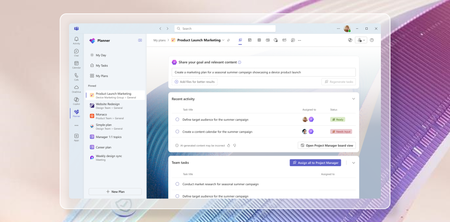
In today's fast-paced world, AI has become an essential tool for enhancing productivity and efficiency. We are committed to empowering our users with innovative solutions that simplify their work processes, and we’re thrilled to introduce the latest updates to Microsoft Planner, designed to leverage the power of Copilot and agents to streamline project management and task organization. With the recent announcement of Project Manager agent, rolling out in public preview in the Planner app in Microsoft Teams, and the rollout of the new Planner for the web, we are bringing you a comprehensive suite of tools to help you and your team achieve more with less effort. We invite you to explore these exciting new features and discover how they can transform the way you work. Introducing Project Manager agent Project Manager agent is a new AI-powered agent designed to enhance your planning experience by acting as a virtual project manager within your plans. Project Manager agent is built to streamline your planning process, empowering you to focus on the strategic aspects of your work while it handles some of the tasks on your behalf. It is the latest development in enhancing and transforming team collaboration with AI in Planner. Earlier this year, we introduced Copilot in Planner (preview) as a personal companion experience designed to work alongside your planner workflow. With Project Manager agent, we’re now bringing AI capabilities directly into your plans, allowing you to interact with the agent as an integral part of your plan. Project Manager agent takes your goals and automatically breaks them down into actionable tasks. But it doesn’t stop there, it can also execute these tasks on your behalf. By managing the plan and executing tasks, the agent enables you to focus on impactful decisions while it contributes directly to the success of your project. When you start a plan with Project Manager agent, it guides you to define a goal you want to achieve (for example, conducting research on a specific topic). The agent will then generate all the necessary tasks for the research topic. Assign these tasks to the agent, and it will execute on them, providing detailed output that is automatically captured in a Loop page embedded within each task. All members of the plan can collaborate directly within the Loop page, exchanging comments and feedback with the Project Manager agent. Upon selecting Regenerate, the agent incorporates the feedback and generates a refined response, improving the task outcomes. At any point, if Project Manager agent does not have adequate information to generate necessary output, it will even ask clarifying questions that will allow it to provide better responses. You will notice that Project Manager agent is capable of contributing at every step of your plan, delivering value throughout the process. This comes with a new Project Manager View in Planner—your hub for setting goals, generating tasks, and showcasing the execution status. This intuitive interface lets you set your project goals and generate tasks, assign tasks to team members or the agent for execution and track progress and statuses in real time. Additionally, in the board view, you can also group tasks by Project Manager, which shows all the Project manager tasks and status in the appropriate buckets. At its core, the Project Manager agent runs on the Multi-Agent Runtime Service (MARS), a platform built on Microsoft Autogen. MARS leverages specialized agents with unique expertise, enabling the Project Manager agent to perform effectively across diverse scenarios. See the blog post to learn more about how Project Manager agent and MARS function. To help you get started, we’ve provided predefined, customizable templates on various topics, allowing you to quickly kickstart a Project Manager plan and easily tailor it to meet your specific goals. Once you’ve selected a template, you can modify the plan to align with your specific needs and goals, ensuring it meets your unique requirements while leveraging the agent’s capabilities for streamlined execution. From idea, to plan, to done, the Project Manager agent is your trusted partner, ensuring every aspect of your plan is managed seamlessly. We’re also introducing the Microsoft Whiteboard canvas in Planner! This new feature allows you and your team to brainstorm directly within the context of your plan. Upon creating a new plan with the Project Manager agent, you will now see a Whiteboard tab in the plan. Whiteboard offers a dynamic and collaborative canvas within Planner, allowing users to easily convert ideas into tasks and streamline workflow from ideation to action. In the canvas, you and your team can engage in real-time collaboration using inking, sticky notes, and templates. With the Planner integration, you can quickly convert your notes to tasks in one click, directly adding them to your plan. We’re excited to bring these powerful tools to your planning experience, and we can’t wait to see the impact of the Project Manager agent in your daily workflows! The new Project Manager agent will be rolling out to public preview in the Planner app in Teams in the coming weeks. To explore these capabilities, customers are required to have a Microsoft 365 Copilot license and also need to ensure their current Microsoft 365 licensing allows them access to Microsoft Loop. As this is a preview release, please note that the features may evolve based on user feedback and ongoing improvements. Initially, Project Manager agent will support English language as the interaction medium, and other languages in the future. We’d love for you to try it out and share your thoughts to help shape its future development! Please select the thumbs up or thumbs down button in the Project Manager view or in the Task details to share what you think about the experience. In addition, we are announcing two more capabilities that will be coming soon to Microsoft Planner: 1. Copilot in My Tasks view: This feature brings AI-powered organization and prioritization to your tasks, helping users effectively manage their backlog and enabling them to stay on top of what matters most. 2. Automated status report emails: Provides the capability to automatically generate a status email from your plans, streamlining the process of sharing weekly updates so you can spend less time on emails and more time moving projects forward. We expect these features to be available for our customers to try early 2025. Join us at Microsoft Ignite to learn more about Project Manager agent in our breakout session, "Boost productivity with Copilot in Microsoft 365 apps." Try Planner for the web today! The new Planner for the web is now available! This marks another major milestone in the Planner journey that we announced last November at Ignite. In April, we launched the new Planner app in Microsoft Teams, and now we've completed the rollout with Planner for the web. Planner for the web now brings together the simplicity of Microsoft To Do, the collaboration of Planner, the power of Project for the web, and the intelligence of Microsoft 365 Copilot into a simple, familiar experience. Discover a new way to manage tasks for individual plans, team initiatives, and larger scale project management aligned to goals and key strategic objectives. We’re excited for you to try it out and share your thoughts. Thanks to your ongoing feedback, we’re continuing to roll out bug fixes and new enhancements regularly to both Planner in Teams and Planner for the Web. We have more exciting updates coming soon including the availability of Planner for the web in GCC, a new board view in the My Tasks view, an updated experience for the Planner app in Teams channels, and more. Check in regularly on the roadmap to learn about what’s coming. Explore the new Portfolios feature The frequently requested Portfolios feature is also rolling out in the Planner app in Teams and will start rolling out in the new Planner for the web app in the coming weeks! This powerful addition is designed to help you effortlessly manage and track progress across multiple plans. With Portfolios, you can now get a consolidated view of all your premium plans and tasks, ensuring nothing slips through the cracks. Whether you're coordinating between teams or looking for a top-down perspective, Portfolios in Planner makes it all possible in one location, streamlining workflows and enhancing collaboration. Join our session at Microsoft Ignite We are eager to share more details about these exciting updates during our session at Microsoft Ignite! Join us as we dive deeper into the new features and capabilities of Planner, and learn how they can elevate your teamwork. Don't miss this opportunity to connect with our team and get a firsthand look at what's new. Share your feedback Your feedback helps inform our feature updates and we look forward to hearing from you as you try out the new Planner! Provide feedback by using the Feedback button in the top right corner of the Planner app. We also encourage you to share any features you want to see in the app by adding it to our Planner Feedback Portal. Learn more Check out the recently refreshed Planner adoption page. Sign up to receive future communication about Planner. Check out the Microsoft 365 roadmap for feature descriptions and estimated release dates for Planner. Watch Planner demos for inspiration on how to get the most out of the new Planner app in Microsoft Teams. Watch the recording from September's What’s New and What’s Coming Next + AMA about the new Planner. Visit the Planner help page to learn more about the capabilities in the new Planner.413KViews14likes44CommentsMicrosoft Project Online is retiring: What you need to know
After more than a decade of supporting project managers and teams around the world, Project Online will officially retire on September 30, 2026. We know this is a significant change, and we want to acknowledge the impact it may have on your organization, your workflows, and your planning processes. This update is exclusive to Project Online and does not affect Project desktop, Project Server, or Planner. Why this change is happening Project Online has served organizations well, but its legacy architecture limits innovation and integration that enhance today’s collaborative work environments, as we announced in 2018. With certain SharePoint Online workflow design tools deprecating in 2026, Microsoft is prioritizing innovation within Planner, Microsoft 365 Copilot, and the Project Manager agent, which represents a new generation of work management tools designed to be more intuitive, scalable, and powered by AI. These tools are built to support both simple task tracking and complex project planning, while integrating deeply across Microsoft 365. What this means for you No immediate disruption: Your current Project Online environment will continue to function as expected until the retirement date. Key dates: October 1, 2025: End of sale for new customers for Project Online-only SKUs. September 30, 2026: Official retirement date – Project Online will no longer be available. Project desktop remains available and is not impacted by this change. Planner remains available, bringing together the simplicity of To Do, the collaboration of Planner, the power of Project for the web, and the intelligence of Microsoft 365 Copilot into a simple, familiar experience. Transition options There are several transition options available, depending on your organization’s needs: Planner: A unified solution for modern work and project management. Premium features in Planner (included in Planner and Project Plan 3 and Planner and Project Plan 5) deliver portfolios, baselines, dependencies, and Gantt charts. Premium license holders (including Project Online customers) already have access to Planner and Project desktop. Now in public preview, Planner introduces Project Manager agent—an AI assistant that automates task creation, status reporting, and execution, adapting to your project’s context and generating professional reports across Planner views—for Microsoft 365 Copilot users. Project Server Subscription Edition: Designed for organizations needing advanced project and portfolio management (PPM) or a close match to the feature set of Project Online. Project Server Subscription Edition provides comprehensive planning, scheduling, and resource management tools, built on the latest SharePoint Server technology. Dynamics 365 Project Operations: Tailored for customers who require robust timesheet management and resource scheduling, Dynamics 365 Project Operations offers integrated tools for project delivery and financials. How to prepare This retirement will happen automatically on the specified dates with no admin action required. You may want to notify your users and update any internal documentation to reflect the above changes. Evaluate the alternatives proposed above and plan the transition immediately. Back up your data, if needed, before the retirement date. To learn more, see Prepare for Project Online retirement. Looking ahead We fully understand the challenge associated with this or any product retirement. We remain excited about the future of our Work Management solutions with enhancements coming to Planner, including advancements in AI-powered project management. With Planner and our AI-powered roadmap, we’re building a future where project management is intuitive, collaborative, and deeply integrated into the flow of work across Microsoft 365. Planner and the Project Manager agent are just the beginning of a more intelligent, integrated, and collaborative project management experience. For more information, visit the Planner Blog or reach out to your Microsoft account team. Frequently asked questions What exactly is being retired? Only Project Online is being retired. This does not affect: Project desktop Project Server Subscription Edition Planner – basic and premium capabilities When is Project Online retiring? October 1, 2025: End of sale for Project Online-only SKUs for new customers. September 30, 2026: Official retirement date. Will my current projects in Project Online stop working before the official retirement date? No. Existing customers can continue to use Project Online with full support until September 30, 2026. Your current projects, integrations, and team member access will remain functional during this period. Why is Microsoft retiring Project Online? The legacy architecture of Project Online limits our ability to deliver modern, AI-powered experiences. Microsoft is investing in Planner and the Project Manager agent to provide more intuitive, scalable, and collaborative project management tools. What are my options after Project Online retires? Depending on your needs, you can transition to: Planner – Planner with premium licenses already included if you have a Planner and Project Plan 3 or Planner and Project Plan 5 license Project Server Subscription Edition Dynamics 365 Project Operations Project desktop – available with Project Standard 2024 or Project Professional 2024 Is Planner included in my Microsoft 365 subscription? Planner with premium features is available through Planner Plan 1, Planner and Project Plan 3, or Planner and Project Plan 5 licenses. Planner Basic is included in Microsoft 365 E3 and E5 subscriptions. Users with E3, E5, and equivalent licenses can also participate as team members on Planner premium plans. What is the Project Manager agent? An AI-powered assistant that helps automate task creation, status reporting, and execution. It works across Planner views and helps teams stay on track with minimal manual effort. It also provides Copilot chat capabilities inside Planner. Can I continue using Project desktop? Yes. Project desktop is not impacted by this change and will continue to be available. What happens to my Project Online projects at the end of September 2026? After Project Online is retired in September 2026, you will no longer be able to access your projects or any associated data within the service. To avoid disruption and potential data loss, it is essential that you back up your data/projects and complete your transition to either Planner or Project Server Subscription Edition before the retirement date. I’m an existing customer of Project Online, when will I stop being able to create new tenants? Starting April 1, 2026, current customers will no longer be able to create new tenants in Project Online. What is happening to Project Server 2016 and Project Server 2019? Both products will come to extended support on July 14, 2026. We recommend upgrading to Project Server Subscription Edition. Where can I find more information and updates? Visit the Planner Adoption page. Visit the Microsoft 365 Roadmap for feature descriptions and estimated release dates. Stay up to date on the latest announcements from the Planner and Project team by visiting the Planner Blog and Project Blog. Visit the Planner help & learning page to learn more about existing capabilities in Planner. Watch Planner demos for inspiration on how to get the most out of Planner in Microsoft Teams.333KViews14likes218Comments