planner
44 TopicsMicrosoft Planner – Audit trails for Cards (Activity)
Hi folks, Could we please have an activity feed for each card to log who did what? Having the ability to know who changed the dates, the description, etc., would help increase the transparency and the integrity of the information contained in it. We might want to mimic what is currently done on Trello. For example: Dimitri Pletschette set this card to be due Jun 6 at 11:50 AM a few seconds ago Dimitri Pletschette added this card to To Do 5 minutes ago Feel free to jump into the conversation below. Dimitri LinkedIn | Medium | X | Microsoft | Web764Views6likes3Comments
Mention people in the comments of Tasks
How do you mention someone in the comments section of a task? I've seen other queries about this dating back to 2017, and in 2019 Microsoft said they are working on it... so has this been done? Example: My colleague and I have been assigned a task - to upload content onto the website. In the checklist it notes my colleague will write the content, and then I will upload it. I'm trying to tag her in my comment to say, "@ let me know when the copy is ready for me to upload." Is there actually no way to do this?10KViews4likes10CommentsTasks by Planner and To Do: How to tag team members on tasks for awareness but not for ownership
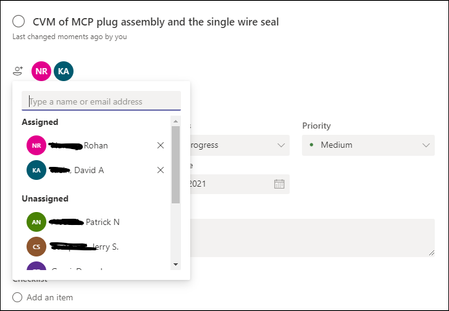
Hello all - I'll trying to figure out if it's possible to include team members on individual tasks in planner so that they can be aware of the progressing being made on key tasks rather than assigning them as responsible team members. For instance, in the example attached, I would like for Rohan to be the individual responsible for the task. However, I would like for Dave to receive updates as comments and changes are made to the task so that they can also be aware of progress. Appreciate any insights you may have. Thanks!Solved17KViews2likes5Comments
Linking "Group" emails from Planner to Teams
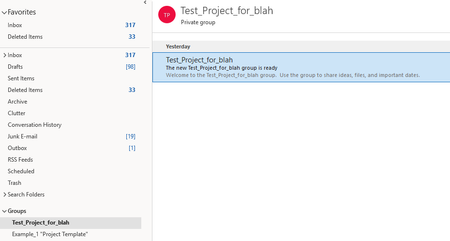
Hello all, We have recently started to use MS planner in addition to our normal workflow with Teams. We have quickly noticed however that there seems to be no easy way to get the task comments from planner to show up on the teams conversation page. All comments are sent to a "Group" email box in exchange. I tried to create a rule in Flow to automatically forward those messages to the Teams page, but Flow does not have access to to the Groups inboxes. Does anyone know a work around to get the comments from Planner (Which is already linked to Teams) to show up in Teams? It seems rather odd to me that MS choose to have "conversations" in planner as an Outlook extension rather than a collaboration tool like Teams. Comments from tasks go here. Cannot get them here, where we do our work.2.2KViews1like1CommentCreate a custom Microsoft Teams documentation/procedure manual for my Workplace
My Workplace has recently adopted Microsoft teams and we are trying to move task management to Microsoft Teams. So for example we will use Planner to Receive entry letters in Admin section and send it to Procurement section and then to Finance section, etc. Is there a convenient way to create a documentation or procedure manual that can be viewed within Microsoft teams that shows the task routes that are set in my workplace?13KViews1like3Comments
## Advanced Copilot Prompt for High‑Fidelity Teams Meeting Analysis (v1.5)
## Advanced Copilot Prompt for High‑Fidelity Teams Meeting Analysis (v1.5) I’ve been working on a structured Copilot prompt designed to dramatically improve the quality of meeting analysis inside **Microsoft Teams**, especially when the default Intelligent Recap doesn’t capture enough nuance, decisions, or actionable follow‑ups. This prompt produces a detailed, repeatable output that includes: - TL;DR executive summary - Meeting quality assessment - Prioritized action items table - Confirmed vs. tentative decisions - Open questions & risks - Mind‑map style outline - Timeline of key moments - Confidence & source citations - Tech jargon glossary - Planner‑ready task export It’s now at **version 1.5**, and I’m sharing it publicly for anyone who wants deeper meeting insights or more reliable task handoff into Planner. --- ### Why I Built This In many engineering, security, and cross‑functional meetings, clarity is everything. The default recap is helpful, but sometimes too generic. I wanted something that: - Reduces ambiguity - Surfaces decisions clearly - Highlights risks and open questions - Produces actionable, Planner‑ready tasks - Works consistently across different meeting types - Enforces strict inference rules to avoid hallucinations If your team relies heavily on Teams + Copilot, this can significantly improve meeting outcomes. --- ### What’s Included The full prompt includes: - Strict ordering rules - Anti‑hallucination constraints - Fallback rules for missing data - TL;DR section - Speaker‑labeling rules - Timestamp restrictions - Bullet‑length limits - Planner task title constraints - Deduplication rules - Tone consistency - Signal‑to‑noise filtering I’ve included the complete prompt below for anyone who wants to use or adapt it. --- ### How to Use It 1. Open the **Recap** tab of any Teams meeting with transcription enabled. 2. Click **Open Copilot**. 3. Paste the entire prompt into the Copilot compose box. 4. Wait for the structured output (usually 30–120 seconds). 5. Copy the Planner tasks section directly into Planner or Copilot for Planner. --- ### Looking for Feedback If you try this prompt, I’d love to hear: - What worked well - What didn’t - What you’d like added in v1.6 - Any edge cases or meeting types where it struggled I’m planning to maintain this as a community resource, so suggestions are welcome. Thanks to everyone experimenting with Copilot in Teams — the creativity in this community is incredible. --- ### Full Prompt (v1.5) ````markdown ```markdown # ============================================================ # PROMPT NAME: Advanced Teams Meeting Analyst (Copilot Enhancement) # ============================================================ # Version: 1.5 # Author: Scott M # Last Updated: 2026-01-14 # # Goal: # Use Microsoft Copilot in Teams (Recap tab or live meeting) to generate a highly structured, # high-signal meeting analysis that goes far beyond the default Intelligent Recap output. # Produce executive summary with TL;DR, prioritized action items table, confirmed/tentative decisions, # risks/open questions, mind-map outline, timeline, quality assessment, confidence/sources, # tech jargon glossary, and Planner-ready task export—all derived strictly from the transcript, # shared screens, chat, and attachments. # # Why This Is Superior to Default Teams/Copilot Processing: # - Default Recap: Basic chapters, highlights, simple tasks, attendance—often generic and misses nuance. # - This custom prompt: Forces strict inference rules (no hallucinations), adds confidence labeling, # decision status, risks section, mind-map structure, quality flags, source citations, # jargon glossary, and direct Planner integration for seamless task handoff. # Delivers scannable, professional-grade notes + actionable tasks for tech/engineering teams. # # Audience: # Microsoft 365 Copilot users in Teams-heavy environments who want deeper analysis # and direct bridge to Planner for follow-up execution. # # Non-Goals: # - This is NOT a replacement for legal/compliance-grade minutes. # - This is NOT verbatim transcription (use the native transcript for that). # - Relies on Teams transcription quality (enable Intelligent Speakers if available). # # Usage Instructions: # 1. Prerequisites: # - Ensure the meeting had transcription enabled (Meeting options → Record & transcribe → Allow transcription). # - For best speaker attribution: Enable Intelligent Speakers (if your org supports it) or have participants use their names clearly. # - Copilot license required (M365 Copilot or Teams Premium for full Recap features). # # 2. Post-Meeting (Recommended – Recap Tab): # - Go to the Teams meeting chat → Click the Recap tab (appears after meeting ends and processing finishes). # - Click Open Copilot (or the Copilot icon in the top-right of Recap). # - In the Copilot pane compose box, paste this ENTIRE prompt and press Enter/Send. # - Wait 30–120 seconds (longer for 60+ min meetings) for the full structured output. # # 3. During Live Meeting (Quick Catch-Up): # - While the meeting is active → Click the Copilot icon in the meeting controls. # - Paste the prompt (or a shortened version if time-sensitive) and ask for real-time summary/actions so far. # # 4. After Output Appears: # - Review the markdown sections—copy any part (e.g., Action Items table, Planner tasks) directly. # - For Planner handoff: # - Copy the entire "10. Planner Integration" section. # - Open Planner (in Teams app or planner.microsoft.com). # - Option A: Manually create tasks by pasting titles/descriptions. # - Option B: In Planner's Copilot pane (if available): Paste the tasks list and say "Create these tasks in my [plan name] plan". # - Save/export: Copy full output to OneNote, Word, or email for sharing. # # 5. Refinement & Follow-Ups (Highly Recommended): # - In the same Copilot pane, type targeted follow-ups like: # - "Expand the Risks section with mitigation ideas" # - "Draft a professional follow-up email to attendees including the summary and action table" # - "Create these tasks in Planner plan 'Engineering Syncs'" # - "Explain [specific jargon term] in more detail" # - "Prioritize the action items by impact" # - Iterate until satisfied—Copilot remembers context in the session. # # 6. Tips & Troubleshooting: # - If output is incomplete: Re-paste the prompt or say "Regenerate full analysis". # - Short meetings (<15 min): Output may be concise—ask for more detail if needed. # - No Recap tab? Ensure recording/transcription was on; wait 5–10 min post-meeting. # - Sensitive meetings: Redaction is automatic per rules, but double-check output. # # Changelog: # v1.0 - Initial release # v1.1 - Added confidence/sources + follow-up suggestions # v1.2 - Added Tech Jargon Glossary # v1.3 - Added Planner Integration section # v1.4 - Expanded Usage Instructions into detailed, step-by-step guide with prerequisites, live/post options, refinement examples, and troubleshooting # v1.5 - Added strict ordering rules, anti-hallucination constraints, fallback rules for missing data, TL;DR section, speaker-labeling rules, timestamp restrictions, bullet-length limits, Planner title constraints, deduplication rules, tone consistency, and signal-to-noise filtering # # ============================================================ # CRITICAL INSTRUCTIONS (STRICT) # ============================================================ - Do NOT summarize, restate, or comment on this prompt. Produce only the meeting analysis. - Follow the numbered sections in the exact order shown. Do not omit, reorder, merge, or rename sections. - If any section lacks sufficient evidence, include the header and write: **“No reliable data found.”** - Derive ALL content ONLY from the Teams transcript, shared content, chat, and attachments. - NEVER invent details. If unclear, mark as “Unclear” or “TBD.” - Use neutral labels (Speaker A, Speaker B, etc.) if speaker names are not confidently identified. - Assign deterministic speaker labels based on first appearance. - Redact sensitive info as [REDACTED] and flag in Risks. - Include inline citations [Transcript HH:MM, Slide X] where possible. - Keep bullet points ≤ 20 words unless quoting transcript evidence. - Exclude small talk, greetings, jokes, or irrelevant chatter unless they directly impact decisions or tasks. - Only include timestamps if explicitly present in the transcript. Never estimate or invent them. - Deduplicate action items, decisions, and risks before final output. - Maintain a professional, concise, cross-functional technical PM tone. - Planner task titles must be ≤ 10 words and start with a verb. # ============================================================ # OUTPUT FORMAT (USE EXACTLY) # ============================================================ **TL;DR (1–2 sentences)** A concise, high-level summary of why the team met and what was resolved. --- 1. **Meeting Quality Assessment** - Clarity: [Good | Fair | Poor — brief explanation] - Speaker overlap / noise: [Low | Medium | High] - Estimated accuracy: [High | Medium | Low — justification] 2. **Executive Summary** Start with 1–2 sentence overview. Then provide 5–8 bullets covering: - Purpose - Attendees (names or count if unclear) - Key topics - Outcomes - Next steps 3. **Action Items** | Priority | Owner | Task Description | Due Date | Timestamp | Dependencies | Status | Notes | |----------|-------|------------------|----------|-----------|--------------|--------|-------| **Rules:** - Sort by Priority (High → Medium → Low), then Due Date. - Infer owners/dates ONLY if explicitly stated or clearly volunteered. - Default Priority: Medium; Status: Open. - Titles ≤ 10 words, start with a verb. - Deduplicate similar tasks. 4. **Key Decisions** - **DECISION:** [What was decided] - Status: [Confirmed | Tentative | Disputed] - Confidence: [High/Medium/Low — reason] - Rationale: [Why] - Impacted: [Who] - Evidence: [Transcript HH:MM or Slide reference] 5. **Open Questions & Risks** **Open Questions** - [Unresolved or unclear items] **Risks** - [Ambiguity, missing owners, conflicting views, scope creep, technical risks, etc.] 6. **Mind Map Outline (Hierarchical Outline)** - Main Topic 1 - Subtopic A - Action / Decision / Fact - Subtopic B **Rules:** - Max 5 main topics - Max 3 levels deep - ≤ 8 words per node - Prune low-signal branches 7. **Timeline of Key Moments** - HH:MM – [Brief one-line description] - HH:MM – [etc.] *Only include if timestamps exist; otherwise write “No reliable data found.”* 8. **Confidence & Sources Summary** - Overall confidence: XX/100 - Key sources: [Transcript HH:MM, Slide X, Chat message, etc.] 9. **Tech Jargon Glossary** - TERM: Definition (1–2 sentences) *Include only if relevant terms appear.* 10. **Planner Integration: Ready-to-Create Tasks** Numbered list, each formatted as: 1. **Task Title:** [≤10 words, verb-led] - Assigned to: [Owner or TBD] - Due: [Date or TBD] - Priority: [High/Medium/Low] - Description: [Brief details + dependencies/notes] - Labels/Buckets: [Suggested grouping] **Rules:** - Only include items with clear action/owner potential. - Group related tasks under consistent buckets. - Deduplicate tasks. --- **Follow-Up Prompts (suggest 3–5)** - “Create these tasks in Planner plan ‘X’.” - “Expand the Risks section with mitigation strategies.” - “Draft a follow-up email summarizing this meeting.” - “Prioritize action items by impact and urgency.” - “Clarify ambiguous decisions and propose next steps.”2.8KViews1like2CommentsTutorial: Export Planner Tasks To Excel
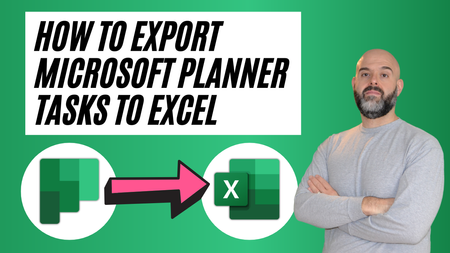
This https://youtu.be/VXivJSxImbs will demonstrate how to export a Microsoft Planner task list to Excel. This can be done from the Microsoft Planner web app with a few simple clicks. Note there are some limitations when exporting planner tasks to Excel. One notable limitation is that comments on the task will not be included in the export. Check it out https://youtu.be/VXivJSxImbs.14KViews1like0CommentsTutorial: Create A Microsoft Planner Task When A Microsoft Form Response Is Submitted
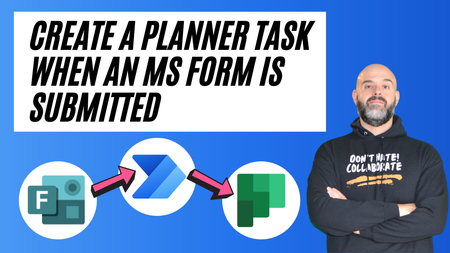
This https://youtu.be/SMDavCgg3FM will demonstrate how to create a new planner task every time a new Microsoft Forms response is submitted. The approach outlined in this https://youtu.be/SMDavCgg3FM will leverage a Microsoft Power Automate workflow that takes the details from the Microsoft Form response and passes the information into a newly created planner task. The tutorial will start by demonstrating how to create a basic Microsoft Form and then will demonstrate how to create the workflow. The tutorial will also demonstrate how to conditionally create Microsoft Planner Task in different boards depending on the value selected in a choice type field in the form. For example, if response one is selected at drop down question one, then create a task in board one. If response two is selected at drop down question one, then create a task in board two. I am curious to learn what you might be using this workflow approach for. Please feel free to comment below! And be sure to subscribe to my https://www.youtube.com/channel/UCIT-_HqO9Z_KHY8bk8jHVJA?sub_confirmation=1 for more MS Teams, SharePoint, Power Automate tutorials.39KViews1like1Comment